
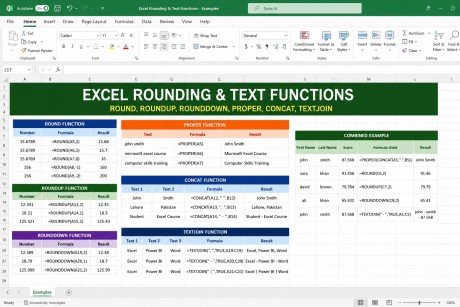
Learning Excel functions can make everyday data management faster, easier, and more accurate. PROPER, CONCAT, TEXTJOIN, ROUND, ROUNDUP & ROUNDDOWN Functions are especially useful for students, office workers, accountants, and anyone who regularly works with names, text, numbers, and calculations. These functions help clean text, combine information, and control numerical values in a worksheet.
In this guide, we will explain PROPER, CONCAT, TEXTJOIN, ROUND, ROUNDUP & ROUNDDOWN Functions with simple formulas and practical examples. Understanding these functions will help you organize messy data, combine text from different cells, and round numbers according to your requirements.
Why Are These Excel Functions Important?
Microsoft Excel provides hundreds of functions for handling different types of data. Some functions are designed for text, while others are used for mathematical calculations.
The PROPER function is useful when names or sentences have inconsistent capitalization. CONCAT and TEXTJOIN help combine information from multiple cells. ROUND, ROUNDUP, and ROUNDDOWN are useful when decimal values need to be simplified or adjusted.
Together, these functions can make spreadsheets cleaner, more professional, and easier to understand.
PROPER Function in Excel
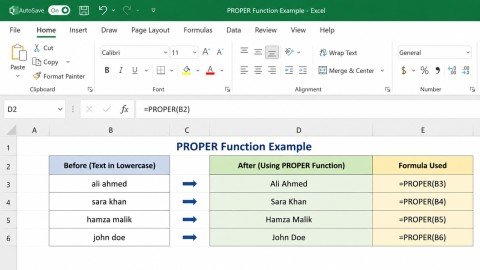
The PROPER function changes the first letter of each word to uppercase and converts the remaining letters to lowercase.
Syntax
=PROPER(text)
Here, text can be typed directly into the formula or can be a reference to a cell.
Example
Suppose cell A2 contains:
john smith
Use:
=PROPER(A2)
Result:
John Smith
This function is particularly useful for customer names, student names, addresses, and other text data.
Another Example
If A2 contains:
microsoft excel course
Use:
=PROPER(A2)
The result will be:
Microsoft Excel Course
When to Use PROPER
You can use PROPER when:
- Names are entered in lowercase.
- Text contains inconsistent capitalization.
- You are cleaning imported data.
- You want names to look professional.
- You are preparing a report or database.
For example:
=PROPER(“computer skills training”)
Result:
Computer Skills Training
Understanding How to Use PROPER, CONCAT, TEXTJOIN, ROUND, ROUNDUP & ROUNDDOWN Functions in Excel becomes easier when you practice each function with real worksheet data.
CONCAT Function in Excel
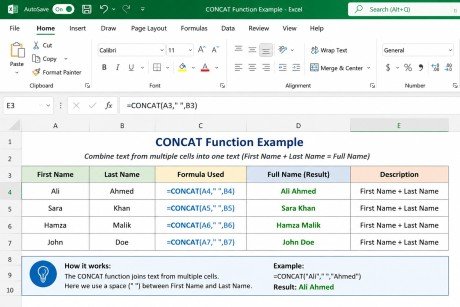
The CONCAT function combines text from multiple cells or text values into one cell.
Syntax
=CONCAT(text1, [text2],…)
For example, suppose you have:
| A | B |
| John | Smith |
To combine the first and last name, use:
=CONCAT(A2,” “,B2)
Result:
John Smith
The space ” ” is added between the two cell values.
Practical Uses of CONCAT
CONCAT can be used to:
- Combine first and last names.
- Create full addresses.
- Join product codes.
- Combine city and country names.
- Create customized messages.
For example:
=CONCAT(A2,” – “,B2)
If A2 contains Student and B2 contains Excel Course, the result will be:
Student – Excel Course
Another example is combining a city and country:
=CONCAT(A2,”, “,B2)
If A2 contains Lahore and B2 contains Pakistan, the result will be:
Lahore, Pakistan
Understanding How to Use PROPER, CONCAT, TEXTJOIN, ROUND, ROUNDUP & ROUNDDOWN Functions in Excel is helpful when working with large amounts of text data.
TEXTJOIN Function in Excel
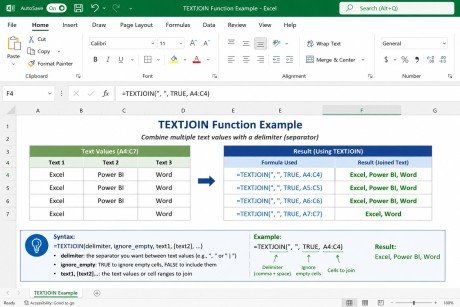
The TEXTJOIN function combines text from multiple cells and allows you to specify a delimiter between each value.
Syntax
=TEXTJOIN(delimiter, ignore_empty, text1, [text2],…)
The first argument specifies what should appear between the text values.
The second argument determines whether empty cells should be ignored.
Example
Suppose you have:
| A | B | C |
| Excel | Power BI | Word |
You can use:
=TEXTJOIN(“, “,TRUE,A2:C2)
Result:
Excel, Power BI, Word
Here:
- “, ” adds a comma and space.
- TRUE tells Excel to ignore empty cells.
- A2:C2 contains the values to combine.
TEXTJOIN with a Different Separator
You can use different separators according to your requirement.
For example:
=TEXTJOIN(” – “,TRUE,A2:C2)
Result:
Excel – Power BI – Word
Or:
=TEXTJOIN(” | “,TRUE,A2:C2)
Result:
Excel | Power BI | Word
CONCAT vs TEXTJOIN
CONCAT is useful when you simply want to combine values.
TEXTJOIN is better when you want to combine several values while automatically placing a separator between them.
ROUND Function in Excel
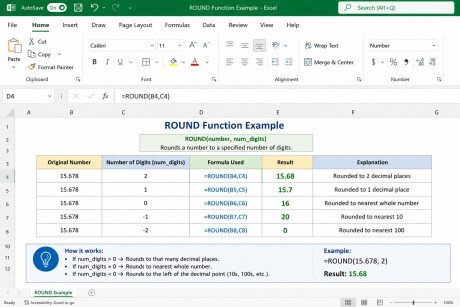
The ROUND function rounds a number to a specified number of digits.
Syntax
=ROUND(number, num_digits)
For example:
=ROUND(15.56,1)
Result:
15.6
If you use:
=ROUND(15.56,0)
Result:
16
Rounding to Decimal Places
If num_digits is positive, Excel rounds the number to the specified decimal places.
For example:
=ROUND(25.678,2)
Result:
25.68
And:
=ROUND(25.678,1)
Result:
25.7
Rounding to Tens or Hundreds
You can also use a negative number for num_digits.
For example:
=ROUND(156,-1)
Result:
160
And:
=ROUND(156,-2)
Result:
200
This is useful when you need approximate values instead of exact numbers.
ROUNDUP Function in Excel
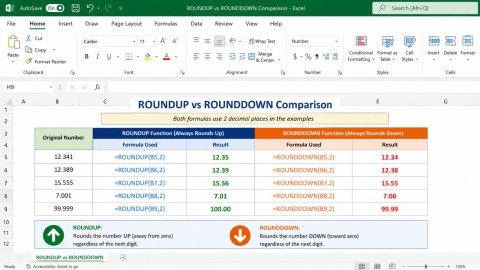
The ROUNDUP function always rounds a number away from zero.
Syntax
=ROUNDUP(number, num_digits)
For example:
=ROUNDUP(12.341,2)
Result:
12.35
Another example:
=ROUNDUP(18.21,1)
Result:
18.3
Unlike ROUND, ROUNDUP does not check whether the next digit is 5 or higher. It always increases the rounded value away from zero.
Practical Example
Suppose a calculated price is:
125.421
and you need two decimal places:
=ROUNDUP(125.421,2)
Result:
125.43
ROUNDUP can be useful when a value must always be rounded upward.
ROUNDDOWN Function in Excel
The ROUNDDOWN function does the opposite of ROUNDUP. It rounds a number toward zero.
Syntax
=ROUNDDOWN(number, num_digits)
For example:
=ROUNDDOWN(12.389,2)
Result:
12.38
Another example:
=ROUNDDOWN(18.79,1)
Result:
18.7
The function is useful when you want to remove extra decimal digits without increasing the value.
ROUND vs ROUNDUP vs ROUNDDOWN
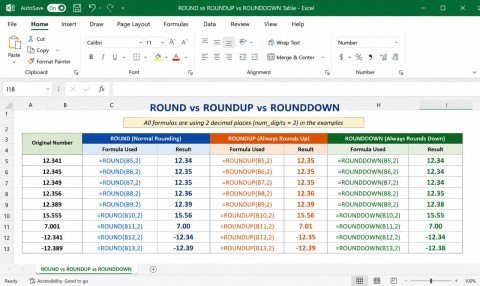
Knowing the difference between these three functions is important.
| Function | Purpose | Example | Result |
| ROUND | Normal mathematical rounding | =ROUND(12.56,1) | 12.6 |
| ROUNDUP | Always rounds away from zero | =ROUNDUP(12.51,1) | 12.6 |
| ROUNDDOWN | Rounds toward zero | =ROUNDDOWN(12.59,1) | 12.5 |
The function you choose depends on the result you need.
ROUND follows normal mathematical rounding rules.
ROUNDUP always increases the number’s magnitude.
ROUNDDOWN removes extra digits without increasing the number’s magnitude.
This is an important part of How to Use PROPER, CONCAT, TEXTJOIN, ROUND, ROUNDUP & ROUNDDOWN Functions in Excel.
Using These Functions Together
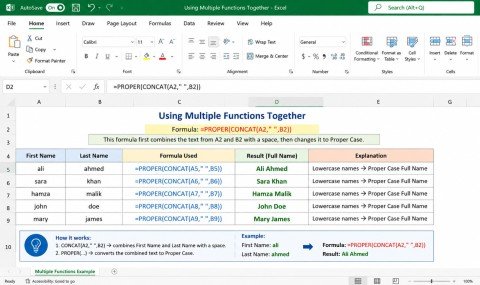
One of the most useful features of Excel is that you can combine functions to solve practical problems.
For example, suppose:
- A2 contains a first name.
- B2 contains a last name.
- C2 contains a score with decimal places.
You can create a properly formatted full name using:
=PROPER(CONCAT(A2,” “,B2))
If A2 contains:
john
and B2 contains:
smith
the result will be:
John Smith
For the score, you could use:
=ROUND(C2,2)
This gives you a clean result with two decimal places.
Another useful formula is:
=TEXTJOIN(“, “,TRUE,A2:C2)
This combines the values in A2 through C2 and places a comma between them.
These combinations make How to Use PROPER, CONCAT, TEXTJOIN, ROUND, ROUNDUP & ROUNDDOWN Functions in Excel more practical for real-world spreadsheet tasks.
Real-Life Excel Example
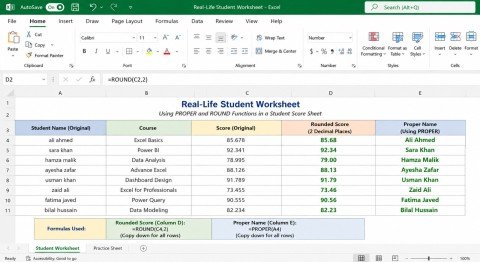
Imagine a student worksheet containing the following information:
| First Name | Last Name | Course | Score |
| john | smith | Excel | 87.568 |
| sara | khan | Power BI | 91.456 |
| david | brown | Word | 79.784 |
You can create a full name with:
=PROPER(CONCAT(A2,” “,B2))
For the first row, the result will be:
John Smith
You can combine information using:
=TEXTJOIN(” – “,TRUE,A2:C2)
The result will be:
john – smith – Excel
You can also use PROPER with TEXTJOIN:
=PROPER(TEXTJOIN(” “,TRUE,A2:B2))
The result will be:
John Smith
To round the score to two decimal places, use:
=ROUND(D2,2)
The result will be:
87.57
If the score must always be rounded upward:
=ROUNDUP(D2,2)
Result:
87.57
If you want to round the score downward:
=ROUNDDOWN(D2,2)
Result:
87.56
This practical example demonstrates How to Use PROPER, CONCAT, TEXTJOIN, ROUND, ROUNDUP & ROUNDDOWN Functions in Excel with a simple worksheet.
Common Mistakes to Avoid
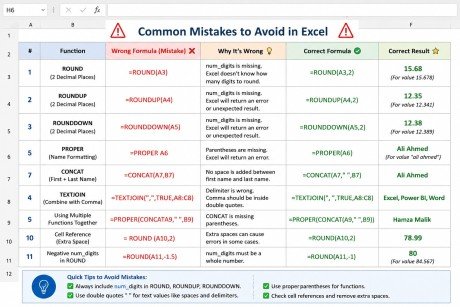
When working with these functions, beginners can make a few common mistakes.
1. Forgetting Quotation Marks
When adding fixed text or spaces, use quotation marks.
Correct:
=CONCAT(A2,” “,B2)
Incorrect:
=CONCAT(A2, ,B2)
2. Using the Wrong Number of Decimal Places
In ROUND, ROUNDUP, and ROUNDDOWN, the second argument controls the number of decimal places.
For example:
=ROUND(A2,2)
means two decimal places.
3. Confusing ROUNDUP with Normal Rounding
ROUND follows standard rounding rules, while ROUNDUP always moves away from zero.
4. Forgetting the Delimiter in TEXTJOIN
If you want commas or spaces between values, specify the delimiter.
=TEXTJOIN(“, “,TRUE,A2:C2)
5. Expecting Formatting to Change the Actual Value
Changing the displayed decimal places through Excel’s formatting options does not necessarily change the underlying value. If the actual calculated result needs to change, use a rounding function.
Avoiding these mistakes will make How to Use PROPER, CONCAT, TEXTJOIN, ROUND, ROUNDUP & ROUNDDOWN Functions in Excel much easier to apply correctly.
Tips for Better Excel Data Management
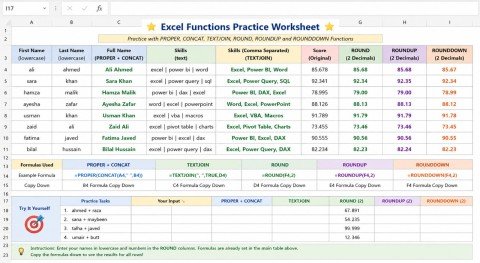
Use PROPER when cleaning names and other text.
Use CONCAT when you need to combine a few text values.
Use TEXTJOIN when you need to combine several values with a separator.
Use ROUND when you need standard mathematical rounding.
Use ROUNDUP when values must always move upward.
Use ROUNDDOWN when you need to remove extra decimal digits without increasing the number.
Practicing How to Use PROPER, CONCAT, TEXTJOIN, ROUND, ROUNDUP & ROUNDDOWN Functions in Excel with your own sample data is one of the best ways to remember these functions.
Conclusion
Excel functions can make data cleaning, text management, and calculations much easier. PROPER helps standardize capitalization, while CONCAT and TEXTJOIN make it simple to combine information from multiple cells. ROUND, ROUNDUP, and ROUNDDOWN provide different ways to control decimal values and create cleaner calculations.
Once you understand How to Use PROPER, CONCAT, TEXTJOIN, ROUND, ROUNDUP & ROUNDDOWN Functions in Excel, you can apply these formulas to student records, business reports, customer databases, financial sheets, and many other types of worksheets. Regular practice will help you choose the right function quickly and work more efficiently in Excel.
Frequently Asked Questions
1. What is the PROPER function used for in Excel?
PROPER changes text so the first letter of each word is uppercase and the remaining letters are lowercase.
2. What is the difference between CONCAT and TEXTJOIN?
CONCAT combines text values, while TEXTJOIN combines values and lets you add a delimiter such as a comma, space, or hyphen.
3. What does the ROUND function do in Excel?
ROUND changes a number to a specified number of decimal places using standard mathematical rounding rules.
4. What is the difference between ROUNDUP and ROUNDDOWN?
ROUNDUP always rounds away from zero, while ROUNDDOWN rounds toward zero and removes extra digits.
5. Can these Excel functions be combined?
Yes. You can combine functions such as PROPER and CONCAT or use rounding functions with calculated values to create useful Excel formulas.
Meta Description
Learn PROPER, CONCAT, TEXTJOIN, ROUND, ROUNDUP and ROUNDDOWN functions in Excel with easy formulas, examples and practical tips for beginners.