
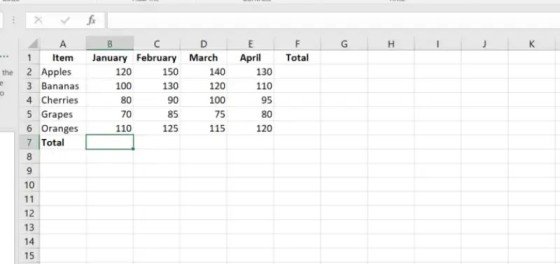
Microsoft Excel is one of the most useful tools for working with numbers and data. Students, teachers, office employees, business owners, and accountants use Excel for many different tasks.
When you work with a large amount of data, calculating numbers manually can take a lot of time. Excel functions make this work much easier and faster.
The SUM, AVERAGE, MAX, and MIN Functions in Excel are four basic functions that every beginner should learn. These functions help you calculate a total, find an average, identify the highest value, and find the lowest value.
In this guide, you will learn how to use these functions with simple examples. You will also learn how to use them for student marks, sales, expenses, and office data.
What Are SUM, AVERAGE, MAX, MIN Functions in Excel?
The SUM, AVERAGE, MAX, and MIN Functions in Excel are built-in functions that help users perform common calculations.
Each function has a different purpose:
- SUM – Adds numbers together.
- AVERAGE – Calculates the average of numbers.
- MAX – Finds the highest number.
- MIN – Finds the lowest number.
For example, suppose you have these student marks:
| Student | Marks |
| Ali | 75 |
| Sara | 88 |
| Ahmed | 65 |
| Ayesha | 92 |
| Hamza | 80 |
You may want to know the total marks, average marks, highest marks, and lowest marks. You can find all these results using simple Excel formulas.
How to Use SUM Function in Excel
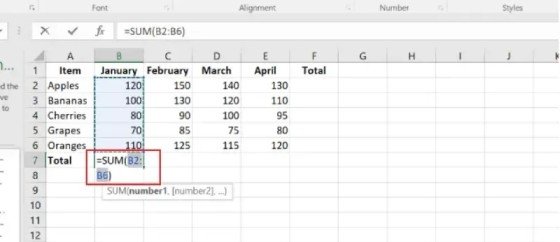
The SUM function is used to add numbers together. It is one of the most commonly used functions in Excel.
You can use SUM for marks, sales, expenses, salaries, prices, and many other types of numerical data.
SUM Function Syntax
=SUM(A1:A10)
This formula adds all numbers from cell A1 to A10.
You can also add individual cells:
=SUM(A1,A3,A5)
This formula adds only the values in A1, A3, and A5.
Example of SUM Function
Suppose student marks are entered in cells B2 to B6:
| Student | Marks |
| Ali | 75 |
| Sara | 88 |
| Ahmed | 65 |
| Ayesha | 92 |
| Hamza | 80 |
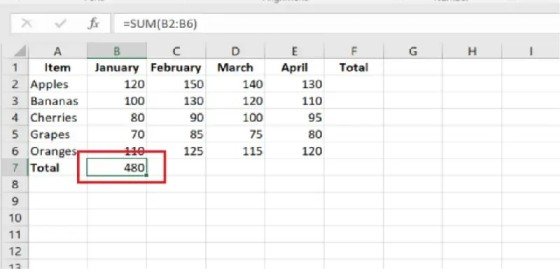
To calculate the total marks, select an empty cell and enter:
=SUM(B2:B6)
Press Enter.
Excel will add all five values.
The result will be:
400
This is much easier than adding every number manually.
Why Should You Use SUM?
Suppose you have 500 sales records. Adding all values manually would take a lot of time.
With the SUM function, you can calculate the total in seconds.
For example:
=SUM(B2:B501)
This formula adds all values from B2 to B501.
How to Use AVERAGE Function in Excel
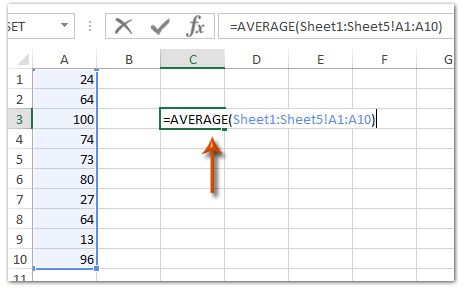
The AVERAGE function is used to calculate the average of a group of numbers.
It is useful for:
- Student marks
- Test scores
- Monthly sales
- Employee performance
- Daily expenses
- Product prices
- Business reports
AVERAGE Function Syntax
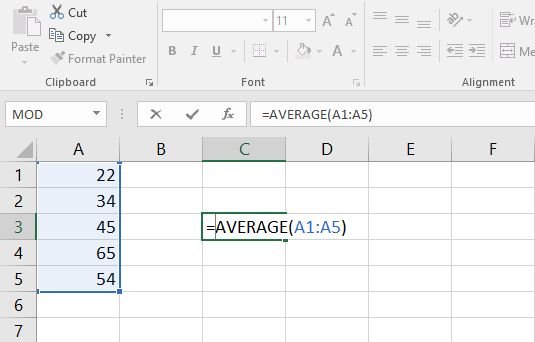
=AVERAGE(A1:A5)
Excel calculates the average of all numerical values in the selected range.
Example of AVERAGE Function
Suppose the marks are:
75, 88, 65, 92, and 80.
Enter:
=AVERAGE(B2:B6)
Excel will calculate the average.
The result is:
80
This means the average marks of the five students are 80.
How to Calculate Average Step by Step
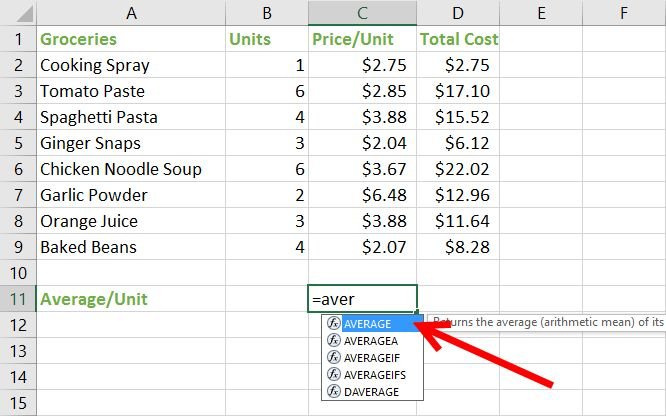
- Click an empty cell.
- Type =AVERAGE(.
- Select the cells containing numbers.
- Type ).
- Press Enter.
Excel will display the average automatically. The SUM AVERAGE MAX MIN Functions in Excel are especially useful when you need to understand a large set of numbers quickly.
How to Use MAX Function in Excel
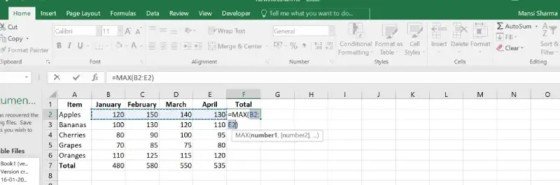
The MAX function helps you find the largest number in a selected range.
It is useful for finding:
- Highest marks
- Highest sales
- Highest salary
- Highest price
- Highest score
- Maximum value
MAX Function Syntax
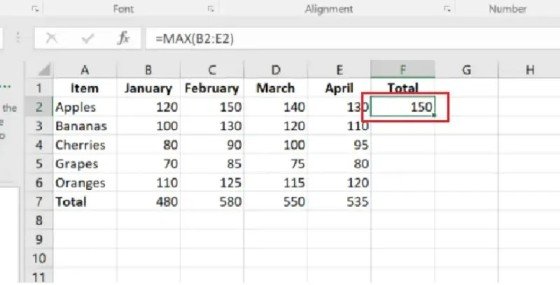
=MAX(A1:A10)
Excel checks all values in the selected range and returns the highest number.
Example of MAX Function
Suppose the marks are:
75, 88, 65, 92, and 80.
Use:
=MAX(B2:B6)
The result will be:
92
This means 92 is the highest value in the selected range.
MAX Function Example for Sales
Imagine a company has these monthly sales:
| Month | Sales |
| January | 45000 |
| February | 52000 |
| March | 48000 |
| April | 61000 |
| May | 55000 |
To find the highest sale, use:
=MAX(B2:B6)
The result will be:
61000
This makes it easy to identify the highest sales value.
How to Use MIN Function in Excel
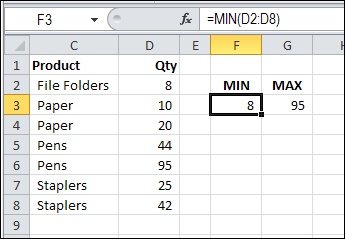
The MIN function is used to find the smallest number in a selected range.
It can be useful for finding:
- Lowest marks
- Lowest sales
- Lowest price
- Lowest salary
- Minimum score
- Smallest value
MIN Function Syntax
=MIN(A1:A10)
Example of MIN Function
Using the student marks:
75, 88, 65, 92, and 80
Enter:
=MIN(B2:B6)
The result will be:
65
This means 65 is the lowest mark in the selected range.
MIN Function Example for Expenses
Suppose monthly expenses are:
| Month | Expenses |
| January | 25000 |
| February | 22000 |
| March | 28000 |
| April | 19000 |
| May | 24000 |
Use:
=MIN(B2:B6)
The result will be:
19000
This shows the lowest monthly expense.
Difference Between SUM, AVERAGE, MAX, and MIN
The SUM AVERAGE MAX MIN Functions in Excel may look similar because they all work with numbers, but each function performs a different task.
| Function | Purpose | Example |
| SUM | Adds numbers | =SUM(B2:B10) |
| AVERAGE | Finds average | =AVERAGE(B2:B10) |
| MAX | Finds highest value | =MAX(B2:B10) |
| MIN | Finds the lowest value | =MIN(B2:B10) |
A simple way to remember them is:
SUM = Total
AVERAGE = Mean
MAX = HighestMIN = Lowest
How to Use All Four Functions Together
You can use the SUM, AVERAGE, MAX, MIN Functions in Excel on the same data range.
Suppose student marks are stored in B2:B6.
Total Marks
=SUM(B2:B6)
Average Marks
=AVERAGE(B2:B6)
Highest Marks
=MAX(B2:B6)
Lowest Marks
=MIN(B2:B6)
This gives you a quick summary of the complete data.
For example:
| Calculation | Formula | Result |
| Total | =SUM(B2:B6) | 400 |
| Average | =AVERAGE(B2:B6) | 80 |
| Highest | =MAX(B2:B6) | 92 |
| Lowest | =MIN(B2:B6) | 65 |
This method is useful for school result sheets, office reports, sales records, and many other Excel projects.
How to Use SUM for Multiple Columns
The SUM function can also be used when your data is spread across multiple columns.
For example:
| Product | January | February | March |
| Laptop | 10 | 15 | 12 |
| Mouse | 20 | 25 | 30 |
| Keyboard | 15 | 18 | 22 |
If you want to calculate the total sales of the Laptop, use:
=SUM(B2:D2)
This adds the January, February, and March values.
You can then copy the formula down for the other products.
This saves time when working with large tables.
How to Use AVERAGE for Student Results
The AVERAGE function is very useful for teachers and students.
Suppose a student has the following marks:
| Subject | Marks |
| English | 75 |
| Mathematics | 82 |
| Science | 88 |
| Computer | 90 |
| Urdu | 80 |
To find the average marks, use:
=AVERAGE(B2:B6)
Excel will calculate the average automatically.
If you have 50 or 100 students, you can use the same formula for each student’s result. The SUM AVERAGE MAX MIN Functions in Excel can make student result sheets much easier to prepare.
How to Find Highest and Lowest Marks
MAX and MIN are very useful for result sheets.
Suppose marks are stored in B2:B51.
To find the highest marks, use:
=MAX(B2:B51)
To find the lowest marks, use:
=MIN(B2:B51)
This allows a teacher to quickly see the highest and lowest marks in a class.
These functions can also be used in school tests, college results, training center records, and exam sheets.
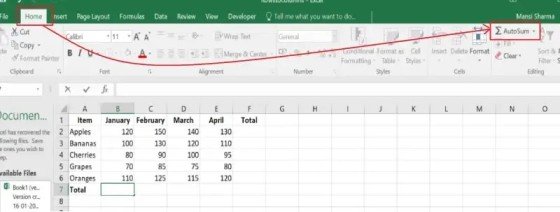
How to Use AutoSum in Excel
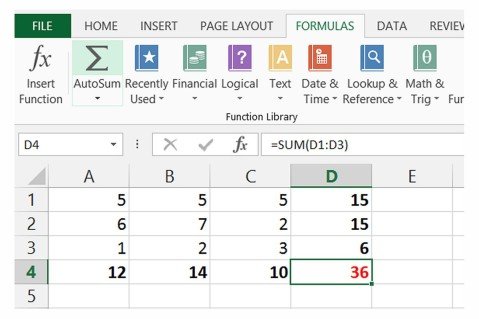
Excel also provides a useful feature called AutoSum.
AutoSum can quickly insert a SUM formula without requiring you to type the formula manually.
Steps to Use AutoSum
- Select the cell where you want the result.
- Go to the Home tab.
- Find the AutoSum (∑) button.
- Click it.
- Excel will suggest a range.
- Check the selected range.
- Press Enter.
Excel will calculate the total.
AutoSum Shortcut
You can also use:
Alt + =
This shortcut quickly inserts the SUM formula.
AutoSum is a helpful feature for Excel beginners.
Can AutoSum Calculate AVERAGE, MAX, and MIN?
Yes. The AutoSum dropdown can also provide other common functions.
You can select:
- SUM
- AVERAGE
- COUNT
- MAX
- MIN
For example, if you want to find the highest value, select MAX from the AutoSum dropdown.
Excel will create the formula for you.
This makes the SUM AVERAGE MAX MIN Functions in Excel easier to use for beginners who are still learning formulas.
Common Mistakes When Using Excel Functions
Beginners can sometimes get incorrect results because of simple mistakes.
1. Selecting the Wrong Range
If you select the wrong cells, Excel will calculate the wrong result.
Always check the cell range before pressing Enter.
2. Numbers Stored as Text
Sometimes numbers are stored as text. Excel may not treat them as normal numbers.
For example, a value may look like a number but actually be text.
You may need to convert the cells to Number or General format.
3. Missing Brackets
A formula needs the correct brackets.
Correct:
=SUM(A1:A10)
Incorrect:
=SUM(A1:A10
Always check that the closing bracket is included.
4. Using the Wrong Function
Make sure you choose the correct function for the task.
Remember:
- SUM = Total
- AVERAGE = Average
- MAX = Highest
- MIN = Lowest
5. Not Checking Your Data
Excel calculates the values you provide. If the original data is wrong, the result may also be wrong.
Always check your data before applying formulas.
Useful Tips for Excel Beginners
If you are learning the SUM, AVERAGE, MAX, and MIN Functions in Excel, practice them regularly.
Start With Small Data
Begin with five or ten numbers. Once you understand the formulas, move to larger data sets.
Use Real Examples
Practice with marks, expenses, sales, salaries, and product prices.
Check Your Formula
After entering a formula, check the formula bar. This helps you understand how the formula works.
Learn Cell Ranges
Understand what A1:A10 means.
It represents all cells from A1 through A10.
Use AutoSum
AutoSum can save time when calculating totals and other common calculations.
Practice Copying Formulas
After creating one formula, try copying it to other rows. This will help you work faster.
Use of These Excel Functions in Office Work
The SUM AVERAGE MAX MIN Functions in Excel are not only useful for students. They are also important in office work.
For example, an employee may use SUM to calculate monthly expenses.
A sales manager may use AVERAGE to calculate average sales.
A business owner may use MAX to find the highest monthly sale.
An accountant may use MIN to find the lowest expense.
These simple functions can make everyday spreadsheet work much easier.
Why Should You Learn These Excel Functions?
Learning basic Excel functions can save time and reduce manual calculations.
Instead of using a calculator for every calculation, you can let Excel do the work.
These functions are also helpful when working with large data sets.
For example, MAX and MIN can quickly identify the highest and lowest numbers from hundreds of records.
SUM can calculate a large total in seconds.
AVERAGE can give you a quick idea of the overall value.
For beginners, these are some of the best Excel functions to learn first.
Final Example of SUM, AVERAGE, MAX, and MIN
Let’s take one final example.
Suppose a shop records five daily sales:
| Day | Sales |
| Monday | 12000 |
| Tuesday | 15000 |
| Wednesday | 10000 |
| Thursday | 18000 |
| Friday | 14000 |
Total Sales
=SUM(B2:B6)
Result: 69000
Average Sales
=AVERAGE(B2:B6)
Result: 13800
Highest Sales
=MAX(B2:B6)
Result: 18000
Lowest Sales
=MIN(B2:B6)
Result: 10000
With just four formulas, you can understand the basic sales performance of the shop.
This example shows why the SUM AVERAGE MAX MIN Functions in Excel are useful for simple data analysis.
Benefits of Using Basic Excel Functions
The SUM AVERAGE MAX MIN Functions in Excel provide several benefits.
Saves Time
You do not need to calculate numbers manually.
Reduces Manual Work
Excel performs the calculations automatically.
Useful for Large Data
You can apply the formulas to hundreds or thousands of cells.
Easy to Learn
The basic syntax of these functions is simple.
Helpful for Reports
They can quickly provide important information from a data set.
Useful for Students
Students can use them for marks and result sheets.
Useful for Businesses
Businesses can use them for sales, expenses, and financial records.
Conclusion
The SUM AVERAGE MAX MIN Functions in Excel are simple but powerful tools for anyone who works with spreadsheets.
The SUM function calculates totals. The AVERAGE function calculates the average of numbers. The MAX function finds the highest value, while the MIN function finds the lowest value.
These functions can be used for student marks, sales records, expenses, salaries, prices, reports, and many other types of data.
If you are a beginner, start by practicing these four functions with small examples. Once you understand them, you can learn more advanced Excel functions such as IF, COUNTIF, SUMIF, VLOOKUP, XLOOKUP, and TEXTJOIN.
Regular practice will help you become more confident and faster when working with Excel.
Frequently Asked Questions
1. What are SUM, AVERAGE, MAX, and MIN Functions in Excel?
These are four basic Excel functions used for common calculations. SUM finds the total, AVERAGE finds the mean, MAX finds the highest value, and MIN finds the lowest value.
2. What is the SUM function used for in Excel?
The SUM function adds numbers from selected cells or a range. For example, =SUM(A1:A10) adds all values from A1 to A10.
3. What does the AVERAGE function do in Excel?
The AVERAGE function calculates the mean of selected numbers. It is useful for marks, sales, scores, expenses, and other numerical data.
4. What is the difference between MAX and MIN in Excel?
MAX finds the highest number in a selected range, while MIN finds the lowest number. Both functions are useful for comparing numerical data.
5. Can SUM, AVERAGE, MAX, and MIN be used together?
Yes. You can use all four functions on the same data range to calculate the total, average, highest value, and lowest value.
Meta Description:
Learn how to use SUM, AVERAGE, MAX and MIN functions in Excel with easy examples. Perfect guide for students, beginners, and office users.
- What Are SUM, AVERAGE, MAX, MIN Functions in Excel?
- How to Use SUM Function in Excel
- How to Use AVERAGE Function in Excel
- How to Use MAX Function in Excel
- How to Use MIN Function in Excel
- Difference Between SUM, AVERAGE, MAX, and MIN
- How to Use All Four Functions Together
- How to Use SUM for Multiple Columns
- How to Use AVERAGE for Student Results
- How to Find Highest and Lowest Marks
- How to Use AutoSum in Excel
- Can AutoSum Calculate AVERAGE, MAX, and MIN?
- Common Mistakes When Using Excel Functions
- Useful Tips for Excel Beginners
- Use of These Excel Functions in Office Work
- Why Should You Learn These Excel Functions?
- Final Example of SUM, AVERAGE, MAX, and MIN
- Benefits of Using Basic Excel Functions
- Conclusion
- Frequently Asked Questions
- Meta Description: