
Have you ever wanted to test a WordPress theme without risking your live website? Many beginners feel nervous when changing themes because one small mistake can break the design or slow down the site. However, there is a safer and smarter way to work on WordPress projects in 2026.
A localhost setup allows you to install WordPress directly on your computer. This means you can test themes, plugins, layouts, and custom code without buying hosting or affecting a real website. In addition, localhost development is faster, more secure, and perfect for learning WordPress step by step.
In this complete guide, you will learn WordPress Theme Installation on Localhost using beginner-friendly methods. Moreover, you will discover how to use tools like XAMPP and LocalWP, create a local WordPress website, install themes correctly, and avoid common mistakes. So, if you want a simple way to practice WordPress safely, this guide is for you.
What Is WordPress Theme Installation on Localhost?
WordPress Theme Installation on Localhost means installing and testing WordPress themes on your personal computer instead of a live internet server. In simple words, your computer works like a web hosting server.
This setup helps beginners learn WordPress without spending money on hosting or domains. At the same time, developers use localhost to test updates, fix bugs, and customize themes before moving websites online.
A localhost website is private. Therefore, only you can access it on your device unless you move it to a live server later.
Why Beginners Should Use Localhost for WordPress Themes
Many people directly install themes on a live website. Although this sounds easy, it can create problems if the theme has errors or compatibility issues. Because of this, localhost is the safer option.
Here are some major benefits of using localhost:
- You can test themes safely
- Your live website stays protected
- Theme customization becomes easier
- Website speed is usually faster locally
- You can work without internet access
- Plugin conflicts can be checked before launch
In addition, installing a WordPress theme on Localhost helps beginners understand how WordPress works behind the scenes. As a result, learning becomes much easier.
Best Tools for Localhost WordPress Setup in 2026
Before installing WordPress themes locally, you need software that creates a local server environment. Fortunately, several free tools are available.
XAMPP
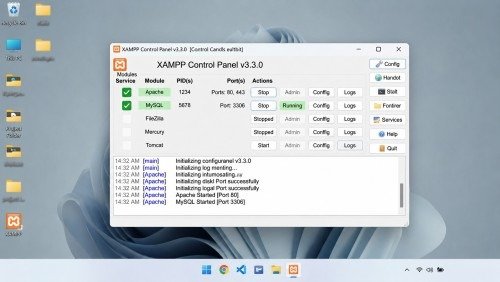
XAMPP is one of the most popular localhost tools. It includes:
- Apache server
- MySQL database
- PHP support
- phpMyAdmin
Moreover, XAMPP works on Windows, Linux, and macOS.
LocalWP
LocalWP is another excellent option for beginners. Unlike XAMPP, it offers a cleaner interface and automatic WordPress setup.
Many beginners prefer LocalWP because it is easier to use. In fact, WordPress Theme Installation on Localhost becomes much faster with LocalWP.
MAMP
MAMP is a popular localhost software mostly used by Mac users for WordPress development.
However, it also supports Windows and helps beginners create local WordPress websites easily.
WAMP
WAMP is designed mainly for Windows users who want to run WordPress locally.
It provides Apache, MySQL, and PHP support to create a complete localhost environment on a PC.
How to Install XAMPP on Your Computer
To start WordPress Theme Installation on Localhost, first install XAMPP on your device.
Step 1: Download XAMPP
Visit the official XAMPP website and download the latest version for your operating system.
After downloading, open the installer file.
Step 2: Select Required Components
During installation, you will see different options. However, you only need:
- Apache
- MySQL
- PHP
- phpMyAdmin
You can leave other options unchecked.
Step 3: Complete Installation
Now choose the installation folder and finish the setup process.
Once completed, open the XAMPP Control Panel.
Step 4: Start Apache and MySQL
Click the “Start” button beside:
- Apache
- MySQL
If both modules turn green, your local server is running correctly.
Download and Install WordPress on Localhost
After setting up XAMPP, the next step is installing WordPress locally.
Create a Website Folder
Go to your XAMPP installation directory and open:
htdocs
Inside this folder, create a new folder for your website.
Example:
mywebsite
Download WordPress
Download the latest WordPress version from the official WordPress website.
After downloading:
- Extract the ZIP file
- Copy all files
- Paste them inside your website folder
Now your WordPress files are ready.
Create a Database for WordPress
A WordPress website cannot work without a database. Therefore, you must create one before installation.
Open phpMyAdmin
In XAMPP, click the “Admin” button next to MySQL.
This will open phpMyAdmin in your browser.
Create a New Database
Now follow these steps:
- Click “New”
- Enter a database name
- Click “Create”
For example:
wordpress_local
Your database is now ready for WordPress Theme Installation on Localhost.
Install WordPress Locally
Open your browser and enter:
http://localhost/mywebsite
You will now see the WordPress installation screen.
Enter Database Details
Use these settings:
| Setting | Value |
| Database Name | Your database name |
| Username | root |
| Password | Leave empty |
| Database Host | localhost |
After that, continue the installation.
Complete Website Setup
Now enter:
- Website title
- Username
- Password
- Email address
Finally, click “Install WordPress.” Congratulations! Your local WordPress website is now ready.
WordPress Theme Installation on Localhost Step by Step
Now comes the most important part: installing themes.
Install a Free Theme
Go to:
Appearance → Themes → Add New
Search for any theme you like.
For example:
- Astra
- GeneratePress
- Kadence
- Blocksy
Click:
- Install
- Activate
Your new theme will now appear on your local website.
Upload a Premium WordPress Theme
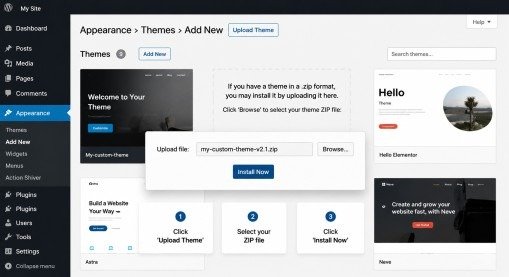
Many users purchase premium WordPress themes for advanced features and better customization options.
Fortunately, WordPress Theme Installation on Localhost also allows you to test premium themes safely before using them on a live website.
In that case:
- Download the theme ZIP file
- Go to Appearance → Themes
- Click “Add New.”
- Select “Upload Theme.”
- Upload the ZIP file
- Click Install
- Activate the theme
This method is commonly used for custom projects during WordPress Theme Installation on Localhost.
How to Customize Themes on Localhost
One major benefit of localhost is safe customization.
You can test:
- Colors
- Fonts
- Layouts
- Widgets
- Menus
- CSS changes
Go to:
Appearance → Customize
Now experiment freely without affecting any live visitors.
Moreover, developers often test advanced custom code locally before launching websites publicly.
Install Plugins Along With Themes
Themes often require plugins for full functionality.
For example:
- Elementor
- WooCommerce
- Contact Form plugins
- SEO plugins
Installing plugins locally helps you check compatibility issues early.
Therefore, WordPress Theme Installation on Localhost becomes safer and more professional.
Common Problems During Localhost Setup
Sometimes beginners face errors while setting up localhost. However, most issues are easy to fix.
Apache Not Starting
This usually happens because another application uses port 80.
You can:
- Stop conflicting software
- Change Apache port settings
Database Connection Error
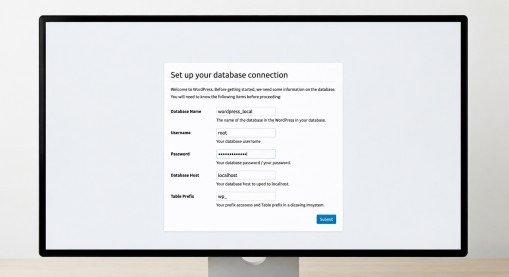
Check:
- Database name
- Username
- Password
Most localhost setups use:
Username: root
Password: empty
White Screen Error
This often happens because of:
- Broken themes
- Plugin conflicts
- PHP memory issues
Disable plugins one by one to identify the problem.
Why LocalWP Is Easier for Beginners
Although XAMPP is powerful, LocalWP is simpler for new users.
With LocalWP:
- WordPress installs automatically
- SSL certificates are included
- Multiple websites are easy to manage
- Theme testing becomes faster
Therefore, many beginners prefer LocalWP for WordPress Theme Installation on Localhost in 2026.
Moving Localhost Website to Live Hosting
After completing your design, you may want to move the website online.
You can do this using:
- All-in-One WP Migration
- Duplicator
- Manual migration
Before migration:
- Test themes carefully
- Check mobile responsiveness
- Optimize website speed
This ensures your website works properly after going live.
Best Practices for WordPress Theme Installation on Localhost
To work professionally, it is important to follow some smart practices during WordPress Theme Installation on Localhost. These tips will help you avoid common problems and improve your workflow.
Keep Backups
Always create a backup before changing themes or editing important files on your local website.
This helps you restore your site quickly if something breaks during testing or customization.
Test Plugin Compatibility
Some WordPress themes may not work properly with certain plugins.
Therefore, you should test plugins locally first to avoid errors, slow loading, or design issues later.
Use Lightweight Themes
Lightweight themes usually load faster and use fewer server resources.
As a result, your website performance improves, which also helps user experience and SEO rankings.
Update PHP Version
Modern WordPress themes are designed to work better with the latest PHP versions.
Keeping PHP updated improves security, website speed, and overall compatibility with plugins and themes.
Avoid Too Many Plugins
Installing too many plugins can slow down your localhost website and create conflicts.
Instead, use only the necessary plugins that improve functionality without affecting performance.
Final Thoughts
Learning WordPress Theme Installation on Localhost is one of the smartest skills for beginners in 2026. Instead of risking a live website, you can safely test themes, customize layouts, and practice WordPress development directly on your computer.
Moreover, localhost tools like XAMPP and LocalWP make the entire process easier than ever before. Whether you want to build a blog, business website, portfolio, or WooCommerce store, localhost gives you a safe environment to learn and improve.
Most importantly, using localhost helps you avoid mistakes before your website goes live. As a result, your final website becomes faster, cleaner, and more professional.
So, if you are serious about learning WordPress, start practicing locally today.
FAQs
How does WordPress Theme Installation on Localhost help beginners?
It allows beginners to test themes, plugins, and design changes safely on their computer before launching a live website.
Which localhost software is best for WordPress in 2026?
Tools like XAMPP and LocalWP are popular because they make WordPress Theme Installation on Localhost simple and beginner-friendly.
Can I install premium WordPress themes on localhost?
Premium themes can be uploaded through the WordPress dashboard using the ZIP file before testing them locally.
Why is localhost important for WordPress development?
Localhost provides a private environment where users can customize websites, fix errors, and test updates without affecting live visitors.
Can I move my localhost WordPress website to live hosting later?
A localhost website can be migrated to live hosting using migration plugins or manual file and database transfer methods.
Meta Description
Learn WordPress Theme Installation on Localhost in 2026 with XAMPP and LocalWP. Easy beginner guide to install, test, and customize WordPress themes safely.
- What Is WordPress Theme Installation on Localhost?
- Why Beginners Should Use Localhost for WordPress Themes
- Best Tools for Localhost WordPress Setup in 2026
- How to Install XAMPP on Your Computer
- Download and Install WordPress on Localhost
- Create a Database for WordPress
- Install WordPress Locally
- Complete Website Setup
- WordPress Theme Installation on Localhost Step by Step
- Upload a Premium WordPress Theme
- How to Customize Themes on Localhost
- Install Plugins Along With Themes
- Common Problems During Localhost Setup
- Why LocalWP Is Easier for Beginners
- Moving Localhost Website to Live Hosting
- Best Practices for WordPress Theme Installation on Localhost
- Final Thoughts
- FAQs
- Meta Description