
Your sidebar is the most underused piece of real estate on your entire website.
Most website owners install WordPress, activate a theme, and accept whatever appears in the sidebar by default — a search bar, a calendar nobody uses, and a list of recent posts with zero visual appeal. Then they wonder why visitors bounce within seconds and conversions stay flat.
Here is what the data tells us — personalized, well-designed sidebars generate 3x more engagement than default widget layouts. And websites that customize WordPress sidebar areas with intent-driven, dynamic widgets see measurable improvements in session duration, page depth, and conversion rates every single time.
In 2026, your sidebar is not decoration. It is a strategic tool. Every element inside it should serve a specific purpose — guiding visitors deeper into your content, building trust, capturing leads, or driving purchases. This complete guide shows you exactly how to customize WordPress sidebar areas from the ground up — with the right widgets, the right tools, and a step-by-step strategy that produces real results.
Why Your WordPress Sidebar Needs a Complete Overhaul in 2026
The default WordPress sidebar experience has not evolved meaningfully since the early days of blogging. But your visitors have — dramatically.
Today’s web users make snap judgments about website credibility within 50 milliseconds of landing on a page. A cluttered sidebar packed with irrelevant widgets, mismatched fonts, and broken social media counters communicates one thing instantly — this website is not professionally maintained.
WordPress powers 43.5% of all websites globally in 2026. That means your visitors have seen thousands of default WordPress sidebars. The moment yours looks like every other generic installation, your credibility advantage disappears entirely.
When you customize WordPress sidebar areas strategically, you create a completely different experience. Visitors see content relevant to what they are already reading. They find clear navigation toward related resources. They encounter trust signals at exactly the right moment in their decision-making process. And that relevance is what keeps them on your site instead of hitting the back button.
Step 1 — Access Your WordPress Sidebar Widget Area
Before you can customize WordPress sidebar content, you need to know exactly how WordPress manages widget areas and where to find the controls.
Two ways to access sidebar widgets in 2026:
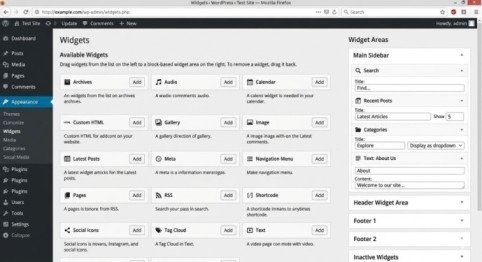
Method 1 — Appearance → Widgets Go to your WordPress dashboard, click Appearance in the left menu, then select Widgets. You will see all registered widget areas for your active theme — typically a main sidebar, footer widget zones, and sometimes widget areas specific to certain page templates. Drag widgets from the available panel on the left into your chosen widget area.
Method 2 — Full Site Editor (Block-Based Themes) If your theme uses the modern Full Site Editor, go to Appearance → Editor. Navigate to your sidebar template part and edit it using the Gutenberg block interface. This method gives you more visual control and works with the block-based widget system that WordPress introduced with version 5.8.
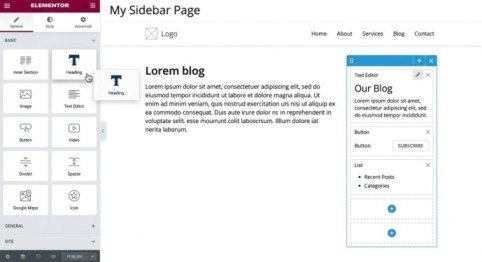
Method 3 — Page Builder Integration If you use Elementor, you can design fully custom sidebar templates through Templates → Theme Builder → Single Post. The sidebar becomes a completely visual design element — drag and drop, no restrictions, no code required.
Understanding which method applies to your specific theme setup is the essential foundation before making any changes.
Step 2 — Remove Every Widget That Does Not Add Value
The most impactful thing you can do when you customize WordPress sidebar areas is remove — not add. Most default sidebars are overcrowded with widgets that consume space without delivering value.
Widgets to remove immediately:
- Calendar widget — Almost nobody navigates blog archives by date in 2026. Remove it without hesitation
- Meta widget — The login link, RSS feed, and WordPress.org link belong in your sidebar only if they serve your specific audience — which for most sites they do not
- Tag cloud — A random cloud of tags with no visual hierarchy confuses visitors and weakens your design immediately
- Unoptimized social media counters — If your follower counts are low, displaying them destroys credibility rather than building it
- Broken or outdated widgets — Any widget pulling data from a service you no longer use should be deleted
After removing clutter, evaluate what remains. Every widget that stays must answer one question clearly — does this widget help my visitor accomplish something meaningful right now? If the answer is uncertain, remove it and replace it with something that earns its place.
Step 3 — Choose the Right Widgets for Your Specific Goals
Different website types need fundamentally different sidebar strategies. The widgets you choose when you customize WordPress sidebar content should reflect your website’s primary conversion goals — not a generic checklist.
Blog and Content Website:
| Widget | Purpose | Priority |
| About/Author Bio | Build personal connection and trust | High |
| Email Opt-in Form | Capture subscribers from engaged readers | High |
| Popular Posts | Keep visitors reading more content | High |
| Search Bar | Help visitors find specific content | Medium |
| Social Media Follow | Grow social audience from site traffic | Medium |
| Related Categories | Improve content navigation depth | Low |
Match your widget selection to your conversion goals and your audience’s most likely needs at the moment they are reading a specific page. This intent-matching is what separates professional sidebar strategy from random widget placement.
Step 4 — Add and Configure High-Value Widgets
Now that you have a clear plan, it is time to add and configure the widgets that will actually drive results when you customize WordPress sidebar areas.
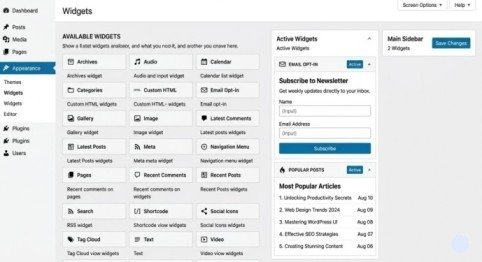
Email Opt-in Widget — Setup Best Practices: An email capture widget is the single highest-ROI element in most content website sidebars. Use a plugin like Mailchimp for WordPress, ConvertKit, or Elementor’s built-in form widget. Configure it with:
- A headline that states the specific benefit of subscribing — not just “Subscribe to our newsletter”
- A single form field for email address only — every additional field reduces completion rates significantly
- A CTA button in your brand’s primary color that stands out clearly from the surrounding sidebar design
- A brief privacy note below the button — “No spam. Unsubscribe anytime” reduces opt-in friction measurably
Popular Posts Widget — Configuration: The default WordPress Recent Posts widget shows posts by date — not by relevance or popularity. Replace it with a dedicated popular posts plugin like Jetpack Popular Posts or WordPress Popular Posts. Configure it to display:
- Post featured image for visual appeal
- Post title in your heading font
- View count or comment count as social proof
- A timeframe filter — posts popular in the last 30 days outperform all-time popular posts for recency-conscious audiences
Author Bio Widget — Trust Building: For content-heavy websites, an author bio widget in the sidebar builds the E-E-A-T signals (Experience, Expertise, Authoritativeness, Trustworthiness) that Google explicitly uses as a quality signal in 2026. Include:
- A professional headshot — real photos outperform illustrations for trust
- Two to three sentences establishing your specific expertise
- Links to your most authoritative content or credentials
- Social profile links if they reflect professional activity
Testimonial Widget — Social Proof: A rotating testimonial widget in the sidebar maintains trust signals across every page without requiring dedicated testimonial sections on each individual page. Use a lightweight testimonial plugin and feature:
- Specific, result-focused testimonials — “increased our revenue by 40%” outperforms “great service”
- Real customer names and company or location
- Star rating display where applicable
Step 5 — Style Your Sidebar to Match Your Brand Perfectly
Adding the right widgets to customize WordPress sidebar areas means nothing if the visual design is inconsistent with your overall website brand. A professionally styled sidebar signals quality and attention to detail — a mismatched one signals the opposite.
Sidebar styling essentials:
Typography Consistency Every widget title and body text in your sidebar should use the same font family as the rest of your website. If your site uses Google Font Poppins for headings and Open Sans for body text, your sidebar must use the same combination. Mixed fonts in the sidebar scream unfinished design.
Color Harmony Widget backgrounds, borders, button colors, and accent colors should come directly from your established brand palette. Use Elementor’s Global Colors system or define custom CSS variables in your theme’s Additional CSS section to enforce consistency automatically.
Spacing and Padding Every widget needs adequate internal padding — minimum 20px on all sides — and clear visual separation from adjacent widgets. Overcrowded sidebars with no breathing room feel claustrophobic and push visitors away rather than drawing them in.
Widget Headers Style all widget title tags (h2, h3) consistently. A simple bottom border, a small left accent bar, or a subtle background color differentiates widget headers from body content without adding visual noise.
Mobile Behavior In 2026, over 60% of web traffic comes from mobile devices — and most mobile themes collapse the sidebar below the main content automatically. Go to Customizer → Additional CSS and verify your sidebar widget order makes sense when displayed vertically on mobile screens. Consider hiding lower-priority widgets on mobile using CSS display properties to keep the mobile experience clean and focused.
Step 6 — Make Your Sidebar Dynamic with Personalized Content
The most powerful upgrade you can make when you customize WordPress sidebar areas is moving from static to dynamic content. Static sidebars show identical content to every visitor on every page. Dynamic sidebars adapt to the visitor’s specific context — and that relevance is what drives the measurable engagement improvements professionals consistently report.
Dynamic sidebar strategies:
Category-Specific Sidebars Show different sidebar content based on the category of the post being read. A visitor reading an SEO article should see your SEO-related lead magnet. A visitor reading a design article should see your design resources. Elementor’s display conditions feature enables this without any coding.
To set this up in Elementor:
- Create multiple sidebar widget area templates in Theme Builder
- Assign different display conditions to each — “Category equals SEO” for one, “Category equals Design” for another
- Each template shows completely different, contextually relevant widgets
Dynamic Post Recommendations Replace generic Recent Posts widgets with dynamic related posts based on tags, categories, or custom taxonomy relationships. Plugins like Yet Another Related Posts Plugin (YARPP) analyze content relationships automatically and display the most relevant recommendations rather than just the most recent ones.
User Behavior Personalization For more advanced implementations, tools like If-So or Elementor’s conditions system allow you to show different sidebar content to first-time visitors versus returning users. Show a welcome offer to new visitors. Show a loyalty reward or premium content upgrade to returning ones. This level of personalization converts at significantly higher rates than one-size-fits-all sidebar design.
Step 7 — Test Performance and Optimize Sidebar Speed
Every widget you add to your sidebar adds code, database queries, or external API calls to your page load time. When you customize WordPress sidebar areas with multiple dynamic widgets, performance optimization becomes mandatory — not optional.
Sidebar performance checklist:
- Audit plugin weight — Every widget-adding plugin loads its own CSS and JavaScript. Use Query Monitor plugin to identify which sidebar plugins add the most database queries per page load
- Implement fragment caching — Cache the HTML output of complex sidebar widgets using WordPress Transients. A popular posts widget does not need to recalculate on every page view
- Compress sidebar images — Author photos, testimonial avatars, and product thumbnails in the sidebar should use WebP format and lazy loading
- Conditional loading — Load sidebar scripts only on pages where those widgets actually appear using conditional tags in your functions.php file
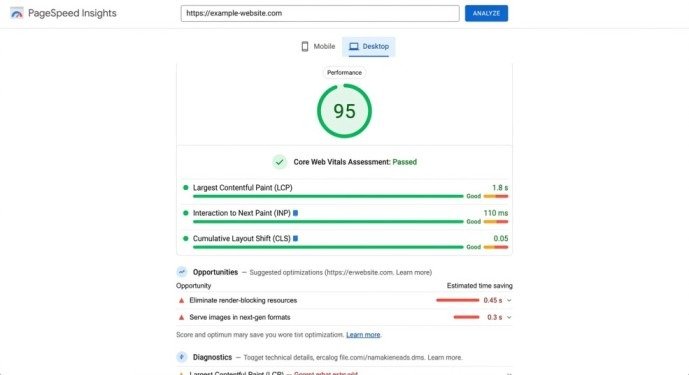
- Test with PageSpeed Insights — Run Google PageSpeed Insights on your key pages before and after sidebar changes. Any widget that reduces your performance score below 90 on mobile needs optimization
A sidebar that adds 500 milliseconds to your page load time costs you rankings and visitors simultaneously. Performance optimization and design quality must advance together — one without the other produces a sidebar that either looks great but loads slowly, or loads fast but fails to engage.
Final Thoughts
Your sidebar is never finished — it is a living, evolving component of your website strategy. The framework in this guide gives you everything you need to customize WordPress sidebar areas with intention, strategy, and professional execution from the ground up. Start by removing what does not belong, add only what genuinely serves your visitors, style everything consistently with your brand, and optimize relentlessly for both performance and conversion.
Revisit your sidebar every quarter. Analyze which widgets drive the most clicks using heatmap tools and Google Analytics event tracking. Remove what is not working. Test new approaches. The websites that win in 2026 are the ones where every element — including the sidebar — is continuously refined based on real data. When you customize WordPress sidebar content with that level of attention and care, it stops being a neglected column on the right side of your page and becomes one of the highest-performing conversion assets on your entire website.
Frequently Asked Questions
Q1: How do I access the sidebar widget editor in WordPress?
Go to Appearance → Widgets in WordPress. Block themes use Appearance → Editor, while Elementor users can edit sidebars in Theme Builder.
Q2: How many widgets should I put in my WordPress sidebar?
Use only 3–5 relevant widgets. Too many widgets can make your sidebar look cluttered and reduce user engagement.
Q3: Can I show different sidebars on different pages?
Yes. With Elementor Pro, you can create different sidebars for different pages, categories, or posts using display conditions.
Q4: Does a sidebar hurt my website’s SEO?
A heavy, slow sidebar can affect SEO and page speed. A clean, optimized sidebar helps improve user experience and engagement.
Meta Description
Learn how to customize your WordPress sidebar with useful widgets to improve website design, navigation, and user engagement.
- Why Your WordPress Sidebar Needs a Complete Overhaul in 2026
- Step 1 — Access Your WordPress Sidebar Widget Area
- Step 2 — Remove Every Widget That Does Not Add Value
- Step 3 — Choose the Right Widgets for Your Specific Goals
- Step 4 — Add and Configure High-Value Widgets
- Step 5 — Style Your Sidebar to Match Your Brand Perfectly
- Step 6 — Make Your Sidebar Dynamic with Personalized Content
- Step 7 — Test Performance and Optimize Sidebar Speed
- Final Thoughts
- Frequently Asked Questions
- Meta Description