
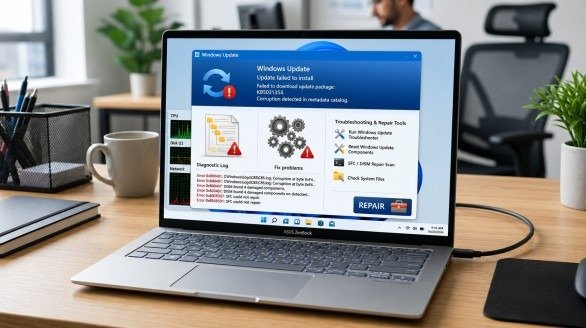
Did your Windows update stop at 0%, freeze at 100%, or show a strange error code? You are not alone. Many Windows users face this problem every year. A failed update can slow down your PC, break important features, or leave your device open to security risks. The good news is that most update problems have simple solutions. If you follow the right steps, you can often solve the issue without paying for professional help.
In this complete guide, you will learn how to Fix Windows Update Errors using easy methods that anyone can follow. We will explain the common causes, the best fixes, and the advanced repair tools built into Windows. By the end of this guide, you will know how to get Windows Update working again and keep your computer running smoothly in 2026.
Why Windows Updates Matter
Windows Update is more than a feature. It keeps your computer safe and healthy. Every update includes security patches, bug fixes, performance improvements, and sometimes new features. If your system misses these updates, it becomes more likely to face bugs, crashes, and security threats.
Keeping Windows updated also helps your PC work better with new software and hardware. It improves system stability and fixes problems that older versions may have.
When Windows Update fails, it is important to resolve the issue as soon as possible rather than ignore it.
What Causes Windows Update Errors?
Before you Fix Windows Update Errors, you should understand why they happen. Knowing the cause makes it much easier to choose the right solution.
The most common causes include:
- Not enough free disk space
- Corrupted update files
- Damaged Windows system files
- Slow or unstable internet
- Disabled Windows Update services
- Driver conflicts
- Antivirus software blocking updates
- Incorrect date and time settings
- Problems with Windows Update cache
Sometimes more than one issue causes the update to fail. That is why you should follow each solution in order rather than skip steps.
Common Windows Update Error Codes
You may see one of these error codes during an update:
- 0x8007000d – Corrupted update files
- 0x800705b4 – Update timed out
- 0x800f0922 – Low disk space or installation problem
- 0x80070005 – Permission denied
- 0x80240034 – Interrupted update
- 0xC1900101 – Driver compatibility issue
- 0x80070002 – Update installation failed
Each error points to a different problem, but many can be fixed with the methods explained in this guide.
Check These Things Before You Start
Many Windows Update problems are easy to solve. Before trying advanced repairs, perform these basic checks. They only take a few minutes and often solve the problem.
Restart Your Computer
A simple restart can remove temporary bugs. If you have not restarted your PC yet, do it first. Then try installing the update again.
Many update failures disappear after a fresh restart because Windows clears temporary processes during boot.
Make Sure Your Internet Connection Is Stable
Windows updates need a reliable internet connection.
If your connection keeps dropping, the download may stop before it finishes.
If possible:
- Restart your router.
- Use a wired connection.
- Pause large downloads on other devices.
A stable connection gives Windows enough time to download every update file correctly.
Free Up Disk Space
Windows needs enough storage before it installs updates.
If your drive is almost full, Windows may stop the installation.
Try deleting:
- Temporary files
- Old downloads
- Large videos
- Unused applications
Aim to keep at least 15–20 GB of free space on your system drive.
Check the Date and Time
Wrong date and time settings can stop Windows from connecting to Microsoft’s update servers.
Open your Windows settings and turn on:
- Set time automatically
- Set time zone automatically
This simple step fixes many connection-related update problems.
Disconnect External Devices
External hardware can sometimes interfere with updates.
Temporarily disconnect:
- USB drives
- Printers
- Webcams
- External hard drives
- Game controllers
After disconnecting them, restart your computer and check for updates again.
Run the Windows Update Troubleshooter
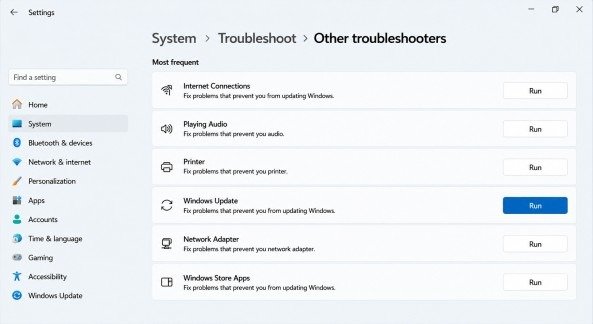
If the basic checks did not solve the problem, the next step is to use the built-in Windows Update Troubleshooter. Microsoft created this tool to find and repair common update issues automatically. In many cases, it fixes missing services, damaged settings, or small update errors without any manual work.
To open the troubleshooter:
- Open Settings.
- Select System.
- Click Troubleshoot.
- Choose Other troubleshooters.
- Find Windows Update.
- Click Run.
Wait until Windows finishes scanning. If it finds any problems, apply every suggested fix. After that, restart your computer and check for updates again.
Using the troubleshooter should always be one of your first steps when you want to Fix Windows Update Errors.
Restart Windows Update Services
Windows Update depends on several background services. If one of these services stops working, updates may fail or become stuck during installation.
Restarting these services gives Windows a fresh start and often solves update problems.
Check the Windows Update Service
Open the Run dialog by pressing Windows + R.
Type:
services.msc
Press Enter.
Find Windows Update in the list.
Double-click it and make sure:
- Startup Type is Automatic
- Service Status is Running
If the service is stopped, click Start.
If it is already running, click Stop, wait a few seconds, and then click Start again.
Restart your computer before checking for updates.
Reset Windows Update Components
Sometimes Windows Update components become damaged. Resetting them creates fresh update folders and removes corrupted files.
Open Command Prompt as Administrator.
Run these commands one by one:
net stop wuauserv
net stop bits
net stop cryptsvc
net stop msiserver
ren C:\Windows\SoftwareDistribution SoftwareDistribution.old
ren C:\Windows\System32\catroot2 Catroot2.old
net start wuauserv
net start bits
net start cryptsvc
net start msiserver
Restart your computer after running the commands.
This method is one of the most effective ways to fix Windows Update Errors caused by damaged update components.
Clear the Windows Update Cache
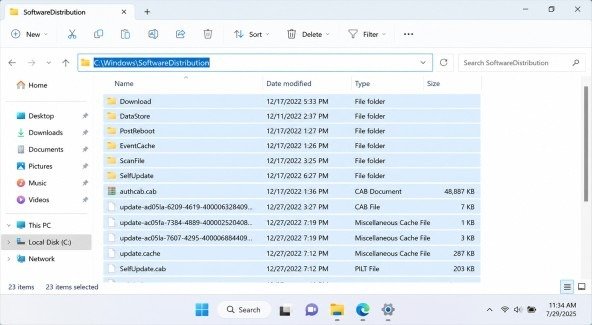
Windows stores downloaded updates inside a cache folder. If one of these files becomes corrupted, future updates may continue to fail.
Deleting the old cache forces Windows to download fresh update files.
How to Clear the Update Cache
First, stop the Windows Update service.
Next, open File Explorer and go to:
C:\Windows\SoftwareDistribution
Delete all files inside this folder.
After that, start the Windows Update service again.
Finally, restart your computer and check for updates.
Do not worry. Windows will automatically recreate the folder when it downloads new updates.
Repair Corrupted System Files
Corrupted system files are another common reason why updates refuse to install.
Windows includes two powerful repair tools that can scan and repair these files.
Run both tools before moving to more advanced solutions.
Run System File Checker (SFC)
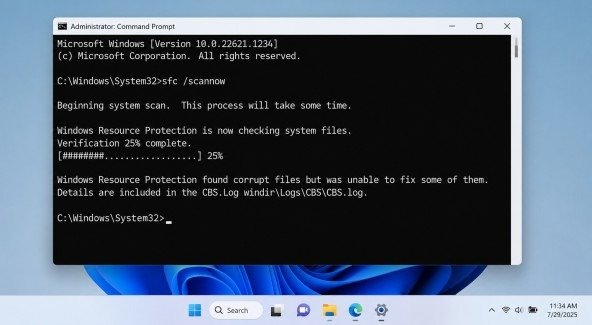
Open Command Prompt as Administrator.
Type:
sfc /scannow
Press Enter.
The scan may take several minutes.
If Windows finds damaged files, it will repair them automatically.
Many users successfully Fix Windows Update Errors after running the SFC scan because it restores missing or corrupted system files.
Run DISM
If SFC cannot repair everything, use DISM.
Open Command Prompt as Administrator.
Run:
DISM /Online /Cleanup-Image /ScanHealth
After the scan finishes, run:
DISM /Online /Cleanup-Image /RestoreHealth
DISM downloads healthy system files from Microsoft’s servers and replaces damaged Windows image files.
Restart your PC after the repair finishes.
Check Your Hard Drive for Errors
Hard drive problems can also interrupt Windows updates.
Bad sectors or file system errors may stop Windows from reading or writing important update files.
Fortunately, Windows includes a built-in disk repair tool.
Run CHKDSK
Open Command Prompt as Administrator.
Type:
chkdsk /f C:
Press Enter.
If Windows asks to schedule the scan during the next restart, type Y and press Enter.
Restart your computer.
The scan may take some time depending on your storage size.
Once Windows finishes repairing the drive, try installing the update again.
This step can also help Fix Windows Update Errors caused by storage problems.
Disable Third-Party Antivirus Temporarily
Some antivirus programs block Windows Update because they mistake update files for unknown activity.
Temporarily disable your antivirus software before checking for updates.
After Windows finishes installing updates, enable your antivirus again.
If disabling the antivirus solves the problem, check whether a newer version of the software is available.
Advanced Solutions to Fix Windows Update Errors

If the basic methods do not solve the problem, try advanced solutions. You can manually install updates from the Microsoft Update Catalog or use System Restore to return your PC to an earlier working state. These methods often help Fix Windows Update Errors when standard troubleshooting does not work.
Final Thoughts
Windows update problems may seem frustrating, but most of them can be solved without professional help. In this guide, you learned the most effective ways to Fix Windows Update Errors, from simple checks like restarting your computer and freeing up storage to advanced repairs using SFC, DISM, and CHKDSK. You also learned how to reset Windows Update components, clear the update cache, install updates manually, and use recovery tools when needed.
The key is to follow each solution in order instead of jumping straight to advanced methods. In many cases, a basic fix is enough to restore the update process. Keeping enough free storage, maintaining a stable internet connection, updating drivers, and installing Windows updates regularly can also help prevent future problems.
If one solution does not work, move to the next until the issue is resolved. With the methods covered in this guide, you can confidently Fix Windows Update Errors and keep your Windows 10 or Windows 11 PC secure, stable, and running at its best.
Frequently Asked Questions (FAQs)
Why do Windows Update errors happen?
Most update problems happen because of corrupted system files, low disk space, outdated drivers, a poor internet connection, or damaged Windows Update components.
What is the fastest way to fix update problems?
Start by restarting your PC, running the Windows Update Troubleshooter, and checking your internet connection. If the issue continues, run SFC, DISM, and CHKDSK to repair Windows.
Can I delete the Windows Update cache?
Yes. Deleting the Software Distribution folder is safe because Windows automatically creates a new update cache the next time it checks for updates.
When should I reinstall Windows?
Reinstall Windows only after trying all other troubleshooting methods. It should be your last option if updates continue to fail.
SEO Meta Description
Learn how to Fix Windows Update Errors with this complete 2026 guide. Discover easy troubleshooting steps, repair tools, and expert solutions to resolve Windows Update issues quickly.