
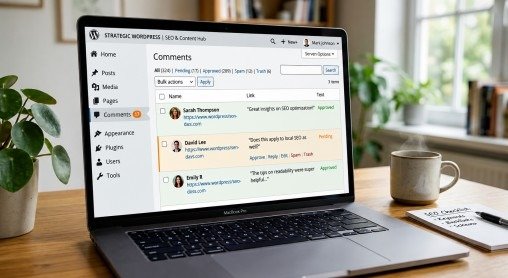
A website without comments often feels silent. However, a website with active discussions looks alive, trusted, and engaging. That is why smart website owners pay close attention to WordPress Comment Settings. When visitors can interact with your content easily, they stay longer on your website and trust your brand more.
Moreover, comments help build a real connection with readers. A simple reply can turn a casual visitor into a loyal follower. At the same time, poor comment management can create spam, slow down your site, and damage user experience. Therefore, learning how to manage WordPress Comment Settings properly is extremely important for every blogger and business owner.
In this complete guide, you will learn how to configure WordPress Comment Settings for better engagement, cleaner discussions, stronger SEO, and a more professional website appearance. Additionally, you will discover useful plugins, moderation tips, spam protection methods, and smart ways to improve comment notifications without making your site complicated.
Why WordPress Comments Matter for Your Website
Comments are more than simple text below a blog post. In fact, they create interaction between you and your readers. When users leave comments, search engines notice that your website is active. As a result, your content may perform better in search rankings.
Besides that, comments increase trust. New visitors often read discussions before believing your content. Therefore, an active comment section can improve credibility naturally.
Here are some major benefits of good WordPress Comment Settings:
- Increase visitor engagement
- Improve SEO performance
- Build audience trust
- Encourage repeat visitors
- Create a strong online community
- Help users ask questions directly
Because of these advantages, many successful WordPress websites focus heavily on comment management.
Understanding WordPress Comment Settings
Before changing anything, you should first understand how WordPress Comment Settings work. WordPress includes a built-in discussion system that gives website owners complete control over comments.
You can manage these settings by going to:
Dashboard → Settings → Discussion
Inside this area, WordPress allows you to control:
- Comment approval
- User registration rules
- Email notifications
- Comment moderation
- Avatar settings
- Threaded comments
- Comment pagination
- Spam filtering options
Although the default settings are useful, customizing them properly creates a much more professional experience.
Enable Comments the Right Way
The first step is deciding whether you want comments enabled on your posts.
Inside the Discussion settings page, you will see the option:
Allow people to submit comments on new posts
When enabled, visitors can comment on newly published articles automatically.
However, not every website needs comments everywhere. For example:
- Blog websites should allow comments
- News websites benefit from discussions
- Business landing pages usually do not need comments
- Portfolio pages often keep comments disabled
Therefore, use comments only where they add value.
Configure Manual Comment Approval

One of the most important WordPress Comment Settings is comment moderation.
Without moderation, spam comments can quickly flood your website. Consequently, your website may look unprofessional.
Enable this option:
Comment must be manually approved
This allows you to review every comment before it becomes public.
Manual approval helps you:
- Stop spam comments
- Prevent abusive language
- Remove fake links
- Keep discussions professional
Although moderation takes extra time, it significantly protects your website’s quality.
Improve User Experience with Threaded Comments
Long discussions can become confusing if replies appear randomly. Thankfully, WordPress includes threaded comments.
This feature allows users to reply directly to specific comments.
As a result:
- Conversations become easier to follow
- Discussions look organized
- Visitors stay engaged longer
Most professional websites enable nested comments because they create a cleaner discussion layout.
Use Smart Email Notification Settings
Email notifications help website owners react quickly to new comments. Fortunately, WordPress Comment Settings include built-in notification controls.
You can enable alerts for:
- New comments
- Comments waiting for moderation
These notifications are extremely useful because they help you respond faster. Quick replies improve user trust and create stronger engagement.
However, websites with heavy traffic may receive too many emails. In that case, disable unnecessary notifications to reduce inbox clutter.
Notify Users When Their Comments Are Approved
Many visitors leave comments and never return because they do not know their comment was approved.
This is where approval notifications become valuable.
By sending approval emails, you can:
- Bring users back to your website
- Increase repeat traffic
- Improve user interaction
- Build stronger relationships
Plugins like comment approval notification tools make this process easy. Additionally, these emails create a more welcoming experience for first-time visitors.
Allow Visitors to Subscribe to Comments
Professional websites often allow users to subscribe to discussions.
This means visitors receive email updates whenever:
- Someone replies to their comment
- New comments appear
- Discussions continue
As a result, users remain connected to your content.
Comment subscription features are excellent for:
- Blogs
- Forums
- Tutorial websites
- Community websites
Moreover, returning visitors can increase page views and overall engagement.
Best Plugins for Better WordPress Comment Settings
Although WordPress has a solid default system, plugins can improve functionality even more.
Comment Subscription Plugins
Subscription plugins help users stay connected with discussions.
These tools usually include:
- Reply notifications
- Double opt-in email verification
- Custom email templates
- User engagement tracking
Consequently, your comment section becomes much more interactive.
SEO Comment Enhancement Plugins
Some plugins focus on improving SEO and moderation features.
These tools may include:
- Better notification emails
- Comment length controls
- Redirect options for first-time commenters
- Cleaner moderation systems
Because of this, your WordPress Comment Settings become more professional and user-friendly.
Manage Spam Like a Professional
Spam is one of the biggest problems in comment management.
As your traffic grows, spam comments usually increase too. Fortunately, smart WordPress Comment Settings can reduce spam dramatically.
Use Moderation Filters
WordPress allows you to block comments containing:
- Suspicious links
- Specific keywords
- Spam phrases
- Blacklisted IP addresses
This prevents many unwanted comments automatically.
Add CAPTCHA Protection
CAPTCHA systems stop bots from submitting fake comments.
These tools help:
- Reduce automated spam
- Improve security
- Protect server resources
At the same time, avoid overly complicated CAPTCHA systems because they can frustrate real visitors.
Limit Links in Comments
Spam comments often contain multiple links.
WordPress allows you to hold comments for moderation when they contain too many links.
This small setting alone can remove a large percentage of spam automatically.
Optimize Comment Settings for SEO
Many website owners ignore the SEO benefits of comments. However, search engines often index valuable user discussions.
Good comments can:
- Add fresh content
- Increase keyword relevance
- Improve dwell time
- Create natural engagement signals
Because of this, smart WordPress Comment Settings can indirectly improve rankings.
However, spammy comments hurt SEO. Therefore, moderation remains extremely important.
Enable Avatars for Better Engagement
Avatars make discussions feel more personal.
When visitors see profile images beside comments, conversations look more human and trustworthy.
WordPress supports avatar systems through built-in settings.
Although avatars are small features, they improve visual engagement significantly.
Control Comments on Older Posts
Old articles often attract spam.
Therefore, many professional websites automatically close comments after a certain number of days.
This strategy helps:
- Reduce moderation workload
- Stop spam attacks
- Keep discussions fresh
However, if your old posts still receive valuable traffic, keeping comments open may be beneficial.
Choose the strategy that fits your website best.
Improve Website Speed with Better Comment Management
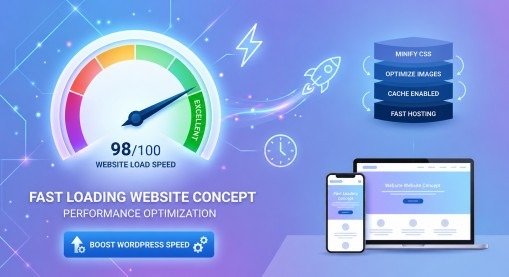
Large comment sections can slow websites down.
This happens because WordPress loads all comments from the database.
To improve speed:
- Break comments into pages
- Remove spam regularly
- Use caching plugins
- Optimize your database
Fast websites improve both SEO and user experience.
Create Better Conversations with Smart Replies
Replying to comments is extremely important.
Even simple responses make readers feel appreciated.
For example:
- Thank users for feedback
- Answer questions politely
- Encourage discussion
- Solve problems quickly
As a result, your website community becomes stronger over time.
Moreover, active discussions encourage new visitors to join conversations too.
Common Mistakes to Avoid
Many beginners make mistakes while configuring WordPress Comment Settings which can badly affect their website performance and user experience. One of the biggest mistakes is ignoring moderation because without checking comments, spam and harmful content can easily appear on your site. Another common issue is requiring registration too early, which often reduces user engagement as visitors don’t like extra steps just to comment.
Allowing unlimited links is also risky because it attracts spam bots and low-quality comments. Similarly, never replying to users can make your website feel inactive and reduce trust among visitors. Lastly, using too many comment-related plugins can slow down your website and create conflicts, so it’s always better to keep things simple and well-managed.
Recommended WordPress Comment Strategy
If you want professional results, follow this balanced approach:
- Enable comments only on useful content
- Use manual moderation
- Allow threaded replies
- Enable email notifications
- Add spam protection
- Use lightweight comment plugins
- Reply to genuine users consistently
This strategy keeps discussions active while maintaining quality.
Final Thoughts
Managing comments correctly can completely transform your website. Good discussions increase trust, improve SEO, and build stronger relationships with readers. Therefore, learning how to configure WordPress Comment Settings properly is essential for long-term success.
Instead of leaving your comment section unmanaged, create a system that encourages meaningful conversations while blocking spam and low-quality interactions. Additionally, use moderation tools carefully so your website remains clean, fast, and professional.
Most importantly, remember that comments are not just website features. They are opportunities to connect with real people. When visitors feel heard, they return more often, engage more deeply, and trust your brand more naturally.
If you apply the strategies in this guide, your WordPress Comment Settings will help create a professional website that feels active, trustworthy, and user-friendly.
FAQs
1. What are WordPress Comment Settings used for?
They control how users comment on your website and help manage approval, spam, and engagement.
2. How can I stop spam in WordPress comments?
By enabling moderation, limiting links, and using CAPTCHA to block unwanted spam.
3. Do comments help improve SEO in WordPress?
Yes, they add fresh content and engagement signals that can support better search rankings.
4. Should I allow comments on all WordPress pages?
No, only enable comments where user interaction adds real value like blog posts.
5. What is the best way to manage WordPress comments?
Use moderation, spam protection, and reply to users regularly for better engagement.
Meta Description
Learn how to manage WordPress Comment Settings to control spam, boost SEO, and improve user engagement for a professional website.
- Why WordPress Comments Matter for Your Website
- Understanding WordPress Comment Settings
- Enable Comments the Right Way
- Configure Manual Comment Approval
- Improve User Experience with Threaded Comments
- Use Smart Email Notification Settings
- Notify Users When Their Comments Are Approved
- Allow Visitors to Subscribe to Comments
- Best Plugins for Better WordPress Comment Settings
- Manage Spam Like a Professional
- Add CAPTCHA Protection
- Limit Links in Comments
- Optimize Comment Settings for SEO
- Enable Avatars for Better Engagement
- Control Comments on Older Posts
- Improve Website Speed with Better Comment Management
- Create Better Conversations with Smart Replies
- Common Mistakes to Avoid
- Recommended WordPress Comment Strategy
- Final Thoughts
- FAQs
- Meta Description