
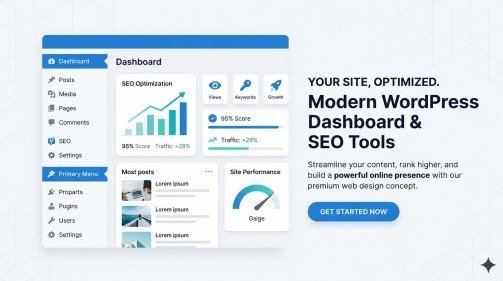
A website may look beautiful, but if visitors cannot move around easily, they usually leave within seconds. That is why navigation plays such an important role in modern web design. A clean and organized WordPress Navigation Menu helps users explore your website comfortably and quickly.
Today, users expect websites to feel simple and smooth. They do not want to search for pages manually or struggle to find important information. Instead, they want fast access to services, blog posts, products, and contact pages. Therefore, a well-designed menu improves both user experience and website performance.
At the same time, search engines also use menus to understand website structure. A strong WordPress Navigation Menu helps Google crawl pages properly and connect important content together. As a result, your website can perform better in search rankings.
In this complete guide, you will learn how to create a professional navigation menu in WordPress, organize it correctly, improve mobile usability, and design a menu that looks modern while staying SEO-friendly.
Why a WordPress Navigation Menu Matters
A navigation menu is more than just a list of links. In reality, it works like a roadmap for your visitors. It tells users where they should go next and helps them discover important sections of your website without confusion.
When people land on your site, the menu is usually the first thing they notice. If the navigation feels clean and easy, visitors stay longer. However, if the menu looks messy or complicated, users often leave quickly.
A professional WordPress Navigation Menu improves:
- User experience
- Website structure
- SEO performance
- Mobile navigation
- Internal linking
- Visitor engagement
Most importantly, it creates trust. A website with organized navigation naturally looks more professional and reliable.
How to Create a WordPress Navigation Menu
Creating a menu in WordPress is very easy. Even beginners can set it up in just a few minutes.
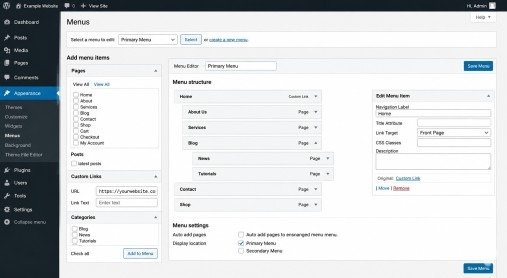
Open the Menu Settings
First, log in to your WordPress dashboard.
Then go to:
Appearance → Menus
After opening the menu section, click on “Create a New Menu.”
Now enter a name for your menu. You can use names like:
- Main Menu
- Header Navigation
- Primary Menu
After naming the menu, click the “Create Menu” button.
Your new WordPress Navigation Menu is now ready for editing.
Add Pages to Your Menu
On the left side of the screen, WordPress shows different content options.
You can add:
- Pages
- Posts
- Categories
- Custom links
Select the pages you want and click “Add to Menu.”
The selected items will appear on the right side.
At this stage, your menu structure starts becoming visible.
Arrange the Menu Items Properly
Now drag and drop the menu items into the order you want.
The most important pages should usually appear first because users notice them quickly.
A clean order improves navigation flow and makes the website easier to explore. For example, visitors naturally expect the contact page near the end of the menu.
Keep the layout simple and avoid unnecessary clutter.
Save and Display the Menu
After organizing your menu, choose the display location provided by your WordPress theme.
Most themes offer locations like:
- Header Menu
- Primary Navigation
- Mobile Menu
- Footer Menu
Finally, click “Save Menu.”
Your WordPress Navigation Menu will now appear live on your website.
Using Dropdown Menus the Right Way
Dropdown menus are useful when your website contains multiple sections or services.
Instead of overcrowding the main navigation bar, dropdown menus help organize related pages neatly under one category.
For example, under a “Services” section, you can place:
- Web Design
- SEO Services
- Content Writing
To create a dropdown in WordPress, simply drag a menu item slightly below another item and move it a little to the right.
WordPress automatically turns it into a submenu.
However, avoid creating too many submenu levels. Deep dropdown structures can confuse visitors and reduce usability, especially on mobile devices.
Choosing the Best Navigation Menu Style
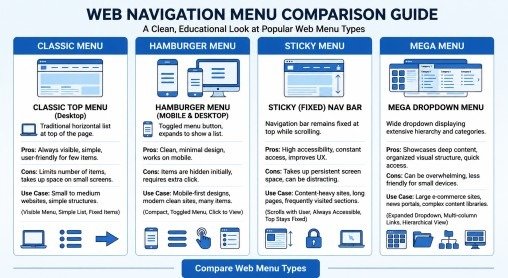
Modern websites use different navigation styles depending on design needs and user behavior.
A professional WordPress Navigation Menu should match your website layout while staying easy to use.
Classic Horizontal Menu
This is the most common navigation style.
It appears at the top of the website and works perfectly for blogs, business websites, and portfolios. Since users are already familiar with this design, navigation feels natural and comfortable.
Hamburger Menu
Hamburger menus are popular on mobile websites.
Instead of showing all links openly, the menu stays hidden behind a small icon. When users tap the icon, the navigation opens.
This style saves space and creates a cleaner mobile layout.
Sticky Navigation Menu
A sticky menu remains visible while users scroll down the page.
This helps visitors access important links at any time without having to return to the top. Sticky menus work especially well on long pages and service websites.
Still, the sticky section should remain small enough so it does not block too much screen space.
Mega Menu
Large websites often use mega menus to display many categories at once.
E-commerce stores, news websites, and educational platforms commonly use this style because it helps organize large amounts of content clearly.
However, mega menus should remain visually organized. Too much information can overwhelm visitors.
Making Your Menu Mobile-Friendly
Mobile responsiveness is extremely important today because most users browse websites through smartphones.
If your WordPress Navigation Menu does not work properly on mobile devices, visitors may leave quickly.
To improve mobile navigation:
- Keep menu labels short
- Use clear icons
- Avoid excessive dropdown layers
- Use readable font sizes
- Test menus on different devices
Additionally, responsive WordPress themes automatically adjust menus for smaller screens, which improves usability.
A smooth mobile experience also supports SEO because Google prioritizes mobile-friendly websites.
Designing a User-Friendly Navigation Experience
A navigation menu should always feel simple and natural.
Visitors should instantly understand where they need to click. Therefore, clean design matters just as much as menu structure.
Use short and clear menu labels instead of complicated wording. For example, “Pricing” works better than “Detailed Service Packages.”
Spacing is also important. Crowded menu items make navigation feel stressful, while balanced spacing improves readability.
At the same time, your menu design should match your overall website branding. Consistent colors, fonts, and hover effects help create a more professional appearance.
Adding Search Features to the Menu
Some websites contain large amounts of content. In those cases, adding a search option inside the navigation can improve usability significantly.
Visitors can quickly search for pages, products, or blog posts instead of manually browsing categories.
Many WordPress themes already support menu search icons. Additionally, plugins and page builders allow advanced search customization.
A search-enabled WordPress Navigation Menu creates a smoother user experience and helps users find content faster.
Common Navigation Menu Mistakes to Avoid
Even attractive websites sometimes fail because of poor navigation design.
One of the biggest mistakes is adding too many menu items. Large menus often confuse visitors and reduce readability.
Another common issue is poor mobile optimization. A menu that works only on desktop devices creates frustration for mobile users.
Confusing labels are also problematic. Visitors should instantly understand every menu item without thinking too much.
Finally, never ignore broken links. Regularly test your WordPress Navigation Menu to ensure every link works properly.
How Navigation Menus Help SEO
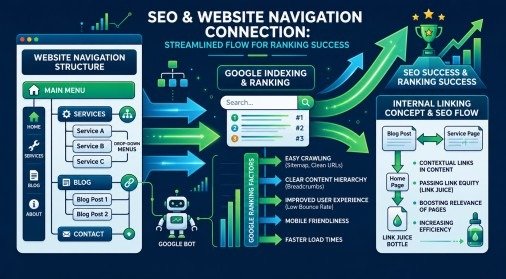
A properly organized WordPress Navigation Menu improves SEO in several important ways.
First, menus create internal links between important pages. This helps search engines crawl and understand your website structure better. Second, good navigation improves user experience. When visitors stay longer and explore more pages, search engines notice these positive engagement signals.
Third, organized navigation helps search engines identify the hierarchy of your website content. As a result, indexing becomes easier. Most importantly, a clean website structure builds trust with both users and search engines.
Final Thoughts
A modern WordPress Navigation Menu can completely improve how visitors experience your website. It helps users move through content easily, supports SEO performance, and creates a cleaner professional design.
Fortunately, WordPress makes menu creation simple even for beginners. With proper planning, responsive design, and organized structure, you can build navigation that feels modern and user-friendly.
Most importantly, remember to keep things simple. Visitors should never feel confused while using your website. A clean menu always performs better than an overloaded one.
So if you want your website to look more professional and perform better in search results, start by improving your WordPress Navigation Menu today.
FAQs
1. How do I create a WordPress Navigation Menu?
You can create a navigation menu in WordPress from the dashboard by going to Appearance → Menus, then adding pages, posts, or custom links and saving the menu.
2. Why is a navigation menu important for a website?
A navigation menu helps visitors move through your website easily, improves user experience, and helps search engines understand your site structure for better SEO.
3. Can I create dropdown menus in WordPress?
Yes, WordPress allows you to create dropdown menus by dragging menu items slightly under a parent item, which automatically creates a submenu structure.
4. How can I make my WordPress menu mobile-friendly?
You can make your menu mobile-friendly by using responsive themes, keeping labels short, avoiding deep dropdowns, and using a hamburger menu style for smaller screens.
5. Does a navigation menu help with SEO rankings?
Yes, a well-structured navigation menu improves internal linking, helps search engines crawl pages easily, and enhances user experience, which can positively impact SEO rankings.
Meta Description
Create a modern WordPress Navigation Menu to improve website design, user experience, and SEO performance. Learn step-by-step menu setup, styling, and mobile optimization for a professional website look.