
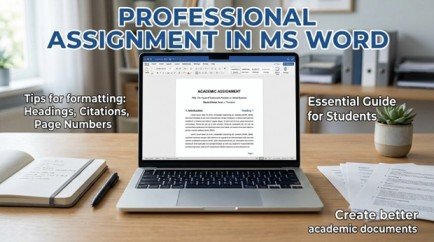
A well-made assignment can leave a strong first impression. Good formatting makes your work look clear, organized, and easy to understand. Creating a neat assignment is important for students. A well-formatted document looks clear and easy to read. Microsoft Word gives you simple tools to create such work. You can set the page, add headings, format text, insert images, and check errors in one place.
If you are a beginner, do not worry. You can make a Professional Assignment in MS Word by following a few simple steps. In this guide, you will learn how to create, format, check, and save your assignment correctly. You will also learn simple formatting tips that can make your document look more polished and professional.
What Makes an Assignment Look Professional?
Before you start writing, it helps to know what a good assignment should look like. A professional document has a clean layout, clear headings, readable text, and proper spacing. Also, each section should follow the same style.
A Professional Assignment in MS Word should not look crowded. Instead, use enough white space between sections. In addition, keep your fonts and heading styles consistent from the first page to the last page.
Most importantly, follow your teacher’s or institute’s formatting instructions if they give you specific requirements.
Start With a New MS Word Document
First, open Microsoft Word and create a blank document. You can select Blank Document from the start screen.
Before writing your content, save the file. This small step can protect your work if your computer suddenly shuts down.
Go to File > Save As, choose a suitable folder, and give your document a clear name. For example, you can use the assignment title or subject name.
For a Professional Assignment in MS Word, saving your work regularly is a good habit. You can also press Ctrl + S while working.
Set the Page Size and Layout

After saving your file, set the page layout. Most academic assignments use an A4 page unless your teacher gives different instructions.
Go to Layout > Size > A4. Then select Layout > Orientation > Portrait for a normal assignment.
Set Suitable Margins
Margins create space around your text. They also make the document easier to read and print.
Go to Layout > Margins and choose Normal. This gives your page a balanced appearance.
If your institute has given a specific margin size, use those instructions instead. This is important because academic formatting rules can differ.
Choose a Clear Font and Text Size
Next, choose a simple and readable font. Common choices include Arial, Calibri, and Times New Roman.
For normal body text, 12 pt is often a practical choice. However, always follow your assignment instructions if a different font or size is required.
A Professional Assignment in MS Word should use one main font throughout the body. Avoid using many decorative fonts because they can make your work look less formal.
You can change the font from the Home tab. Select your text, then choose the font and size you need.
Create a Professional Cover Page
The cover page is the first part of your assignment. Therefore, it should be clean and organized.
Usually, you can include:
- Assignment title
- Student name
- Roll number
- Course or subject
- Teacher’s name
- Class or semester
- Submission date
Keep the information properly aligned. You can use center alignment for the main title and organize the remaining details with suitable spacing.
A simple cover page often looks better than one filled with unnecessary designs. This helps your Professional Assignment in MS Word look academic and organized.
Use Proper Headings and Subheadings
Headings help readers understand your assignment quickly. Instead of making every heading bold manually, use Word’s built-in heading styles.
Go to the Home tab and find the Styles section. You can use Heading 1 for major sections and Heading 2 or Heading 3 for smaller sections.
Use Heading 1 for Main Sections

Heading 1 should be used for important sections such as Introduction, Main Discussion, and Conclusion.
Use Heading 2 and Heading 3 for Smaller Sections
Heading 2 can divide a major section into smaller topics. Similarly, Heading 3 can be used when you need another level of organization.
Using styles also makes it easier to create a table of contents later. As a result, your Professional Assignment in MS Word becomes easier to navigate.
Format Paragraphs and Line Spacing
Good paragraph formatting improves readability. Avoid putting large blocks of text together because they can be difficult to read.
Select your text and go to Home > Paragraph. From there, you can adjust alignment, indentation, and line spacing.
A common academic choice is 1.5 or double spacing, but the correct option depends on your assignment requirements.
Also, keep paragraph spacing consistent. Do not press the Spacebar many times to create gaps. Instead, use Word’s paragraph settings.
Add a Table of Contents
A table of contents is useful for longer assignments. It shows your main sections and their page numbers.
First, apply Heading 1, Heading 2, and other heading styles to your sections. Then place your cursor where you want the table of contents.
Go to References > Table of Contents and select an automatic style.
If you later change your content, right-click the table and select Update Field. Word can then update the headings and page numbers.
This feature can save time when creating a Professional Assignment in MS Word, especially when the document has many sections.
Insert Images, Tables, or Charts Carefully
Sometimes an assignment needs an image, table, chart, or diagram. Microsoft Word makes this easy.
Go to the Insert tab and choose the element you need. You can add pictures, tables, shapes, charts, and other objects.
However, do not add visuals just to make the assignment longer. Each image or table should support your topic.
Also, make sure images are clear and properly placed. Use captions when your teacher requires them.
Add Page Numbers

Page numbers help readers move through your assignment. They are especially useful for longer documents.
Go to Insert > Page Number and choose a suitable position, such as the top or bottom of the page.
Some academic assignments do not show a number on the cover page. If required, you can use the Different First Page option in the Header & Footer settings.
Before submitting your ProfessionalAssignment in MS Word, check that the page numbers appear correctly.
Check Spelling, Grammar, and Formatting
Once your writing is complete, do not submit it immediately. First, review the document carefully.
Go to the Review tab and use Word’s spelling and grammar tools. These tools can help identify common writing errors.
Read the Assignment Yourself
Automatic checking is useful, but it should not replace your own review. Read each paragraph and check whether the sentences make sense.
Also check:
- Spelling mistakes
- Grammar errors
- Missing words
- Incorrect headings
- Extra spaces
- Wrong page breaks
- Inconsistent formatting
After checking everything, your Professional Assignment in MS Word will look more polished and ready for submission.
Add References and Citations
If you use information from books, websites, research papers, or other sources, include proper references.
Microsoft Word has tools under the References tab that can help you manage citations. You can select a citation style such as APA or MLA when required.
However, always follow the style requested by your teacher or institution. Different subjects may use different referencing rules.
Proper citations also help you show where your information came from. Therefore, references are an important part of a Professional Assignment in MS Word.
Save and Export Your Assignment
When your assignment is finished, save the editable Word file. The usual format is .docx. You may also need to submit the assignment as a PDF. To do this, go to File > Save As or File > Export, depending on your version of Word, and choose PDF.
Before exporting, check the document one final time. Make sure no heading, image, table, or page number has moved unexpectedly. Keeping both the Word and PDF versions can also be useful. The Word file allows future editing, while the PDF helps preserve the final layout.
Final Checklist Before Submission

Before submitting your assignment, take a few minutes for a final check. This can prevent simple mistakes from affecting the final document.
Check these points:
- The title page is complete.
- The page size and margins are correct.
- The font is consistent.
- Headings are properly formatted.
- Paragraph spacing is clear.
- Page numbers are correct.
- Images and tables are placed properly.
- Spelling and grammar have been checked.
- References are included where needed.
- The final file has been saved correctly.
This final review is one of the easiest ways to improve the quality of your Professional Assignment in MS Word.
Conclusion
Making a good assignment is not only about writing information. The document should also be clear, organized, and easy to read. Microsoft Word provides the tools you need to achieve this.
Start by setting the page layout and margins. Then choose a readable font, create a clean cover page, use proper headings, and format your paragraphs. After that, add useful visuals, page numbers, references, and a table of contents when needed. Finally, check your spelling, grammar, layout, and file format before submission. By following these steps, you can create a neat and well-organized Professional Assignment in MS Word with confidence.
Frequently Asked Questions
How do I start a professional assignment in MS Word?
Start by opening a blank Word document, saving it with a clear name, and setting the page size, margins, font, and spacing according to your assignment requirements.
What font should I use for an MS Word assignment?
Times New Roman, Arial, or Calibri are commonly used for assignments. A 12-point font is often suitable for body text, but always follow your teacher’s required format.
How can I add page numbers in MS Word?
Go to Insert > Page Number and choose where you want the number to appear. You can also change the settings if the cover page should not show a number.
How do I create a table of contents in MS Word?
First, apply Word’s Heading 1, Heading 2, and Heading 3 styles to your sections. Then go to References > Table of Contents and select an automatic style.
Meta Description
Learn how to make a Professional Assignment in MS Word with easy steps for formatting pages, headings, spacing, page numbers, references, and final checks.
- What Makes an Assignment Look Professional?
- Start With a New MS Word Document
- Set the Page Size and Layout
- Choose a Clear Font and Text Size
- Create a Professional Cover Page
- Use Proper Headings and Subheadings
- Insert Images, Tables, or Charts Carefully
- Add Page Numbers
- Check Spelling, Grammar, and Formatting
- Add References and Citations
- Save and Export Your Assignment
- Final Checklist Before Submission
- Conclusion
- Frequently Asked Questions
- Meta Description