
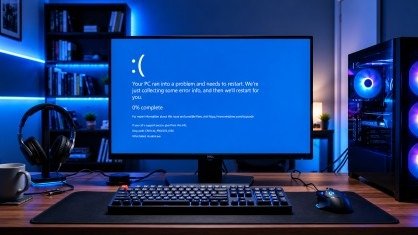
The Blue Screen of Death is one of the most frustrating problems Windows users face. It can appear without warning, stop your work, and force your computer to restart. While the error looks serious, it does not always mean your PC is permanently damaged. In many cases, the problem is caused by outdated drivers, damaged system files, faulty RAM, or a failed Windows update. The good news is that most Blue Screen of Death errors can be fixed by following the right troubleshooting steps.
First, you need to identify the cause of the crash. Then, you can apply the correct solution to restore your computer. This guide explains simple and effective ways to fix the Blue Screen of Death on Windows 10 and Windows 11. By the end of this article, you will know how to diagnose the problem, repair your system, and reduce the chances of future crashes.
What Is the Blue Screen of Death?
The Blue Screen of Death, also known as a BSOD or Stop Error, is a safety feature built into Windows. It appears when the operating system detects a serious problem that could damage your computer or cause data loss.
Instead of allowing Windows to continue running, the system immediately stops all processes and displays a blue error screen. After that, the computer usually restarts automatically.
Although the Blue Screen of Death may look alarming, it is actually Windows trying to protect your device.
What Does the Blue Screen of Death Mean?

The Blue Screen of Death means Windows has detected a critical error that it cannot recover from safely.
The problem may come from software, hardware, or damaged system files. Because the operating system cannot continue without risking further damage, it shuts everything down until the issue is resolved.
Why Does Windows Show the Blue Screen of Death?
Windows displays the Blue Screen of Death whenever an important system component stops working correctly.
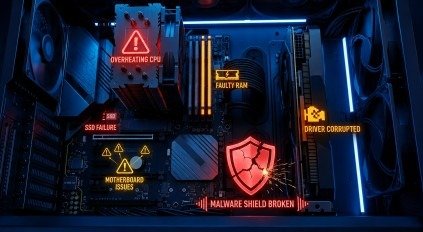
This can happen because:
- A device driver becomes corrupted.
- Windows system files are damaged.
- RAM develops errors.
- Hardware begins to fail.
- A serious operating system problem is detected.
Understanding why the Blue Screen of Death appears is the first step toward fixing the issue correctly.
Common Causes of Blue Screen of Death
Several issues can trigger the Blue Screen of Death. However, most crashes happen because of a few common problems.
Learning these causes helps you solve the problem more quickly and avoid repeated crashes.
Outdated or Corrupt Device Drivers
Device drivers allow Windows to communicate with your hardware.
If a driver becomes outdated, corrupted, or incompatible after an update, it may cause the Blue Screen of Death.
Graphics card drivers are among the most common reasons because they receive frequent updates.
Faulty RAM
RAM stores temporary data while your computer is running.
If the memory becomes faulty, Windows may receive incorrect information, leading to random crashes and the Blue Screen of Death.
Common signs include:
- Random restarts
- Frequent system crashes
- Programs closing unexpectedly
- File corruption
Testing your RAM is an important step before trying more advanced repairs.
Corrupted Windows System Files
Windows depends on thousands of system files to work properly.
If these files become damaged because of failed updates, sudden shutdowns, malware, or storage errors, the operating system may display the Blue Screen of Death.
Fortunately, Windows includes built-in tools that can repair many damaged files automatically.
Hardware Problems
Sometimes the issue is not related to software.
Hardware failures can also cause the Blue Screen of Death.
Common examples include:
- Failing SSD or HDD
- Faulty motherboard
- Damaged power supply
- Overheating processor
- Defective graphics card
When hardware is failing, replacing the faulty component is often the best solution.
Malware and Virus Attacks
Malware can damage important Windows files and make your operating system unstable.
Some viruses modify system settings or delete essential files, increasing the chances of the Blue Screen of Death appearing.
Running a full antivirus scan is always recommended before making major system changes.
Check the BSOD Error Code First
Before trying different solutions, check the error displayed on the blue screen.
Windows usually shows a Stop Code that helps identify the cause.
Examples include:
- IRQL_NOT_LESS_OR_EQUAL
- PAGE_FAULT_IN_NONPAGED_AREA
- SYSTEM_SERVICE_EXCEPTION
- DRIVER_IRQL_NOT_LESS_OR_EQUAL
- CRITICAL_PROCESS_DIED
Take a picture of the screen before restarting your computer.
The Stop Code provides valuable information and makes troubleshooting much faster.
Boot Windows in Safe Mode
Safe Mode starts Windows with only the essential drivers and services.
If your computer works normally in Safe Mode, the problem is likely caused by software, drivers, or startup programs instead of hardware.
How to Enter Safe Mode
- Hold the Shift key.
- Click Restart.
- Select Troubleshoot.
- Choose Advanced Options.
- Open Startup Settings.
- Press F4 to enter Safe Mode.
Once inside Safe Mode, you can remove faulty drivers, uninstall recent software, or repair Windows without repeated crashes.
Update or Roll Back Device Drivers
Device drivers help Windows communicate with your hardware. If a driver becomes outdated, corrupted, or incompatible, it can trigger the Blue Screen of Death.
Driver problems often appear after installing a Windows update or a new graphics driver. Therefore, checking your drivers should be one of the first troubleshooting steps.
Update Your Drivers
Keeping drivers updated improves stability and fixes known bugs.
To update a driver:
- Press Windows + X and open Device Manager.
- Expand the hardware category.
- Right-click the device.
- Select Update Driver.
- Follow the on-screen instructions.
Always download drivers from the official manufacturer whenever possible.
Roll Back a Driver
If the Blue Screen of Death appears after installing a new driver, rolling back to the previous version may resolve the issue.
Open Device Manager, right-click the device, choose Properties, open the Driver tab, and click Roll Back Driver if the option is available.
Repair Corrupted Windows Files
Damaged Windows files are another common reason behind the Blue Screen of Death.
Fortunately, Windows includes built-in tools that automatically repair missing or corrupted system files.
Run the SFC Scan
The System File Checker scans protected Windows files and replaces damaged files with healthy copies.
Open Command Prompt as Administrator and type:
sfc /scannow
Wait until the scan reaches 100%.
Restart your computer after the process finishes.
Run DISM
If SFC cannot repair every file, use DISM.
Run the following command:
DISM /Online /Cleanup-Image /RestoreHealth
After DISM finishes, restart your computer and run SFC again.
These tools solve many software-related causes of the Blue Screen of Death.
Test Your RAM
Faulty RAM can cause random crashes, freezing, and repeated blue screens.
Windows includes a free memory testing tool.
Use Windows Memory Diagnostic
Follow these steps:
- Press Windows + R.
- Type mdsched.exe.
- Press Enter.
- Choose Restart now and check for problems.
The computer will restart and scan your memory.
If Windows reports memory errors, replacing the faulty RAM is usually the best solution.
Check Your Hard Drive
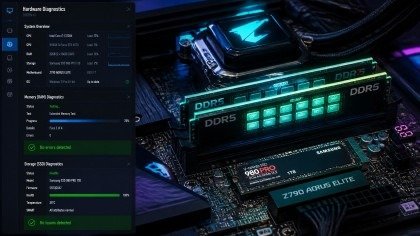
Storage problems can also trigger the Blue Screen of Death.
If Windows cannot read important system files, the operating system may stop working correctly.
Run CHKDSK
Open Command Prompt as Administrator and enter:
chkdsk C: /f /r
Press Y if Windows asks to schedule the scan after restarting.
Restart your PC.
The scan will repair file system errors and mark bad sectors.
Check for Overheating
High temperatures can make your computer unstable.
Dust, blocked airflow, or failing cooling fans often cause overheating.
Signs include:
- Loud fan noise
- Unexpected shutdowns
- Slow performance
- Frequent crashes
Clean dust from your PC regularly.
Also, make sure air vents are not blocked.
If temperatures remain high, replace thermal paste or improve cooling.
Remove Recent Windows Updates
Sometimes a Windows update introduces new bugs.
If the Blue Screen of Death appears after an update, removing it may solve the issue.
Open:
Settings → Windows Update → Update History → Uninstall Updates
Remove the most recent update.
Restart your computer and check whether the problem has disappeared.
Use System Restore

System Restore returns Windows to an earlier working state without deleting personal files.
If your computer worked correctly before the crashes started, this is one of the safest repair options.
Open Control Panel, search for Recovery, then select Open System Restore.
Choose a restore point created before the first Blue Screen of Death appeared.
Windows will restart automatically after restoration.
Reinstall Windows
If every troubleshooting method fails, reinstalling Windows may be the final solution.
A clean installation removes damaged system files, software conflicts, and serious operating system corruption.
Before reinstalling Windows:
- Back up important files.
- Save product keys.
- Download necessary drivers.
A fresh Windows installation often restores full system stability.
How to Prevent the Blue Screen of Death
Preventing future crashes is easier than repairing them.
Follow these simple habits:
- Keep Windows updated.
- Install official drivers only.
- Scan your computer for malware regularly.
- Avoid unsafe overclocking.
- Monitor CPU and GPU temperatures.
- Clean dust from your PC every few months.
- Replace failing hardware before it causes serious damage.
- Create regular system backups.
These small steps greatly reduce the risk of another Blue Screen of Death.
Conclusion
The Blue Screen of Death may look frightening, but most cases can be repaired without replacing your computer. Start by identifying the error code, then check your drivers, repair Windows system files, test your RAM, inspect your storage drive, and monitor system temperatures. If the issue continues, use System Restore or reinstall Windows as a final option. Regular updates, reliable antivirus protection, and proper hardware maintenance can also help prevent future crashes. By following the steps in this guide, you can fix most BSOD problems and keep your Windows PC running smoothly for years.
Frequently Asked Questions
Can the Blue Screen of Death damage my computer?
The Blue Screen of Death does not damage your computer. It is a built-in Windows safety feature that stops the system to prevent further damage when a critical error occurs.
What is the most common cause of the Blue Screen of Death?
The most common causes include corrupt or outdated drivers, faulty RAM, damaged system files, hardware failures, and problematic Windows updates.
Can a virus cause the Blue Screen of Death?
Malware can corrupt important Windows files, interfere with system processes, and increase the risk of Blue Screen of Death errors.
Should I reinstall Windows immediately?
Reinstalling Windows should be the last option. It is better to try driver updates, System Restore, memory tests, and built-in repair tools before performing a fresh installation.
Meta Description
Learn how to fix the Blue Screen of Death (BSOD) on Windows with this complete 2026 guide. Discover causes, step-by-step fixes, and prevention tips.
- What Is the Blue Screen of Death?
- Common Causes of Blue Screen of Death
- Boot Windows in Safe Mode
- Update or Roll Back Device Drivers
- Test Your RAM
- Check Your Hard Drive
- Check for Overheating
- Use System Restore
- Reinstall Windows
- How to Prevent the Blue Screen of Death
- Conclusion
- Frequently Asked Questions
- Meta Description