
Have you ever opened a website and felt lost because you couldn’t find anything? That happens more often than you think. A clear structure is the backbone of every successful website. That is why Creating Pages and Menus in WordPress is one of the first and most important steps for any beginner.
When you build a site, pages give your content a proper place, while menus guide users from one section to another. Without both working together, your website feels confusing and unorganized. However, when everything is structured correctly, navigation becomes smooth and easy.
In this guide, you will learn everything step by step. Not only will you understand how Creating Pages and Menus in WordPress works, but you will also discover practical ways to improve user experience and website performance.
Why Pages and Menus Matter in WordPress
Before you start creating anything, it is important to understand why pages and menus are so important. They are not just design elements—they control how users interact with your website. A clear structure always leads to a better experience.
Pages store your content, while menus connect everything together. Because of this, Creating Pages and Menus in WordPress helps users find information quickly and easily. As a result, your website becomes more user-friendly and professional.
First of all, pages hold your main content like Home, About, and Contact. Meanwhile, menus connect these pages and make navigation easy. As a result, visitors can quickly find what they need.
Moreover, good navigation reduces bounce rate. If users find content easily, they stay longer. Therefore, Creating Pages and Menus in WordPress improves both usability and rankings.
What You Need Before Getting Started
Before you begin, it is better to prepare a few basic things. This saves time and makes the whole process smooth. Without preparation, you may face confusion while setting up your website.
Having the right setup ensures that Creating Pages and Menus in WordPress becomes simple and organized. You will not need to go back and fix things again and again.
Access to your WordPress dashboard
At least 2–3 published pages
A working theme installed
Basic idea of your site structure
If you don’t have pages yet, create simple ones like Home, About, and Contact. After that, you can move forward with Creating Pages and Menus in WordPress smoothly.
How to Create Pages in WordPress
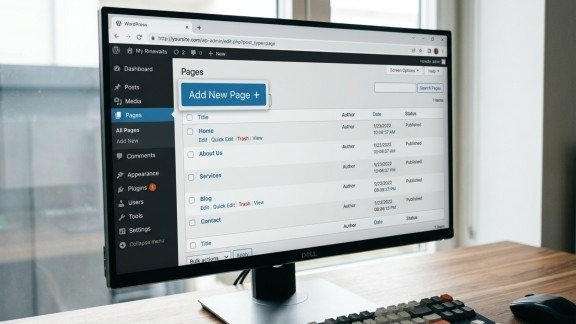
Creating pages is the first step in building your website. Without pages, your menu will have nothing to link to. That is why this step is very important.
When you understand how pages work, Creating Pages and Menus in WordPress becomes much easier. Pages act as the base of your entire website structure.
Understanding Pages First
Pages are static content. They do not change often. For example, your About page usually stays the same. That is why pages are different from posts.
Additionally, pages are not shown automatically. You must link them through menus. This is where Creating Pages and Menus in WordPress connects everything together.
Step-by-Step Process to Create a Page
Creating a page is simple if you follow the right steps. WordPress provides an easy editor that allows you to build pages without any coding.
Go to your dashboard
Click on Pages → Add New
Enter your page title
Add content using blocks
Set a URL (slug)
Click Publish
After publishing, your page is live. However, it will not appear on your site unless you add it to a menu. Therefore, Creating Pages and Menus in WordPress always goes hand in hand.
Important Pages Every Website Needs
Every website should include some essential pages. These pages help build trust and improve user experience.
When these pages are properly created, Creating Pages and Menus in WordPress becomes more meaningful and structured.
Home Page – Main introduction
About Page – Information about you or your business
Contact Page – Allows users to reach you
Services/Product Page – Shows what you offer
Privacy Policy – Builds trust and legal safety
How to Create Menus in WordPress (Classic Themes)
After creating pages, the next step is to organize them into a menu. This is what makes your website easy to navigate. Without a menu, users cannot find your pages easily.
This section is the core part of Creating Pages and Menus in WordPress, because it connects everything together into a usable structure.
Opening the Menu Settings
If your theme uses the classic system, follow this path:
Appearance → Menus
Here, you can build and manage your navigation. This is the core area for Creating Pages and Menus in WordPress.
Creating Your First Menu
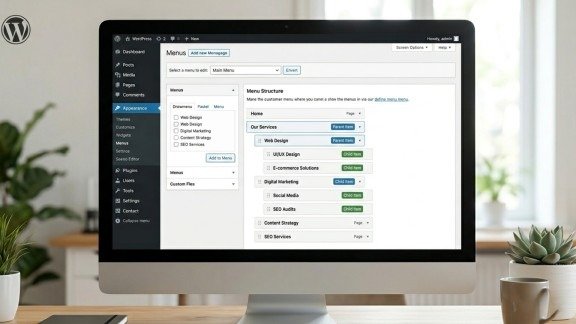
Now, let’s create your first menu step by step. This will act as your main navigation.
Click “Create a new menu”
Add a name (e.g., Main Menu)
Click Create Menu
Adding Pages to Menu
After creating a menu, you need to add pages. This step connects your content with navigation.
Select pages from the left panel
Click “Add to Menu”
Items appear on the right side
Arranging Menu Items
You can drag and drop items to change order. Place important pages at the beginning.
For example: Home first and Contact last. This improves usability because users focus more on these positions.
Creating Dropdown Menus
Dropdown menus help organize content better. You can group related pages together under one parent.
Drag a page slightly to the right under another page
It becomes a sub-item
However, do not create too many levels. Keep it simple for better user experience.
Assigning Menu Location
After building your menu, choose where it should appear. This step ensures your menu is visible on your website.
Common locations include header, footer, or mobile menu.
Saving the Menu
Finally, click “Save Menu.” WordPress does not auto-save menus, so this step is necessary.
How to Create Menus in Block Themes
Modern themes use a different method to manage menus. Instead of a separate menu page, everything is handled inside the editor.
This makes Creating Pages and Menus inWordPress more visual and easier to understand for beginners.
Using the Site Editor
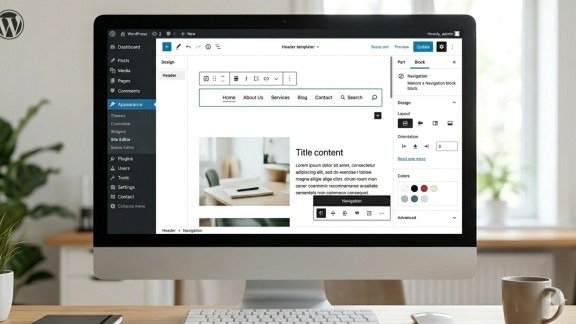
Go to Appearance → Editor. This opens the full site editing interface.
Adding Navigation Block
Inside the header, add a Navigation block and insert your menu items.
Customizing the Menu Design
You can easily change fonts, colors, layout, and spacing without coding. This helps you design a professional-looking menu.
Types of Menu Items You Can Add
Menus are flexible and allow different types of links. This gives you full control over your navigation.
You can add pages, posts, categories, or custom links. Because of this flexibility, Creating Pages and Menus in WordPress becomes more powerful and useful.
Styling Your WordPress Menu
A simple menu works, but a styled menu looks better and improves user experience.
You can use theme options, custom CSS, or plugins to change the design. This helps your website look modern and attractive.
Best Practices for Better Navigation
Creating a menu is easy, but making it effective requires smart planning.
Keep your menu simple, clear, and easy to understand. Avoid adding too many items, and always test your menu on mobile devices.
Following these tips improves Creating Pages and Menus in WordPress and makes your website more user-friendly.
Common Problems and Solutions
Sometimes menus do not work properly due to small mistakes. Understanding these issues helps you fix them quickly.
If your menu is not showing, check its location. If items are missing, make sure pages are published. If dropdowns are not working, your theme may need adjustment.
Advanced Tips to Improve Your Menu
Once you understand the basics, you can improve your menu further.
You can highlight important links, make your menu mobile-friendly, and improve design. These small changes make a big difference.
Final Thoughts
Building a website is not just about content. Structure matters just as much. Pages organize your information, while menus guide your visitors.
By learning Creating Pages and Menus in WordPress, you build a strong foundation for your site. Moreover, clear navigation improves user experience, SEO, and conversions.
Start simple and improve step by step. With the right structure, your website will feel easy, professional, and user-friendly.
Frequently Asked Questions (FAQs)
1. What is the difference between pages and posts in WordPress?
Pages are used for static content like About or Contact, while posts are mainly used for blog content that updates regularly.
2. How many menu items should a website have?
A website should ideally have 5 to 7 main menu items so users can easily find information without feeling overwhelmed.
3. Why is my WordPress menu not showing on the website?
This usually happens when the menu location is not assigned, so you need to select a display location and save it.
4. Can I add external links to my WordPress menu?
Yes, you can easily add custom links to your menu by entering a URL and label in the custom links section.
5. Do I need a plugin to create menus in WordPress?
No, WordPress already includes a built-in menu system, but plugins are useful if you want advanced design or features.
Meta Description:
Learn Creating Pages and Menus in WordPress with this complete guide. Discover simple steps, smart tips, and best practices to build clear navigation and improve user experience.
- Why Pages and Menus Matter in WordPress
- What You Need Before Getting Started
- How to Create Pages in WordPress
- Step-by-Step Process to Create a Page
- Opening the Menu Settings
- How to Create Menus in Block Themes
- Types of Menu Items You Can Add
- Styling Your WordPress Menu
- Best Practices for Better Navigation
- Common Problems and Solutions
- Final Thoughts
- Frequently Asked Questions (FAQs)
- Meta Description: