
Microsoft Excel is one of the most useful tools for students because it helps them organize information, manage records, analyze data, and perform practical calculations. Instead of learning Excel features only through theory, students can improve their skills by completing practical assignments.
A well-designed Excel Assignment Format should contain a clear title, objective, instructions, sample data, practical tasks, formulas or Excel features, and a final result. This type of structured practice helps students understand how Excel works in real situations.
This guide explains how to create an Excel assignment using nine important Excel features and functions:
- Data Validation
- VLOOKUP
- HLOOKUP
- Filter & Sorting
- Flash Fill
- Text to Columns
- PMT
- IPMT
- PPMT
Each assignment includes practical data, instructions, formulas, tasks, and expected results so students can directly practice them in Microsoft Excel.
What Is an Excel Assignment?
An Excel assignment is a practical exercise in which students create worksheets, enter data, apply Excel features or formulas, format tables, and complete specific tasks.
The main purpose is not only to enter information but to understand how Excel can be used to solve practical problems.
A good Excel assignment normally includes:
- Assignment title
- Objective
- Instructions
- Sample data
- Excel feature or formula
- Practical example
- Student task
- Expected result
- Formatting requirements
This structured approach makes an Excel assignment easier to understand and complete.
How to Create an Excel Assignment
Before starting the practical work, create a new Excel workbook and prepare separate worksheets for each assignment.
For this practical project, create these nine worksheets:
- Data Validation
- VLOOKUP
- HLOOKUP
- Filter & Sorting
- Flash Fill
- Text to Columns
- PMT
- IPMT
- PPMT
Keep each worksheet organized with:
Title → Objective → Data → Formula/Feature → Practical Task → Result
This organization makes the workbook professional and easy for a teacher or examiner to check.
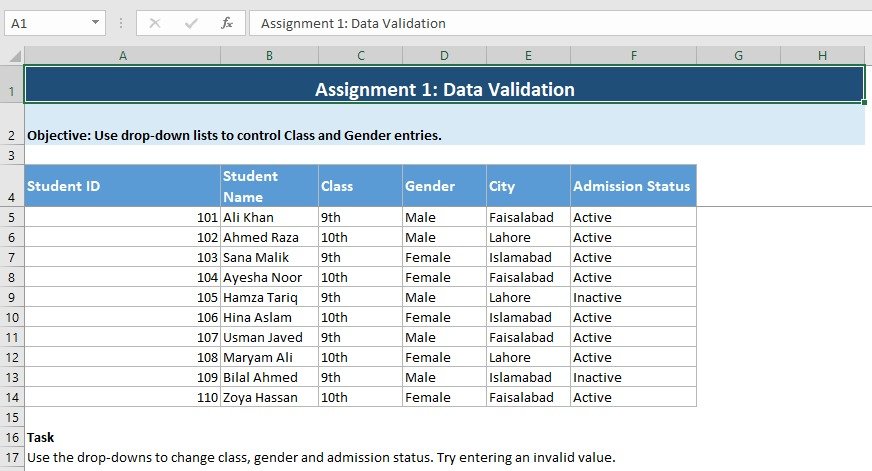
Assignment 1: Data Validation

Objective
The purpose of this assignment is to learn how Data Validation can control the type of information entered into an Excel worksheet.
Data Validation is useful when students need to create controlled entries such as class, gender, department, status, or category.
Create the Following Table
| Student ID | Student Name | Class | Gender | City | Admission Status |
| 101 | Ali Khan | 9th | Male | Faisalabad | Active |
| 102 | Ahmed Raza | 10th | Male | Lahore | Active |
| 103 | Sana Malik | 9th | Female | Islamabad | Active |
| 104 | Ayesha Noor | 10th | Female | Faisalabad | Active |
| 105 | Hamza Tariq | 9th | Male | Lahore | Inactive |
| 106 | Hina Aslam | 10th | Female | Islamabad | Active |
| 107 | Usman Javed | 9th | Male | Faisalabad | Active |
| 108 | Maryam Ali | 10th | Female | Lahore | Active |
| 109 | Bilal Ahmed | 9th | Male | Islamabad | Inactive |
| 110 | Zoya Hassan | 10th | Female | Faisalabad | Active |
Apply Data Validation to Class
Select the Class column and go to:
Data → Data Validation → Allow: List
Enter:
8th,9th,10th,11th
Click OK.
A drop-down list will now appear in the selected cells.
Apply Data Validation to Gender
Create another list:
Male,Female
Apply Data Validation to Admission Status
Use:
Active,Inactive
Student Task
Students should:
- Create the complete table.
- Apply Data Validation to Class.
- Apply Data Validation to Gender.
- Apply Data Validation to Admission Status.
- Test the drop-down lists.
- Try entering an invalid value.
Expected Result
The worksheet should contain controlled drop-down lists that reduce incorrect data entry.
Assignment 2: VLOOKUP
Objective
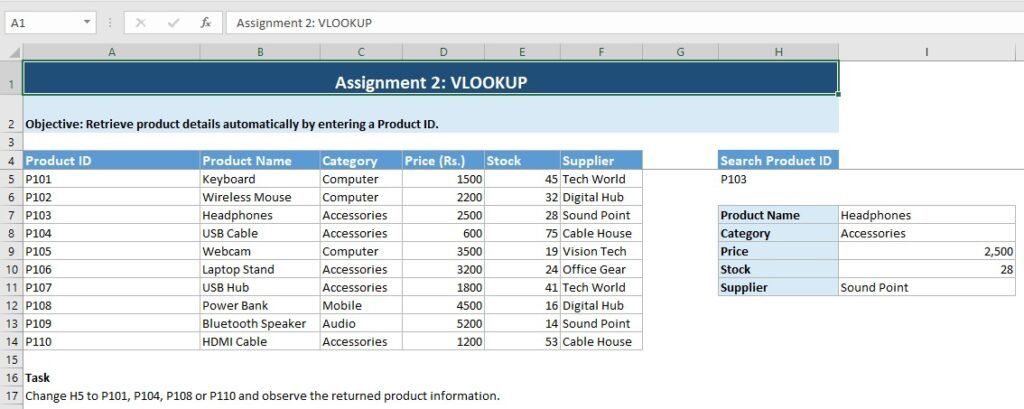
The purpose of this assignment is to learn how VLOOKUP can automatically find information from a table by using a unique ID.
| Product ID | Product Name | Category | Price (Rs.) | Stock | Supplier |
| P101 | Keyboard | Computer | 1500 | 45 | Tech World |
| P102 | Wireless Mouse | Computer | 2200 | 32 | Digital Hub |
| P103 | Headphones | Accessories | 2500 | 28 | Sound Point |
| P104 | USB Cable | Accessories | 600 | 75 | Cable House |
| P105 | Webcam | Computer | 3500 | 19 | Vision Tech |
| P106 | Laptop Stand | Accessories | 3200 | 24 | Office Gear |
| P107 | USB Hub | Accessories | 1800 | 41 | Tech World |
| P108 | Power Bank | Mobile | 4500 | 16 | Digital Hub |
| P109 | Bluetooth Speaker | Audio | 5200 | 14 | Sound Point |
| P110 | HDMI Cable | Accessories | 1200 | 53 | Cable House |
Create a Search Area
Create another section:
| Search Item | Value |
| Product ID | P103 |
| Product Name | |
| Category | |
| Price | |
| Stock | |
| Supplier |
Suppose the Product ID is entered in cell H5.
Apply VLOOKUP
To find the Product Name:
=VLOOKUP($H$5,$A$5:$F$14,2,FALSE)
To find Category:
=VLOOKUP($H$5,$A$5:$F$14,3,FALSE)
To find Price:
=VLOOKUP($H$5,$A$5:$F$14,4,FALSE)
To find Stock:
=VLOOKUP($H$5,$A$5:$F$14,5,FALSE)
To find Supplier:
=VLOOKUP($H$5,$A$5:$F$14,6,FALSE)
Student Task
Change the Product ID and test:
- P101
- P104
- P106
- P108
- P110
Observe how the product information changes automatically.
Expected Result
When a valid Product ID is entered, Excel should automatically return the related product information.
Assignment 3: HLOOKUP
Objective
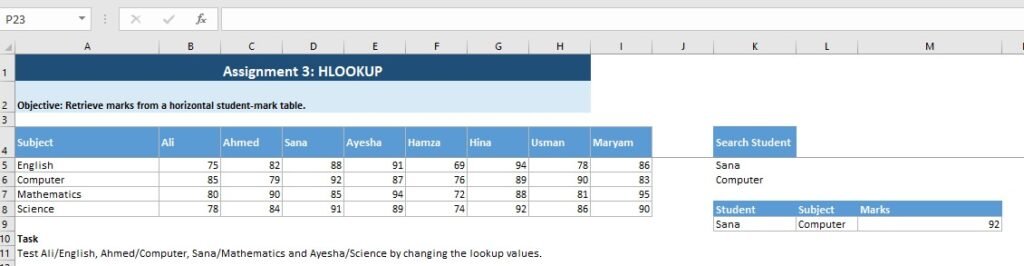
The purpose of this assignment is to learn HLOOKUP using a horizontal data table.
Create the Following Table
| Subject | Ali | Ahmed | Sana | Ayesha | Hamza | Hina | Usman | Maryam |
| English | 75 | 82 | 88 | 91 | 69 | 94 | 78 | 86 |
| Computer | 85 | 79 | 92 | 87 | 76 | 89 | 90 | 83 |
| Mathematics | 80 | 90 | 85 | 94 | 72 | 88 | 81 | 95 |
| Science | 78 | 84 | 91 | 89 | 74 | 92 | 86 | 90 |
Create a Search Area
| Student | Subject | Marks |
| Sana | Computer |
If the student name is entered in K9, use:
=HLOOKUP(K9,$B$4:$I$8,3,FALSE)
This formula searches for the student horizontally and returns the Computer marks.
Student Task
Find:
- Ali’s English marks
- Ahmed’s Computer marks
- Sana’s Mathematics marks
- Ayesha’s Science marks
- Hina’s Computer marks
Expected Result
Excel should retrieve the required marks from the horizontal table automatically.
Assignment 4: Filter and Sorting
Objective
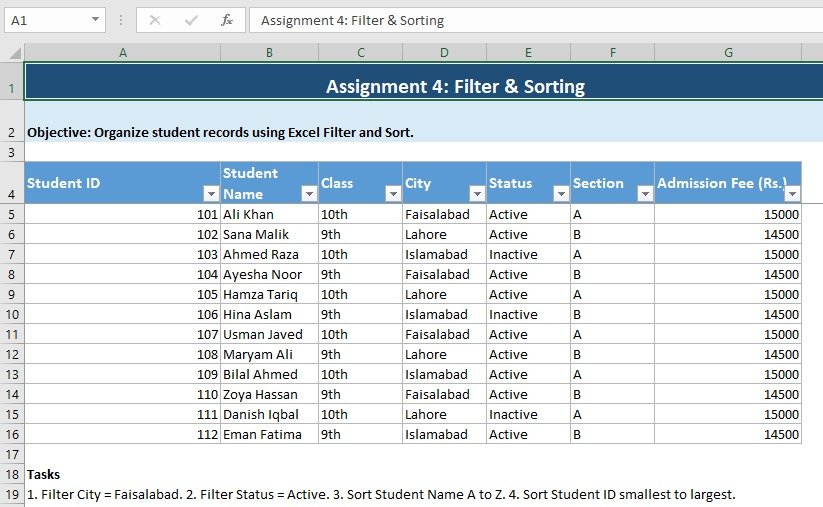
This assignment teaches students how to organize large datasets using Filter and Sorting.
Create the Following Student Record
| Student ID | Student Name | Class | City | Status | Section | Admission Fee |
| 101 | Ali Khan | 10th | Faisalabad | Active | A | 15000 |
| 102 | Sana Malik | 9th | Lahore | Active | B | 14500 |
| 103 | Ahmed Raza | 10th | Islamabad | Inactive | A | 15000 |
| 104 | Ayesha Noor | 9th | Faisalabad | Active | B | 14500 |
| 105 | Hamza Tariq | 10th | Lahore | Active | A | 15000 |
| 106 | Hina Aslam | 9th | Islamabad | Inactive | B | 14500 |
| 107 | Usman Javed | 10th | Faisalabad | Active | A | 15000 |
| 108 | Maryam Ali | 9th | Lahore | Active | B | 14500 |
| 109 | Bilal Ahmed | 10th | Islamabad | Active | A | 15000 |
| 110 | Zoya Hassan | 9th | Faisalabad | Active | B | 14500 |
| 111 | Danish Iqbal | 10th | Lahore | Inactive | A | 15000 |
| 112 | Eman Fatima | 9th | Islamabad | Active | B | 14500 |
Apply Filter
Select the complete table and go to:
Data → Filter
Click the City filter and select:
Faisalabad
Excel will display only students from Faisalabad.
Apply Sorting
Sort Student Name:
A to Z
Then sort Student ID:
Smallest to Largest
Student Tasks
Perform the following:
- Filter students from Faisalabad.
- Filter students from Lahore.
- Filter Active students.
- Filter Inactive students.
- Sort Student Name A to Z.
- Sort Student ID from smallest to largest.
- Remove the filter and show all records.
Expected Result
Students should be able to quickly find and organize specific records without manually searching the entire table.
Assignment 5: Flash Fill
Objective
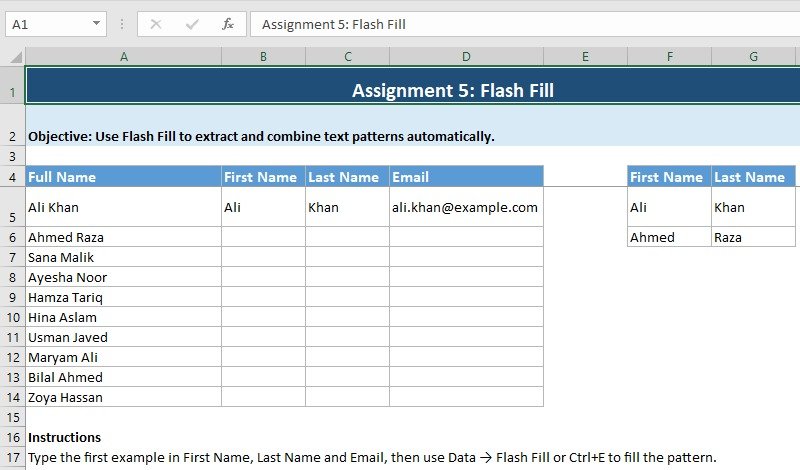
The purpose of this assignment is to learn how Flash Fill can recognize a pattern and automatically complete related information.
Create the Following Table
| Full Name | First Name | Last Name | |
| Ali Khan | Ali | Khan | ali.khan@example.com |
| Ahmed Raza | |||
| Sana Malik | |||
| Ayesha Noor | |||
| Hamza Tariq | |||
| Hina Aslam | |||
| Usman Javed | |||
| Maryam Ali | |||
| Bilal Ahmed | |||
| Zoya Hassan |
In the First Name column, enter:
Ali
in the first row.
Start entering:
Ahmed
in the next row.
Excel can recognize the pattern.
Press:
Ctrl + E
Excel will automatically fill the remaining first names.
The same method can be used for last names and email patterns.
Student Task
Use Flash Fill to:
- Extract first names.
- Extract last names.
- Create email addresses.
- Practice recognizing different text patterns.
Expected Result
Excel should automatically complete the remaining cells based on the pattern provided by the student.
Assignment 6: Text to Columns
Objective
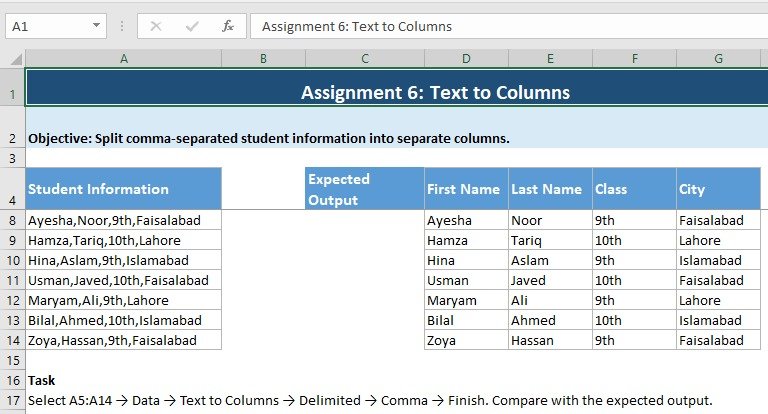
This assignment teaches students how to split combined information into separate columns.
Enter the Following Data
| Student Information |
| Ali,Khan,10th,Faisalabad |
| Ahmed,Raza,9th,Lahore |
| Sana,Malik,10th,Islamabad |
| Ayesha,Noor,9th,Faisalabad |
| Hamza,Tariq,10th,Lahore |
| Hina,Aslam,9th,Islamabad |
| Usman,Javed,10th,Faisalabad |
| Maryam,Ali,9th,Lahore |
| Bilal,Ahmed,10th,Islamabad |
| Zoya,Hassan,9th,Faisalabad |
Select the data column.
Go to:
Data → Text to Columns
Select:
Delimited → Next → Comma → Next → Finish
Excel will divide the information into separate columns.
Expected Output
| First Name | Last Name | Class | City |
| Ali | Khan | 10th | Faisalabad |
| Ahmed | Raza | 9th | Lahore |
| Sana | Malik | 10th | Islamabad |
| Ayesha | Noor | 9th | Faisalabad |
| Hamza | Tariq | 10th | Lahore |
| Hina | Aslam | 9th | Islamabad |
| Usman | Javed | 10th | Faisalabad |
| Maryam | Ali | 9th | Lahore |
| Bilal | Ahmed | 10th | Islamabad |
| Zoya | Hassan | 9th | Faisalabad |
Student Task
Separate the combined information into:
- First Name
- Last Name
- Class
- City
Expected Result
One combined column should be converted into four organized columns.
Assignment 7: PMT – Monthly Loan Payment
Objective
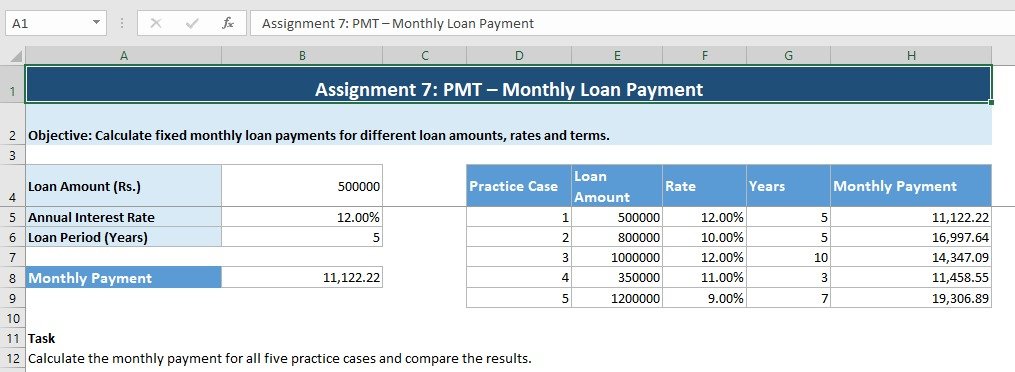
The PMT function is used to calculate the regular payment required for a loan based on the interest rate, number of payments, and loan amount.
Create the Loan Information
| Item | Value |
| Loan Amount | Rs. 500,000 |
| Annual Interest Rate | 12% |
| Loan Period | 5 Years |
For a monthly payment calculation, the annual interest rate is divided by 12 and the number of years is multiplied by 12.
PMT Formula
=PMT(B5/12,B6*12,-B4)
The formula calculates the monthly payment.
Practice Cases
| Case | Loan Amount | Annual Rate | Years |
| 1 | 500,000 | 12% | 5 |
| 2 | 800,000 | 10% | 5 |
| 3 | 1,000,000 | 12% | 10 |
| 4 | 350,000 | 11% | 3 |
| 5 | 1,200,000 | 9% | 7 |
For each case, calculate the monthly payment using PMT.
Formula Pattern
=PMT(Rate/12,Years*12,-LoanAmount)
Student Task
Calculate the monthly payment for all five cases.
Expected Result
Each case should display its calculated monthly loan payment.
Assignment 8: IPMT – Interest Payment
Objective
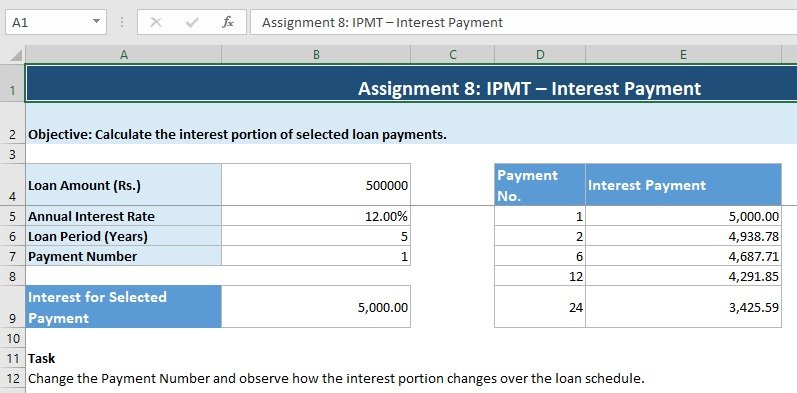
The IPMT function is used to calculate the interest portion of a particular loan payment.
Create the Following Loan Information
| Item | Value |
| Loan Amount | Rs. 500,000 |
| Annual Interest Rate | 12% |
| Loan Period | 5 Years |
| Payment Number | 1 |
Apply IPMT
Use:
=IPMT(B5/12,B7,B6*12,-B4)
Here:
- Loan Amount = B4
- Annual Interest Rate = B5
- Loan Period = B6
- Payment Number = B7
Practice Payments
Calculate the interest portion for:
| Payment Number |
| 1 |
| 2 |
| 6 |
| 12 |
| 24 |
Use the formula:
=IPMT($B$5/12,D5,$B$6*12,-$B$4)
Copy the formula down for the remaining payment numbers.
Student Task
Calculate the interest portion for each selected payment.
Expected Result
The worksheet should display how much interest is included in each selected loan payment.
Assignment 9: PPMT – Principal Payment
Objective
The PPMT function calculates the principal portion of a specific loan payment.
While IPMT focuses on interest, PPMT focuses on the amount that reduces the original loan balance.
Create the Loan Information
| Item | Value |
| Loan Amount | Rs. 500,000 |
| Annual Interest Rate | 12% |
| Loan Period | 5 Years |
| Payment Number | 1 |
Apply PPMT
Use:
=PPMT(B5/12,B7,B6*12,-B4)
Practice Payments
| Payment Number |
| 1 |
| 2 |
| 6 |
| 12 |
| 24 |
Use:
=PPMT($B$5/12,D5,$B$6*12,-$B$4)
Copy the formula down.
Student Task
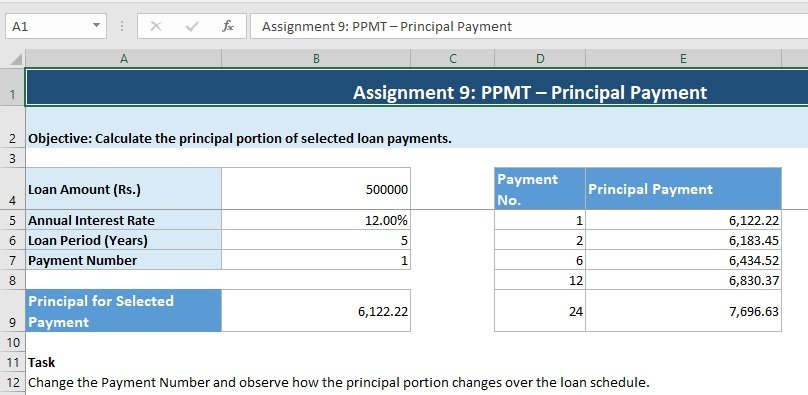
Calculate the principal portion of each selected payment.
Expected Result
PMT, IPMT and PPMT: What Is the Difference?
These three functions are related to loan calculations, but they perform different jobs.
| Function | Purpose |
| PMT | Calculates the regular loan payment |
| IPMT | Calculates the interest portion of a payment |
| PPMT | Calculates the principal portion of a payment |
For example, if PMT calculates the total monthly payment, IPMT identifies the interest part while PPMT identifies the principal part.
This gives students a practical understanding of how loan payments are divided.
How to Create Professional Tables in Excel
Tables make an Excel assignment easier to read and understand.
After entering the data:
- Select the complete dataset.
- Go to Insert → Table.
- Make sure My table has headers is selected.
- Choose a suitable table style.
- Adjust column widths.
- Make headings bold.
Use clear column headings such as:
- Student ID
- Student Name
- Product ID
- Product Name
- Price
- Class
- City
- Status
- Payment Number
Avoid unnecessary decoration that makes the worksheet difficult to read.
How to Add Charts to an Excel Assignment
Charts can be used when the assignment requires visual presentation of data.
For example, a chart can be created from:
- Product prices
- Student marks
- Loan payment comparisons
- Monthly payment cases
To create a chart:
- Select the relevant data.
- Go to Insert.
- Select a suitable chart.
- Add a meaningful chart title.
- Adjust the size of the chart.
- Keep the chart close to the related data.
A Column Chart can be useful for comparing values, while other chart types can be selected according to the data.
Charts should support the assignment rather than make the worksheet unnecessarily complicated.
Excel Assignment Formatting Guidelines
A professional Excel assignment should have consistent formatting.
Students should:
- Use bold headings.
- Apply borders to tables.
- Adjust column width.
- Use appropriate alignment.
- Format prices as currency or numbers.
- Format interest rates as percentages.
- Use suitable table styles.
- Keep formulas organized.
- Use clear worksheet names.
- Avoid unnecessary blank rows and columns.
- Keep the overall worksheet neat.
For example, financial values such as loan amounts and payments should be displayed clearly, while interest rates should use percentage formatting.
Common Mistakes Students Should Avoid
When preparing an Excel assignment, students often make simple mistakes that can affect their results.
1. Selecting the Wrong Range
VLOOKUP and HLOOKUP require the correct table range. Always check the selected range before applying the formula.
2. Using the Wrong Column or Row Number
In VLOOKUP, the column index determines which information is returned.
In HLOOKUP, the row index determines the information returned.
3. Incorrect Data Validation List
Make sure the allowed values are entered correctly in the Data Validation list.
4. Forgetting the Delimiter
For Text to Columns, select the delimiter that matches the data. For comma-separated information, select Comma.
5. Incorrect Loan Period
For PMT, IPMT and PPMT, remember that monthly calculations require the annual rate to be divided by 12 and the years to be multiplied by 12.
6. Poor Formatting
Even correct data can look unprofessional if headings, borders, spacing and column widths are ignored.
Final Excel Assignment Checklist
Before submitting the workbook, students should check the following:
- All 9 assignments are included.
- Each assignment has a clear title.
- Objectives are included.
- Full sample data has been entered.
- Data Validation is working.
- VLOOKUP is working correctly.
- HLOOKUP is working correctly.
- Filter and Sorting have been practiced.
- Flash Fill has been applied.
- Text to Columns has been completed.
- PMT formula has been applied.
- IPMT formula has been applied.
- PPMT formula has been applied.
- Tables are properly formatted.
- Relevant charts are added where required.
- Currency and percentage formats are correct.
- Worksheet names are clear.
- The workbook has been saved correctly.
Suggested Workbook Structure
The final workbook should contain these nine worksheets:
Sheet 1: Data Validation
Sheet 2: VLOOKUP
Sheet 3: HLOOKUP
Sheet 4: Filter & Sorting
Sheet 5: Flash Fill
Sheet 6: Text to Columns
Sheet 7: PMT
Sheet 8: IPMT
Sheet 9: PPMT
This structure keeps every practical activity separate and makes the complete assignment easy to check.
Conclusion
Creating an Excel assignment is an effective way for students to develop practical spreadsheet skills. Instead of memorizing Excel commands, students can learn by creating tables, controlling data entry, retrieving information, organizing records, manipulating text, and performing financial calculations.
In this practical guide, students worked with Data Validation, VLOOKUP, HLOOKUP, Filter & Sorting, Flash Fill, Text to Columns, PMT, IPMT, and PPMT. Each assignment provides sample data and a clear practical task so students can reproduce the work directly in Excel.
A well-formatted workbook with separate worksheets, clear headings, complete data, correct formulas, tables, and suitable charts can make an Excel assignment more professional and easier to evaluate.
Frequently Asked Questions
1. What should an Excel assignment contain?
An Excel assignment should include a title, objective, instructions, data table, Excel feature or formula, practical task, result, and proper formatting.
2. Which Excel functions are included in this assignment?
This practical assignment focuses on VLOOKUP, HLOOKUP, PMT, IPMT and PPMT, along with Data Validation, Filter & Sorting, Flash Fill and Text to Columns.
3. What is VLOOKUP used for?
VLOOKUP is used to find a value in the first column of a table and return related information from another column.
4. What is HLOOKUP used for?
HLOOKUP searches for information horizontally across the first row of a table and returns a value from a specified row.
5. What is the purpose of PMT?
PMT is used to calculate the regular payment required for a loan based on the interest rate, number of payments and loan amount.
6. What is the difference between IPMT and PPMT?
IPMT calculates the interest portion of a loan payment, while PPMT calculates the principal portion of that payment.
Meta Description:
Learn how to create an Excel Assignment with practical data, VLOOKUP, HLOOKUP, Data Validation, PMT, IPMT, PPMT, tables, charts and formatting.
- What Is an Excel Assignment?
- How to Create an Excel Assignment
- Assignment 1: Data Validation
- Apply Data Validation to Class
- Apply Data Validation to Gender
- Apply Data Validation to Admission Status
- Student Task
- Expected Result
- Assignment 2: VLOOKUP
- Assignment 3: HLOOKUP
- Assignment 4: Filter and Sorting
- Assignment 5: Flash Fill
- Assignment 6: Text to Columns
- Assignment 7: PMT – Monthly Loan Payment
- Assignment 8: IPMT – Interest Payment
- Assignment 9: PPMT – Principal Payment
- PMT, IPMT and PPMT: What Is the Difference?
- How to Create Professional Tables in Excel
- How to Add Charts to an Excel Assignment
- Excel Assignment Formatting Guidelines
- Common Mistakes Students Should Avoid
- Final Excel Assignment Checklist
- Suggested Workbook Structure
- Conclusion
- Frequently Asked Questions
- Meta Description: