
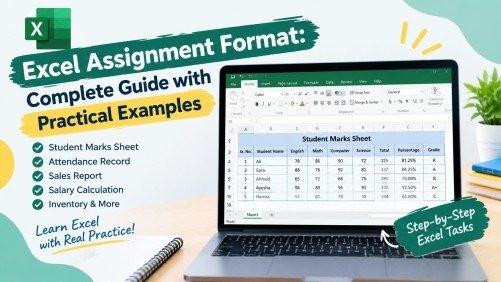
Microsoft Excel is one of the most useful tools for working with data, calculations, tables, reports, and records. Students can learn Excel more effectively when they practice different tasks instead of only learning formulas from theory. A well-prepared Excel Assignment Format gives students clear instructions and practical data to work with. It can include mark sheets, attendance records, sales reports, salary calculations, expenses, inventory, and other real-world examples.
These assignments also help students improve their accuracy, problem-solving, and data management skills. Regular practice can make Excel easier to understand and prepare students for practical work. In this guide, you will find 8 practical Excel assignments. Each assignment uses a different type of data and helps students practice important Excel functions and formatting skills.
What Is an Excel Assignment Format?
An Excel assignment format is a structured practical exercise created in Microsoft Excel. It normally contains a title, instructions, a data table, formulas, and questions that students need to complete. A good assignment should not only ask students to enter data. It should help them practice calculations, formulas, sorting, formatting, and basic data analysis.
The following assignments can be used by beginners, school students, college students, or anyone learning Microsoft Excel.
Assignment 1: Student Marks and Grade Sheet
Objective
Create a student result sheet and calculate total marks, percentage, average, and grade.
Data Table
| Student Name | English | Math | Computer | Science | Total | Percentage | Grade |
| Ali | 78 | 85 | 90 | 72 | |||
| Sara | 88 | 76 | 92 | 81 | |||
| Ahmed | 65 | 72 | 68 | 75 | |||
| Ayesha | 94 | 89 | 96 | 91 | |||
| Hamza | 55 | 61 | 70 | 58 |
Tasks
- Calculate the total marks using SUM.
- Calculate the percentage.
- Calculate the average marks using AVERAGE.
- Use IF to assign grades.
- Find the highest marks.
- Find the lowest marks.
- Apply borders and proper heading formatting.
Formula example:
=SUM(B2:E2)
Assignment 2: Employee Attendance Sheet
Objective
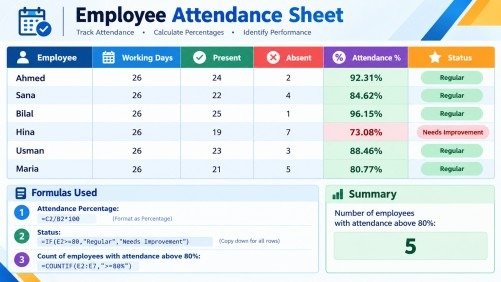
Create an attendance record and calculate attendance percentages.
Data Table
| Employee | Working Days | Present | Absent | Attendance % | Status |
| Ahmed | 26 | 24 | 2 | ||
| Sana | 26 | 22 | 4 | ||
| Bilal | 26 | 25 | 1 | ||
| Hina | 26 | 19 | 7 | ||
| Usman | 26 | 23 | 3 | ||
| Maria | 26 | 21 | 5 |
Tasks
- Calculate attendance percentage.
- Use IF to show Regular when attendance is 80% or above.
- Show Needs Improvement when attendance is below 80%.
- Count the number of employees with attendance above 80%.
- Format the Attendance column as percentage.
Formula example:
=C2/B2*100
Status formula:
=IF(E2>=80,”Regular”,”Needs Improvement”)
Assignment 3: Monthly Sales Report
Objective
Create a sales report and use Excel formulas to analyze sales data.
Data Table
| Salesperson | Region | Product | Units Sold | Price | Total Sales |
| Ali | East | Laptop | 5 | 85000 | |
| Sara | West | Keyboard | 12 | 3500 | |
| Ahmed | North | Monitor | 8 | 22000 | |
| Hina | East | Mouse | 20 | 1800 | |
| Bilal | West | Printer | 6 | 28000 | |
| Ayesha | North | Laptop | 4 | 85000 |
Tasks
- Calculate Total Sales.
- Find the total sales of all employees.
- Find the highest sales amount.
- Find the lowest sales amount.
- Calculate average sales.
- Use COUNTIF to count salespersons from the East region.
- Use SUMIF to calculate total sales for the East region.
Formula example:
=D2*E2
For East region:
=SUMIF(B2:B7,”East”,F2:F7)
Assignment 4: Monthly Expense Sheet
Objective
Create a monthly expense report and analyze spending by category.
Data Table
| Date | Category | Description | Payment Method | Amount |
| 02-Apr | Food | Lunch | Cash | 850 |
| 04-Apr | Transport | Fuel | Cash | 2500 |
| 06-Apr | Office | Stationery | Card | 1450 |
| 09-Apr | Food | Dinner | Cash | 1200 |
| 12-Apr | Internet | Monthly Bill | Online | 2500 |
| 16-Apr | Transport | Travel | Cash | 900 |
| 20-Apr | Office | Printing | Card | 1100 |
Tasks
- Calculate total monthly expenses.
- Calculate average expense.
- Find total Food expenses using SUMIF.
- Find total Transport expenses.
- Count how many Office expenses were recorded.
- Find the highest expense.
- Apply suitable number formatting to the Amount column.
Assignment 5: Employee Salary Sheet
Objective
Create an employee salary worksheet and calculate gross and net salaries.
Data Table
| Employee | Basic Salary | Allowance | Gross Salary | Deduction | Net Salary |
| Ali | 35000 | 5000 | 1500 | ||
| Sara | 42000 | 6500 | 2000 | ||
| Ahmed | 38000 | 5500 | 1800 | ||
| Hina | 45000 | 7500 | 2500 | ||
| Bilal | 32000 | 4500 | 1200 |
Tasks
- Calculate Gross Salary.
- Calculate Net Salary.
- Calculate total Net Salary.
- Find the highest Net Salary.
- Find the lowest Net Salary.
- Calculate average salary.
- Apply number formatting to salary values.
Gross Salary:
=B2+C2
Net Salary:
=D2-E2
Assignment 6: Product Inventory Sheet
Objective
Create an inventory record and calculate stock value.
Data Table
| Product | Category | Available Stock | Unit Price | Stock Value | Stock Status |
| Keyboard | Accessories | 25 | 3500 | ||
| Mouse | Accessories | 40 | 1800 | ||
| Monitor | Hardware | 12 | 22000 | ||
| Printer | Hardware | 8 | 28000 | ||
| USB Drive | Storage | 35 | 2200 | ||
| Laptop Bag | Accessories | 18 | 4500 |
Tasks
- Calculate Stock Value.
- Use IF to show Low Stock when stock is below 15.
- Show Available when stock is 15 or above.
- Find total stock value.
- Find the highest unit price.
- Count products with stock below 15.
Stock Value:
=C2*D2
Stock Status:
=IF(C2<15,”Low Stock”,”Available”)
Assignment 7: Student Fee Record
Objective
Create a student fee management sheet and calculate remaining fees.
Data Table
| Student | Class | Total Fee | Paid Fee | Remaining Fee | Status |
| Ali | 8th | 15000 | 15000 | ||
| Sara | 9th | 18000 | 12000 | ||
| Ahmed | 8th | 15000 | 10000 | ||
| Ayesha | 10th | 20000 | 20000 | ||
| Hamza | 9th | 18000 | 9000 | ||
| Hina | 10th | 20000 | 15000 |
Tasks
- Calculate Remaining Fee.
- Use IF to show Paid when the remaining fee is zero.
- Show Pending when some fee is still remaining.
- Calculate total fees collected.
- Calculate total remaining fees.
- Count students with pending fees.
Remaining Fee:
=C2-D2
Status:
=IF(E2=0,”Paid”,”Pending”)
Assignment 8: Simple Business Order Report
Objective
Create an order report and calculate the total value of each order.
Data Table
| Order ID | Customer | Product | Quantity | Unit Price | Order Total | Order Status |
| 1001 | Ahmed | Keyboard | 2 | 3500 | ||
| 1002 | Sara | Mouse | 5 | 1800 | ||
| 1003 | Bilal | Monitor | 2 | 22000 | ||
| 1004 | Hina | USB Drive | 6 | 2200 | ||
| 1005 | Ayesha | Printer | 1 | 28000 | ||
| 1006 | Ali | Laptop Bag | 3 | 4500 |
Tasks
- Calculate Order Total.
- Find the total value of all orders.
- Find the average order value.
- Find the highest order value.
- Find the lowest order value.
- Count orders with quantity greater than 3.
- Apply borders, alignment, and number formatting.
Order Total:
=D2*E2
Excel Functions Used in These Assignments
These eight assignments give students practice with several important Excel functions.
| Excel Function | Main Purpose | Example |
| SUM | Adds numbers | =SUM(B2:B10) |
| AVERAGE | Finds average | =AVERAGE(B2:B10) |
| COUNT | Counts numeric values | =COUNT(B2:B10) |
| COUNTA | Counts non-empty cells | =COUNTA(A2:A10) |
| COUNTIF | Counts cells matching a condition | =COUNTIF(F2:F10,”>70″) |
| SUMIF | Adds values based on a condition | =SUMIF(B2:B10,”East”,C2:C10) |
| IF | Returns results based on a condition | =IF(B2>=50,”Pass”,”Fail”) |
| MAX | Finds highest value | =MAX(B2:B10) |
| MIN | Finds lowest value | =MIN(B2:B10) |
How to Format an Excel Assignment Professionally
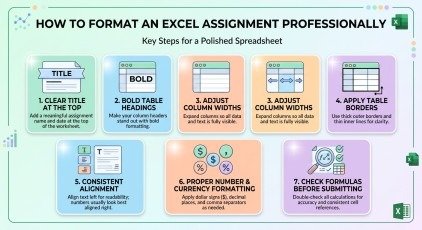
After entering the data and formulas, students should also format the worksheet properly. Use a clear title at the top of each assignment. Make the table headings bold and adjust the column width so that all information is visible.
Apply borders to the table and use consistent alignment. Percentage columns should use percentage formatting, while salary, sales, and expense columns should use suitable number or currency formatting. Students should also check their formulas before submitting the workbook. A professional Excel assignment should be easy to read and easy for a teacher to check.
Excel Assignment Submission Checklist
Before submitting the assignment, students should check:
- Title is clearly visible.
- Student information is complete.
- All data has been entered correctly.
- Formulas have been applied.
- Total and average values have been checked.
- IF, COUNTIF, and SUMIF tasks are completed.
- Table headings are properly formatted.
- Borders and alignment are consistent.
- Number and percentage formats are correct.
- Workbook has been saved with a proper file name.
Conclusion
A good Excel AssignmentFormat should give students more than a single table or formula. Different practical assignments allow students to work with different types of information and understand how Excel can be used for real-world tasks.
The eight assignments in this guide cover student results, attendance, sales, expenses, salaries, inventory, fees, and business orders. Together, they provide practice with important Excel formulas such as SUM, AVERAGE, IF, COUNTIF, SUMIF, MAX, and MIN. Students can complete these assignments one by one and gradually improve their Excel skills through practical work.
Frequently Asked Questions
What should an Excel Assignment Format include?
An Excel Assignment Format should include clear instructions, practical data, structured tables, questions, formulas, and formatting requirements.
How many assignments can be included in an Excel Assignment Format?
An Excel Assignment Format can include several practical assignments based on different real-world situations and Excel skills.
Which Excel functions should beginners practice in an Excel Assignment Format?
Beginners should practice SUM, AVERAGE, COUNT, COUNTA, MAX, MIN, IF, COUNTIF, and SUMIF through practical exercises.
Can this Excel Assignment Format be used for students?
Yes, this Excel Assignment Format can be used for school, college, institute, and beginner-level computer course students.
How can I make an Excel Assignment Format more useful?
Include practical topics such as marks, attendance, sales, expenses, salaries, inventory, fees, and orders to build useful Excel skills.
Meta Description
Learn Excel Assignment Format with 8 practical examples covering marks, attendance, sales, expenses, salary, inventory, fees, and orders.