
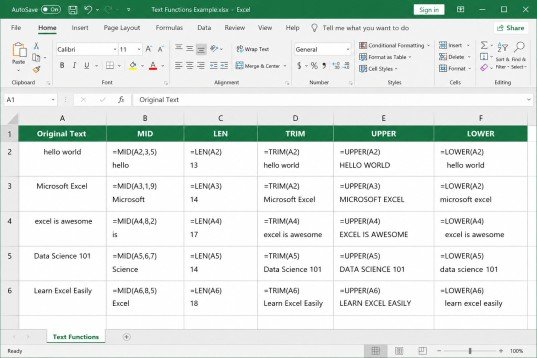
Microsoft Excel is one of the most useful spreadsheet applications for organizing, cleaning, and analyzing data. Among its many features, Excel text functions are especially helpful for names, addresses, codes, IDs, email addresses, and other text-based information. These functions allow you to extract specific characters, count text, remove unwanted spaces, and change the case of words quickly.
Learning Excel text functions makes everyday spreadsheet tasks easier because you don’t need to edit every cell manually. Functions such as MID, LEN, TRIM, UPPER, and LOWER can clean and transform large amounts of information within seconds. In this guide, we will explain these Excel text functions with simple formulas and practical examples.
How to Use MID, LEN, TRIM, UPPER & LOWER Functions in Excel
Text data often contains unnecessary spaces, inconsistent capitalization, or information that needs to be extracted from a larger string. Excel provides several built-in functions to handle these problems efficiently.
The five functions covered in this guide are:
- MID – Extracts characters from the middle of text.
- LEN – Counts the number of characters in text.
- TRIM – Removes unnecessary spaces.
- UPPER – Converts text into uppercase letters.
- LOWER – Converts text into lowercase letters.
These Excel text functions are simple for beginners and can also be combined to solve more advanced data-cleaning tasks.
What Is the MID Function in Excel?
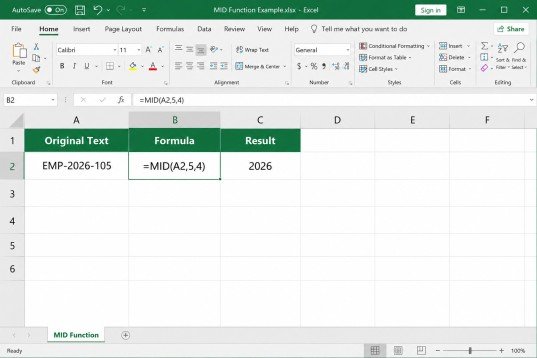
The MID function extracts a specific number of characters from a text string, starting from a position you specify.
MID Function Syntax
=MID(text, start_num, num_chars)
Parameters
- text: The cell or text from which you want to extract characters.
- start_num: The position of the first character you want to extract.
- num_chars: The number of characters you want to return.
MID Function Example
Suppose cell A2 contains:
Microsoft Excel
If you want to extract Excel, you can use:
=MID(A2,11,5)
The formula starts at character 11 and extracts 5 characters.
Practical Use of MID
MID is useful when you need to extract:
- Employee codes
- Product codes
- Area codes
- Parts of an ID
- Months or years from a text string
- Specific words from a fixed-format string
For example, if A2 contains:
EMP-2026-045
You can extract the year using:
=MID(A2,5,4)
The result will be:
2026
What Is the LEN Function in Excel?
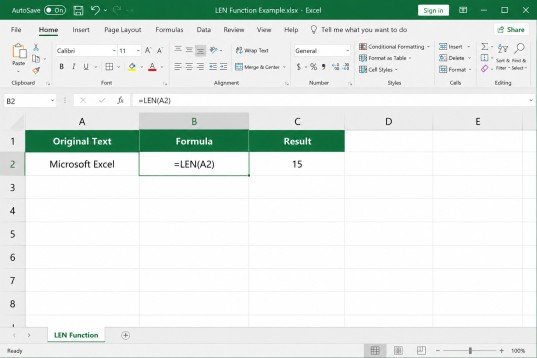
The LEN function counts the total number of characters in a text string. It counts letters, numbers, punctuation marks, and spaces.
LEN Function Syntax
=LEN(text)
Example of LEN
If cell A2 contains:
Microsoft
Use:
=LEN(A2)
The result is:
9
If A2 contains:
Microsoft Excel
the result will be 15, because the space between the two words is also counted.
Why Use LEN?
LEN is particularly useful when you need to:
- Check the length of IDs
- Validate customer codes
- Count characters in names
- Identify incomplete entries
- Work with MID, LEFT, RIGHT, or FIND
- Build dynamic text formulas
For example, you can combine LEN with MID to extract characters dynamically instead of manually entering a fixed number.
What Is the TRIM Function in Excel?
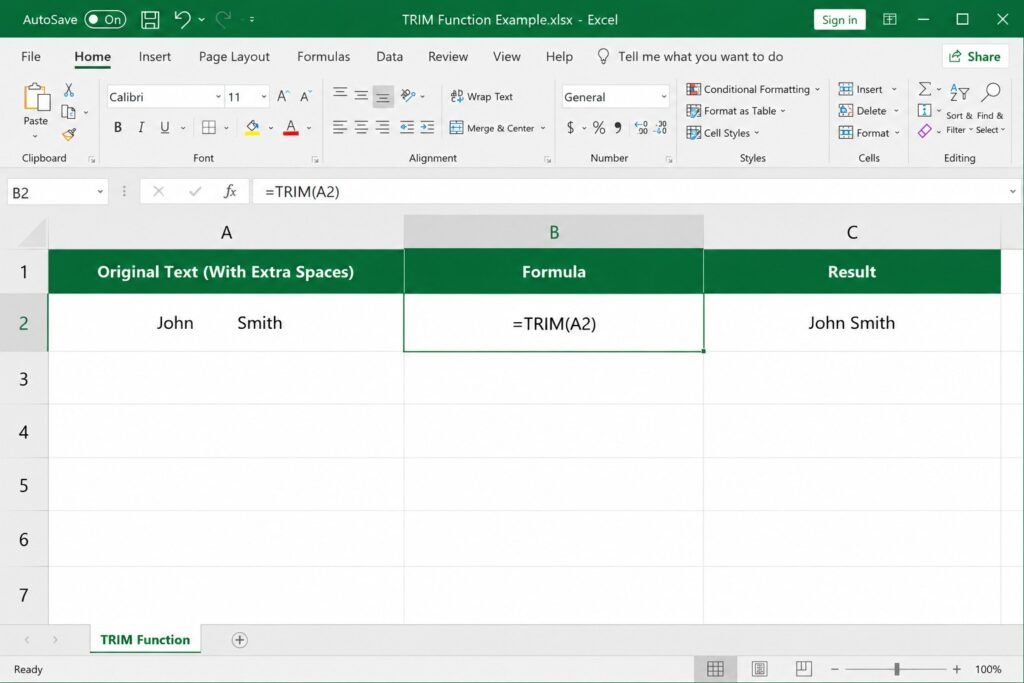
The TRIM function removes unnecessary spaces from text. It removes extra spaces at the beginning and end of a text string and reduces multiple spaces between words to a single space.
TRIM Function Syntax
=TRIM(text)
TRIM Example
Suppose A2 contains:
John Smith
Using:
=TRIM(A2)
will return:
John Smith
This is extremely useful when data is copied from websites, forms, databases, or other applications.
Why Is TRIM Important?
Extra spaces can cause problems when searching, comparing, sorting, or matching data. For example, Excel may treat:
Ali
and
Ali
as different values in some operations.
Using TRIM helps standardize your text and makes your dataset cleaner.
Important: TRIM removes normal space characters. It may not remove every type of invisible character imported from external sources. In such cases, other cleaning functions may be required.
What Is the UPPER Function in Excel?
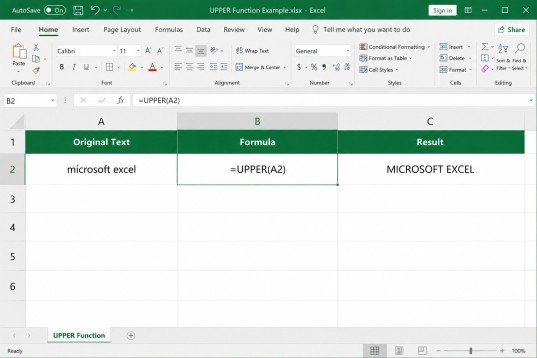
The UPPER function converts all letters in a text string into uppercase.
UPPER Function Syntax
=UPPER(text)
UPPER Example
If A2 contains:
microsoft excel
enter:
=UPPER(A2)
The result will be:
MICROSOFT EXCEL
Practical Uses of UPPER
UPPER is useful when you want consistent formatting for:
- Employee IDs
- Department codes
- Country codes
- Product codes
- Business names
- Imported datasets
For example:
=UPPER(A2)
can convert:
pak-001
into:
PAK-001
What Is the LOWER Function in Excel?
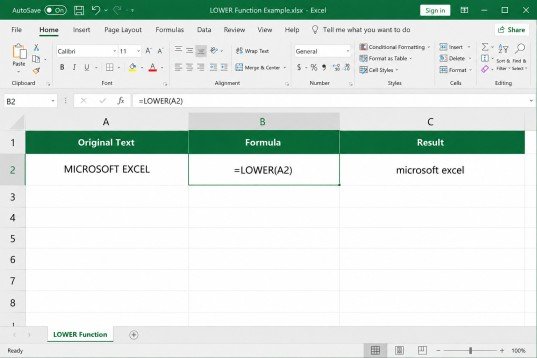
The LOWER function does the opposite of UPPER. It converts all uppercase letters in a text string into lowercase.
LOWER Function Syntax
=LOWER(text)
LOWER Example
If A2 contains:
MICROSOFT EXCEL
use:
=LOWER(A2)
The result will be:
microsoft excel
Practical Uses of LOWER
LOWER can help standardize:
- Email addresses
- Usernames
- Website URLs
- Imported text
- Search-related data
For example:
=LOWER(A2)
can convert:
MAHAM@EXAMPLE.COM
into:
maham@example.com
This can be useful when you want text to follow a consistent lowercase format.
Excel Text Functions: How to Write Formulas Correctly
Understanding the basic structure of a formula makes Excel text functions much easier to use. Every Excel formula normally begins with an equal sign (=), followed by the function name and its required arguments.
For example:
=LEN(A2)
Here:
- = tells Excel that you are entering a formula.
- LEN is the function name.
- A2 is the cell reference.
Step-by-Step Method
Step 1: Enter your text into a worksheet.
Step 2: Select the cell where you want the result.
Step 3: Type the equal sign (=).
Step 4: Enter the required function name.
Step 5: Add the cell reference and required arguments.
Step 6: Close the parentheses.
Step 7: Press Enter.
For example:
=UPPER(A2)
Excel will immediately return the uppercase version of the text in A2.
Using Formulas With Cell References
Using a cell reference is generally better than typing the text directly into the formula because the result automatically changes when the source cell changes.
For example:
=MID(A2,4,5)
is more flexible than:
=MID(“Microsoft”,4,5)
because the first formula works with whatever value is entered in A2.
Combining MID, LEN, TRIM, UPPER and LOWER
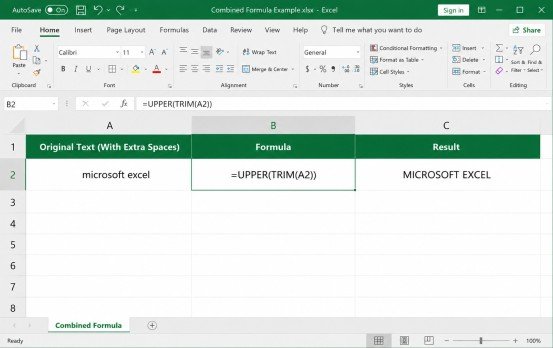
One of the biggest advantages of Excel text functions is that you can combine them.
For example, suppose A2 contains:
microsoft excel
You can first remove unnecessary spaces and then convert the result to uppercase:
=UPPER(TRIM(A2))
The result will be:
MICROSOFT EXCEL
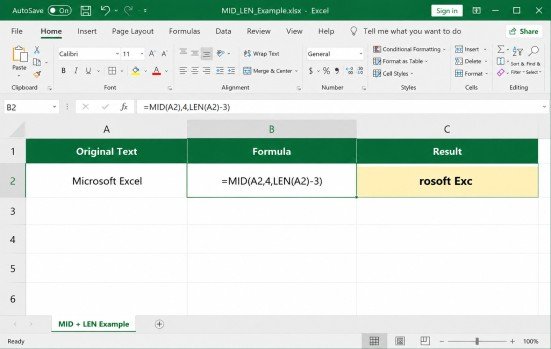
You can also combine MID with LEN. For example:
=MID(A2,4,LEN(A2)-3)
This tells Excel to start at the fourth character and use the total text length to determine how many characters should be returned.
Combining functions becomes especially useful when working with large datasets where manual editing would take considerable time.
Practical Example: Cleaning a Customer List
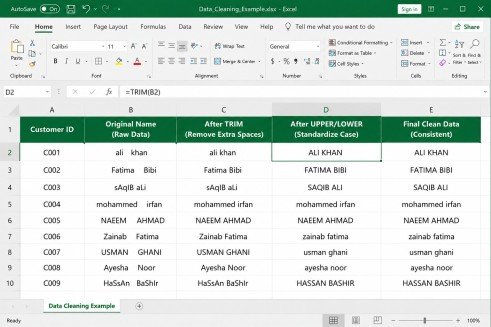
Imagine you have the following customer names:
| Original Data | Formula | Cleaned Result |
| john smith | =TRIM(A2) | John Smith |
| ALI KHAN | =LOWER(A3) | ali khan |
| fatima ali | =UPPER(A4) | FATIMA ALI |
| EMP-2026-105 | =MID(A5,5,4) | 2026 |
This simple example shows how different functions can solve different data problems.
MID vs LEFT vs RIGHT
Although this guide focuses on MID, LEN, TRIM, UPPER, and LOWER, it is useful to understand how MID differs from LEFT and RIGHT.
LEFT extracts characters from the beginning:
=LEFT(A2,5)
RIGHT extracts characters from the end:
=RIGHT(A2,5)
MID extracts characters from a position you specify:
=MID(A2,6,4)
For example, if A2 contains:
ExcelFunctions
LEFT can extract the first characters, RIGHT can extract the final characters, while MID can extract characters from the middle.
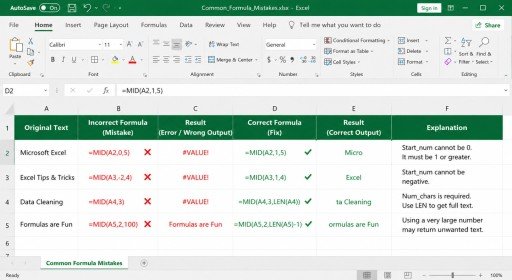
Common Mistakes When Using Excel Text Functions
Even simple formulas can produce unexpected results if the data is not entered correctly.
1. Incorrect Start Position
With MID, remember that the first character is position 1, not 0.
Correct:
=MID(A2,1,5)
2. Forgetting Spaces
LEN counts spaces as characters. Therefore, a space can affect the result of LEN and the starting position used by MID.
3. Extra Spaces in Data
If your imported data contains unnecessary spaces, use:
=TRIM(A2)
4. Incorrect Function Syntax
Make sure every opening parenthesis has a closing parenthesis.
For example:
=UPPER(A2)
not:
=UPPER(A2
5. Confusing UPPER and LOWER
Use UPPER when you want capital letters and LOWER when you want lowercase letters.
Tips for Using Excel Text Functions Efficiently
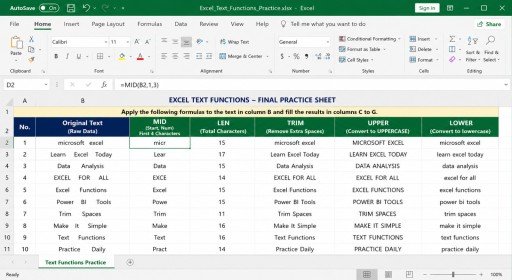
When working with text-heavy spreadsheets, keep the following tips in mind:
- Keep your original data in a separate column.
- Use formulas in new columns instead of overwriting original information.
- Use TRIM when imported data contains unnecessary spaces.
- Use UPPER or LOWER to standardize text.
- Use LEN to check character counts.
- Use MID when information is located inside a longer text string.
- Combine functions when a single formula cannot complete the task.
- Test your formula on a few rows before applying it to thousands of records.
- Use cell references instead of repeatedly typing text into formulas.
Conclusion
Learning Excel text functions can significantly improve the way you clean, organize, and manage text-based data. MID helps extract characters from a specific position, LEN counts characters, TRIM removes unnecessary spaces, UPPER converts text to uppercase, and LOWER converts text to lowercase.
Once you understand these functions, you can combine them to solve more complicated data-cleaning problems. Whether you are managing customer information, employee records, product codes, email addresses, or IDs, these formulas can save time and reduce manual work. Practice each formula with your own dataset to become comfortable with text manipulation in Excel.
Frequently Asked Questions
1. What is the MID function used for in Excel?
The MID function extracts a specific number of characters from a text string starting at a position you choose.
2. What does LEN do in Excel?
LEN counts the total number of characters in a cell, including letters, numbers, punctuation, and spaces.
3. How does TRIM clean Excel data?
TRIM removes unnecessary spaces from text and reduces multiple spaces between words to a single space.
4. What is the difference between UPPER and LOWER?
UPPER changes text to uppercase letters, while LOWER changes text to lowercase letters.
5. Can these Excel functions be combined?
Yes. You can combine functions such as TRIM, UPPER, LEN, and MID to perform more advanced text-cleaning tasks.
Meta Description
Learn how to use Excel text functions like MID, LEN, TRIM, UPPER and LOWER with simple formulas, examples, and practical tips.
- How to Use MID, LEN, TRIM, UPPER & LOWER Functions in Excel
- What Is the MID Function in Excel?
- What Is the LEN Function in Excel?
- What Is the TRIM Function in Excel?
- Why Is TRIM Important?
- What Is the UPPER Function in Excel?
- What Is the LOWER Function in Excel?
- Excel Text Functions: How to Write Formulas Correctly
- Using Formulas With Cell References
- Combining MID, LEN, TRIM, UPPER and LOWER
- Practical Example: Cleaning a Customer List
- MID vs LEFT vs RIGHT
- Common Mistakes When Using Excel Text Functions
- Tips for Using Excel Text Functions Efficiently
- Conclusion
- Frequently Asked Questions
- Meta Description