
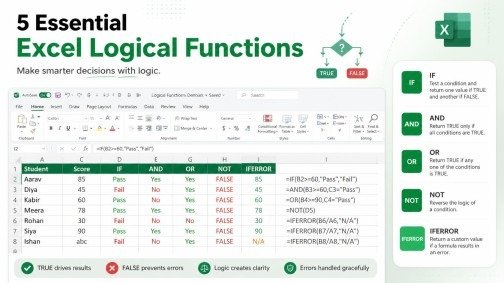
Excel can do much more than add numbers and create tables. It can also make decisions for you. This is where Excel Logical Functions become useful.
Imagine you are checking student marks in a class. You want Excel to show “Pass” when a student gets 40 or more. You also want to check if two conditions are true at the same time. Doing this by hand can take time. Excel can do it in seconds with the right formula.
In this guide, you will learn five useful Excel Logical Functions: IF, AND, OR, NOT, and IFERROR. Each function has a simple job. You will see what it does, how its formula works, and where you can use it in real work. By the end, you will be able to use these functions with more confidence.
What Are Excel Logical Functions?
Excel Logical Functions help Excel make decisions based on conditions. They test a value or expression and return a result.
A logical test usually gives one of two results:
- TRUE
- FALSE
For example, suppose cell A2 contains 75. You can ask Excel:
=A2>=40
Excel checks the condition. Since 75 is greater than 40, the result is TRUE.
This simple idea is the base of many useful Excel formulas. You can use logical tests to check marks, sales, budgets, attendance, stock, dates, and many other types of data.
Why Should You Use Logical Functions in Excel?
Manual checking can be slow when a worksheet has many rows. A formula can check the same rule again and again.
For example, a teacher may have hundreds of student records. Instead of checking each mark manually, an IF formula can automatically display the result.
The same idea works in business. You can check sales targets, expenses, customer records, or order status.
The main benefit is simple: you set the rule once, and Excel applies it to your data.
1. IF Function in Excel
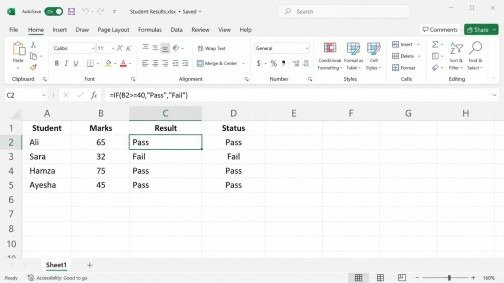
The IF function is one of the most useful Excel Logical Functions. It checks a condition and gives one result when the condition is TRUE and another result when it is FALSE.
IF Function Syntax
=IF(logical_test, value_if_true, value_if_false)
The three parts have simple meanings:
- logical_test — the condition Excel checks.
- value_if_true — the result shown when the condition is TRUE.
- value_if_false — the result shown when the condition is FALSE.
Simple IF Example
Suppose student marks are in cell A2. You want to show “Pass” for marks of 40 or more.
Use:
=IF(A2>=40,”Pass”,”Fail”)
If A2 contains 65, Excel returns:
Pass
If A2 contains 32, Excel returns:
Fail
This is much easier than checking every student yourself.
When Should You Use IF?
Use IF when you need two possible outcomes.
For example:
=IF(B2>=5000,”Target Met”,”Target Not Met”)
This can help you check sales targets.
You can also use IF for attendance, grades, payments, stock levels, and many other tasks.
2. AND Function in Excel
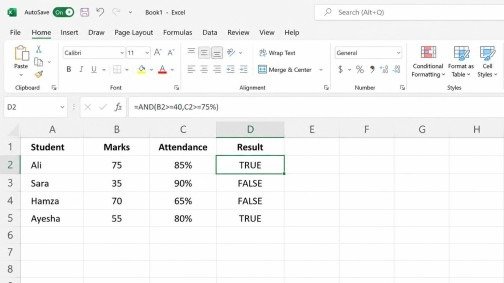
Sometimes one condition is not enough. You may need two or more conditions to be TRUE.
This is where the AND function helps.
AND returns TRUE only when all the conditions are TRUE. If even one condition is FALSE, the result is FALSE.
AND Function Syntax
=AND(logical1,logical2)
You can add more conditions when needed.
Simple AND Example
Suppose A2 contains a student’s marks and B2 contains attendance.
You want to check if:
- Marks are 40 or higher.
- Attendance is 75% or higher.
Use:
=AND(A2>=40,B2>=75%)
If both conditions are met, Excel returns TRUE.
If the student has good marks but low attendance, Excel returns FALSE.
Combine AND With IF
AND becomes even more useful when combined with IF.
For example:
=IF(AND(A2>=40,B2>=75%),”Pass”,”Fail”)
Now Excel checks both conditions and gives a clear result.
This can be useful for school records, employee checks, sales targets, and approval systems.
3. OR Function in Excel
The OR function is useful when any one of several conditions can be TRUE.
This is different from AND.
AND needs every condition to be TRUE. OR needs only one condition to be TRUE.
OR Function Syntax
=OR(logical1,logical2)
Simple OR Example
Suppose you want to check whether a student has either a high mark or high attendance.
Use:
=OR(A2>=80,B2>=90%)
If either condition is TRUE, the formula returns TRUE.
For example, if A2 is 85 and B2 is 70%, the result is TRUE because the first condition is met.
Combine OR With IF
You can also combine OR with IF:
=IF(OR(A2>=80,B2>=90%),”Eligible”,”Not Eligible”)
This formula gives a useful decision without manual checking.
OR can help when there is more than one way to meet a rule.
4. NOT Function in Excel
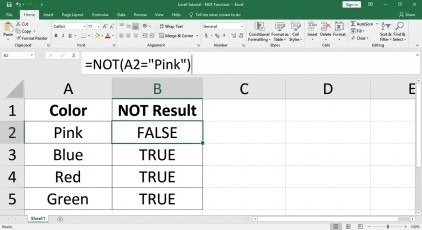
The NOT function performs a very simple operation. It reverses a logical result.
If a condition is TRUE, NOT changes it to FALSE.
If a condition is FALSE, NOT changes it to TRUE.
This makes NOT one of the easiest Excel Logical Functions to understand.
NOT Function Syntax
=NOT(logical)
Simple NOT Example
Suppose you want to check whether a cell does not contain the word “Pink”.
Use:
=NOT(B2=”Pink”)
If B2 contains Pink, the original condition is TRUE. NOT changes the result to FALSE.
If B2 contains Blue, the original condition is FALSE. NOT changes it to TRUE.
This is useful when you want to identify values that do not match a specific condition.
Combine NOT With IF
You can also use:
=IF(NOT(B2=”Pink”),”Keep”,”Remove”)
This formula checks the color and gives a result based on the opposite condition.
NOT is especially helpful when your rule is based on exclusion rather than inclusion.
5. IFERROR Function in Excel
Errors can make an Excel worksheet look confusing. They can also make reports harder to read.
The IFERROR function helps you handle formula errors.
It checks a formula. If the formula produces an error, Excel shows the result you specify instead.
IFERROR Function Syntax
=IFERROR(value,value_if_error)
The first part is the formula you want to check.
The second part is what Excel should show if that formula returns an error.
Simple IFERROR Example
Suppose A2 contains 100 and B2 contains 0.
This formula:
=A2/B2
creates a division-by-zero error.
You can handle it with:
=IFERROR(A2/B2,”Invalid calculation”)
Instead of showing an error, Excel displays:
Invalid calculation
This makes your worksheet easier to understand.
Use IFERROR With Lookup Formulas
IFERROR can also be useful with formulas that may fail to find a value.
For example:
=IFERROR(VLOOKUP(A2,E2:F20,2,FALSE),”Not Found”)
If the lookup finds a match, Excel shows the result.
If it produces an error, Excel shows “Not Found”.
This can make reports cleaner and easier for other people to use.
How These 5 Functions Work Together
Learning each function separately is a good start. The real power comes when you combine them.
For example, suppose you need to check whether a student has passed.
The student must have:
- Marks of at least 40.
- Attendance of at least 75%.
You can use:
=IF(AND(A2>=40,B2>=75%),”Pass”,”Fail”)
Now imagine there are two ways to qualify. A student can qualify through marks of 80 or higher OR attendance of 90% or higher.
You can use:
=IF(OR(A2>=80,B2>=90%),”Eligible”,”Not Eligible”)
You can also add IFERROR when a calculation may create an error.
For example:
=IFERROR(IF(AND(A2>=40,B2>=75%),”Pass”,”Fail”),”Check Data”)
This creates a stronger formula that can check conditions while also handling errors.
A Practical Classroom Example
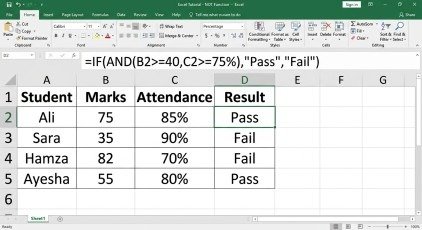
Suppose you are teaching Excel to a class and have this simple table:
| Student | Marks | Attendance |
| Ali | 75 | 85% |
| Sara | 35 | 90% |
| Hamza | 82 | 70% |
| Ayesha | 55 | 80% |
You want to decide who passes.
The rule is simple: marks must be 40 or higher and attendance must be 75% or higher.
In the result column, enter:
=IF(AND(B2>=40,C2>=75%),”Pass”,”Fail”)
Then copy the formula down.
Excel checks every student’s data automatically.
Ali passes because both conditions are met.
Sara fails because the marks are below 40.
Hamza fails because attendance is below 75%.
Ayesha passes because both conditions are met.
This is a good example of how Excel Logical Functions can turn a manual task into an automatic process.
Common Mistakes to Avoid
Logical formulas are simple, but small mistakes can change the result.
Using the Wrong Comparison Sign
Check whether you need:
>
<
>=
<=
=
<>
For example, A2>40 means greater than 40. It does not include 40.
If you want to include 40, use:
=A2>=40
Forgetting Quotation Marks
Text results usually need quotation marks.
Correct:
=IF(A2>=40,”Pass”,”Fail”)
Incorrect:
=IF(A2>=40,Pass,Fail)
Mixing Up AND and OR
Remember this simple rule:
AND = all conditions must be TRUE.
OR = at least one condition must be TRUE.
This small difference is important when building formulas.
Ignoring Errors
If a formula can produce an error, consider whether IFERROR can make the result clearer.
Do not hide errors without understanding why they happen. First check the formula and data. Then use IFERROR when a user-friendly result is needed.
Tips for Learning Excel Logical Functions
The best way to learn formulas is to practice with small datasets.
Start with one condition. Then try two conditions. After that, combine functions.
For example, practice these formulas:
=IF(A2>=50,”Good”,”Needs Improvement”)
=AND(A2>=50,B2>=75%)
=OR(A2>=80,B2>=90%)
=NOT(A2=”No”)
=IFERROR(A2/B2,”Check Data”)
Once these formulas feel easy, combine them.
Do not try to memorize every formula at once. Understand what each function asks Excel to do.
Final Thoughts
Excel Logical Functions help Excel make decisions from your data. IF handles two possible results, AND checks that all conditions are TRUE, OR checks whether at least one condition is TRUE, NOT reverses a logical result, and IFERROR handles formula errors.
These functions can save time in school records, business reports, budgets, sales sheets, and everyday Excel work.
Start with simple formulas and practice them on small datasets. As your skills improve, combine the functions to solve more complex tasks. This can make your Excel work faster, clearer, and more accurate.
Frequently Asked Questions
What are Excel Logical Functions?
Excel Logical Functions check conditions and help Excel make decisions. They can return TRUE or FALSE, or show a specific result based on a condition.
What is the difference between AND and OR in Excel?
AND returns TRUE when all given conditions are TRUE. OR returns TRUE when at least one condition is TRUE. The choice depends on the rule you want to apply.
How does the NOT function work in Excel?
The NOT function reverses a logical result. It changes TRUE to FALSE and FALSE to TRUE. It is useful when you need to check that a condition is not met.
What does IFERROR do in Excel?
IFERROR checks a formula for an error. If an error occurs, it returns the value you specify. If there is no error, Excel returns the normal formula result.
Meta Description:
Learn how to use 5 essential Excel Logical Functions—IF, AND, OR, NOT, and IFERROR—with simple formulas and practical examples for easier data analysis.