

If you use Excel for work, study, sales, or daily records, you often need to count, add, or compare data. Doing this by hand can take time. It can also lead to mistakes. The good news is that Excel can do this work for you. With the right Excel Functions, you can turn a large table into useful information in seconds. You do not need to be an advanced Excel user to start.
In this guide, you will learn how to use COUNT, COUNTA, COUNTIF, SUMIF, and AVERAGEIF. These Excel Functions are simple, but they can save a lot of time. You will see what each function does, how its formula works, and when to use it. You can also use the examples in this guide during a class or in your own Excel sheet. By the end, you will know how to choose the right function for common data tasks.
What Are Excel Functions?
Excel Functions help you manage data quickly and accurately. COUNT and COUNTA count numbers and filled cells, while COUNTIF counts data based on a condition. SUMIF calculates conditional totals, and AVERAGEIF finds averages for selected data. These functions are useful for marks, sales, budgets, attendance, and daily records. Learning them can save time, reduce mistakes, and make Excel tasks easier.
COUNT Function in Excel
The COUNT function is one of the easiest Excel Functions to learn. It counts cells that contain numbers.
COUNT Syntax
=COUNT(range)
The word range means the cells that you want Excel to check.
For example:
=COUNT(B2:B10)
This formula checks cells B2 through B10 and counts the cells that contain numbers.
When Should You Use COUNT?
Use COUNT when your goal is to count numeric entries.
For example, imagine a sales sheet with sales amounts in cells C2:C20. You can use:
=COUNT(C2:C20)
Excel will count the cells that contain numbers.
COUNT is useful for marks, prices, quantities, sales, dates, and other numeric data.
COUNT Example
Suppose a class has marks in cells D2:D11. You want to know how many students have a numeric mark entered.
Use:
=COUNT(D2:D11)
The result tells you how many cells contain numbers.
COUNTA Function in Excel
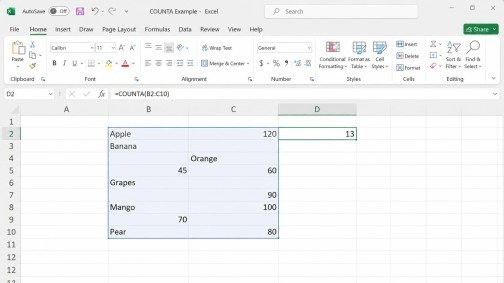
COUNT only counts numbers. But what if you want to count every cell that is not empty?
This is where COUNTA becomes useful. It counts non-blank cells. It can count numbers and text.
COUNTA Syntax
=COUNTA(range)
For example:
=COUNTA(B2:C10)
This formula checks the selected range and counts cells that contain data.
COUNT vs COUNTA
This difference is important:
- COUNT counts numeric cells.
- COUNTA counts non-empty cells.
- COUNTA can count text and numbers.
Suppose B2:B6 contains:
Ali
120
Sara
95
John
COUNT would return 2 because there are two numbers.
COUNTA would return 5 because all five cells contain data.
This small difference can prevent many mistakes when working with Excel Functions.
COUNTIF Function in Excel
COUNTIF becomes useful when you do not want to count everything. You want to count only cells that match a condition.
For example, you may want to count:
- Students who scored above 80
- Products marked as “Sold”
- Orders from one city
- Cells containing a certain word
COUNTIF can handle these tasks.
COUNTIF Syntax
=COUNTIF(range, criteria)
The first part tells Excel where to look.
The second part tells Excel what to look for.
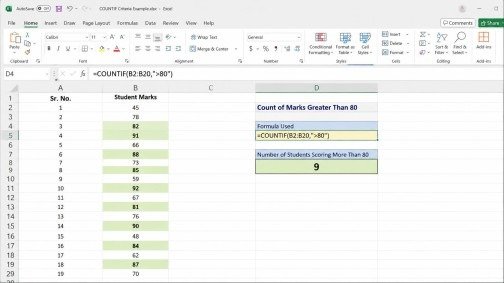
Example: Count Marks Above 80
Suppose student marks are in B2:B20.
Use:
=COUNTIF(B2:B20,”>80″)
Excel will count the cells with values greater than 80.
Example: Count a Specific Word
Suppose product status is in C2:C20. You want to count how many products have the status “Sold”.
Use:
=COUNTIF(C2:C20,”Sold”)
This is one of the most useful Excel Functions for simple data analysis.
Example: Count Text Starting With a Letter
COUNTIF can also use wildcards.
For example:
=COUNTIF(A2:A20,”J*”)
This counts cells that start with the letter J.
The asterisk means that other characters can appear after J.
SUMIF Function in Excel
Sometimes counting is not enough. You may want to add only the values that meet a condition.
That is the job of SUMIF.
SUMIF Syntax
=SUMIF(range, criteria, sum_range)
Here:
- range is the area Excel checks.
- criteria is the condition.
- sum_range contains the values to add.
Example: Add Sales for One Product
Suppose product names are in B2:B20 and sales amounts are in C2:C20.
To add sales for “Laptop”, use:
=SUMIF(B2:B20,”Laptop”,C2:C20)
Excel checks the product names. When it finds “Laptop”, it adds the related sales amount.
Example: Add Values Above 500
If the values you want to check and add are in C2:C20, you can use:
=SUMIF(C2:C20,”>500″)
This adds values greater than 500.
SUMIF is helpful for sales reports, expense records, stock sheets, and budgets.
AVERAGEIF Function in Excel
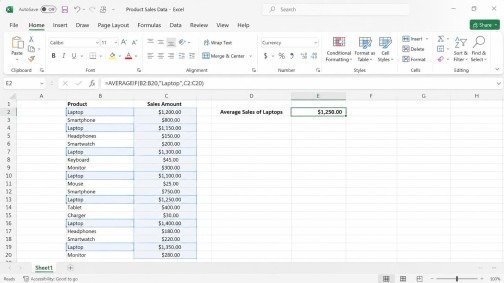
AVERAGEIF is useful when you want to find an average only for data that meets a condition.
Instead of averaging every value, Excel first checks your rule.
AVERAGEIF Syntax
=AVERAGEIF(range, criteria, average_range)
The first range is checked against the condition. The average range contains the numbers to average.
Example: Average Sales for One Product
Suppose product names are in B2:B20 and sales amounts are in C2:C20.
Use:
=AVERAGEIF(B2:B20,”Laptop”,C2:C20)
Excel finds the rows where the product is Laptop. It then calculates the average of the matching sales values.
Example: Average Marks Above 70
Suppose marks are in D2:D20.
Use:
=AVERAGEIF(D2:D20,”>70″)
This gives the average of marks that are greater than 70.
This makes AVERAGEIF one of the most practical Excel Functions for reports and student data.
COUNT, COUNTA, COUNTIF, SUMIF, and AVERAGEIF: What Is the Difference?
It is easy to mix these functions at first. The best way to remember them is to focus on their main job.
| Function | Main Purpose | Example |
| COUNT | Counts numbers | =COUNT(A2:A10) |
| COUNTA | Counts non-empty cells | =COUNTA(A2:A10) |
| COUNTIF | Counts cells that meet a condition | =COUNTIF(A2:A10,”>50″) |
| SUMIF | Adds values that meet a condition | =SUMIF(A2:A10,”>50″) |
| AVERAGEIF | Averages values that meet a condition | =AVERAGEIF(A2:A10,”>50″) |
A simple memory trick can help:
COUNT = How many numbers?
COUNTA = How many filled cells?
COUNTIF = How many match my rule?
SUMIF = What is the total for my rule?
AVERAGEIF = What is the average for my rule?
Once you understand this pattern, these Excel Functions become much easier to remember.
How to Use Criteria in Excel Functions
Criteria tell Excel what to check. They can be text, numbers, or comparisons.
Common comparison symbols include:
- > Greater than
- < Less than
- >= Greater than or equal to
- <= Less than or equal to
- = Equal to
- <> Not equal to
For example:
=COUNTIF(B2:B20,”>80″)
counts values above 80.
You can also use text:
=COUNTIF(C2:C20,”Passed”)
This counts cells that contain “Passed”.
Remember to place text and comparison criteria inside quotation marks.
Common Mistakes to Avoid
Learning Excel Functions is easier when you know the common errors.
1. Selecting the Wrong Range
Always check your selected cells. A wrong range can give a wrong answer.
2. Forgetting Quotation Marks
Text criteria need quotation marks.
Correct:
=COUNTIF(A2:A20,”Apple”)
For comparison criteria, use quotation marks too:
=COUNTIF(B2:B20,”>50″)
3. Using COUNT When You Need COUNTA
If your range contains names, COUNT will not count those text entries. Use COUNTA when you need to count all non-empty cells.
4. Mixing the Criteria and Sum Range
In SUMIF, make sure the condition range matches the correct data and the sum range contains the values you want to add.
5. Using the Wrong Average Range
With AVERAGEIF, check that the values being averaged match the rows where the condition is true.
A Simple Practice Exercise
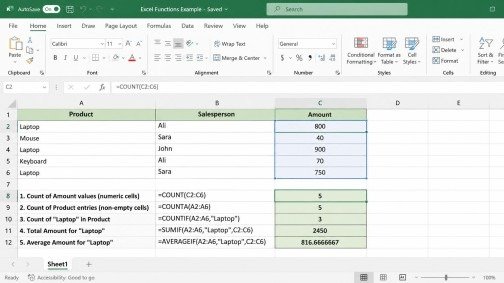
Now, let us put these Excel Functions into a single example.
Imagine you have a sales table with three columns:
| Product | Salesperson | Amount |
| Laptop | Ali | 800 |
| Mouse | Sara | 40 |
| Laptop | John | 900 |
| Keyboard | Ali | 70 |
| Laptop | Sara | 750 |
You can use different functions to study this data.
To count the number of numeric sales amounts:
=COUNT(C2:C6)
To count all filled product names:
=COUNTA(A2:A6)
To count Laptop sales:
=COUNTIF(A2:A6,”Laptop”)
To find total Laptop sales:
=SUMIF(A2:A6,”Laptop”,C2:C6)
To find the average Laptop sale:
=AVERAGEIF(A2:A6,”Laptop”,C2:C6)
This one example shows how the functions can work together.
Tips for Learning Excel Faster
Do not try to memorize every formula at once. Start with COUNT and COUNTA, then practice COUNTIF, SUMIF, and AVERAGEIF. Use small tables and real data, such as sales, marks, expenses, or attendance, to understand how changes in criteria affect the results. Regular practice will help you choose the right Excel Function for each task. As you become comfortable with these formulas, you can gradually move toward more advanced Excel features.
Final Thoughts
COUNT, COUNTA, COUNTIF, SUMIF, and AVERAGEIF are simple tools, but they can make Excel work much easier. They help you count data, find filled cells, apply conditions, calculate totals, and find useful averages.
The most important step is not memorizing formulas. It is understanding what question you want Excel to answer. If you need to count numbers, use COUNT. If you need to count filled cells, use COUNTA. If you need a condition, COUNTIF can help. If you need a conditional total, use SUMIF. For a conditional average, use AVERAGEIF.
With regular practice, these Excel Functions can become part of your everyday spreadsheet skills. Start with a small table, test each formula, and then move to larger datasets. Once these basics are clear, you will have a strong foundation for more advanced Excel work.
FAQs
1. What is the COUNT function in Excel?
COUNT counts cells that contain numbers, making it useful for marks, prices, quantities, sales, and other numeric data.
2. What is the difference between COUNT and COUNTA in Excel?
COUNT counts numeric cells, while COUNTA counts all non-empty cells, including both text and numbers
3. When should you use COUNTIF, SUMIF, and AVERAGEIF?
COUNTIF to count matching data, SUMIF to add values based on a condition, and AVERAGEIF to calculate a conditional average.
4. How can I learn Excel Functions faster?
Start with COUNT and COUNTA, then practice COUNTIF, SUMIF, and AVERAGEIF using small real-world tables and changing criteria.
Meta Description:
Master Excel Functions with this easy guide to COUNT, COUNTA, COUNTIF, SUMIF & AVERAGEIF. Learn formulas, examples, criteria, and common mistakes.
- What Are Excel Functions?
- COUNT Function in Excel
- COUNTA Function in Excel
- COUNT vs COUNTA
- COUNTIF Function in Excel
- SUMIF Function in Excel
- AVERAGEIF Function in Excel
- COUNT, COUNTA, COUNTIF, SUMIF, and AVERAGEIF: What Is the Difference?
- How to Use Criteria in Excel Functions
- A Simple Practice Exercise
- Tips for Learning Excel Faster
- Final Thoughts
- FAQs
- Meta Description: