
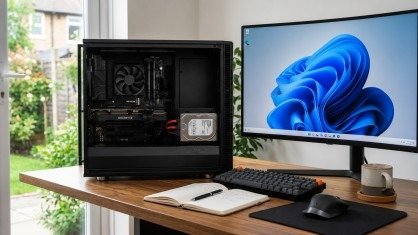
Have you ever opened your computer and waited too long for it to start? Do your files take a long time to load? Does your computer feel slow even after you close extra programs? In many cases, the problem is not your processor or memory. The real reason may be your Storage Drive. Choosing the right drive can make your computer feel faster, store more files, and work better every day. Whether you use your PC for school, work, gaming, or simple tasks, the right storage option can improve your experience.
Many people buy a new computer without thinking about the storage inside. Others replace an old drive but do not know which type is best. This guide will help you make the right choice. You will learn the difference between HDDs and SSDs, understand important features, and find the best option for your needs. By the end of this article, you will know how to choose the perfect Storage Drive for your computer with confidence.
Why Choosing the Right Storage Drive Matters
A computer stores every important file on its storage device. This includes Windows, software, games, documents, photos, videos, and personal files. If your drive is slow, your whole computer becomes slow. If it has little space, you may run out of storage sooner than expected.
The right Storage Drive gives you several benefits.
- Faster startup times
- Quicker file access
- Better system performance
- More storage space
- Improved reliability
- Longer computer life
A good storage solution also helps you save time every day. Even small tasks like opening a folder or copying files become much faster.
What Is a Storage Drive?
A Storage Drive is the part of a computer that saves your data. It keeps your operating system, programs, and files even when the computer is turned off.
Every computer needs a storage device to work. Without one, your computer cannot save information.
There are two main types of storage drives today.
- Hard Disk Drive (HDD)
- Solid State Drive (SSD)
Each one has its own strengths. The best choice depends on how you use your computer.
Hard Disk Drive (HDD)
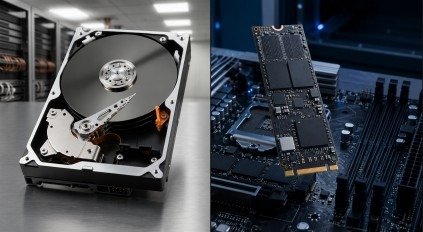
A Hard Disk Drive uses spinning magnetic disks to store data. A small read-and-write head moves across these disks to find information.
This technology has been used for many years. It is still popular because it offers large storage space at a lower price.
Advantages of HDD
An HDD is a good choice if you need lots of storage without spending too much money.
Its benefits include:
- Lower cost per gigabyte
- Large storage capacities
- Good for backups
- Ideal for photos and videos
- Suitable for long-term file storage
Many HDDs are available with capacities from 1 TB to over 20 TB.
Disadvantages of HDD
Although HDDs are affordable, they also have some limits.
They are slower because the internal parts move while reading and writing data. These moving parts also make more noise and are more likely to wear out over time.
If speed is your main goal, an HDD may not be the best option.
Solid State Drive (SSD)
A Solid State Drive stores data on flash memory chips. It has no moving parts.
Because of this design, it works much faster than a traditional hard drive.
Today, SSDs have become the preferred choice for most new computers.
Advantages of SSD
An SSD provides many performance improvements.
It offers:
- Very fast boot times
- Faster program loading
- Quick file transfers
- Silent operation
- Lower power use
- Better durability
An SSD also makes Windows feel smoother. Programs open quickly, updates finish faster, and multitasking becomes easier.
Disadvantages of SSD
The biggest drawback is the price.
Although SSD prices have dropped over the years, they still cost more than HDDs with the same storage capacity.
If you need several terabytes of storage on a limited budget, an SSD may be expensive.
HDD vs SSD: Which One Is Better?
There is no single answer because every user has different needs.
If you mainly store movies, family photos, and large files, an HDD offers better value.
If you want faster performance, an SSD is the better choice.
Here is a simple comparison.
| Feature | HDD | SSD |
| Speed | Slower | Much Faster |
| Price | Lower | Higher |
| Noise | Yes | No |
| Moving Parts | Yes | No |
| Power Use | Higher | Lower |
| Durability | Good | Better against shocks |
| Best For | Large storage | Fast performance |
For most users in 2026, an SSD provides the best everyday experience.
How Much Storage Space Do You Need?
Choosing the right size is just as important as choosing the right type.
Buying too little space may force you to upgrade again very soon.
Buying too much may cost more than you actually need.
The best choice depends on how you use your computer.
How to Choose the Right Storage Capacity
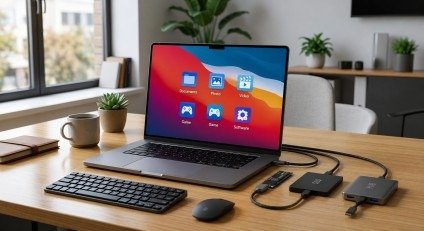
Storage size is one of the most important things to consider. A drive that is too small will fill up quickly. A drive that is too large may cost more than you need.
Here is a simple guide.
256 GB
This size is good for basic users. It works well if you mainly browse the web, use Microsoft Office, and save a few documents.
512 GB
This is the best choice for most people. It gives enough space for Windows, software, photos, and everyday files.
1 TB
A 1 TB Storage Drive is a great option for students, professionals, and gamers. It gives plenty of room for large applications and many personal files.
2 TB or More
Choose this size if you edit videos, work with large projects, or keep a large collection of games, photos, or movies.
Important Features to Check Before Buying
Buying a new drive is not only about storage size. Several other features affect performance and compatibility.
Read and Write Speed
Read speed shows how fast your computer opens files.
Write speed shows how quickly it saves files.
Higher speeds mean better performance. If you often move large files, choose a drive with faster read and write speeds.
Form Factor
The form factor is the physical size of the drive.
The most common options include:
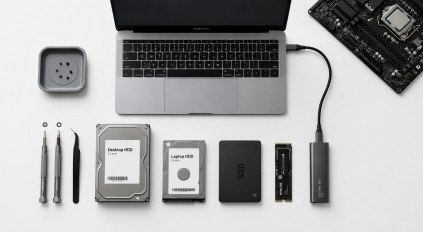
- 2.5-inch – Used in many laptops and desktops.
- M.2 – Small, modern, and faster.
- 3.5-inch – Mostly used for desktop hard drives.
Always check what your computer supports before buying.
Interface
The interface connects the drive to your computer.
Common options include:
- SATA
- PCIe NVMe
- USB (for external drives)
A faster interface usually provides better performance.
Reliability
A good drive should last for many years.
Choose trusted brands that offer good warranties and positive customer reviews. Reliable storage helps protect your important files.
Which Storage Drive Is Best for You?
The best choice depends on how you use your computer.
Students
Students usually need enough space for assignments, presentations, and online classes.
A 512 GB SSD is a smart choice because it offers both speed and enough storage.
Office Users
Office work mostly involves documents, spreadsheets, emails, and web browsing.
A 512 GB or 1 TB SSD provides excellent performance for daily tasks.
Gamers
Modern games require a lot of storage.
Many new games also perform better on SSDs because loading times are much shorter.
A 1 TB Storage Drive is recommended for most gamers.
Content Creators
Video editors, photographers, and graphic designers work with very large files.
An NVMe SSD for active projects and a large HDD for storage creates an excellent combination.
Home Users
If you mainly watch movies, browse the internet, and save family photos, a 512 GB SSD or a combination of SSD and HDD will work very well.
Should You Use Both an SSD and HDD?
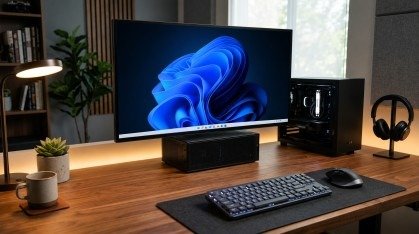
If your computer supports two drives, using both is often the best solution.
Install your operating system and frequently used programs on an SSD. Store large files like videos, photos, music, and backups on an HDD. This setup gives you fast performance without giving up storage space.
For many users, a dual-drive setup offers the best balance between speed, capacity, and cost.
Final Thoughts
Choosing the right Storage Drive does not have to be difficult. The best option depends on your budget, storage needs, and the way you use your computer every day. If speed is your priority, an SSD is the clear winner. If you need maximum space at a lower price, an HDD is still a practical solution. Many users get the best experience by combining both.
Before making your final decision, think about how much storage you need today and how your needs may grow in the future. Investing in the right drive now can improve your computer’s speed, protect your important files, and extend the life of your system. With the information in this guide, you can confidently choose the Storage Drive that fits your needs and enjoy better performance for years to come.
Frequently Asked Questions
Is an SSD better than an HDD?
Yes. An SSD is much faster, quieter, and more reliable because it has no moving parts. However, an HDD is still a better option if you need a large amount of storage at a lower price.
How much storage do I need?
For most users, 512 GB is enough for daily tasks. If you install many games or work with large files, 1 TB or more is a better choice.
Can I replace my HDD with an SSD?
Yes. Most desktop computers and many laptops allow you to replace an HDD with an SSD. This upgrade can greatly improve boot time and overall system performance.
Can I use an SSD and HDD together?
Yes. Many desktop computers and some laptops support both drives. This setup lets you enjoy fast performance from the SSD while using the HDD for extra storage.
Which Storage Drive is best for gaming?
An NVMe SSD is the best choice for gaming because it offers faster loading times and smoother performance. If you have a large game library, choose at least a 1 TB Storage Drive.
Meta Description
Learn how to choose the right Storage Drive for your computer. Compare HDD vs SSD, explore key features, and find the best option for speed, storage, and performance.