
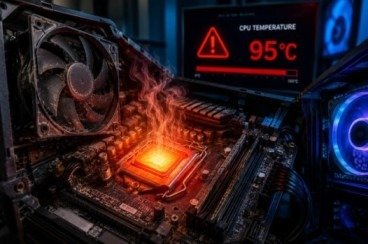
Is your CPU getting so hot that your computer slows down or suddenly shuts off?
A hot CPU is more than just an annoying problem. It can slow down your computer and reduce gaming performance. It can also damage hardware and shorten your system’s life. The good news is that most CPU Overheating Problems can be fixed before they become serious.
Heat builds up for many reasons. Dust can block airflow. Cooling fans can stop working properly. Heavy software can also push your processor beyond its limits. As a result, your computer may become slow, noisy, or unstable. However, if you know what causes the problem, you can often solve it quickly.
In this guide, you will learn 12 proven solutions that actually work. You will learn the warning signs and common causes. You will also find simple tips to prevent CPU Overheating Problems. These solutions work for work, gaming, editing, and daily use. They help keep your CPU cool and your computer running well.
How to Tell If Your CPU Is Overheating
Before fixing the issue, you should know the warning signs. Many people ignore them until the computer stops working properly.
Look for these symptoms:
- The computer suddenly becomes very slow.
- The cooling fan runs loudly all the time.
- Random restarts or unexpected shutdowns.
- Games begin to lag or freeze.
- The CPU temperature stays above 85°C.
- The computer case feels unusually hot.
- Programs crash without warning.
If you notice these signs, your CPU may be overheating. Fix the problem before it gets worse.
1. Improve Airflow Inside Your Computer
Poor airflow is one of the biggest reasons a processor gets too hot.
If hot air cannot leave the computer case, the temperature keeps rising. Eventually, the CPU starts reducing its speed to protect itself.
What You Should Do
- Keep your computer at least 6 inches away from the wall.
- Never block the front or rear air vents.
- Organize cables so they do not stop airflow.
- Use a computer case with proper ventilation.
Even small airflow improvements can reduce CPU Overheating Problems by several degrees.
2. Remove Dust from Fans and Heat Sinks
Dust is the enemy of every desktop computer.
Over time, dust covers cooling fans, air filters, and heat sinks. Because of this, cool air cannot reach the processor properly.
Simple Cleaning Tips
- Turn off your computer first.
- Disconnect the power cable.
- Use compressed air to clean dust.
- Hold the fan blades while cleaning.
- Remove dust from every vent.
Clean your PC every few months. It helps prevent CPU Overheating Problems and improves cooling.
3. Check Whether the CPU Fan Is Working Properly
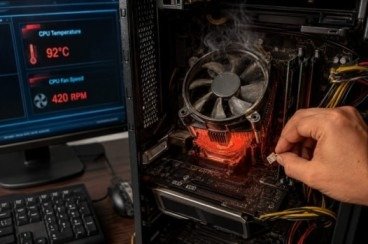
Your CPU cooler works all day to remove heat from the processor.
A slow or noisy fan cannot cool the CPU properly. The temperature can rise very quickly.
Signs of a Bad CPU Fan
- Grinding noises
- Fan spinning slowly
- Fan stops randomly
- High CPU temperatures even while idle
Replace a damaged CPU fan as soon as possible. It costs much less than replacing a damaged processor.
4. Replace Old Thermal Paste
Thermal paste transfers heat from the processor to the CPU cooler.
However, after several years, it becomes dry and hard. When this happens, heat cannot move efficiently.
When Should You Replace It?
- CPU is more than 2 years old.
- Temperatures stay high after cleaning.
- CPU reaches over 90°C during normal work.
Use fresh, high-quality thermal paste. It helps lower CPU temperatures and reduces CPU Overheating Problems.
5. Close Unnecessary Background Programs
Many users do not realize how many programs run silently.
Every extra application increases CPU usage. As a result, the processor works harder and creates more heat.
Reduce CPU Load
- Close apps you are not using.
- Disable unnecessary startup programs.
- Limit browser tabs.
- Stop heavy background downloads.
Lower CPU usage means lower temperatures and fewer CPU Overheating Problems.
6. Monitor CPU Temperature Regularly
You cannot fix what you cannot measure.
Therefore, checking your processor temperature regularly is a smart habit.
Popular monitoring tools include:
- HWMonitor
- Core Temp
- HWiNFO
- MSI Afterburner
Safe CPU Temperature Range
CPU TemperatureStatus30–45°CExcellent45–60°CNormal60–75°CModerate Load75–85°CHighAbove 90°CDangerous
If your CPU goes above 90°C, find the cause right away. This can prevent CPU Overheating Problems from damaging your hardware.
7. Update Your BIOS and System Drivers

Many people ignore software updates. Old BIOS files and chipset drivers can cause problems. They may affect how your CPU controls heat.
Manufacturers often release updates that improve fan control, power management, and system stability.
What You Should Do
- Visit your motherboard manufacturer’s website.
- Download the latest BIOS update for your model.
- Update chipset and CPU drivers.
- Restart your computer after installation.
Keep your system updated. It helps reduce CPU Overheating Problems over time.
8. Scan Your Computer for Malware
Not every overheating issue comes from hardware.
Sometimes malware uses your CPU without you knowing. This can make your CPU very hot. As a result, the processor stays hot even when you are doing nothing.
How to Fix It
- Run Windows Security or another trusted antivirus.
- Remove all detected threats.
- Update your antivirus software.
- Scan your computer regularly.
A clean system uses fewer resources and helps prevent CPU Overheating Problems.
9. Upgrade Your CPU Cooler
The stock CPU cooler works well for basic tasks. However, it may struggle during gaming, video editing, or other heavy workloads.
If your CPU is still hot after cleaning, upgrade the CPU cooler. It can make a big difference.
Better Cooling Options
- Larger air coolers
- All-in-One (AIO) liquid coolers
- High-performance thermal paste
- Better case fans
An upgraded cooling system keeps temperatures lower and improves overall performance.
10. Stop Overclocking Your Processor
Overclocking increases CPU speed. However, it also increases heat.
Without a powerful cooling system, overclocking can quickly lead to CPU Overheating Problems.
Recommended Solution
If your computer is overheating:
- Reset BIOS settings to default.
- Disable CPU overclocking.
- Lower voltage if needed.
- Test system stability.
Running the CPU at its default settings is often the safest option.
11. Improve Your Power Settings
Your computer does not always need maximum performance.
Use Balanced mode for everyday tasks like browsing or office work. It helps reduce CPU activity and heat.
Simple Steps
- Open Power Options.
- Select Balanced mode.
- Avoid High Performance mode unless needed.
- Reduce maximum processor state if necessary.
Small power adjustments can lower temperatures while saving electricity.
12. Know When Professional Repair Is Needed
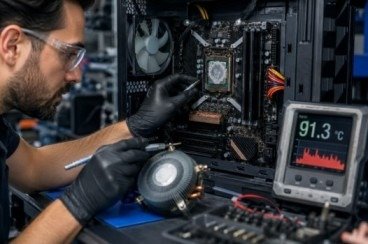
Sometimes simple fixes are not enough.
If your CPU stays above 90°C, there may be a hardware problem. Have your computer checked by a professional?
Common issues include:
- Failed CPU cooler
- Damaged motherboard
- Faulty power supply
- Broken temperature sensors
- Poor CPU installation
A professional technician can diagnose the exact cause and prevent further damage.
Why CPU Overheating Should Never Be Ignored
Many people continue using their computer even when it overheats. Unfortunately, this can cause permanent damage.
Ignoring CPU Overheating Problems may lead to:
- Reduced processor performance
- Frequent crashes
- Random shutdowns
- Motherboard damage
- Shorter CPU lifespan
- Lost files and corrupted data
- Expensive repairs
Fixing the problem early saves both time and money.
Long-Term Tips to Prevent CPU Overheating
Preventing overheating is much easier than repairing damaged hardware.
Follow these simple habits:
- Clean your computer every 3–6 months.
- Replace thermal paste every 2–3 years.
- Keep your PC in a cool, ventilated room.
- Avoid blocking air vents.
- Keep Windows and drivers updated.
- Monitor CPU temperatures regularly.
- Use a quality power supply.
- Shut down your computer occasionally instead of leaving it running for days.
Regular maintenance greatly reduces the chances of CPU Overheating Problems.
Final Thoughts
CPU Overheating Problems are common, but they do not have to become expensive. Simple steps can fix the problem in many cases. Clean the dust, improve airflow, replace the thermal paste, and reduce CPU load.
Regular maintenance keeps your processor cool. It also helps your computer run smoothly. Follow these 12 proven solutions to improve your computer’s performance. They can also prevent unexpected shutdowns and help your system last longer.
If your CPU still runs hot after trying these fixes, do not ignore the warning signs. Professional diagnosis can identify hidden hardware issues and prevent costly repairs later.
Frequently Asked Questions
What causes CPU overheating?
Dust, poor airflow, and old thermal paste are common causes. Faulty fans, heavy workloads, malware, and overclocking can also overheat the CPU.
What is a safe CPU temperature?
Most processors work safely between 40°C and 85°C. Temperatures above 90°C need immediate attention.
Can CPU overheating damage my computer?
Yes. Continuous overheating can permanently damage the CPU, motherboard, RAM, and other important components.
Does replacing thermal paste really help?
Yes. Fresh thermal paste helps move heat away from the CPU. It keeps the processor cooler.
How often should I clean my computer?
Clean the inside of your computer every 3–6 months. This keeps the airflow smooth and the system cool.
Mata Description
Learn how to fix CPU Overheating Problems with 12 proven solutions. Discover the causes, warning signs, prevention tips, and expert fixes to keep your processor cool in 2026.