
A laptop that suddenly stops charging can interrupt work, study, meetings, and entertainment. The good news is that many charging problems come from simple causes such as a loose connection, a damaged cable, a blocked charging port, outdated drivers, incorrect power settings, or old firmware. In many cases, you can troubleshoot the issue at home before visiting a repair center.
This guide explains seven practical methods to diagnose and fix common charging problems. Start with the easiest checks, then move on to software and system updates. If your battery is old, damaged, swollen, or overheating, stop using it and seek professional help.
Why Is My Laptop Battery Not Charging?

If you are searching for a simple Laptop Battery Not Charging fix, start by identifying the likely cause. Before trying advanced fixes, it helps to understand why a laptop may refuse to charge.
Common causes include:
- A faulty wall outlet or AC adapter
- A damaged or loose charging cable
- Dust or debris inside the charging port
- Battery driver or Windows software problems
- Power management settings that limit charging
- Outdated BIOS or chipset drivers
- A worn-out or damaged battery
Sometimes the laptop shows “plugged in, not charging” even when the charger is connected correctly. This can happen because of battery health limits, software settings, hardware faults, or a charger that cannot provide enough power.
1. Check the Power Outlet and Adapter Cable
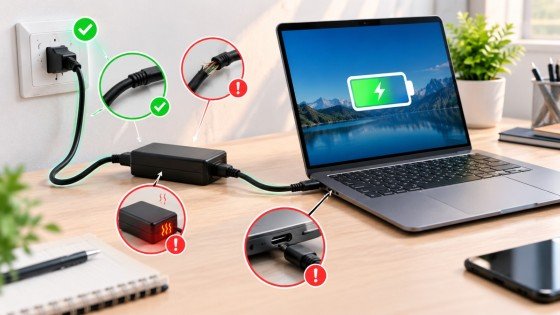
A common Laptop Battery Not Charging problem starts with the power source. Start with the simplest possible cause: the power connection. A faulty outlet or damaged adapter can stop electricity from reaching your laptop.
First, plug another working device into the same wall outlet. If that device also fails to work, try another outlet. Then inspect the complete charging cable and power brick.
Look for:
- Frayed or exposed wires
- Deep bends or kinks
- Loose connectors
- Burn marks or discoloration
- Unusual heat or a burnt smell
Do not continue using a charger that is visibly damaged, unusually hot, or smells like burnt plastic. Replace it with a compatible charger that matches your laptop’s required voltage and wattage.
2. Inspect and Clean the Charging Port
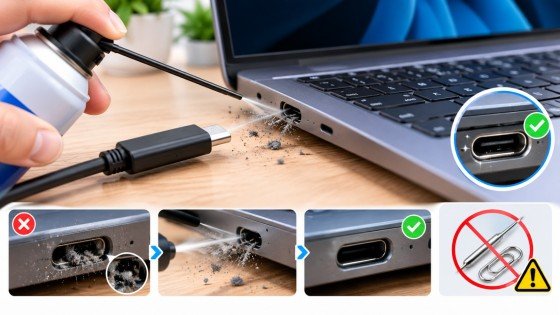
Another Laptop Battery Not Charging cause can be dust or debris in the charging port. Dust, lint, and small particles can prevent the charger from making proper contact with the laptop.
Turn off the laptop and disconnect the charger. Look inside the charging port with good lighting. If you see dust or debris, use compressed air carefully to remove it.
Avoid inserting pins, needles, paper clips, or other metal objects into the port. They can damage internal contacts or create a short circuit.
If the charging connector feels loose, falls out easily, or only works when held at a certain angle, the port may be damaged. In that case, professional inspection is safer than trying to repair it yourself.
3. Perform a Hard Power Reset
If Laptop Battery Not Charging continues after checking the hardware, a hard power reset may help clear residual power and temporary hardware or firmware glitches.
Follow these steps:
- Shut down the laptop completely.
- Unplug the charger.
- Disconnect USB drives, external monitors, docking stations, and other accessories.
- If the battery is removable, remove it.
- Press and hold the power button for about 15–30 seconds.
- Reconnect the battery if you removed it.
- Connect the charger and turn the laptop on.
After restarting, check the battery icon. If the laptop starts charging normally, a temporary power-management or hardware-state problem may have caused the issue.
For laptops with built-in batteries, do not open the case just to remove the battery unless you are qualified to do so.
4. Reinstall the Battery Driver
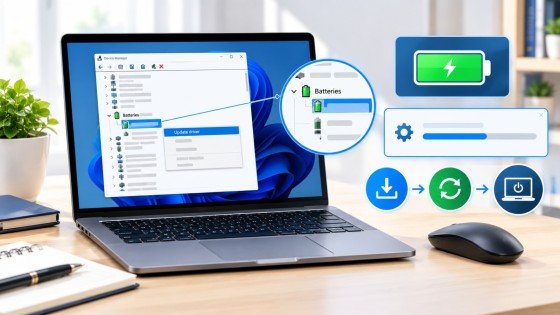
Software can also cause Laptop Battery Not Charging symptoms. Windows uses battery drivers to communicate with the battery and charging hardware. A corrupted or incorrectly functioning driver can cause charging information to be displayed incorrectly.
To reinstall the battery driver:
- Right-click the Windows Start button.
- Open Device Manager.
- Expand the Batteries category.
- Find Microsoft ACPI-Compliant Control Method Battery.
- Right-click it and choose Uninstall device.
- Confirm the action if Windows asks.
- Restart the laptop.
After the restart, Windows should automatically reinstall the required driver. Check the battery status again.
If the problem started after a recent driver update, your laptop manufacturer may also provide an earlier compatible driver. Always use drivers from the manufacturer’s official support page when possible.
5. Check Power Management Settings
Incorrect power settings can make Laptop Battery Not Charging appear as a hardware fault. Some laptops include battery protection features that intentionally stop charging at a certain percentage, such as 60% or 80%.
These settings are designed to reduce battery wear and are not necessarily signs of a fault.
Open Windows Settings and review your power and battery options. Also check whether your laptop manufacturer provides a battery management application.
Look for features such as:
- Battery Saver
- Battery Health Charging
- Charging Threshold
- Optimized Battery Charging
- Maximum Battery Charge Level
If charging stops at a fixed percentage, check whether one of these limits is enabled. You can temporarily adjust the setting to test whether normal charging resumes.
Important: Do not disable a battery protection feature simply because the battery stops at 80%. If the laptop is designed to limit charging, that behavior may be intentional.
6. Update BIOS and Chipset Drivers
If Laptop Battery Not Charging remains unresolved, BIOS and chipset firmware may need attention. BIOS and chipset firmware help the operating system communicate with important hardware components.
Outdated firmware can sometimes cause incorrect battery status or charging behavior.
Visit your laptop manufacturer’s official support website. Search for your exact model and check for available:
- BIOS updates
- Firmware updates
- Chipset drivers
- Power-management drivers
Before installing a BIOS update:
- Confirm the exact laptop model.
- Connect the AC adapter.
- Make sure the battery has enough power if possible.
- Close unnecessary applications.
- Follow the manufacturer’s instructions carefully.
- Do not turn off the laptop during the update.
A failed BIOS update can cause serious system problems, so avoid using unofficial firmware or files made for a different laptop model.
7. Test Battery Health and Consider Professional Help
For a persistent Laptop Battery Not Charging problem, the battery itself may be reaching the end of its useful life. Lithium-ion batteries naturally lose capacity after repeated use and charging cycles.
Generate a Windows Battery Report
On Windows, you can generate a battery report by opening Command Prompt as an administrator and running:
powercfg /batteryreport
Windows creates an HTML report that can help you compare the battery’s original Design Capacity with its current Full Charge Capacity.
You can also use your laptop manufacturer’s built-in diagnostic tools. Many manufacturers provide hardware tests that can identify battery, adapter, or charging-port problems.
Consider professional service if:
- The battery is swollen or physically damaged.
- The laptop becomes unusually hot while charging.
- The charger or port has visible damage.
- The laptop turns off when the charger is removed.
- The battery report shows severe capacity loss.
- The laptop still refuses to charge after troubleshooting.
A swollen battery can be a safety hazard. Do not puncture, open, or attempt to repair it yourself.
What If the Laptop Is Plugged In but Not Charging?
A Laptop Battery Not Charging message does not always mean the battery is broken. First check whether the laptop intentionally limits charging to protect battery health. Then inspect the charger, port, power settings, drivers, and firmware.
If the battery remains at a specific percentage, such as 60% or 80%, a manufacturer charging threshold may be active. If the percentage never increases and the laptop reports an adapter or battery error, hardware testing may be necessary.
When Should You Replace a Laptop Battery?
Battery replacement may be necessary when the battery has significantly lost capacity or shows physical damage. A laptop that shuts down quickly after being unplugged is another sign that the battery may be worn.
Do not replace a battery based only on one charging problem. Check the charger, port, drivers, settings, and battery health first.
When replacement is needed, use a battery designed for the exact laptop model and follow the manufacturer’s safety instructions.
How to Prevent Future Charging Problems

These habits can reduce the chance of another Laptop Battery Not Charging problem. Good charging and maintenance practices can also help extend the useful life of your laptop battery.
- Use a compatible, reliable charger.
- Keep the charging port clean.
- Avoid excessive heat and blocked ventilation.
- Install important driver and firmware updates.
- Use battery protection features when appropriate.
- Avoid bending or tightly wrapping charging cables.
- Do not use visibly damaged adapters.
- Monitor battery health as the laptop gets older.
- Keep liquids away from the laptop and charger.
- Get professional help if the battery becomes swollen or unusually hot.
Conclusion
When you see Laptop Battery Not Charging, do not assume that the battery needs immediate replacement. Start by checking the wall outlet, charger, cable, and charging port. Then try a hard power reset, reinstall the battery driver, review charging limits, and update BIOS and chipset drivers.
If the problem continues, use a battery health report or the manufacturer’s diagnostic tools. Some problems can be solved with simple troubleshooting, while damaged batteries, charging ports, adapters, or motherboard components may require professional repair.
Always prioritize safety when dealing with damaged or swollen batteries.
FAQs
Why is my laptop plugged in but not charging?
A Laptop Battery Not Charging message can have several causes. The cause may be a faulty charger, blocked charging port, battery protection setting, driver problem, outdated firmware, or worn battery. Check the easiest physical connections first.
How do I fix a laptop that is not charging?
Check the outlet and charger, clean the charging port, perform a hard reset, reinstall the battery driver, review charging settings, update BIOS and chipset drivers, and check battery health.
Why does my laptop stop charging at 80%?
Many laptops include battery health features that limit charging to 80% or another percentage. Check the manufacturer’s battery management software and Windows power settings.
Can a bad charger damage a laptop battery?
An incompatible or damaged charger can create power problems and may be unsafe. Use a charger that meets the laptop manufacturer’s voltage, wattage, and connector requirements.
How do I check laptop battery health?
On Windows, you can run powercfg /batteryreport from an administrator Command Prompt. The generated report includes battery capacity information and usage history.
Should I replace my laptop battery if it is not charging?
Not always. First rule out the charger, outlet, port, software, driver, and charging-limit settings. Replace the battery when diagnostics or physical symptoms indicate that it is worn or damaged.
Is it safe to use a laptop with a swollen battery?
No. A swollen battery can present a safety risk. Stop using the affected battery and seek qualified professional service. Do not puncture or open it.
Meta Description
Learn how to fix Laptop Battery Not Charging with 7 easy methods, from checking the charger and port to updating drivers, BIOS, and battery settings.
- Why Is My Laptop Battery Not Charging?
- What If the Laptop Is Plugged In but Not Charging?
- When Should You Replace a Laptop Battery?
- How to Prevent Future Charging Problems
- Conclusion
- FAQs
- Why is my laptop plugged in but not charging?
- How do I fix a laptop that is not charging?
- Why does my laptop stop charging at 80%?
- Can a bad charger damage a laptop battery?
- How do I check laptop battery health?
- Should I replace my laptop battery if it is not charging?
- Is it safe to use a laptop with a swollen battery?
- Meta Description