
You have built your website. You have published your content. But here is the question nobody tells you to ask — does Google even know your website exists?
Most beginners spend months writing content, designing pages, and sharing on social media — while completely ignoring the one free tool that shows them exactly how Google sees their website. That tool is Google Search Console. And if you are not using it, you are flying completely blind.
Using Google Search Console for better website ranking is not optional in 2026 — it is essential. It tells you which keywords bring people to your site, which pages Google refuses to index, where your rankings are dropping, and what technical issues are silently killing your traffic. Best of all, it costs absolutely nothing.
This beginner’s guide will walk you through everything — from setting up your account to using every major report like a professional SEO. By the end, you will know exactly how to use Google Search Console for better website ranking and make every content decision based on real Google data instead of guesswork.
What Is Google Search Console?
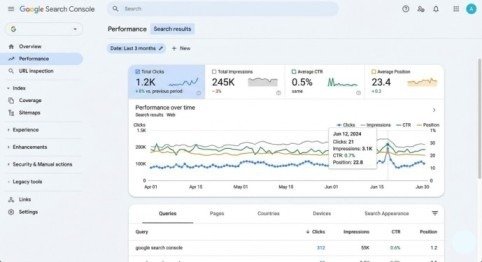
Google Search Console — formerly known as Google Webmaster Tools — is a free platform provided directly by Google. It gives you a complete picture of how your website performs inside Google Search results.
Unlike Google Analytics, which tracks visitor behavior after they land on your site, Search Console focuses on everything that happens before the click. It answers the questions that matter most for SEO:
- Is Google finding and indexing all my pages?
- Which keywords are my pages ranking for?
- How many people see my site in search results?
- Are there technical errors blocking my rankings?
- Who is linking to my website?
No third-party tool can replicate this data because it comes directly from Google itself. That is what makes Google Search Console for better website ranking the single most important free SEO tool available to any website owner.
How to Set Up Google Search Console
Getting started takes less than 10 minutes. Follow these steps carefully and you will be ready to access your data right away.
Step 1 — Go to the Search Console website Visit search.google.com/search-console and sign in with your Google account.
Step 2 — Add your property You will see two options — Domain Property and URL Prefix Property.
- Domain Property — Recommended for most users. Covers your entire website including all subdomains, HTTP, HTTPS, and www variations in one single view.
- URL Prefix Property — Tracks only one specific URL format. Use this only if you want to monitor a specific section of your website, like a subfolder or a specific language version.
Step 3 — Verify your website ownership Google needs to confirm you own the website before showing you the data.
- For Domain Property — Add a DNS TXT record through your domain registrar. Google provides step-by-step instructions for all major hosting providers.
- For URL Prefix — The easiest method is the HTML tag. Copy the verification code and paste it into the head section of your website. WordPress users can do this instantly using the Yoast SEO plugin under SEO → General → Webmaster Tools.
Step 4 — Wait for data After verification, Google begins collecting data. Initial data usually appears within 24 to 48 hours. Full historical data builds up over the first few weeks.
Pro Tip: Connect Google Search Console to your Google Analytics account from the Analytics Admin settings. This allows you to see Search Console data inside Analytics and get a complete picture of your traffic in one place.
Understanding the Search Console Dashboard
Once inside, you will see an Overview page showing a quick snapshot of your website’s health. On the left side menu, you will find all the key reports. Let us go through each one.
The Performance Report — Your Most Valuable SEO Data
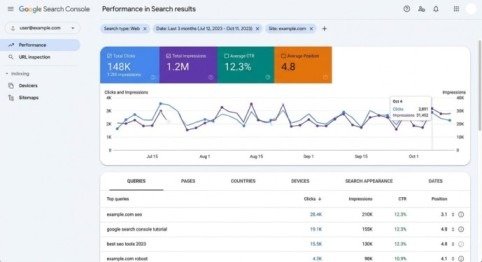
The Performance Report is where you will spend most of your time when using Google Search Console for better website ranking. It shows you four critical metrics for every page and keyword on your website.
Total Clicks — How many people clicked your website link in Google Search results and actually visited your site.
Total Impressions — How many times your website appeared in Google Search results, whether someone clicked or not.
Average CTR (Click-Through Rate) — The percentage of impressions that resulted in a click. A low CTR means people are seeing your site but choosing competitors instead.
Average Position — Your average ranking in Google Search. Position 1 is the top result. Position 10 is the last result on page one.
3 Powerful Ways to Use the Performance Report
1. Find keywords with low CTR and fix them Filter your queries to show only keywords ranking in positions 1 to 10 with a CTR below 5%. These pages are already ranking well but not getting enough clicks. Rewrite their title tags and meta descriptions to be more compelling — this alone can double your traffic without improving your rankings at all.
2. Find keywords ranking on page 2 and push them to page 1 Filter queries to show positions between 11 and 30. These are keywords where you are close to page one but not quite there. Improve the content on those pages, add more detail, update outdated information, and build a few internal links to them. Page 2 keywords are your fastest ranking wins.
3. Identify keyword cannibalization Search for your target keyword in the Query filter and then click the Pages tab. If multiple pages on your site rank for the same keyword, they are competing against each other. Merge the weaker page into the stronger one or redirect it — this consolidates your ranking power into a single, stronger page.
The Page Indexing Report — Make Sure Google Finds Your Content
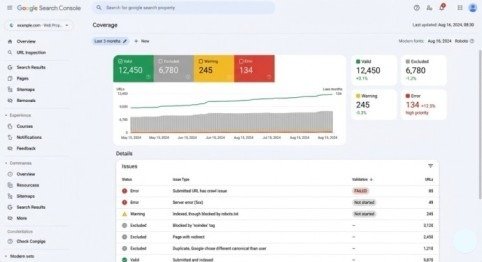
Publishing a page does not guarantee Google will index it. The Page Indexing Report shows you exactly which pages are indexed and which ones are being excluded — and why.
Status categories to understand:
- Valid — Page is indexed and eligible to appear in Google Search. This is what you want.
- Excluded — Page is not indexed. This is not always a problem — pages marked noindex, duplicate pages, and redirect pages all appear here intentionally.
- Error — Page failed to index due to a technical problem. These need immediate attention.
Common errors to fix immediately:
- 404 Not Found — The page does not exist. Create the page, redirect the URL, or remove it from your sitemap.
- Server Error (5xx) — Your server failed when Google tried to crawl the page. Contact your hosting provider.
- Blocked by robots.txt — Your robots.txt file is accidentally preventing Google from accessing important pages. Review your robots.txt settings carefully.
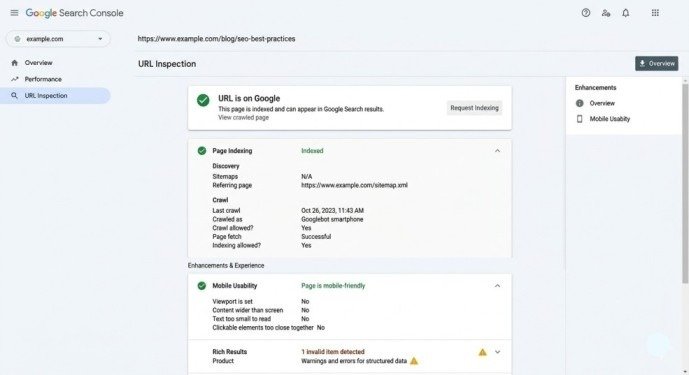
How to request indexing for new pages: After publishing any new page or making major updates to an existing one, use the URL Inspection Tool at the top of Search Console. Paste your page URL, click Inspect, and then click Request Indexing. Google will usually crawl the page within a few hours to a few days — much faster than waiting for the natural crawl cycle.
The Sitemaps Report — Help Google Discover All Your Pages
A sitemap is an XML file that lists every important page on your website. Submitting it to Google Search Console ensures Google can find and index your content quickly — especially new pages that have no internal links pointing to them yet.
How to submit your sitemap:
- Find your sitemap URL — on most WordPress sites it is yourwebsite.com/sitemap.xml (generated automatically by Yoast SEO or Rank Math)
- In Search Console, go to Sitemaps in the left menu
- Enter your sitemap URL and click Submit
- Google confirms how many pages it discovered and how many were indexed
Check this report monthly. If the number of submitted pages is significantly higher than indexed pages, use the Page Indexing Report to find out why certain pages are being excluded.
The Mobile Usability Report — Rank Better on Mobile Search
In 2026, Google uses mobile-first indexing — meaning it primarily uses the mobile version of your website to determine rankings. If your site has mobile usability problems, your rankings suffer on both mobile and desktop.
The Mobile Usability Report flags specific issues Google finds on your pages:
- Text too small to read — Font size is below the recommended minimum for mobile screens
- Content wider than screen — Elements are overflowing the mobile viewport
- Clickable elements too close together — Buttons and links are too near each other for accurate tapping
Fix these issues in priority order starting with your highest-traffic pages. Every mobile usability fix is a direct ranking improvement opportunity.
The Links Report — Understand Your Backlink Profile
Backlinks — links from other websites pointing to yours — remain one of Google’s strongest ranking signals. The Links Report in Search Console gives you a clear overview of your website’s backlink profile.
What the Links Report shows you:
- Top linked pages — Which pages on your website receive the most external backlinks
- Top linking sites — Which external websites link to you most frequently
- Top anchor texts — What words other websites use when linking to you
- Internal links — Which of your own pages have the most internal links pointing to them
How to use this data for better rankings:
- Identify your strongest pages (most backlinks) and create more content on the same topics
- Find pages with zero internal links and add links to them from your existing high-traffic content
- Notice anchor text patterns — if all your backlinks use the same anchor text, diversify your link building strategy to avoid over-optimization
The Manual Actions Report — Avoid Google Penalties
This is a report you hope to never need. If Google’s team manually reviews your website and finds violations of their guidelines — such as purchased backlinks, hidden text, or cloaking — they apply a manual penalty that can dramatically reduce your rankings or remove your site from search results entirely.
Check this report monthly. If it shows No issues detected, you are clean. If a penalty appears, read Google’s explanation carefully, fix every violation, and submit a reconsideration request through Search Console.
Keeping your SEO practices honest and white-hat is the only way to ensure this report stays green permanently.
Building a Weekly Search Console Routine
Knowing how to use Google Search Console for better website ranking is one thing — actually doing it consistently is what separates websites that grow from websites that stagnate.
Your weekly 15-minute Search Console routine:
- Open the Performance Report — check if clicks and impressions went up or down compared to last week
- Look for any keywords that dropped significantly in average position
- Check the Page Indexing Report for any new errors that appeared
- Use the URL Inspection Tool on any pages published that week — request indexing immediately
- Check the Mobile Usability Report for any new issues
This simple habit, done every week without fail, ensures you catch problems early, capitalize on ranking opportunities quickly, and keep your website growing consistently month after month.
Final Thoughts
Google Search Console is not a complicated tool — it is a powerful one. Once you understand what each report tells you and how to act on the data, using Google Search Console for better website ranking becomes one of the most natural and rewarding parts of managing a website.
Start with the Performance Report. Fix your indexing errors. Submit your sitemap. Check your mobile usability. Monitor your backlinks. Build these habits into your weekly workflow and your organic traffic will grow steadily and reliably.
The website owners who dominate Google in 2026 are not necessarily the ones with the biggest budgets or the most content — they are the ones who pay close attention to their data and act on it every single week. Now you have everything you need to be one of them.
Frequently Asked Questions (FAQs)
Q1: How long does it take for Google Search Console to show data after setup?
Initial data appears within 24 to 48 hours. Full performance data builds up over the first 2 to 4 weeks as Google crawls and indexes your pages.
Q2: Is Google Search Console free to use?
Yes, completely free. Any website owner with a Google account can access the full tool at no cost.
Q3: What is the difference between clicks and impressions in Search Console?
Impressions count how many times your page appeared in search results. Clicks count how many times someone actually visited your site by clicking that result.
Q4: How do I fix a page that is not being indexed?
Use the URL Inspection Tool to diagnose the issue. Fix the underlying error (404, server error, robots.txt block) and then click Request Indexing to prompt Google to crawl it again.
Q5: Can Search Console help me find new keywords to target?
Yes. The Queries tab in the Performance Report shows every keyword your site already ranks for — including hidden opportunities on page 2 and 3 that you can push to page 1 with content improvements.
Meta Description:
Master Google Search Console for better website ranking in 2026. This beginner’s guide covers setup, key reports, and actionable tips to grow your organic traffic fast.
- What Is Google Search Console?
- How to Set Up Google Search Console
- Understanding the Search Console Dashboard
- 3 Powerful Ways to Use the Performance Report
- The Page Indexing Report — Make Sure Google Finds Your Content
- The Sitemaps Report — Help Google Discover All Your Pages
- The Mobile Usability Report — Rank Better on Mobile Search
- The Links Report — Understand Your Backlink Profile
- The Manual Actions Report — Avoid Google Penalties
- Final Thoughts
- Frequently Asked Questions (FAQs)
- Meta Description: