

Creating a neat and professional document is an important computer skill for students, teachers, office workers, and beginners. Microsoft Word provides almost everything you need to type, edit, format, organize, and print a professional document.
If you are learning Word and have been asked to prepare an MS Word Assignment, this complete guide will take you from the basics to advanced features. You will learn how to create a document, format text, adjust pages, insert tables and images, add headers and footers, use references, and prepare the final document for printing or PDF sharing. The goal is not simply to type text. A good assignment should be well-structured, readable, properly formatted, visually balanced, and easy to understand.
What Is an MS Word Assignment?
An MS Word Assignment is a practical document created in Microsoft Word to demonstrate your ability to use word-processing tools and document-formatting features.
A basic assignment may include headings, paragraphs, lists, tables, images, page numbers, headers, footers, and references. More advanced assignments can also include charts, SmartArt, citations, a table of contents, hyperlinks, and professional page designs.
For students, these tasks help turn theoretical computer knowledge into practical skills.
Why Learn Microsoft Word for Assignments?
Microsoft Word is one of the most widely used word-processing applications. Students can use it for:
- School and college assignments
- University reports
- Research papers
- Class notes
- Resumes and CVs
- Applications and letters
- Business reports
- Projects and presentations
- Forms and certificates
- Professional documents
Learning Word also saves time. Instead of manually adjusting every part of a document, you can use styles, shortcuts, templates, tables, and formatting tools to create documents more efficiently.
How to Create an MS Word Assignment Step by Step

The easiest way to learn Word is to complete your document in a logical order. Follow these steps from beginning to end.
1. Open Microsoft Word and Create a New Document
Start Microsoft Word and select Blank Document.
You can also choose a ready-made template if your assignment requires a particular design. For a simple academic task, however, a blank document usually gives you more control.
Before typing, decide:
- Assignment title
- Student name
- Class or semester
- Subject
- Teacher’s name
- Date
- Main headings
- Required page length
Planning these details first makes the rest of the work easier.
2. Set the Page Size and Margins
Page layout should be adjusted before you begin serious formatting.
Go to:
Layout → Size
Choose the paper size required by your institution. A4 is commonly used for academic documents.
Then select:
Layout → Margins
You can choose Normal margins or customize them according to your requirements.
A clean margin gives your assignment enough white space and makes the document easier to read.
3. Add a Professional Title Page
A title page gives your document a professional first impression.
It can contain:
Assignment Title
Student Name
Roll Number
Class / Semester
Subject
Teacher’s Name
Institution Name
Submission Date
Keep the title larger than the remaining text. Avoid adding too many colors, decorative elements, or unnecessary graphics.
A simple design often looks more professional than an overcrowded page.
MS Word Text Formatting
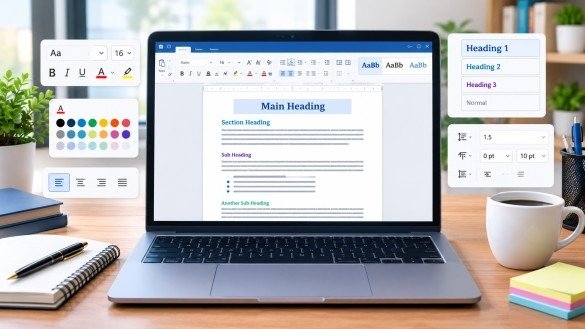
Text formatting is one of the most important parts of an MS Word Assignment.
You can change:
- Font type
- Font size
- Font color
- Bold
- Italic
- Underline
- Text highlight
- Alignment
- Line spacing
- Paragraph spacing
- Indentation
- Text case
For example, you might use a larger bold font for the main heading, a slightly smaller bold font for subheadings, and a comfortable regular font for paragraphs.
Common Alignment Options
Microsoft Word provides four main alignment options:
- Align Left
- Center
- Align Right
- Justify
For academic paragraphs, justified text can provide a clean block appearance, while headings may be centered or aligned left depending on the required format.
Use Word Styles for Consistent Formatting
Instead of manually formatting every heading, use Word’s built-in styles.
For example:
- Title — document title
- Heading 1 — main sections
- Heading 2 — sub-sections
- Heading 3 — smaller sections
Styles are especially useful for long documents because they keep headings consistent and can help Word generate a Table of Contents.
Add Bullets and Numbered Lists
Lists make information easier to scan.
Use Bullets when the order does not matter.
Example:
- Microsoft Word
- Microsoft Excel
- Microsoft PowerPoint
- Microsoft Outlook
Use Numbering when the sequence matters.
Example:
- Open Word.
- Create a new document.
- Type the content.
- Format the document.
- Save the file.
You can also create multilevel lists for assignments containing several sections and subsections.
Find and Replace Text
The Find and Replace feature is extremely useful when working on a long document.
Press:
Ctrl + H
You can search for a word and replace it with another word.
For example, if you repeatedly typed “Microsft” instead of “Microsoft”, Find and Replace can correct all occurrences much faster than checking every page manually.
This is particularly helpful before submitting an assignment.
Working With Pages

A professional MS Word Assignment requires more than properly formatted text. The pages themselves should also be organized correctly.
Page Orientation
Word provides two main orientations:
- Portrait
- Landscape
Portrait is commonly used for normal assignments.
Landscape can be useful for:
- Wide tables
- Large charts
- Comparison sheets
- Diagrams
- Certain project pages
Go to:
Layout → Orientation
and select the required option.
Page Breaks
Use a Page Break when you want a new section to begin on a new page.
Shortcut:
Ctrl + Enter
This is better than pressing Enter repeatedly because the content remains properly positioned if earlier text changes.
Headers and Footers
Headers appear at the top of pages, while footers appear at the bottom.
You can use them for:
- Assignment title
- Student name
- Course name
- Institution
- Page numbers
- Document information
Do not overload headers and footers with unnecessary information.
Add Page Numbers
Page numbers make longer documents easier to navigate.
Go to:
Insert → Page Number
Then select a suitable position and style.
For academic assignments, a simple page number is usually enough.
Working With Tables in Microsoft Word
Tables are excellent for organizing information.
You can use a table for:
- Student information
- Marks
- Comparisons
- Schedules
- Data
- Lists
- Project details
Go to:
Insert → Table
Select the required number of rows and columns.
After creating a table, you can change:
- Borders
- Shading
- Alignment
- Cell size
- Row height
- Column width
- Text direction
For a professional look, keep table formatting simple and consistent.
Insert Images, Shapes, and SmartArt

Images can make an MS Word Assignment more informative and visually attractive when they are relevant to the topic.
Go to:
Insert → Pictures
After inserting an image, use Wrap Text to control how the text flows around it.
Useful options include:
- In Line with Text
- Square
- Tight
- Behind Text
- In Front of Text
SmartArt
SmartArt is useful for presenting:
- Processes
- Hierarchies
- Cycles
- Relationships
- Organizational structures
Shapes
Shapes can be used for:
- Diagrams
- Flowcharts
- Arrows
- Callouts
- Simple visual explanations
Remember that graphics should support the content rather than distract from it.
Add Charts and Graphs

Charts are useful when an assignment contains numerical information.
You can insert a chart from:
Insert → Chart
Word provides several chart types, including:
- Column
- Bar
- Line
- Pie
- Area
Choose the chart according to the type of data you want to present.
For example, a column chart can compare student marks, while a pie chart can show percentages.
Add Citations and References
Academic assignments often require sources.
Microsoft Word includes tools for:
- Citations
- Bibliography
- Footnotes
- Endnotes
- Table of Contents
- Cross-references
You can manage sources through the References tab.
A properly referenced document helps readers identify where important information came from.
Do not copy large sections from other websites and simply change a few words. Original explanation and useful additional information make an assignment more valuable.
Create an Automatic Table of Contents
For longer assignments, an automatic Table of Contents can save significant time.
First, apply Word’s heading styles:
- Heading 1
- Heading 2
- Heading 3
Then go to:
References → Table of Contents
Choose an automatic style.
Word can then create a table containing your headings and corresponding page numbers.
If you change the document later, you can update the Table of Contents instead of creating it again manually.
Add a Watermark and Page Border
Some projects require additional page design.
You can add a watermark from:
Design → Watermark
You can also add a page border from:
Design → Page Borders
Use these features carefully. A professional document does not need decorative elements on every page.
Check Spelling and Grammar
Before submitting your MS Word Assignment, check the document carefully.
Microsoft Word includes spelling and grammar tools that can help identify writing problems.
Check:
- Spelling mistakes
- Grammar problems
- Incorrect punctuation
- Extra spaces
- Missing words
- Inconsistent capitalization
However, do not rely blindly on automatic suggestions. Read the document yourself because software can misunderstand context.
Useful MS Word Shortcut Keys
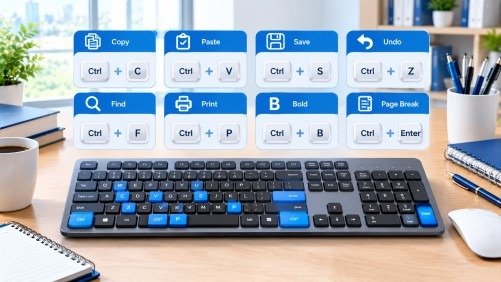
Keyboard shortcuts can make your work much faster.
| Shortcut | Function |
| Ctrl + A | Select all |
| Ctrl + C | Copy |
| Ctrl + X | Cut |
| Ctrl + V | Paste |
| Ctrl + Z | Undo |
| Ctrl + Y | Redo |
| Ctrl + S | Save |
| Ctrl + P | |
| Ctrl + F | Find |
| Ctrl + H | Find and Replace |
| Ctrl + B | Bold |
| Ctrl + I | Italic |
| Ctrl + U | Underline |
| Ctrl + E | Center align |
| Ctrl + L | Left align |
| Ctrl + R | Right align |
| Ctrl + J | Justify |
| Ctrl + Enter | Page break |
Learning these shortcuts is especially helpful for students who regularly create documents.
MS Word Tools and Their Uses
| MS Word Tool | Main Use | Benefit for Assignments |
| Text Formatting | Change font, size, color, bold, italic, and underline | Makes content clear and readable |
| Styles | Format headings and sections consistently | Keeps the document organized |
| Page Layout | Set margins, size, orientation, and spacing | Gives pages a clean structure |
| Tables | Organize information into rows and columns | Makes data easy to understand |
| Images | Add relevant pictures to the document | Makes assignments more informative |
| SmartArt | Create processes, diagrams, and relationships | Explains ideas visually |
| Charts | Present numerical data visually | Makes data easier to compare |
| Page Numbers | Number document pages | Helps readers navigate the assignment |
| References | Add citations, footnotes, and bibliography | Supports academic information |
| Table of Contents | List headings with page numbers | Makes long assignments easier to navigate |
| Find and Replace | Search and change repeated text | Saves time when editing |
| Spell Check | Find spelling and grammar issues | Helps improve writing quality |
| PDF Export | Save the final document as PDF | Makes the assignment easy to share |
How to Make Your Assignment Look Professional
A professional document is not necessarily a complicated document.
Follow these simple principles:
Keep Fonts Consistent
Do not use many different fonts throughout the document. Choose a readable font and use it consistently.
Use Clear Headings
Break long content into logical sections so readers can find information quickly.
Maintain Proper Spacing
Use suitable line and paragraph spacing instead of placing unnecessary blank lines throughout the document.
Keep Colors Limited
Use colors only where they improve readability or visual organization.
Align Elements Properly
Titles, paragraphs, tables, images, and other objects should have a clear visual relationship.
Check Every Page
Look for:
- Empty pages
- Cut-off images
- Broken tables
- Incorrect page numbers
- Large blank spaces
- Inconsistent headings
Save and Export Your Document
After completing your document, save the editable Word version.
Go to:
File → Save As
Choose:
Word Document (.docx)
You can also export the finished document as a PDF when a non-editable version is required.
PDF is useful for sharing because the layout is generally preserved across different devices and applications.
Practical MS Word Assignment Ideas
If you are learning Word through practice, try creating these projects:
Assignment 1: Student Profile
Create a one-page student profile containing:
- Name
- Education
- Skills
- Contact information
- Career objective
Assignment 2: School Notice
Create a professional school or academy notice using:
- Heading
- Date
- Paragraphs
- Border
- Signature area
Assignment 3: Marks Sheet
Create a table containing subjects, total marks, obtained marks, and percentages.
Assignment 4: Business Report
Create a multi-page report containing:
- Cover page
- Table of Contents
- Headings
- Tables
- Images
- References
- Page numbers
Assignment 5: Resume
Create a professional CV using headings, alignment, tables or sections, and consistent formatting.
These projects allow beginners to practice several Word tools in one document.
Common Mistakes to Avoid
While preparing an MS Word Assignment, students often make simple formatting mistakes.
Avoid:
- Using too many fonts
- Adding unnecessary colors
- Making headings inconsistent
- Using spaces instead of proper alignment
- Pressing Enter repeatedly to create a new page
- Inserting low-quality images
- Forgetting page numbers
- Leaving spelling mistakes
- Using copied content without proper attribution
- Saving only one version of an important document
A final proofreading and formatting check can significantly improve the quality of your work.
Final Checklist Before Submission
Before submitting your MS Word Assignment, check the following:
☐ Title page is complete
☐ Page size and margins are correct
☐ Headings are consistent
☐ Font is readable
☐ Paragraphs are properly aligned
☐ Tables are formatted correctly
☐ Images are clear and relevant
☐ Page numbers are included
☐ Spelling and grammar have been checked
☐ References are included where required
☐ No unnecessary blank pages exist
☐ File is saved as DOCX
☐ PDF version is created if required
This final checklist can prevent many small mistakes from appearing in your submitted document.
Conclusion

Learning Microsoft Word is much easier when you practice by creating real documents instead of memorizing individual tools. A well-prepared MS Word Assignment allows students to practice typing, formatting, page layout, tables, images, references, shortcuts, and document management in one project.
Start with a blank document, organize your headings, format your paragraphs, add useful visual elements, check your work carefully, and save the final document in the required format.
The most important goal is not to make the document complicated. The goal is to make it clear, organized, accurate, readable, and professional.
With regular practice, the same skills can be used for school assignments, university projects, reports, resumes, office documents, and many other professional tasks.
Frequently Asked Questions
1. What is an MS Word Assignment?
An MS Word Assignment is a document created in Microsoft Word to demonstrate typing, formatting, editing, and document-design skills.
2. How do I start an MS Word Assignment?
Open Word, create a blank document, set the page size and margins, add a title page, and then organize the content with headings.
3. Which font is best for an assignment?
Use a clear, readable font and follow your institution’s formatting requirements if specific instructions are provided.
4. How can I make an assignment professional?
Use consistent fonts, clear headings, proper spacing, page numbers, relevant images, organized tables, and correct alignment.
5. How do I add page numbers in Word?
Go to Insert → Page Number, then choose your preferred position and design.
Meta Description
Learn how to create a professional MS Word Assignment with proper formatting, tables, images, page layout, shortcuts, references, and t