
Is Google Chrome stuck, frozen, or showing a “Not Responding” message? This can be frustrating, especially when you have important tabs open. The good news is that you usually do not need to reinstall Chrome right away. Simple steps such as restarting Chrome, closing heavy processes, disabling extensions, clearing browser data, and checking hardware acceleration can often restore normal performance.
The Google Chrome Not Responding problem can have different causes. Too many tabs, outdated browser files, problematic extensions, system resource limits, network settings, or hardware acceleration can all affect Chrome. Therefore, it is best to start with simple fixes and move to deeper solutions only when needed.
If you are facing the Google Chrome Not Responding error right now, do not panic. In this guide, you will learn seven practical solutions to fix Chrome and get back to browsing without losing unnecessary data.
Why Does Google Chrome Stop Responding?
Before fixing the problem, it helps to understand why it happens. Chrome may become unresponsive when a browser process gets stuck, an extension conflicts with the browser, or the computer has limited memory or processing power. In some cases, corrupted cache data or hardware acceleration can also create problems.
The Google Chrome Not Responding message does not always mean that Chrome is permanently damaged. Often, the issue is temporary and can be fixed with a restart or by closing the process that is causing the problem.
Therefore, try the easiest solution first. If it does not work, move to the next step.
1. Restart Chrome Completely
A full restart is one of the simplest ways to fix a frozen browser. Sometimes Chrome closes on screen but continues running in the background. A stuck process can then prevent a fresh Chrome window from working correctly.
First, close all Chrome windows. Wait a few seconds, then open Chrome again. Try visiting a few different websites.
If Chrome is completely frozen, use Windows Task Manager:
- Press Ctrl + Shift + Esc.
- Find Google Chrome in the Processes list.
- Select Chrome and click End task.
- Open Chrome again.
This can help when the Google Chrome Not Responding issue is caused by a stuck process. However, closing Chrome this way may remove unsaved information from the affected tabs. So, use it only when normal closing does not work.
2. Restart Your Computer
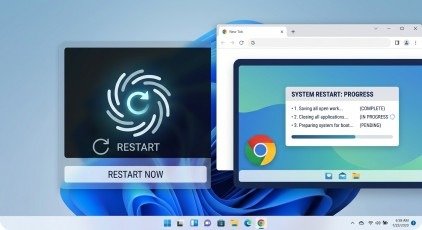
If restarting Chrome does not solve the problem, restart your computer. A system restart closes background processes and refreshes available memory and other system resources.
This step is especially useful when Chrome has been open for a long time or when many other programs are running.
Save your work in other applications first. Then restart Windows and open Chrome again. Test more than one website to see whether the browser responds normally.
A simple restart can sometimes solve the Google Chrome Not Responding problem without changing any browser settings.
3. Disable Problematic Chrome Extensions
Chrome extensions can add useful features, but a faulty or conflicting extension may make the browser unstable. If the problem happens often after installing or updating an extension, check your extensions first.
Open Chrome and enter chrome://extensions/ in the address bar. Turn off your extensions and use Chrome for a few minutes. If the browser becomes stable, enable the extensions one at a time.
When the problem returns, the last extension you enabled may be causing the conflict. Remove it or look for an updated version.
Test Chrome in Incognito Mode
You can also test Chrome in Incognito Mode. Extensions are normally disabled there unless you have specifically allowed them. If Chrome works better in Incognito, an extension or stored browser data may be involved.
This method is useful because it lets you find the cause instead of disabling every extension permanently.
4. Clear Cache and Browsing Data
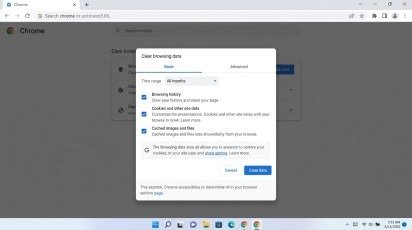
Chrome stores temporary files to make websites load faster. Over time, some cached files may become outdated or corrupted. This can lead to loading problems, freezing, or other browser errors.
To clear Chrome data, open Chrome Settings and go to Privacy and security. Choose Clear browsing data. Select a suitable time range and review the options before confirming.
For a first test, clearing cached images and files is a reasonable step. Be careful when selecting cookies or other stored data because clearing them can sign you out of websites.
If damaged temporary data was causing the Google Chrome Not Responding problem, Chrome may work normally after the cache is cleared.
5. Turn Off Hardware Acceleration
Hardware acceleration allows Chrome to use the graphics processor for some tasks. This can improve performance, but graphics driver or rendering problems may sometimes cause freezing or crashes.
To test this setting, open:
chrome://settings/system
Find Use graphics acceleration when available and turn it off. Then click Relaunch.
Use Chrome normally after it restarts. Open websites, scroll through pages, and play a video. If the freezing stops, hardware acceleration may be connected to the issue.
However, turning it off is mainly a troubleshooting step. If it solves the problem, checking for graphics driver updates can be useful before deciding whether to keep the setting disabled.
6. Check Chrome and Windows for Updates
Outdated software can create compatibility and performance problems. Chrome updates can include bug fixes, security improvements, and other changes that help the browser work correctly.
To check Chrome, open the three-dot menu, choose Help, and select About Google Chrome. Chrome will check for an available update. Restart the browser after an update is installed.
You should also check Windows Update in Windows Settings. Install available updates and restart the computer if required.
Keeping both Chrome and Windows updated can reduce the chance of the Google Chrome Not Responding problem caused by outdated software.
Why Are Updates Important?
Updates can fix known browser bugs and improve compatibility with websites and system components. Therefore, keeping your browser updated is a simple maintenance step that can prevent many common problems.
7. Reset Chrome Settings or Create a New Profile
If the previous solutions do not work, your Chrome settings or profile may have a problem. Chrome includes a reset option that can restore many settings to their original defaults.
Open Chrome Settings and search for Reset settings. Choose Restore settings to their original defaults, then confirm the reset.
A reset can help with unwanted startup pages, changed search settings, and other configuration problems. Before resetting, review what will change so you know what to expect.
If the problem continues, try creating a new Chrome profile. A new profile gives you a clean browser environment. If Chrome works correctly there, the original profile may contain damaged settings or data.
This step can help you identify whether the Google Chrome Not Responding issue is connected to your current profile.
What If Chrome Still Does Not Respond?
If Chrome still freezes after these seven solutions, check for broader problems on your computer. Too many open applications can consume memory and processing power. Close programs you do not need and reduce the number of open Chrome tabs.
Also, check your internet connection if Chrome opens but websites fail to load. Test another browser or device. Restarting your router may help when the problem is related to the network rather than Chrome itself.
You should also scan your computer for unwanted software if you notice unknown extensions, unexpected redirects, pop-ups, or changes to your browser settings. In more serious cases, creating a new Windows user account or reinstalling Chrome may help. Before reinstalling, make sure important bookmarks and saved information are backed up.
How to Prevent Chrome From Freezing Again
After fixing the issue, a few simple habits can help keep Chrome stable. First, keep Chrome and Windows updated. Next, remove extensions that you no longer use. Also, avoid keeping a large number of unnecessary tabs open.
Clear temporary browser data when needed, keep enough free storage space, and avoid installing software from unknown sources. These steps can reduce common browser problems.
If the Google Chrome Not Responding message appears again, note what you were doing just before the freeze. For example, check whether it happened during video playback, after opening a certain website, or after enabling an extension. This clue can help you choose the right fix faster.
Quick Troubleshooting Checklist
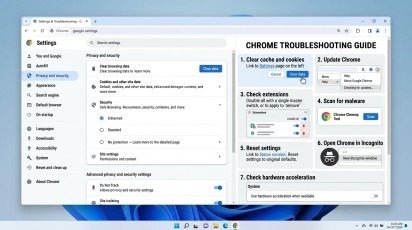
If you want to troubleshoot the problem quickly, start with these steps:
- Restart Chrome completely.
- Restart your computer.
- Disable Chrome extensions.
- Clear cached browser data.
- Test hardware acceleration.
- Update Chrome and Windows.
- Reset Chrome settings or create a new profile.
Try each step separately. This makes it easier to find the real cause.
Conclusion
The Google Chrome Not Responding error can be annoying, but it is often possible to fix it without a full reinstall. Start with a complete Chrome restart and a computer restart. Then check extensions, clear the cache, test hardware acceleration, update Chrome and Windows, and reset your Chrome profile when needed.
The Google Chrome Not Responding problem can have more than one cause, so do not change many settings at the same time. Instead, test one solution, use Chrome for a while, and then move to the next step if the problem remains. With regular updates, fewer unnecessary extensions, and good browser maintenance, you can keep Chrome running more smoothly and reduce the chance of future freezes.
FAQs
1. Why does Google Chrome stop responding?
Google Chrome may stop responding because of problematic extensions, too much cached data, hardware acceleration issues, outdated software, or a temporary browser problem.
2. How can I quickly fix Chrome when it freezes?
First, close Chrome completely and open it again. If Chrome still freezes, restart your computer and check whether the problem continues.
3. Can Chrome extensions cause the browser to freeze?
Yes. A faulty or incompatible extension can make Chrome slow or unresponsive. You can test Chrome in Incognito Mode or disable extensions one by one to find the problem.
4. Does clearing Chrome cache fix freezing problems?
Clearing cached browsing data can help when damaged or outdated cache files are causing browser problems. It is a simple troubleshooting step worth trying.
Meta Description
Google Chrome Not Responding? Learn 7 simple solutions to fix Chrome freezing, crashing, or becoming unresponsive and improve browser performance.