
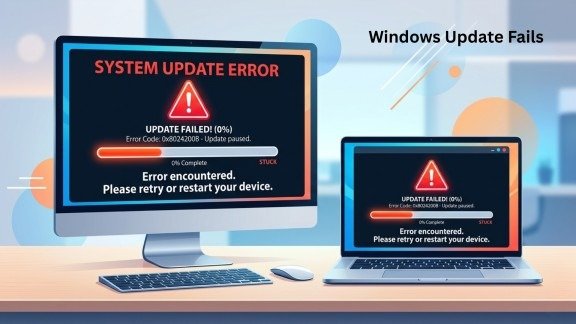
Windows updates are very important for your computer because they keep your system secure and updated. However, many users face a common issue called Windows Update Fails, which stops updates from installing properly.
At first, this issue may seem small, but it can slowly affect your system performance and security. Without updates, your PC becomes more vulnerable to bugs and threats. Therefore, fixing this problem is necessary.
In this guide, you will learn simple and clear methods to solve Windows Update Fails step by step. The process is easy, even if you are not a technical user.
Before You Start Fixing the Problem
Before applying any solution, it is important to check some basic things. These small checks can save time and prevent errors during the fixing process.
Make sure your internet connection is stable and your system has enough free space. Also, your device should be connected to power, and your important files should be backed up. These steps help avoid Windows Update Fails issues from the beginning.
Main Reasons Behind Update Failure
This section explains the common causes that stop updates from installing properly. Understanding these reasons helps you identify the issue quickly and apply the right solution.
Why Updates Stop Working
Understanding the reason behind the problem is the first step toward fixing it. When you know why updates fail, you can solve the issue faster and more effectively.
There are many common causes of Windows Update Fails. Sometimes, update files get corrupted, or your system does not have enough storage. In other cases, internet issues or hardware conflicts may stop updates from installing. Also, if multiple updates run at the same time, it can create errors.
Common Error Codes You May See
When updates fail, Windows shows error codes. These codes help identify what is going wrong in the system.
For example, error 0x80070002 means missing files, while 0x80070005 shows permission problems. Similarly, internet-related issues may show code 0x80244022. Even though these errors look technical, they are often linked to Windows Update failures and can be fixed with simple steps.
Simple Fixes to Try First
This section includes the easiest and quickest solutions that can solve update issues without any technical steps. These basic methods should always be tried first before moving to more advanced fixes.
Restart Your Computer
Sometimes the easiest solution works the best. Restarting your computer clears temporary bugs and refreshes system processes. Because of this, it can quickly fix Windows Update Fails without any advanced steps.
Check Internet Connection
A stable internet connection is necessary for updates. If your connection is slow or unstable, updates may fail or get stuck. So, always check your internet before trying again.
Free Up Disk Space
Updates need enough storage to install properly. If your disk is full, the update process will fail. Therefore, delete unnecessary files or move data to another drive. This simple action can solve Windows Update Fails in many cases.
Advanced Fixes That Actually Work
Some update issues cannot be resolved with basic steps alone. Advanced fixes tackle deeper system problems, corrupted files, or configuration errors. Using these methods ensures updates install correctly and your system stays stable.
Reset Update Components
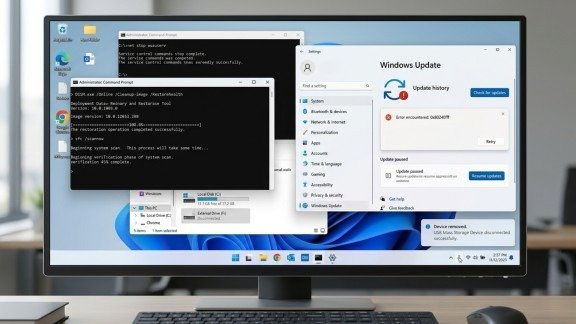
This method helps when system update files are damaged. Instead of keeping broken files, your system creates fresh ones.
To do this, you need to stop update services, rename system folders, and then restart the services again. This process refreshes the update system completely. As a result, many users successfully fix Windows Update Fails using this method.
Run Windows Troubleshooter
Windows provides a built-in troubleshooter to detect and fix update problems automatically. You just need to open settings, go to troubleshoot options, and run the Windows Update tool.
After that, the system scans for errors and tries to fix them. This is one of the easiest ways to resolve Windows Update Fails without manual effort.
Disconnect External Devices
External devices like USB drives, printers, or webcams can sometimes create conflicts. Because of this, updates may fail.
So, disconnect all unnecessary devices, restart your computer, and try updating again. This small step can remove hidden issues causing Windows Update Fails.
Fix Corrupted System Files: Repair Missing or Damaged System Components
Corrupted or missing system files are a common reason why Windows Update Fails. When these essential files are damaged, your PC cannot install updates properly, which can lead to errors or stuck updates. Repairing these files restores system stability and ensures that updates can run smoothly.
Use SFC Scan
The SFC (System File Checker) scan automatically detects and repairs corrupted system files.
- Open Command Prompt as an administrator.
- Type sfc /scannow and press Enter.
- Wait for the scan to complete. The tool will repair any corrupted files it finds.
Running this scan helps fix Windows Update Fails by restoring the integrity of your Windows system files.
Use DISM Tool
If the SFC scan does not fully resolve the issue, the DISM (Deployment Image Servicing and Management) tool can repair deeper system problems.
- Open Command Prompt as an administrator.
- Type DISM /Online /Cleanup-Image /RestoreHealth and press Enter.
- Wait for the process to finish. DISM connects to Windows servers to replace damaged files.
Using both SFC and DISM ensures your system files are fully repaired, reducing errors and preventing Windows Update Fails in the future.
Manual Update Method
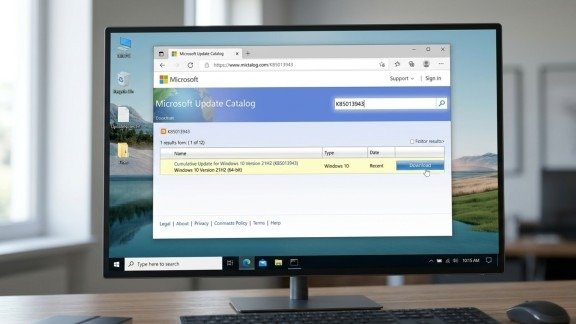
Sometimes, automatic updates fail again and again. In this situation, installing updates manually is a good option.
You can visit the official Microsoft update website, search for the required update, and install it yourself. This method bypasses errors and helps fix Windows Update failures easily.
Fix Stuck Updates (0% or 100%)
When updates get stuck, it can be frustrating. However, this issue is quite common and easy to fix.
First, wait for some time because large updates may take longer. If the problem continues, restart your PC and try again. Clearing cache files can also help. These steps often solve Windows Update Fails when updates freeze.
Restore Your System
If the issue started recently, you can use System Restore. This feature takes your system back to a previous working state.
It does not delete your personal files, but it removes problematic changes. Because of this, it can fix Windows Update Fails safely.
Last Option: Reset or Reinstall Windows
If nothing works, resetting your PC is the final solution. This step removes system errors completely.
You can choose to keep your files or remove everything. Although this is a strong step, it almost always fixes Windows Update Fails and gives your system a fresh start.
Why You Should Not Skip Updates
Skipping updates may seem easy, but it creates serious risks. Updates fix bugs, improve performance, and protect your system from threats.
Without updates, your computer becomes weak and unsafe. Therefore, solving Windows Update Fails is very important for long-term system health.
Pro Tips to Avoid Future Problems
To avoid update issues in the future, you should follow some simple habits. Always keep enough disk space and use a stable internet connection.
Also, avoid interrupting updates and restart your system regularly. These practices reduce the chances of Windows Update Fails and keep your system running smoothly.
Conclusion
In conclusion, update problems are common but not difficult to fix. With the right approach, you can easily solve Windows Update Fails and keep your system updated.
Start with basic fixes and move to advanced methods if needed. Also, maintain your system properly to avoid future issues.
Now you have a complete and easy 2026 guide. Follow these steps and enjoy a smooth and secure Windows experience.
FAQs
- What causes Windows updates to fail?
Updates fail due to corrupted files, low disk space, unstable internet, or system conflicts, which stop installations. - How to fix Windows Update errors easily?
Restart your PC, check internet, free up space, or run the Windows Update troubleshooter to fix most problems. - Why do updates get stuck at 0% or 100%?
Updates freeze because of slow internet, corrupted cache, or large files; clearing cache or restarting often helps. - How to repair corrupted update files safely?
Use SFC and DISM tools to scan and repair damaged system files, restoring proper update functionality. - When should I install updates manually?
Manually install updates from Microsoft if automatic updates fail repeatedly to bypass errors easily.
Meta Description
Struggling with Windows Update Fails? Learn why updates fail and discover simple and advanced fixes in this complete 2026 guide to keep your PC secure and running smoothly.