
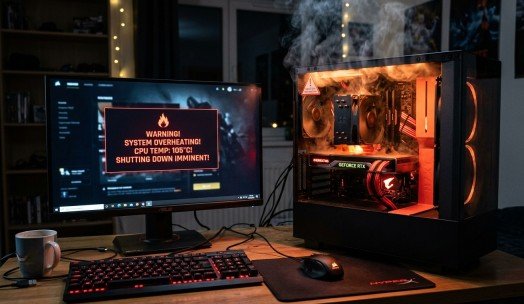
Computers have become an essential part of our daily lives, powering everything from work to gaming and creative projects. However, one issue that can slow down productivity and damage hardware over time is PC Overheating. Whether you are using a laptop or a desktop, overheating can reduce performance, cause unexpected shutdowns, and even shorten the lifespan of your components. Fortunately, there are several practical solutions to keep your computer cool and running efficiently.
In this guide, we will explore why PC Overheating occurs, how it affects system performance, and step-by-step methods to resolve the problem. By following these tips, you can ensure your computer stays cool, performs at its best, and avoids costly repairs.
Understanding PC Overheating and Its Causes
Before tackling PC Overheating, it’s crucial to understand why it happens. Essentially, overheating occurs when the computer generates more heat than it can dissipate. Modern CPUs and GPUs produce a lot of heat during intensive tasks, such as gaming, video rendering, or running multiple applications simultaneously. If your system cannot remove this heat efficiently, internal components can become stressed and start malfunctioning.
Some common causes of PC Overheating include:
- Dust Buildup: Dust can accumulate in vents, fans, and heatsinks, reducing airflow.
- Poor Ventilation: Using laptops on beds or couches or placing desktops in cramped spaces blocks airflow.
- High Resource Usage: Running heavy programs pushes your CPU and GPU to their limits.
- Faulty or Inadequate Fans: Fans that are slow, noisy, or broken fail to cool the system.
- Outdated Drivers or BIOS: Inefficient drivers may fail to manage thermal performance.
- Ambient Temperature: Hot environments make it harder for your computer to stay cool.
Over time, unchecked PC Overheating can lead to hardware damage, thermal throttling, or even permanent failure of sensitive components.
Why Cooling Is Critical for Performance
One of the main consequences of PC Overheating is reduced performance. Modern CPUs and GPUs include thermal management systems that automatically slow down processing speeds to prevent damage when temperatures rise too high. While this protects your hardware, it comes at a cost: your system runs slower, games lag, and rendering or compiling tasks take longer.
Laptops often include features like Dynamic Tuning, which intelligently adjusts CPU speed to match workloads. Although these technologies help, maintaining lower temperatures from the start is far better than relying solely on automated cooling mechanisms.
For desktop users, proper cooling solutions such as air coolers, liquid coolers, and optimized airflow can keep both CPU and GPU temperatures within safe limits. Correct application of thermal paste also ensures effective heat transfer between the CPU and the heatsink. Without proper cooling, even small temperature spikes can accumulate, leading to PC Overheating over time.
Signs Your Computer Is Overheating
Detecting PC Overheating early can prevent long-term damage. Look out for the following signs:
1. Excessive Fan Noise: Fans running at maximum speed constantly.
2. Hot Surfaces: The laptop or desktop case feels unusually warm.
3. Unexpected Shutdowns or Restarts: Automatic shutdown to protect hardware.
4. Sluggish Performance: Programs lagging or system responsiveness decreasing.
5. Screen Artifacts or Glitches: Common in GPU overheating.
Recognizing these symptoms early allows you to address the issue before permanent damage occurs.
Step-by-Step Solutions to Prevent PC Overheating
1. Clean Fans and Air Vents Regularly
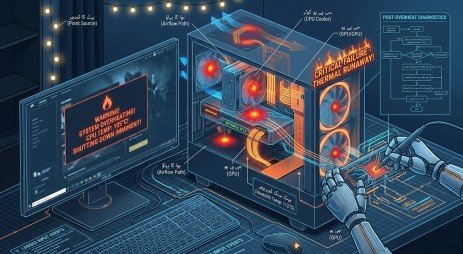
Dust and debris are major contributors to PC Overheating. Over time, dust can block airflow, causing heat to build up.
- Turn off and unplug your computer.
- Use compressed air to blow dust from fans, vents, and heatsinks.
- For stubborn debris, a soft brush can help remove particles.
- Avoid vacuum cleaners, which can create static electricity and damage components.
Regular cleaning prevents heat buildup and reduces the risk of overheating.
2. Ensure Proper Airflow in Your Setup
Proper airflow is essential to combat PC Overheating. A poorly ventilated case can trap hot air, making cooling ineffective.
- Keep at least 6 inches of space around desktops for intake and exhaust.
- Avoid using laptops on soft surfaces; opt for hard, flat tables.
- Organize cables using ties or modular power supplies to prevent airflow blockage.
- Consider using a case with mesh panels or pre-installed fans.
Optimized airflow ensures heat is expelled efficiently, lowering internal temperatures.
3. Use a Laptop Cooling Pad
For laptops, a cooling pad provides external airflow to assist internal fans.
- Connect the pad via USB.
- Position it under the laptop to direct cool air to the vents.
- Although it primarily cools the exterior, it can reduce internal heat indirectly.
This is especially useful during gaming sessions or high-performance tasks.
4. Monitor and Close Unnecessary Background Processes
High CPU usage contributes significantly to PC Overheating.
- Open Task Manager (Windows) or Activity Monitor (Mac) to identify high-resource programs.
- Close applications that are not needed.
- Disable startup programs that run in the background.
Reducing unnecessary load keeps CPU and GPU temperatures lower.
5. Update BIOS and Drivers
Outdated BIOS or device drivers may prevent your system from managing heat efficiently.
- Check your motherboard or laptop manufacturer’s website for updates.
- Update chipset, graphics, and CPU drivers.
- Carefully follow BIOS update instructions to avoid bricking your system.
Properly updated systems can better manage thermal performance and reduce PC Overheating.
6. Replace Thermal Paste
Thermal paste acts as a bridge between the CPU and the heatsink. Over time, it can dry out and lose effectiveness.
- Remove the heatsink carefully.
- Clean old paste with isopropyl alcohol.
- Apply a small, pea-sized amount of new thermal paste.
- Reattach the heatsink.
This simple step improves heat transfer and helps prevent PC Overheating.
7. Consider Upgrading Cooling Solutions
If your PC continues to overheat despite regular maintenance, it may be time for an upgrade.
- Desktops: Upgrade to high-performance air coolers or all-in-one liquid coolers.
- Laptops: Use higher-quality cooling pads or external fans.
Advanced users may also customize GPU cooling with aftermarket solutions.
8. Avoid Overclocking When Not Necessary
Overclocking increases CPU and GPU heat.
- Revert to default clock settings if overheating occurs.
- Use BIOS or UEFI to reset multipliers and base clocks.
While overclocking can improve performance, it risks overheating without adequate cooling.
9. Maintain a Cool Environment

Ambient temperature affects PC Overheating.
- Avoid placing your system near heaters or in direct sunlight.
- Use fans or air conditioning to keep the room temperature low.
- For laptops, always use hard, flat surfaces and ventilated locations.
Keeping the environment cool significantly reduces internal heat buildup.
10. Inspect for Hardware Issues
Sometimes, PC Overheating is caused by faulty hardware.
- Ensure all fans are spinning properly.
- Check for bent or damaged heatsinks.
- Verify proper connection of laptop cooling assemblies.
- Seek professional repair if components are malfunctioning.
Preventive inspection can save your PC from long-term damage.
11. Apply Proper Airflow and Pressure in PC Cases
Airflow strategy is crucial for desktops:
- Positive Air Pressure: More intake than exhaust; reduces dust entry.
- Negative Air Pressure: More exhaust than intake; may increase dust.
- Balanced Approach: Slight positive pressure is ideal for cooling and dust prevention.
Correct fan placement, orientation, and speed ensure optimal cooling.
12. Regularly Clean and Maintain All Components
- GPU, RAM, and power supplies produce heat and require cooling.
- Use heat sinks on RAM and ensure PSU fans are functional.
- Clean all components periodically to maintain airflow and reduce PC Overheating.
Final Thoughts
PC Overheating is a common but manageable problem. By combining proper cooling hardware, good airflow, regular maintenance, and software management, you can keep your computer performing at its peak. Whether you are a gamer, designer, or everyday user, following these tips will protect your system from heat-related damage and ensure long-term reliability.
Remember, prevention is always better than repair. Address PC Overheating early to save yourself from costly hardware replacements and performance issues.
Frequently Asked Questions
1. How can I tell if my PC is overheating?
Signs include loud fan noise, hot surfaces, slow performance, and unexpected shutdowns.
2. Is it safe to use my computer while it is overheating?
No, prolonged use while overheating can damage components. Shut it down and let it cool.
3. Can I control fan speed manually?
Yes, via BIOS, UEFI, or software tools like SpeedFan or manufacturer utilities.
4. Do cooling pads really work?
Yes, especially for laptops; they provide external airflow to reduce temperatures.
5. How often should I clean my PC?
Every 3–6 months, depending on dust accumulation and environment.
Meta Description
Prevent PC Overheating with these easy fixes! Learn how to clean fans, optimize airflow, use cooling pads, update BIOS, and maintain your system for safe, efficient performance.