
Windows 11 offers tremendous potential, but most users never unlock its full capabilities. These 11 proven tips will make Windows 11 better by boosting speed, enhancing productivity, and transforming your daily computing experience without spending a single dollar on upgrades.
If you want to make Windows 11 better, you need to optimize startup apps, manage storage, improve multitasking, and disable unnecessary background features. These simple steps can dramatically boost performance.
How to Make Windows 11 Better Step-by-Step
If you want to make Windows 11 better, you need to optimize startup apps, manage storage, improve multitasking, and disable unnecessary background features. These simple steps can dramatically boost performance.
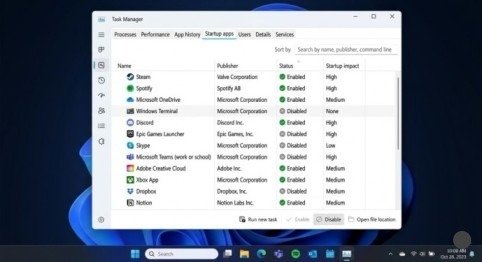
1. Disable Unnecessary Startup Programs
Startup programs slow down boot time dramatically. Press Ctrl+Shift+Esc to open Task Manager, click the Startup tab, and disable programs you don’t need immediately at boot. This single change can reduce startup time by 50% or more, instantly making your system feel faster.
2. Enable Storage Sense for Automatic Cleanup
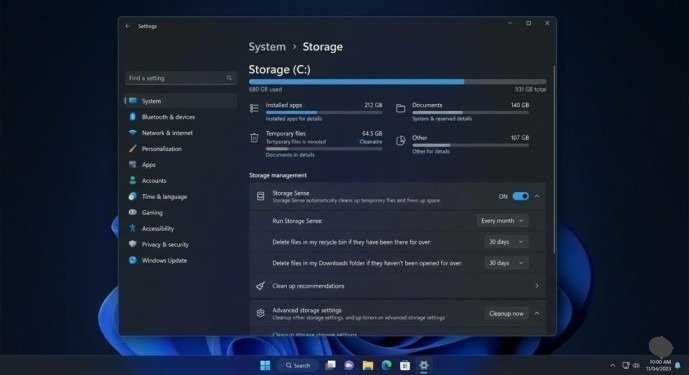
Navigate to Settings > System > Storage and enable Storage Sense. This automated feature deletes temporary files, empties the Recycle Bin, and removes unused cloud content automatically. Configure it to run weekly for continuous optimization without manual intervention.
3. Use Virtual Desktops for Better Organization
Press Win+Tab to create multiple virtual desktops. Assign each desktop a specific purpose—one for work applications, another for personal browsing, and a third for creative projects. Switch between desktops using Win+Ctrl+Left/Right Arrow to reduce clutter and maintain laser focus.
4. Master Snap Layouts for Multitasking
Hover your mouse over a window’s maximize button to reveal Snap Layout options. These pre-configured window arrangements let you organize multiple applications on one screen perfectly. Whether you need two windows side-by-side or a complex four-window layout, Snap Layouts accomplish it instantly without manual resizing.
5. Activate Efficiency Mode for Background Apps
In Task Manager (Ctrl+Shift+Esc), right-click resource-heavy background applications and select Efficiency Mode. This lowers their priority, freeing resources for your active tasks while extending laptop battery life by 10-20%. Perfect for applications you need running but don’t actively use.
6. Disable Visual Effects for Speed
Press Win+R, type sysdm.cpl, press Enter, navigate to the Advanced tab, click Settings under Performance, and select Adjust for best performance. This disables animations and transparency effects, delivering noticeable speed improvements on older hardware or systems with integrated graphics.
These tweaks collectively help you make windows 11 better by reducing resource usage and improving system responsiveness.
7. Turn Off Windows Tips and Suggestions
Go to Settings > System > Notifications, expand Additional settings, and uncheck Get tips and suggestions when using Windows. This stops Windows from constantly monitoring your activities, improving both privacy and performance by reducing background tracking processes.
8. Uninstall Bloatware and Unused Applications
Open Settings > Apps > Installed apps and remove pre-installed manufacturer software you never use. Common bloatware includes trial antivirus programs, manufacturer utilities, and promotional applications. Every removed program frees disk space and eliminates potential background processes that consume resources.
9. Update Windows and All Drivers Regularly
Check Settings > Windows Update and install all available updates. These updates include performance optimizations, security patches, and bug fixes. Additionally, visit your PC manufacturer’s website to download the latest graphics, chipset, and network drivers—updated drivers often deliver substantial performance gains.
10. Enable Game Mode for Resource Prioritization
Even if you’re not gaming, Game Mode (Settings > Gaming > Game Mode) optimizes system resources by prioritizing your active application. Enable it permanently to ensure Windows always dedicates maximum resources to whatever program you’re currently using, reducing lag and improving responsiveness.
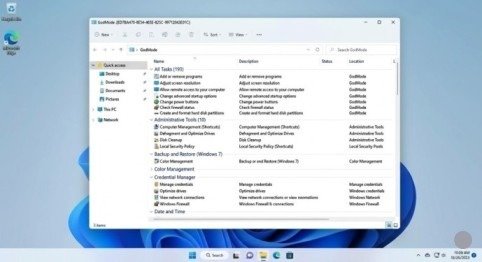
11. Use God Mode for Quick Settings Access
Create a new folder on your desktop and rename it exactly:
GodMode.{ED7BA470-8E54-465E-825C-99712043E01C}
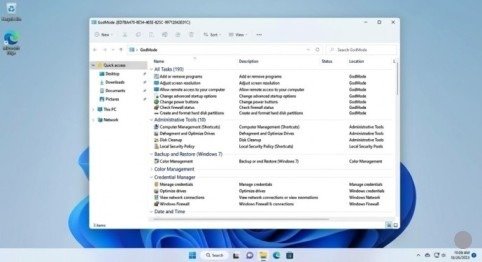
This creates a master control panel with every Windows setting in one location, eliminating endless navigation through Settings menus. Access dozens of configuration options instantly from a single organized list.
Bonus: Performance-Boosting Keyboard Shortcuts
Master these essential shortcuts to work faster:
- Win+V: Opens clipboard history with your last 25 copied items
- Win+Shift+S: Launches Snipping Tool for instant screenshots
- Win+D: Shows desktop immediately, hiding all windows
- Win+E: Opens File Explorer instantly
- Alt+Tab: Switches between open applications quickly
These shortcuts eliminate mouse navigation delays, making every task faster and more efficient.
Advanced Optimization Tips
Disk Cleanup Beyond Storage Sense:
Press Win+R, type cleanmgr, select your system drive, check System files, and remove Windows Update cleanup files and previous Windows installations. This can reclaim 10-30GB of space.
Adjust Power Settings:
Go to Settings > System > Power, select Best performance for desktops or Balanced for laptops to ensure Windows doesn’t throttle performance to save energy unnecessarily.
Disable Search Indexing for Unused Locations:
Type indexing in Start search, open Indexing Options, click Modify, and uncheck folders you rarely search. This reduces background indexing CPU usage significantly.
Hardware Upgrades That Maximize These Tips
While these tips work on any hardware, upgrading to an SSD (if you’re still using an HDD) and adding more RAM amplify their effectiveness dramatically. An SSD makes Storage Sense and startup optimization 5x more noticeable. Additional RAM (8GB minimum, 16GB ideal) ensures Efficiency Mode and Game Mode have plenty of resources to allocate.
Maintaining Your Optimized System
After implementing these tips, maintain performance by:
Monthly:
Running Disk Cleanup and checking for Windows Updates
Quarterly:
Reviewing and removing newly installed unused programs
Annually:
Performing a fresh Windows installation to eliminate accumulated clutter
These simple maintenance routines ensure your optimizations remain effective long-term rather than degrading over months.
Meta Description
Discover 11 powerful tips to make Windows 11 better! Boost speed, productivity, and performance with these expert tricks that transform your PC experience in 2026.
- How to Make Windows 11 Better Step-by-Step
- 1. Disable Unnecessary Startup Programs
- 2. Enable Storage Sense for Automatic Cleanup
- 3. Use Virtual Desktops for Better Organization
- 4. Master Snap Layouts for Multitasking
- 5. Activate Efficiency Mode for Background Apps
- 6. Disable Visual Effects for Speed
- 7. Turn Off Windows Tips and Suggestions
- 8. Uninstall Bloatware and Unused Applications
- 9. Update Windows and All Drivers Regularly
- 10. Enable Game Mode for Resource Prioritization
- 11. Use God Mode for Quick Settings Access
- Bonus: Performance-Boosting Keyboard Shortcuts
- Advanced Optimization Tips
- Hardware Upgrades That Maximize These Tips
- Meta Description