
Laptop Running Slow is one of the most frustrating problems people face today. Whether you are a student, a professional, or a business owner, a slow laptop can completely ruin your workflow. Simple tasks, such as opening files, browsing the internet, or attending online meetings, start taking too much time.
Many users immediately think their laptop is old or damaged. However, in reality, most laptops slow down due to small issues that accumulate over time. These include unnecessary background apps, low storage space, outdated software, or poor maintenance habits.
This complete guide will help you understand why your laptop runs slow, what problems users commonly face, and 10 easy fixes anyone can do without advanced technical knowledge. Every step is explained clearly so beginners can follow without confusion.
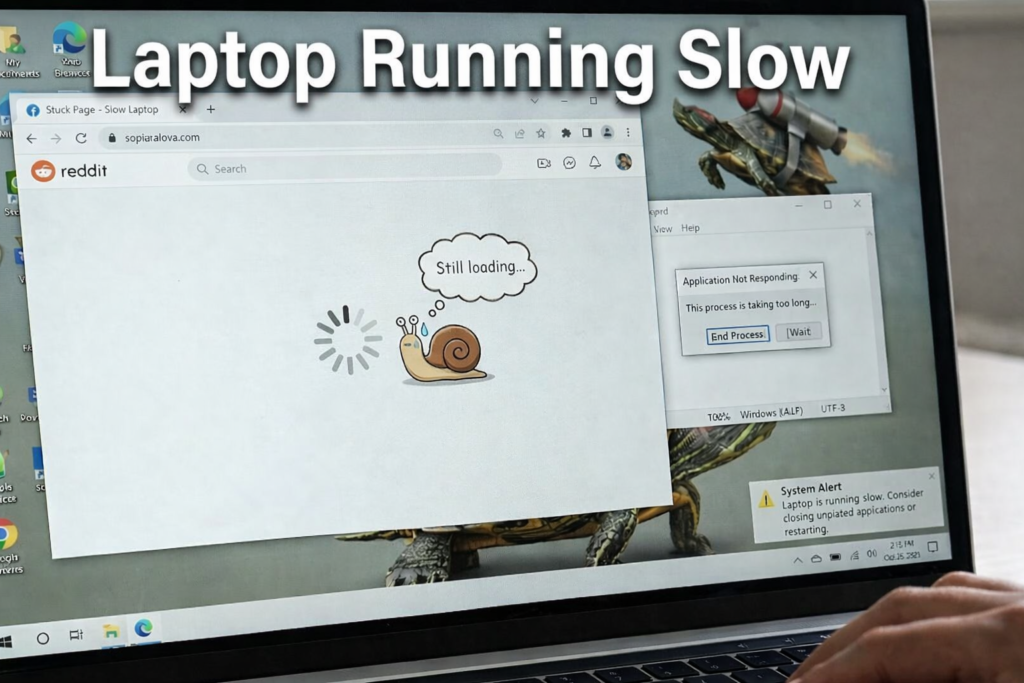
Understanding the “Laptop Running Slow” Problem
Before trying to fix a slow laptop, it is important to clearly understand what the problem actually is. A laptop usually does not become slow suddenly; the issue develops gradually due to daily usage habits and system overload. When early warning signs are ignored, small performance issues turn into major slowdowns over time.
Common Problems Users Experience
- Laptop takes too long to start
- Programs freeze or stop responding
- Browser becomes slow with multiple tabs
- Laptop heats up quickly
- Battery drains faster than usual
- Simple tasks feel heavy and delayed
These problems usually do not appear overnight. They build up slowly because of poor maintenance, outdated software, or increasing software demands placed on the system.
Why Do Laptops Become Slow Over Time?
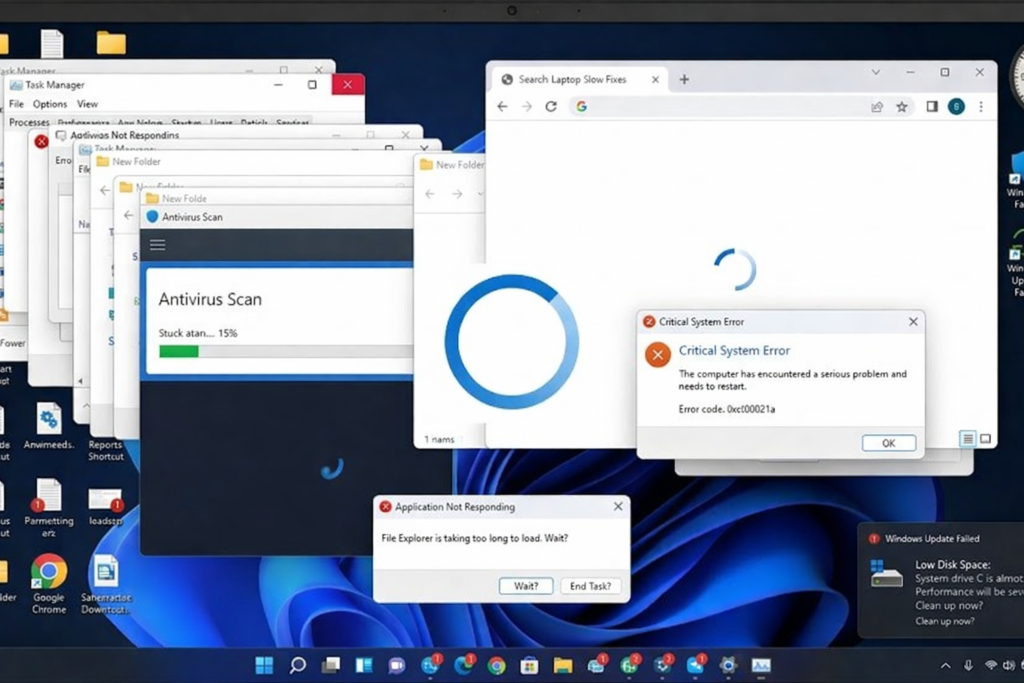
Over time, laptops naturally slow down due to multiple small factors that accumulate. Understanding these causes helps you identify why your system is lagging and which solutions will work best. Most slowdowns are not caused by a single issue but by a combination of software, hardware, and maintenance problems.
1. Too Many Background Applications
Many programs continue to run silently in the background even when you are not actively using them. These applications constantly consume RAM and CPU power, leaving fewer resources for active tasks. Over time, this can make your laptop feel sluggish and unresponsive, especially when opening multiple programs at once.
2. Insufficient RAM
Modern software applications demand more memory than older laptops were built to handle. When a laptop has limited RAM, it struggles to keep multiple apps running smoothly. This often results in slow multitasking, freezing windows, and delayed responses.
3. Low Disk Space
A nearly full hard drive significantly slows down your system. Windows and other software require free space to create temporary files and manage virtual memory. When disk space is low, the operating system works harder, leading to longer load times and lag.
4. Malware and Viruses
Malicious software runs hidden tasks that consume CPU and memory without your knowledge. Even a small malware infection can dramatically reduce your laptop’s performance. Regular scans are essential to detect and remove these threats to keep your system running smoothly.
5. Old or Fragmented Hard Drive
Traditional HDDs naturally slow down as they age due to mechanical wear and file fragmentation. Fragmented files take longer to access because data is spread across the disk. This results in slower boot times, delayed file opening, and general sluggishness.
6. Overheating Issues
Dust and debris block vents and fans, reducing airflow inside your laptop. When temperatures rise, the system automatically throttles performance to prevent damage. Consistently high temperatures can permanently reduce hardware efficiency and speed.
7. Too Many Startup Programs
Applications that launch automatically when Windows starts consume memory and CPU immediately. A cluttered startup list can dramatically increase boot times and reduce available resources. Disabling unnecessary startup apps helps your laptop start faster and run more smoothly from the beginning.
10 Easy Fixes Anyone Can Do
If your laptop is running slow, don’t panic. Most speed issues are minor and can be fixed at home. Below are 10 practical, beginner-friendly fixes that anyone can apply safely to make a laptop faster and smoother.
Fix 1: Restart Your Laptop Regularly
Why This Works
Restarting your laptop might sound simple, but it is surprisingly effective. Every time you restart, temporary files and cached data are cleared. This also stops unnecessary background processes, freeing up RAM and CPU resources.
How to Do It
- Save all your work and close applications.
- Click Start > Power > Restart.
- Restart your laptop at least once every 2–3 days to keep performance consistent.
Extra Tips
- Avoid keeping dozens of programs open overnight.
- Use restart instead of just sleep mode for a deeper system refresh.
Expected Result
- Faster startup and smoother operation.
- Reduced freezes and lag during normal tasks.
Fix 2: Disable Unnecessary Startup Programs
Why This Works
Many apps launch automatically when Windows starts. These programs consume memory and CPU power before you even begin using your laptop. Disabling unnecessary startup apps can drastically reduce boot time and free up resources for active tasks.
Step-by-Step Guide
- Press Ctrl + Shift + Esc to open Task Manager.
- Click the Startup tab.
- Review the list of programs and disable apps you rarely use.
What to Keep Enabled
- Antivirus or security software
- Touchpad, keyboard, and graphics drivers
Extra Tips
- Check the Startup Impact column; high-impact programs should be minimized.
- Reboot after changes to see the difference.
Expected Result
- Boot time reduced by 30–50% in many cases.
- Better multitasking with more free RAM available.
Fix 3: Free Up Hard Drive Space
Why This Works
A hard drive that is nearly full causes Windows to slow down. The operating system uses free space for temporary files, updates, and virtual memory. If storage is low, your laptop works harder, causing delays and sluggish performance.
Step-by-Step Guide
- Open File Explorer.
- Right-click your C Drive and select Properties.
- Click Disk Cleanup.
- Remove temporary files, old system updates, and other junk files.
Extra Tips
- Delete old downloads and videos you no longer need.
- Empty the recycle bin regularly.
- Move large files to an external drive or cloud storage.
Expected Result
- Freed up storage space.
- Faster file access and improved system responsiveness.
Fix 4: Run a Malware and Virus Scan
Why This Works
Malware runs in the background and consumes CPU, memory, and bandwidth. Even small infections can make your laptop slow and unstable. Regular scans remove these hidden threats, improving performance and security.
Step-by-Step Guide
- Open Windows Security.
- Go to Virus & Threat Protection.
- Run a Full System Scan.
- Quarantine or delete any detected threats.
Extra Tips
- Consider a second opinion with Malwarebytes Free.
- Schedule scans weekly for continuous protection.
Expected Result
- Significant improvement in speed if malware was present.
- Peace of mind knowing your system is safe.
Fix 5: Update Windows and System Drivers
Why This Works
Outdated Windows versions and drivers can cause compatibility issues and slow performance. Updates often include bug fixes, security patches, and performance optimizations.
Step-by-Step Guide
- Open Settings > Update & Security > Windows Update.
- Click Check for Updates and install all available updates.
- Update drivers via Device Manager: right-click devices like Display Adapters and Network Adapters > Update driver > Search automatically.
- Optional: Visit your laptop manufacturer’s website for the latest drivers.
Expected Result
- Improved system stability.
- Faster hardware response and smoother software operation.
Fix 6: Optimize Browser Performance
Why This Works
Modern browsers use significant RAM and CPU, especially with multiple tabs open. Too many extensions or cached data can slow down browsing and affect overall laptop speed.
Step-by-Step Guide
- Close unused tabs.
- Remove unnecessary browser extensions.
- Clear browser cache and cookies regularly.
Extra Tips
- Consider using a lightweight browser for older laptops.
- Limit auto-starting plugins like flash or media players.
Expected Result
- Faster browsing experience.
- Less lag when running other applications.
Fix 7: Adjust Power Settings
Why This Works
Power Saver mode reduces performance to save battery. This mode limits CPU speed and system resources, causing slower operation.
Step-by-Step Guide
- Open Control Panel > Power Options.
- Select Balanced or High Performance.
Extra Tips
- Use High Performance when plugged in for maximum speed.
- Return to Balanced for better battery life when unplugged.
Expected Result
- Faster response time.
- Better multitasking without unnecessary slowdowns.
Fix 8: Clean Your Laptop Physically
Why This Works
Dust accumulation blocks vents and fans, causing overheating. Overheating triggers automatic CPU throttling, slowing down performance.
Step-by-Step Guide
- Turn off and unplug your laptop.
- Use compressed air to clean vents and the keyboard.
- Place the laptop on a flat surface for proper airflow.
Extra Tips
- Consider a cooling pad for older laptops.
- Clean every 2–3 months to maintain optimal performance.
Expected Result
- Lower temperatures and stable performance.
- Longer hardware lifespan.
Fix 9: Upgrade to an SSD (Most Effective Fix)
Why This Works
SSDs (Solid State Drives) are significantly faster than traditional HDDs. Boot time, file access, and application loading speed improve dramatically.
Benefits
- Boot Windows in 10–20 seconds instead of 1–2 minutes.
- Open applications instantly.
- Smoother overall system performance.
Extra Tips
- Use a professional service to clone your old drive.
- Keep the old HDD as an external backup if needed.
Expected Result
- The laptop feels brand new.
- Dramatic improvement in speed and responsiveness.
Fix 10: Increase RAM (If Supported)
Why This Works
More RAM allows your laptop to handle multiple applications without slowing down. This is particularly useful for multitasking, browsing, and running modern software.
Recommended Upgrade
- Minimum 8GB RAM for normal use.
- 16GB RAM for heavy users like gamers or designers.
Extra Tips
- Check if your laptop supports RAM expansion before buying.
- Combine SSD and RAM upgrade for near-new performance.
Expected Result
- Faster multitasking.
- Reduced freezing and smooth operation of heavy apps.
When Should You Seek Professional Help?
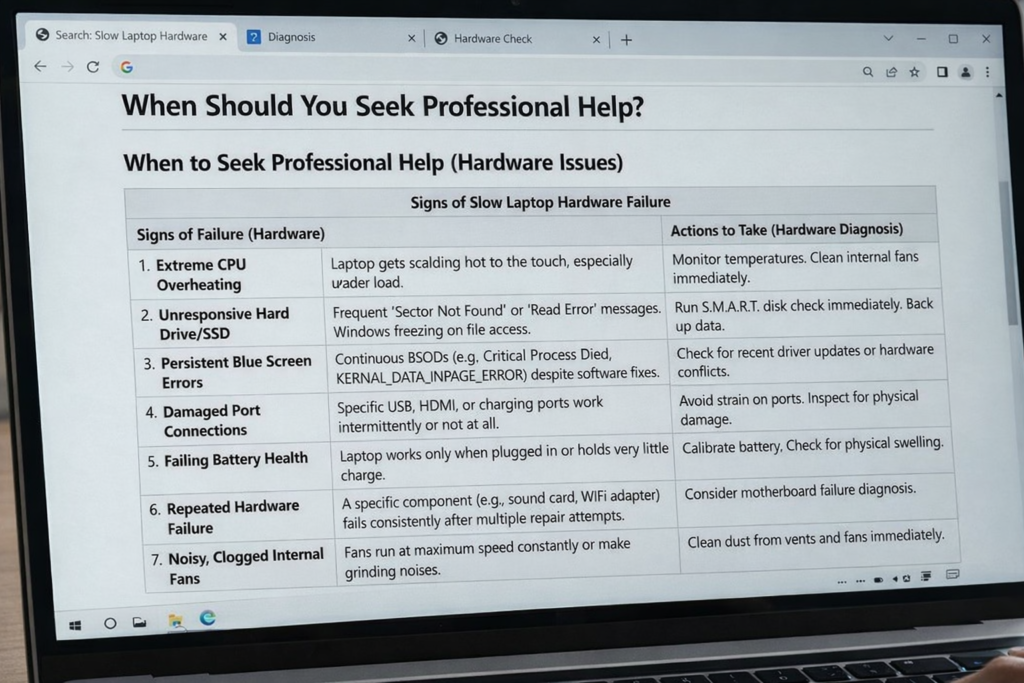
Sometimes, even after trying all the fixes above, your laptop running slow issue may not improve. This usually happens when the problem is deeper than simple software tweaks. Knowing when to consult a professional can save time, prevent further damage, and ensure your laptop performs optimally.
You Should Consider Professional Help If:
· Laptop still runs slow after fixes: If your laptop continues to lag even after cleaning, disabling startup apps, updating software, and optimizing settings, the issue might be hardware-related or a hidden software problem.
· Overheating continues: Persistent overheating, despite cleaning vents and using cooling pads, can indicate blocked fans, faulty thermal paste, or other internal hardware issues.
· Hardware upgrades feel risky: Installing SSDs, upgrading RAM, or replacing components can be tricky for beginners. Professional help ensures upgrades are done safely without data loss.
· System crashes frequently: Frequent blue screens, unexpected shutdowns, or random crashes can signal failing hard drives, RAM issues, or motherboard problems that require expert diagnostics.
· Severe malware or virus infections: Some malware infections are difficult to remove and can hide deep in system files. A certified technician can ensure complete removal and restore system stability.
Professional Benefits:
· Comprehensive hardware and software diagnostics
· Safe SSD and RAM upgrades
· Thermal paste replacement and internal cleaning
· Optimization tools for maximum performance
By seeking professional help at the right time, you can extend your laptop’s lifespan and maintain smooth, reliable performance without the frustration of ongoing slowdowns.
Conclusion
Laptop Running Slow issues are extremely common. Most of them are caused by minor problems that grow over time. With regular care and simple fixes, laptops can stay fast and reliable.
By applying these 10 easy fixes, you can restore speed, reduce frustration, and extend your laptop’s lifespan. If problems persist, hardware upgrades or professional optimization may be the best long-term solution.
FAQs
1. Why is my laptop running slow suddenly?
Sudden slowdowns often happen due to background updates or hidden malware. Check Task Manager and run a full malware scan to fix it.
2. Can low storage slow down a laptop?
Yes, Windows needs free space to work smoothly. Keep at least 20% of your drive empty to prevent slowdowns.
3. Does restarting help performance?
Yes, restarting clears memory and stops unnecessary background tasks. It keeps your laptop responsive and reduces freezes.
4. How much RAM is enough for a laptop?
For normal use, 8GB RAM is recommended, 16GB for heavy tasks. Less than 4GB often causes lag and slow performance.
Meta Description
Laptop Running Slow? Learn why laptops slow down and discover 10 easy fixes anyone can do. Step-by-step solutions to speed up your laptop.