
Have you ever lost photos from your phone or computer? It can feel very bad because photos hold our memories. Family events, trips, and special moments live inside these images. That is why many people now use Google Drive to keep their photos safe online.
Today, storing pictures is easier than ever. With Google Drive, you can save photos on the internet and open them anytime. For example, you can upload a photo from your phone and later view it on your laptop. Because of this, Google Drive has become one of the most useful tools for photo storage.
However, many beginners still feel confused about how to upload photos properly. Some people think it is difficult. In reality, it is very simple. In this guide, you will learn step by step how to upload images, organize them, and manage them easily using Google Drive.
What is Google Drive?
Before learning the steps, it is important to understand what Google Drive actually is.
Google Drive is a cloud storage service created by Google. It allows users to store files online instead of saving everything on their device. Because the files are stored in the cloud, they remain safe even if your phone or computer stops working.
Another useful feature of Google Drive is that it lets you access your files from anywhere. For example, you can upload photos from your phone and later open them on a computer. This flexibility is the reason why millions of people trust Google Drive for file storage.
Additionally, every Google account comes with 15 GB of free storage. This space can store documents, videos, and photos. Therefore, many users prefer Google Drive to protect their important images.
Why People Upload Photos to Google Drive
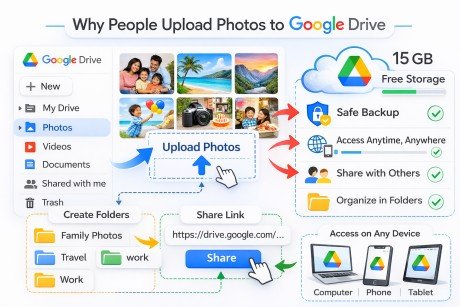
There are many reasons why people upload pictures to Google Drive. First of all, it helps keep photos safe. If your phone is lost or damaged, your images will still be saved in Google Drive.
Secondly, Google Drive makes sharing very easy. You can quickly send photos to friends, family members, or coworkers. Instead of sending large files one by one, you can simply share a folder link.
Another advantage is organization. When photos are stored inside Google Drive, you can create folders for different events. For example, you might create folders for birthdays, travel, or school work. Because of this, finding pictures later becomes much easier.
Simple Steps to Upload Photos to Google Drive
Uploading photos to Google Drive is a simple process. However, the steps can be slightly different depending on the device you use.
Below you will learn how to upload photos using different devices.
Opening Google Drive First
Before uploading photos, you must open Google Drive.
If you are using a computer, open your internet browser and go to the Google Drive website. Then sign in with your Google account.
On the other hand, if you are using a smartphone, you can download the Google Drive app from the app store. After installing the app, simply log in to your account.
Once you log in, you will see your Google Drive dashboard. This is where all your files and folders will appear.
Creating a Photo Folder
Before uploading images, it is a good idea to create a folder. A folder helps keep your photos organized.
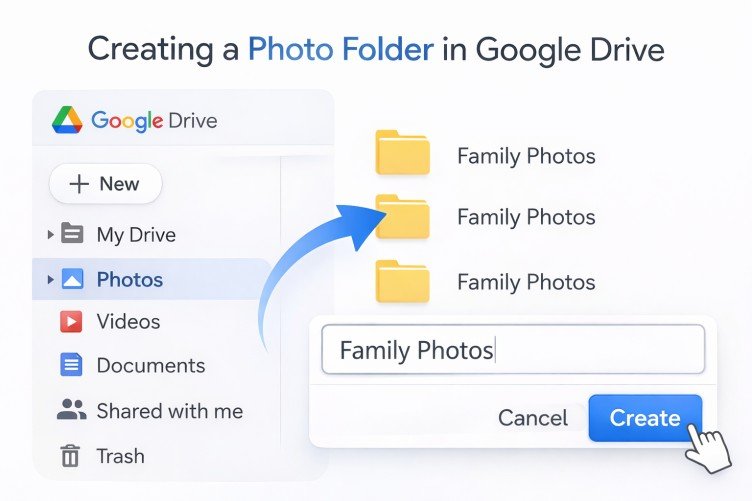
To create a folder in Google Drive, look for the New button on the screen. After clicking it, select the Folder option. Then type a name for your folder.
For example, you can create folders like:
- Family Photos
- Holiday Pictures
- Work Images
After that, click Create. Now your folder is ready inside Google Drive.
Uploading Photos from an Android Phone
Many people use Android phones. Luckily, uploading photos to Google Drive from Android is very easy.
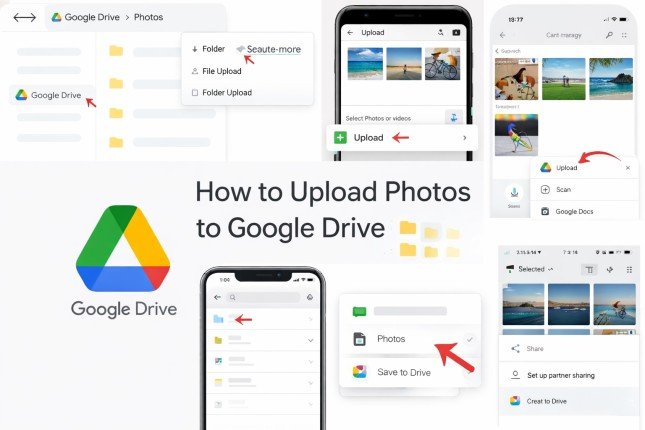
First, open the Google Drive app on your phone. Then tap the plus (+) button at the bottom of the screen.
Next, choose the Upload option. After that, your phone will show your gallery and files. Now you can select the photos you want to upload.
Once you choose the images, tap Upload. Within a few seconds, the photos will start uploading to Google Drive.
Uploading Photos from an iPhone
iPhone users can also upload photos to Google Drive quickly.
First, open the Google Drive application on your iPhone. Then tap the plus icon at the bottom corner.
After that, select the Upload option. Your phone will open the photo library. Now choose the pictures you want to upload.
Finally, press Upload, and your photos will be saved inside Google Drive.
Uploading Photos from a Computer
Uploading photos from a computer to Google Drive is also simple.
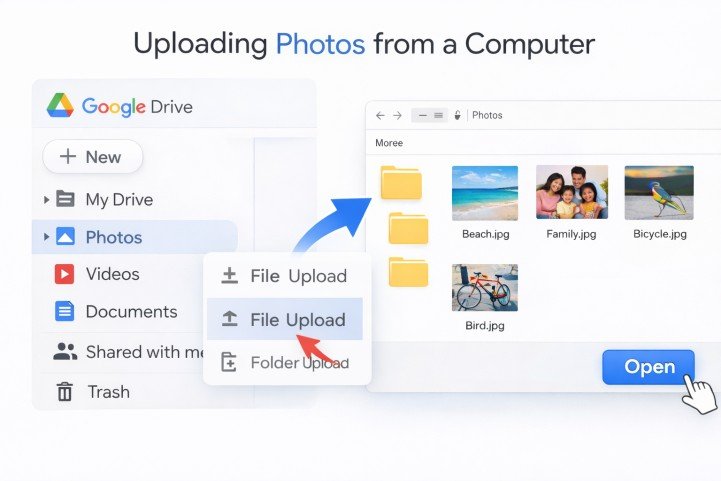
Start by opening the Google Drive website in your browser. After signing in, click the New button on the left side.
Then select File Upload. A window will appear showing your computer files. Now choose the photos you want to upload.
Finally, click Open, and the files will begin uploading to Google Drive.
Moving Photos from Google Photos to Google Drive
Sometimes your images may already be stored in Google Photos. In that case, you might want to move them to Google Drive.
First, open Google Photos and select the images you want to move. Then tap the Share button.
After that, choose Save to Drive. Now select the folder where you want to store the pictures.
Once you confirm the action, the images will appear inside Google Drive.
Organizing Your Photos in Google Drive
After uploading images, organizing them properly is very important.
First, you can create multiple folders in Google Drive. For example, you might create separate folders for work photos and personal photos.
Secondly, renaming files helps identify them quickly. Instead of random names, you can give clear titles like Birthday Party 2024.
Finally, you can also share folders directly from Google Drive. This makes collaboration easier when working with others.
Final Thoughts
Uploading photos to Google Drive is a smart way to protect your memories. Because the files are stored online, they remain safe even if your device is damaged.
Moreover, Google Drive makes it easy to organize, share, and access photos from any device. Whether you are using a phone, tablet, or computer, the process is simple and fast.
Once you understand these steps, managing your photos inside Google Drive becomes very easy.
Frequently Asked Questions
1. How do I upload photos to Google Drive from my phone?
To upload photos to Google Drive from your phone, open the Google Drive app and tap the + button. After that, choose Upload and select the photos from your gallery. Finally, tap Upload, and your images will be saved in Google Drive.
2. Can I upload multiple photos to Google Drive at the same time?
Yes, you can upload multiple images to Google Drive at the same time. Simply select more than one photo from your device before pressing the upload button. This makes saving many pictures to Google Drive faster and easier.
3. Is Google Drive free for storing photos?
Yes, Google Drive offers 15GB of free storage for every Google account. This space can store photos, videos, documents, and other files. If you need more space, you can upgrade your Google Drive storage plan.
4. Can I share photos from Google Drive with others?
Yes, sharing photos through Google Drive is very easy. You can select a photo or folder and click the Share option. Then you can send a link to friends, family members, or coworkers.
5. What image formats does Google Drive support?
Google Drive supports many image formats such as JPEG, PNG, GIF, and TIFF. Because of this, most photos from phones and cameras can be uploaded to Google Drive without any problem.
Meta Description
Learn how to upload photos to Google Drive using mobile or computer. This beginner-friendly guide explains simple steps to upload, organize, and manage photos safely in Google Drive.
- What is Google Drive?
- Why People Upload Photos to Google Drive
- Simple Steps to Upload Photos to Google Drive
- Uploading Photos from an Android Phone
- Uploading Photos from an iPhone
- Uploading Photos from a Computer
- Moving Photos from Google Photos to Google Drive
- Organizing Your Photos in Google Drive
- Final Thoughts
- Frequently Asked Questions
- Meta Description