
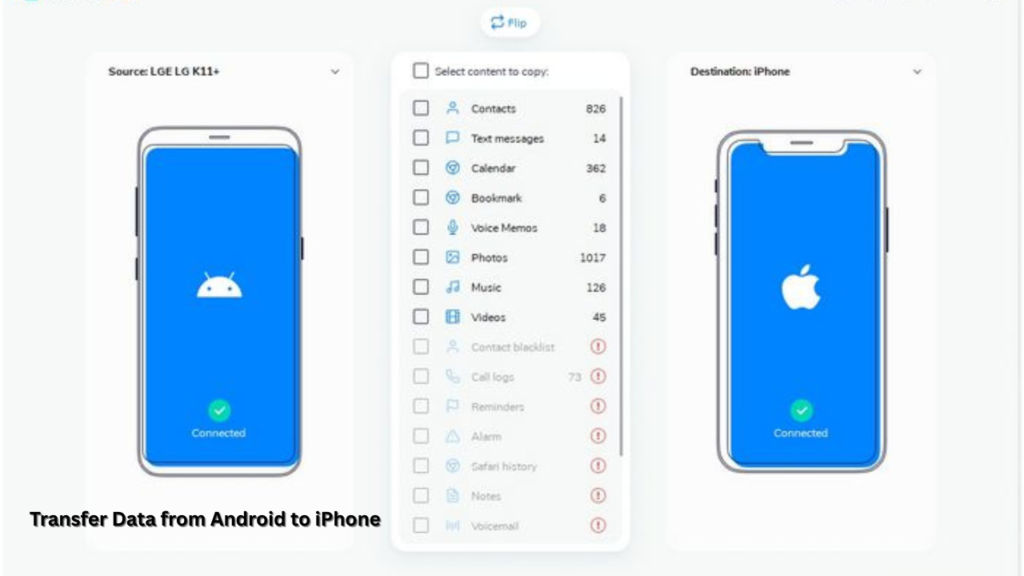
Switching from Android to iPhone feels exciting. However, many users are concerned about one thing — how to transfer data from Android to iPhone safely and easily. Your phone stores precious memories, contacts, messages, apps, and work files.
You cannot afford to lose any of this important data.
In 2026, transferringdata from Android to iPhone is easier than ever. Apple and Google now offer smart tools, cloud services, and wireless solutions. These tools make the transfer process smooth, fast, and secure.
So you can move your data without stress or confusion.
Whether you are moving photos, contacts, WhatsApp chats, or documents, this guide will help you complete your transfer easily and safely.
Why Do You Need to Transfer Data from Android to iPhone?
Our smartphone is more than just a communication device — it holds your entire digital life. From personal memories to important work files, everything is stored inside your phone. That is why understanding how to transfer data from Android to iPhone is so important. It helps you keep your valuable information safe and allows you to continue using your data without interruption.
When switching phones, proper data transfer ensures that nothing important is left behind. Without a careful transfer process, you may lose years of stored information that cannot be recovered.
Here’s why data transfer matters:
- Memories: Your photos and videos preserve your life moments.
- Contacts: Important phone numbers for family, friends, and business.
- Apps & Settings: Personalized apps and saved preferences.
- Work Files: Documents, emails, notes, and schedules.
Without a proper transfer process, you risk losing valuable data that may never be recovered. Learning how to transfer data from Android to iPhone helps protect your memories, productivity, and peace of mind.
Preparations Before You Transfer Data from Android to iPhone
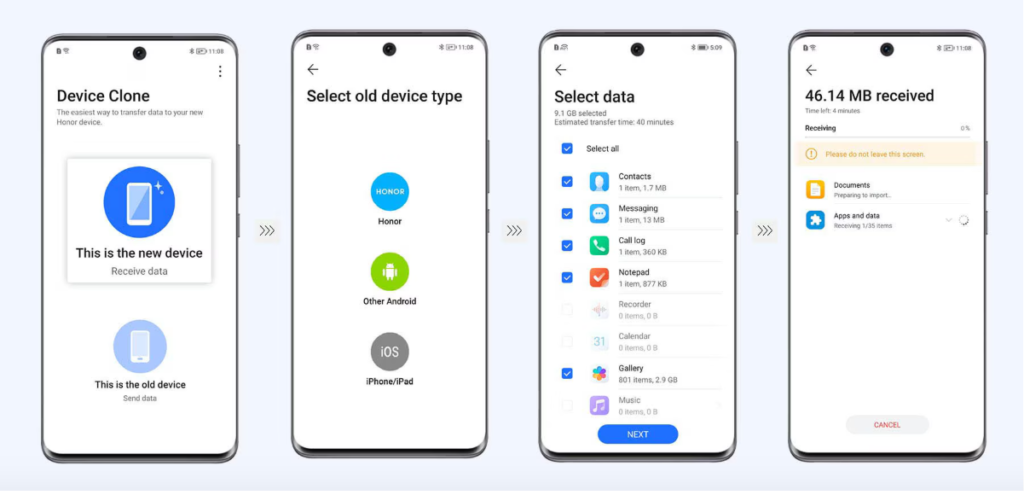
Before learning how to transfer data from Android to iPhone, it is very important to prepare both devices properly. A little preparation can save you from data loss, transfer errors, and unnecessary stress. Follow these simple but essential steps to ensure a smooth and secure data migration.
1. Backup Your Android Data
The first and most important step before you transfer data is to create a full backup of your Android phone. This ensures your files stay safe even if something goes wrong during the transfer process.
You can easily back up your data using Google Drive, which stores your contacts, messages, photos, videos, app data, and settings in the cloud. Simply go to Settings → Google → Backup and enable backup. Once done, all your important data will be securely saved. Having a backup means you can restore your information anytime, even if the transfer fails or is interrupted.
2. Update Both Devices to the Latest Software
Always make sure that both your Android phone and iPhone are running the latest software versions. Updates improve performance, fix bugs, and remove compatibility problems that could stop the transfer process.
Outdated software can cause connection issues, slow speed, or incomplete transfers. To avoid these problems:
- On Android: Go to Settings → Software Update
- On iPhone: Go to Settings → General → Software Update
Keeping both devices updated ensures smooth communication between systems and improves transfer speed and reliability.
3. Check Available Storage Space on iPhone
Before you start the transfer, check how much free storage your iPhone has. If your Android device contains large files, photos, videos, or apps, your iPhone must have enough space to store all of them.
If your iPhone storage is low, you may face transfer failure or missing data issues. You can free up space by:
- Deleting unused apps
- Removing old photos or videos
- Clearing cached files
Go to Settings → General → iPhone Storage to see available space. Always keep extra storage free to avoid interruptions.
4. Fully Charge Both Phones or Plug Them In
Data transfer can take several minutes to hours, depending on file size. If your phone battery dies during the process, the transfer may stop or fail. To avoid this, fully charge both phones before starting or keep them connected to power during the entire process. This ensures continuous data movement without sudden shutdowns.
5. Enable Stable Wi-Fi Connection
Most transfer methods require a strong and stable Wi-Fi connection. Slow internet can cause delays, disconnections, and incomplete transfers. Make sure both devices are connected to fast and stable Wi-Fi before starting. Avoid using mobile data as it can slow down the process and consume your data plan.
6. Turn Off Unnecessary Apps & Notifications
Background apps, calls, or notifications can interrupt data transfer. Close unnecessary apps and silence notifications to prevent interruptions.
This helps maintain stable connectivity and smooth file movement.
Why These Preparations Matter?
Proper preparation helps you:
- Prevent data loss
- Avoid transfer errors
- Save time
- Ensure full and accurate migration
By following these steps, learning how to transfer data from Android to iPhone becomes easy, fast, and stress-free.
7 Powerful & Easy Methods to Transfer Data from Android to iPhone
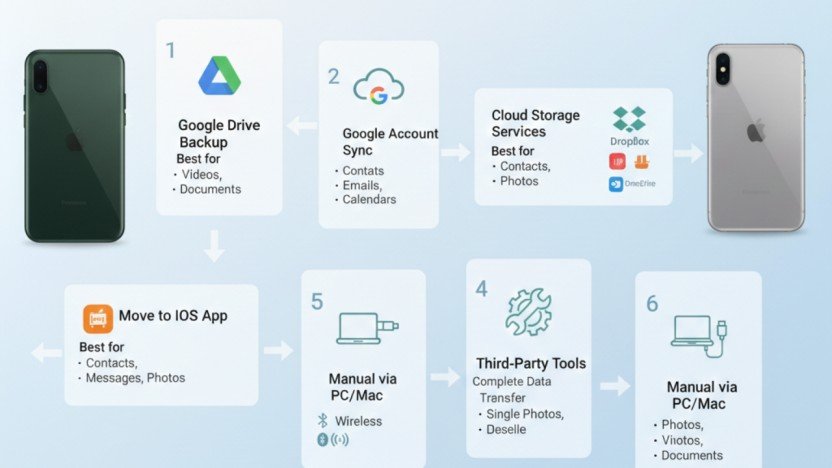
In 2026, there are many reliable ways to transfer data from Android to iPhone quickly and safely. Each method works best for different types of data. Choose the one that fits your needs and device situation.
Below are the 7 best and easiest methods you can use:
1. Move to iOS App (Apple Official Method)
This is the most trusted and recommended way to transfer data from Android to iPhone. Apple designed this official app to make the transfer simple, secure, and automatic during iPhone setup.
Steps:
- Install the Move to iOS app on your Android device.
- Turn on your new iPhone and start the setup process.
- Select Move Data from Android when prompted.
- Enter the security code shown on your iPhone.
- Choose the data you want to move and start the transfer.
Best for: Contacts, messages, photos, WhatsApp chats, call logs, and settings.
2. Google Account Sync Method
This method allows you to transfer data from Android to iPhone using Google Cloud syncing. It is easy, wireless, and reliable for basic data.
Steps:
- Sync contacts, calendars, and emails to your Google account.
- Log in to the same Google account on your iPhone.
- Turn on sync options in settings.
Best for: Contacts, emails, calendars, and notes.
3. Google Drive Backup Transfer
Google Drive provides a secure cloud backup method for transferring large files between devices.
Steps:
- Backup your Android data to Google Drive.
- Install Google Drive on your iPhone.
- Sign in and restore your files.
Best for: Photos, videos, documents, and backups.
4. Cloud Storage Services (iCloud, Dropbox, OneDrive)
Cloud storage platforms allow you to access and download your files anytime, anywhere. They provide fast and safe file transfers.
How it works:
Upload your files from Android, then download them on your iPhone using the same account.Best for: Documents, photos, PDFs, videos, and work files.
5. Manual Transfer via PC or Mac
This traditional method allows full control over file movement using a computer.
Steps:
- Connect Android phone to PC → Copy files.
- Connect iPhone → Paste files using iTunes or Finder.
Best for: Photos, videos, music, and documents.
6. Third-Party Transfer Tools
Third-party apps like MobileTrans, Dr.Fone, and Phone Clone offer fast and advanced data transfer solutions.
These tools support both before and after iPhone setup, making them very flexible.
Best for: Complete data transfer, including messages, media, apps, and backups.
7. Wireless Sharing Methods
Bluetooth, email, and file-sharing apps are simple options for transferring small amounts of data quickly. These methods do not require cables or a computer, making them very convenient. They are easy to use and suitable for instant sharing between devices. However, transfer speed may be slow for large files.
Best for: Single photos, documents, or short videos.
Which Method Should You Choose?
- Full transfer: Move to iOS App
- Contacts & emails: Google Sync
- Photos & documents: Google Drive or Cloud
- Large files: PC/Mac manual transfer
- After setup: Third-party tools
Choosing the right method makes transferring data from Android to iPhone fast, safe, and stress-free.
How to Transfer Specific Files and Apps?
Different files need different methods when learning how to transfer data from Android to iPhone.
- Contacts: Google sync or Move to iOS
- Photos & Videos: Google Photos or iCloud
- WhatsApp Chats: Move to iOS app
- Music: iTunes, Spotify, or cloud services
- Documents: Google Drive, Dropbox, OneDrive
Common Problems While Transferring Data
When figuring out how to transfer data from Android to iPhone, users may face:
- App compatibility issues
- Slow transfer speed
- Large file size problems
- Storage limitations
- Internet interruptions
Most of these problems can be avoided by using Wi-Fi, charging devices, and clearing storage beforehand.
Tips for Faster & Safer Data Transfer
- Use Wi-Fi instead of mobile data
- Keep phones plugged into power
- Close background apps
- Choose Move to iOS for full migration
- Backup before starting
These tips help improve success while learning how to transfer data from Android to iPhone.
Conclusion
Switching phones does not need to be stressful when you understand how to transfer data from Android to iPhone correctly. With powerful tools like Move to iOS, Google Drive, and cloud storage, you can move your digital life safely and smoothly in 2026.
By preparing properly and choosing the right transfer method, you can avoid data loss, save time, and enjoy your new iPhone without any frustration. Whether you are transferring photos, messages, or apps, the right strategy ensures a seamless transition every time.
Frequently Asked Questions (FAQs)
What is the fastest way to transfer data from an Android to an iPhone?
The Move to iOS app is the fastest and safest option. It allows full data transfer during iPhone setup.
Can I transfer WhatsApp chats from Android to iPhone?
Yes, WhatsApp chats can be moved using Move to iOS. This works during the iPhone setup process.
Can I transfer data after iPhone setup?
Yes, you can use Google Drive or cloud services. Third-party apps also allow transfers anytime.
Will I lose data during transfer?
No, your data remains safe if steps are followed correctly. Proper preparation prevents any loss during transfer.
Do I need a cable for data transfer?
No, most transfers are wireless for convenience. Using a cable can speed up transferring large files.
Meta Description
Learn how to transfer data from Android to iPhone using 7 easy and powerful methods. Move photos, contacts, WhatsApp, apps & files safely in 2026.
- Why Do You Need to Transfer Data from Android to iPhone?
- Preparations Before You Transfer Data from Android to iPhone
- Why These Preparations Matter?
- 7 Powerful & Easy Methods to Transfer Data from Android to iPhone
- How to Transfer Specific Files and Apps?
- Common Problems While Transferring Data
- Tips for Faster & Safer Data Transfer
- Conclusion
- Meta Description