
You are in the middle of an important video call. The connection drops. Pages take forever to load. Videos buffer every 10 seconds. Your WiFi router is working fine — yet your PC feels like it is connected to the internet through a tin can and a piece of string.
Slow WiFi on a PC is one of the most common and most annoying tech problems in 2026. And here is the truth most people do not know — in the majority of cases, the problem is not your internet plan or your router. The problem is your PC itself. Driver settings, power configurations, network adapter issues, and Windows settings are silently killing your WiFi speed every single day.
This complete guide will show you exactly how to speed up WiFi on your PC using proven, step-by-step methods that actually work. No technical background required. Just follow the steps and watch your connection transform.
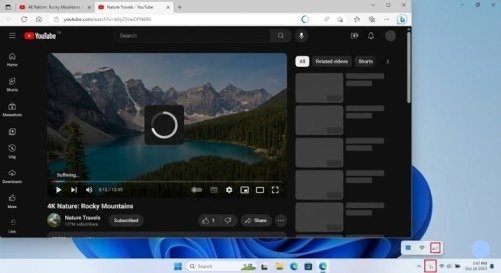
Why Is Your PC WiFi So Slow?
Before fixing the problem, you need to understand what is causing it. Slow WiFi on a PC is rarely a single issue — it is usually a combination of factors working against you at the same time.
The most common causes include:
- Outdated or corrupted WiFi adapter drivers
- Windows power saving mode throttling your network adapter
- DNS server settings slowing down every page load
- Too many background apps consuming bandwidth secretly
- Router channel congestion from neighboring networks
- Incorrect network adapter settings
- VPN or antivirus software interfering with the connection
- Physical distance and obstacles between PC and router
- Old network adapter hardware not supporting modern WiFi standards
Now let us fix every single one of them.
Method 1: Update Your WiFi Adapter Driver
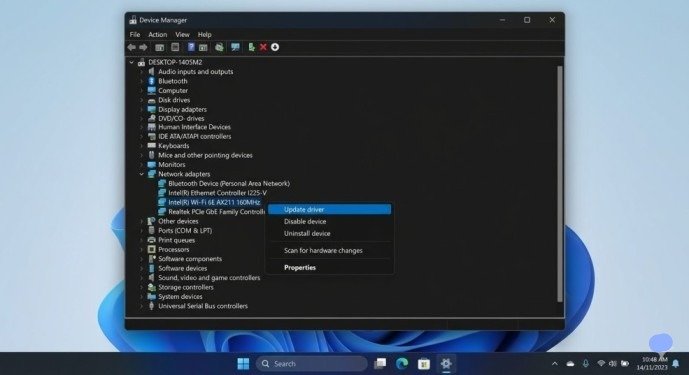
This is the first and most important step when you want to speed up WiFi on your PC. An outdated WiFi driver is the single most common reason for slow, unstable wireless connections on Windows machines.
Steps to update your WiFi driver:
- Right-click the Start button and open Device Manager
- Expand Network Adapters
- Right-click your WiFi adapter (usually named Intel Wireless, Realtek, or Qualcomm)
- Select Update Driver → Search automatically for drivers
- If no update is found, visit your laptop manufacturer’s website (Dell, HP, Lenovo, ASUS) and download the latest WiFi driver manually
- Install and restart your PC
A fresh, up-to-date driver alone can dramatically improve WiFi speed and stability on most Windows PCs.
Method 2: Disable WiFi Power Saving Mode
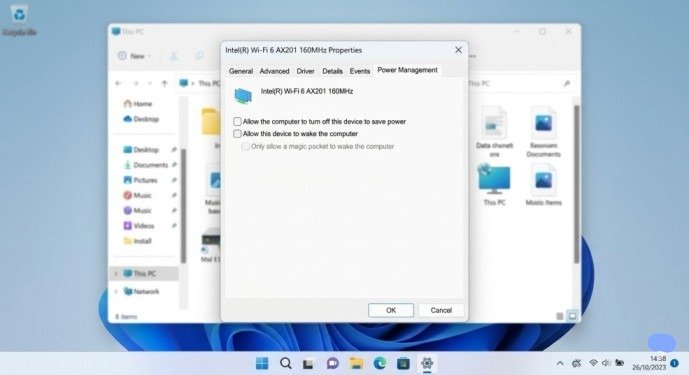
Windows has a hidden setting that reduces your WiFi adapter’s power to save battery — and it destroys your connection speed in the process. Disabling this setting is one of the fastest ways to speed up WiFi on your PC instantly.
Steps:
- Open Device Manager and expand Network Adapters
- Right-click your WiFi adapter and select Properties
- Go to the Power Management tab
- Uncheck Allow the computer to turn off this device to save power
- Click OK
Also go to: Control Panel → Power Options → Change plan settings → Change advanced power settings → Wireless Adapter Settings → Power Saving Mode Set this to Maximum Performance
This single change can increase WiFi speeds significantly — especially on laptops running on battery.
Method 3: Change Your DNS Server
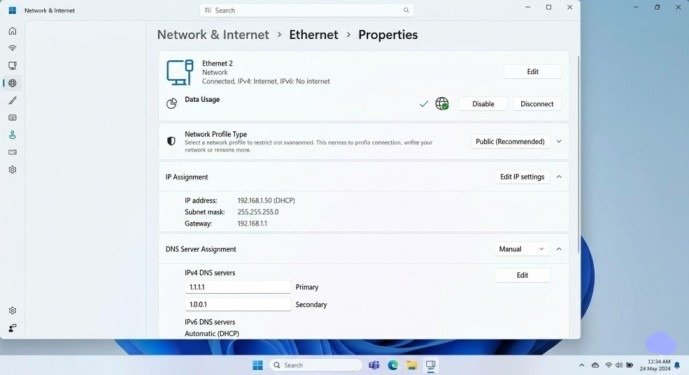
Your DNS server translates website addresses into IP addresses every time you open a page. If your ISP’s default DNS server is slow or overloaded, every single page load feels sluggish — even if your internet speed itself is fine.
Switching to a faster DNS server is one of the most underrated ways to speed up WiFi on your PC.
Best free DNS servers in 2026:
- Google DNS: 8.8.8.8 and 8.8.4.4
- Cloudflare DNS: 1.1.1.1 and 1.0.0.1
- OpenDNS: 208.67.222.222 and 208.67.220.220
Steps to change DNS:
- Press Windows + R, type ncpa.cpl and press Enter
- Right-click your WiFi connection and select Properties
- Select Internet Protocol Version 4 (TCP/IPv4) and click Properties
- Select Use the following DNS server addresses
- Enter your preferred DNS (e.g., 1.1.1.1 and 1.0.0.1 for Cloudflare)
- Click OK and restart your browser
Most users notice faster page loading immediately after making this change.
Method 4: Disable Background Apps Consuming Bandwidth
Windows runs dozens of apps silently in the background — many of them consuming your bandwidth without asking permission. Windows Update downloads, OneDrive syncing, app store updates, and telemetry services all eat into your available internet speed.
Steps to limit background data usage:
- Go to Settings → Privacy & Security → Background Apps
- Turn off background access for apps you do not need
- Open Task Manager (Ctrl + Shift + Esc) and click the Network column
- Identify any app consuming unusual amounts of data and close or uninstall it
Also go to Settings → Windows Update → Advanced Options and set Active Hours to limit when Windows downloads updates in the background.
Method 5: Use the 5GHz Band Instead of 2.4GHz
Most modern routers broadcast two WiFi bands — 2.4GHz and 5GHz. The 2.4GHz band has longer range but is heavily congested and slower. The 5GHz band is faster, less congested, and far better for close-range connections.
How to switch bands on Windows:
- Open Device Manager → Network Adapters
- Right-click your WiFi adapter and select Properties
- Go to the Advanced tab
- Find Preferred Band or Band setting
- Set it to Prefer 5GHz band
- Click OK and reconnect to your router
If your router has separate network names for 2.4GHz and 5GHz (e.g., HomeWiFi and HomeWiFi_5G), simply connect to the 5GHz network directly from your WiFi settings.
Switching to 5GHz is one of the most effective ways to speed up WiFi on your PC if you sit within reasonable range of your router.
Method 6: Flush DNS Cache and Reset Network Settings
Over time, your Windows DNS cache can become corrupted or outdated, causing slow connections and failed page loads. Flushing it gives your network a fresh clean start.
Steps:
- Open Command Prompt as Administrator
- Run these commands one by one, pressing Enter after each:
netsh winsock reset
netsh int ip reset
ipconfig /release
ipconfig /flushdns
ipconfig /renew
- Restart your PC after all commands complete
This full network reset clears corrupted settings, releases your old IP address, and rebuilds your DNS cache from scratch. Many users find this completely resolves their slow WiFi issue.
Method 7: Change Your Router Channel
If you live in an apartment building or a densely populated area, dozens of nearby WiFi networks are broadcasting on the same channels as yours — creating interference and slowing everyone down. Changing your router channel can make a dramatic difference.
How to find the least congested channel:
- Download WiFi Analyzer from the Microsoft Store (free)
- Open the app and look at which channels nearby networks are using
- Log into your router admin panel (usually 192.168.1.1 or 192.168.0.1)
- Go to Wireless Settings and manually set the channel to the least congested one
- For 2.4GHz, channels 1, 6, and 11 are the non-overlapping options — pick the emptiest one
- For 5GHz, more channels are available with far less congestion
This is especially effective in busy urban areas where dozens of WiFi networks compete for the same frequencies.
Method 8: Disable VPN and Check Antivirus Settings
VPNs route all your traffic through an external server, which adds latency and reduces speeds — sometimes dramatically. If you use a VPN and notice slow WiFi, try disabling it temporarily to test your actual speed.
Similarly, some antivirus programs perform deep packet inspection on network traffic in real time, which can throttle your connection. Check your antivirus settings and look for any network monitoring or firewall features that may be limiting speed.
If disabling the VPN or antivirus improves speed significantly, switch to a faster VPN provider or adjust your antivirus network settings accordingly.
Method 9: Run the Windows Network Troubleshooter
Windows has a built-in network troubleshooter that automatically detects and fixes common WiFi problems. It is not perfect but it often resolves simple configuration issues instantly.
Steps:
- Go to Settings → System → Troubleshoot → Other troubleshooters
- Find Internet Connections and click Run
- Follow the on-screen instructions and apply any recommended fixes
- Also run the Network Adapter troubleshooter from the same page
This is a quick two-minute check that should be part of every WiFi fix routine.
Method 10: Upgrade Your WiFi Adapter Hardware
If your PC is more than four or five years old, the WiFi adapter inside it may only support older WiFi standards like WiFi 4 or WiFi 5. In 2026, most modern routers support WiFi 6 and WiFi 6E — which offer dramatically faster speeds and better performance in crowded environments.
If you have tried all the software fixes above and your WiFi is still slow, the hardware itself may be the bottleneck.
For desktop PCs: Install a PCIe WiFi 6 card — they start from around $25 and offer a massive speed upgrade.
For laptops: Purchase a USB WiFi 6 adapter — a simple plug-and-play solution that bypasses your internal adapter entirely.
Upgrading to a WiFi 6 adapter is the ultimate long-term solution to speed up WiFi on your PC and future-proof your connection for years to come.
Final Thoughts
Slow WiFi on your PC is frustrating — but it is almost always fixable. In most cases the problem is not your internet plan, not your router, and not your ISP. The problem lives inside your Windows settings, your network adapter configuration, or your driver software.
Work through these methods one by one and you will almost certainly find the fix that transforms your connection. Once you successfully speed up WiFi on your PC, maintain those improvements by keeping your drivers updated, monitoring background apps, and checking your router settings periodically.
A fast, stable WiFi connection is not a luxury — in 2026, it is a necessity. And now you have everything you need to achieve it.
Frequently Asked Questions
Q1: Why is my WiFi slow on my PC but fast on my phone? This almost always points to a PC-specific issue rather than a router or ISP problem. The most likely causes are an outdated WiFi driver, power saving mode throttling your adapter, or incorrect network adapter settings. Start with Method 1 and Method 2 in this guide.
Q2: Does changing DNS really speed up internet? Yes, significantly in many cases. If your ISP’s DNS server is slow or overloaded, switching to Cloudflare (1.1.1.1) or Google (8.8.8.8) can reduce page load times by 20–50% in some situations. It costs nothing and takes less than five minutes.
Q3: What is the fastest WiFi band for gaming and streaming? The 5GHz band is best for gaming and streaming when you are within range of your router. It offers lower latency and higher speeds than 2.4GHz. For the best possible performance, use a wired Ethernet connection if your setup allows it.
Q4: How do I know if my WiFi adapter supports WiFi 6? Open Device Manager, expand Network Adapters, and right-click your WiFi adapter. Select Properties and check the name — if it mentions WiFi 6, 802.11ax, or AX in the model name, it supports WiFi 6. If it says 802.11ac or 802.11n, it is WiFi 5 or WiFi 4.
Q5: Will resetting network settings delete my saved WiFi passwords? The netsh winsock reset and related commands do not delete saved WiFi passwords. However, if you perform a full network reset through Windows Settings, your saved passwords may be cleared. It is good practice to note your WiFi password before running any network reset.
Meta Description
Learn how to speed up WiFi on your PC in 2026 with these proven fixes. Stop slow internet, buffering, and weak signals for good with this complete guide.
- Why Is Your PC WiFi So Slow?
- Method 1: Update Your WiFi Adapter Driver
- Method 2: Disable WiFi Power Saving Mode
- Method 3: Change Your DNS Server
- Method 4: Disable Background Apps Consuming Bandwidth
- Method 5: Use the 5GHz Band Instead of 2.4GHz
- Method 6: Flush DNS Cache and Reset Network Settings
- Method 7: Change Your Router Channel
- Method 8: Disable VPN and Check Antivirus Settings
- Method 9: Run the Windows Network Troubleshooter
- Method 10: Upgrade Your WiFi Adapter Hardware
- Final Thoughts
- Frequently Asked Questions
- Meta Description