
In today’s digital world, having a website is very important. If you want to learn how to make a professional website using WordPress, this beginner-friendly guide will help you start a business, create a blog, build a portfolio, or launch an online store easily. A website helps you build your online presence and reach more people online.
When people want to learn about a brand or service, the first thing they do is search online. If you have a professional website, it builds trust and makes you look more credible.
The good news is that creating a website is no longer difficult. In the past, you needed coding skills and a big budget. But now, with WordPress, anyone can build a website easily — even beginners.
WordPress is the most popular website-building platform in the world. It is easy to use, flexible, and beginner-friendly. You do not need to know coding. You can design your website, add content, and customize everything with simple tools.
In this complete beginner guide, you will learn step by step how to create a professional WordPress website from scratch. We will cover everything — from choosing a domain name and hosting to designing your site and launching it successfully.
If you are ready to build your own website, let’s get started.
Why Use WordPress to Create a Website?
Before building your website, it is important to understand why WordPress is considered the best choice for beginners and professionals alike.
WordPress powers millions of websites across the world. From small personal blogs to large company websites, many trusted brands use WordPress to manage their online presence. It has been around for years and continues to grow because it is reliable and flexible.
Here’s why people love WordPress:
It is free and open-source
You can download and use WordPress without paying for the software. This makes it affordable for beginners who are just starting out.
Beginner-friendly
The dashboard is easy to understand. Even if you have basic computer knowledge, you can manage your website without difficulty.
No coding required
You do not need to know HTML, CSS, or any programming language. Most tasks can be done with simple clicks.
SEO-friendly
WordPress is built in a way that helps your website rank better in search engines. You can also use SEO plugins to improve your rankings further.
Thousands of themes available
You can choose from thousands of free and premium themes to design your website exactly the way you want.
Over 50,000 plugins to add features
Need a contact form?
Online store?
Security tools?
Speed optimization? There is a plugin for almost everything.
Highly customizable
You can change colors, layouts, fonts, and features anytime. Your website can grow and change as your business grows.
Secure and scalable
With the right hosting and security plugins, WordPress is very secure. It also works well whether you have 10 visitors or 10,000 visitors per day.
Whether you want to create a simple blog, a professional business website, or a large eCommerce store, WordPress can handle it easily.
What Is the Difference Between a Page Builder and a WordPress Theme?
Many beginners get confused between themes and page builders. Let’s simplify it.
Difference Between a WordPress Theme and a Page Builder
When building a WordPress website, many beginners get confused between a theme and a page builder. While both are used to design your website, they serve different purposes. Understanding this difference will help you make better design decisions.
Here is a clear comparison:
| Feature | WordPress Theme | Page Builder |
| Main Purpose | Controls the overall look and structure of the entire website | Helps design and customize individual pages visually |
| Layout Control | Provides the basic layout framework for all pages | Allows you to create fully custom layouts for specific pages |
| Design Elements | Manages global styles such as colors, fonts, header, footer, and blog layout | Lets you add sections, columns, buttons, images, forms, and other content blocks |
| Customization Level | Offers general websitewide styling options | Provides detailed control over each page element |
| Ease of Use | Simple customization through theme settings | Drag-and-drop visual editor for real-time design changes |
| Flexibility | Limited to the theme’s built-in design options | Highly flexible with advanced layout control |
| Coding Required | No coding required | No coding required |
| Best For | Creating a consistent design foundation for the whole website | Building landing pages, sales pages, and unique custom layouts |
Simple Explanation
- Theme = Overall website design and structure
- Page Builder = Detailed design and customization of individual pages
In most cases, you will use both together. The theme provides the base design, and the page builder helps you create beautiful, custom pages without touching any code.
This combination gives you full control over how your website looks and functions.
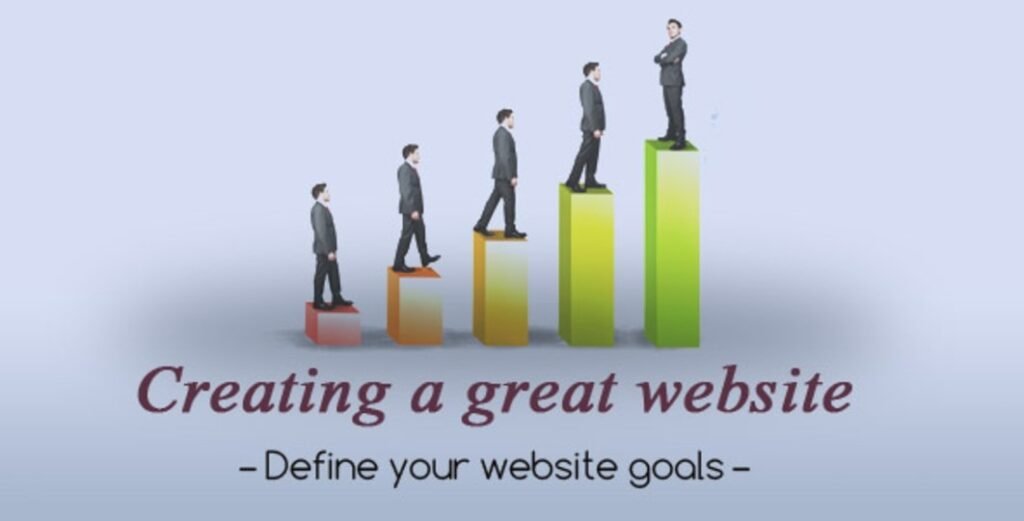
Step 1: Define Your Website Goal
Before buying anything, ask yourself:
What is the purpose of my website?
Examples:
- Business website
- Blog Portfolio
- Online store
- Affiliate website
When your goal is clear, everything becomes easier:
- Choosing a design
- Planning content
- Setting up pages
- Doing SEO
A clear direction prevents confusion later.
Step 2: Choose a Domain Name & WordPress Hosting
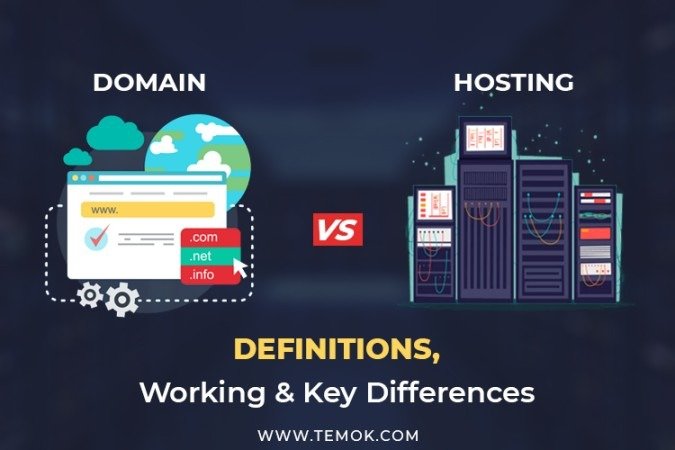
What Is a Domain Name?
Your domain name is your website address.
Example: yourwebsite.com
Tips for choosing a good domain:
- Keep it short and simple
- Make it easy to spell
- Avoid numbers and hyphens
- Choose .com if possible
- Match it with your brand name
What Is Hosting?
Hosting is where your website files are stored. It makes your website available online.
Good hosting should provide:
- Fast speed
- Free SSL certificate
- One-click WordPress installation
- Good customer support
- Regular backups
Good hosting improves website speed, security, and SEO.
Step 3: Install WordPress
Most hosting providers offer one-click WordPress installation.
Steps:
- Log in to your hosting account
- Click “Install WordPress”
- Enter your website name
- Create a username and password 5. Click Install
Once installed, access your dashboard by visiting:
yourdomain.com/wp-admin
This is where you manage everything.
Step 4: Choose a Website Layout
Now it’s time to choose your design.
You can:
- Install a free theme
- Buy a premium theme
When choosing a theme, make sure it is:
- Mobile responsive
- Fast-loading
- SEO-friendly
- Clean and simple
A simple and clean design always looks more professional.
Step 5: Create Essential Pages and Blog Posts
Every professional website should have these pages:
- Home
- About Us
- Contact
- Privacy Policy
- Services or Products
If you are starting a blog, you should publish blog posts regularly.
Difference Between Pages and Posts

Pages:
- Static content
- No date displayed
- Used for permanent information
Posts:
- Blog articles
- Show date and author
- Used for regular content updates
Step 6: Customize Your Website
Now personalize your website.
You can customize:
- Logo
- Colors
- Fonts
- Header and footer
- Navigation menu
Use the WordPress Customizer to make changes easily.
Keep your design simple and consistent with your brand.
Step 7: Install Must-Have WordPress Plugins
Plugins add extra features to your website.
Important plugins for beginners:
- SEO plugin (to improve search rankings)
- Security plugin (to protect your site)
- Backup plugin (to save your data)
- Cache plugin (to improve speed)
- Contact form plugin
Avoid installing too many plugins because it can slow down your website.
Step 8: Master WordPress
Building the website is just the beginning.
To grow your website, learn:
- Basic SEO
- Keyword research
- Speed optimization
- Content writing
- Security settings
The more you practice, the easier WordPress becomes.
Step 9: Take It Further
Once your website is live, focus on growth.
You can:
- Publish blog content regularly
- Improve SEO
- Build backlinks
- Start email marketing
- Run ads
- Sell digital products
- Launch an online course
- Your website is a long-term asset.
Common Errors You May Face While Creating a WordPress Website
1.White Screen of Death
This usually happens because of a plugin or theme conflict.
Solution: Deactivate plugins one by one to find the problem.
2.Error Establishing Database Connection
This happens when database details are incorrect.
Solution: Check the wp-config file and verify credentials.
3.Slow Website Speed
Caused by:
- Large images
- Too many plugins
- Poor hosting
Solution: Compress images and use a cache plugin.
Celebrate the Launch of Your New Website
Congratulations!
Before promoting your website, check:
- Is it mobile-friendly?
- Does it load fast?
- Is SSL active (https)?
- Are forms working properly?
- Any spelling mistakes?
After checking everything, share your website on social media.
Conclusion
Creating a professional website with WordPress is easier than ever. You do not need technical knowledge or coding skills.
Follow these steps:
- Define your goal
- Get domain and hosting
- Install WordPress
- Choose a theme
- Create pages
- Customize your design
- Install essential plugins
- Focus on growth
Start today, stay consistent, and your website will grow over time.
Frequently Asked Questions (FAQs)
1.Do I need both a WordPress theme and a page builder?
Yes, a theme controls your website’s overall design, while a page builder helps you customize individual pages in detail.
2.Can I use a page builder without changing my theme?
Yes, most page builders work with almost all WordPress themes.
3.Which is better for beginners: a theme or a page builder?
Both are beginner-friendly, but page builders are easier for visual design because of drag-and-drop editing.
4.Will using a page builder slow down my website?
It depends on the builder and hosting, but using a lightweight theme and optimized plugins keeps your site fast.
5.Can I change my theme later without losing content?
Yes, your content stays safe, but you may need to adjust design settings after switching themes.
SEO Meta Title
How to Make a Professional Website Using WordPress (Complete Beginner Guide)
Meta Description:
Create a professional WordPress website without coding. Learn easy steps to choose hosting, design pages, install plugins, and build a fast, secure, SEO-friendly site.
- Why Use WordPress to Create a Website?
- What Is the Difference Between a Page Builder and a WordPress Theme?
- Simple Explanation
- Step 1: Define Your Website Goal
- Step 2: Choose a Domain Name & WordPress Hosting
- Step 3: Install WordPress
- Step 4: Choose a Website Layout
- Step 5: Create Essential Pages and Blog Posts
- Step 6: Customize Your Website
- Step 7: Install Must-Have WordPress Plugins
- Step 8: Master WordPress
- Step 9: Take It Further
- Common Errors You May Face While Creating a WordPress Website
- Celebrate the Launch of Your New Website
- Conclusion
- Meta Description: