
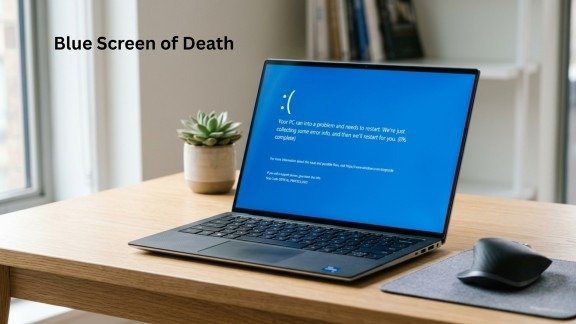
Have you ever turned on your computer and suddenly seen a scary blue screen? It can feel shocking. This problem is called the Blue Screen of Death, and it means your system has stopped working. However, you do not need to panic because many people face this issue, and in most cases, it can be fixed easily.
The Blue Screen of Death happens when your computer finds a serious problem that it cannot solve. So, instead of continuing and causing damage, the system shuts down to stay safe. Sometimes, this issue comes from bad drivers, broken files, or even hardware problems. As a result, your PC may restart again and again. In this guide, you will learn simple ways to fix the Blue Screen of Death. In addition, you will understand why it happens and how to stop it in the future. So, let’s move step by step and make your computer work smoothly again.
Understanding the Blue Screen Problem
Before fixing anything, it is important to know what the Blue Screen of Death really is. It is not just a simple error. Instead, it is a built-in safety system in Windows.
When your system detects a serious issue, it shows a blue screen with an error code. After that, it automatically restarts. Because of this, your data stays protected from further damage.
Why This Error Appears
There are many reasons behind the Blue Screen of Death. For example, it can happen due to hardware failure, software issues, or system errors. Some common causes include faulty memory, outdated drivers, overheating, viruses, and damaged system files.
Since there are many possible causes, fixing the problem requires careful steps and patience.
Main Causes Behind System Crashes
Now, let’s look deeper into what can trigger the BlueScreen of Death.
1. Hardware Issues
Sometimes, the problem comes from physical parts inside your computer. For instance, bad RAM or a failing hard drive can cause sudden crashes. In addition, overheating can also damage components over time. Therefore, keeping your system cool is very important.
2. Driver Problems
Drivers help your hardware communicate with your system. However, if drivers are outdated, missing, or corrupted, they can lead to the Blue Screen of Death.
3. Software Conflicts
Sometimes, different programs do not work well together. As a result, they may crash your system and trigger errors.
4. Corrupt System Files
If important Windows files get damaged, your computer may stop working properly. Because of this, the Blue Screen of Death can appear unexpectedly.
Simple Steps to Fix the Error
Now comes the most important part. You can follow these steps to fix the Blue Screen of Death simply and effectively.
Check the Error Code
First, carefully read the message on the blue screen. It shows a code that helps identify the problem. This is your first clue.
Start in Safe Mode
Next, try to start your computer in Safe Mode. This mode runs only basic system files, which makes it easier to fix issues.
To do this, restart your PC and access recovery options. Then select Safe Mode and continue troubleshooting.
Remove Recent Changes
If the problem started after installing something new, you should remove it. For example, uninstall new software or disconnect recently added devices. In many cases, this step quickly stops the Blue Screen of Death.
Update Drivers and System
Keeping your system updated is very important. Outdated software often causes system instability.
You should update your drivers through Device Manager and check for Windows updates regularly. Updates fix bugs and improve performance. As a result, they reduce the chances of the Blue Screen of Death.
Run Important System Tools
Windows provides built-in tools that help fix system errors.
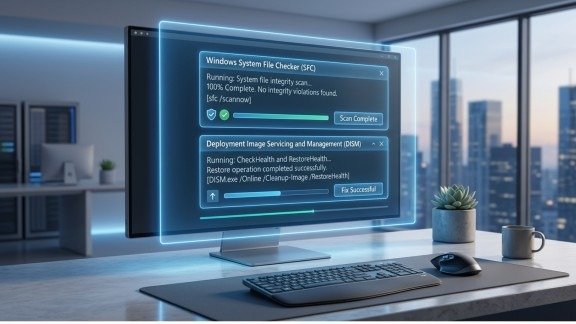
The System File Checker scans your computer and repairs damaged files. After that, the DISM tool fixes deeper system issues that SFC cannot handle.
By using these tools, you can remove hidden problems that may be causing the Blue Screen of Death.
Check Hardware Health
If software solutions do not work, then it is important to check your hardware.
You can test your RAM using Windows Memory Diagnostic and scan your hard drive for errors using system commands. If any component is faulty, replacing it may solve the problem.
Also, make sure your system is not overheating. Proper cooling plays a big role in preventing the Blue Screen of Death.
Fix Overheating Issues
Heat can slowly damage your computer. Therefore, keeping your system cool is essential.
Make sure your device is clean and free from dust. In addition, ensure proper airflow so that all components stay within safe temperature limits. When your system stays cool, it becomes more stable and reliable.
Advanced Troubleshooting Methods
If the problem continues, you may need to try advanced solutions.
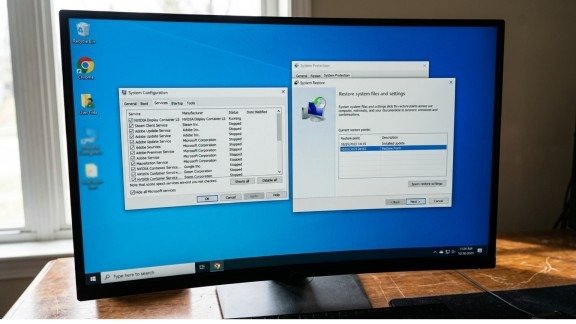
Perform a Clean Boot
A clean boot starts Windows with minimal programs. This helps you find software conflicts that may be causing the issue.
Use System Restore You can also restore your system to a previous working state. This is helpful if the Blue Screen of Death started recently.
Last Option: Reinstall Windows
If none of the methods work, reinstalling Windows may be the final solution.
However, before doing this, make sure to back up all your important data. Once reinstalled, your system will start fresh and most errors, including the Blue Screen of Death, will be removed.
How to Prevent Future Errors
Fixing the problem is important, but preventing it is even better.
To keep your system safe, follow these simple steps:
- Keep your drivers and Windows updated
- Install only trusted software
- Scan your system for viruses regularly
- Avoid overloading your computer
- Always back up important files
By following these practices, you can greatly reduce the chances of the Blue Screen of Death.
Common Error Codes Explained
Sometimes, you may see different error codes on the screen. These codes help you understand the issue.
For example, some codes point to memory problems, while others indicate driver or software issues. So, understanding them can help you fix the Blue Screen of Death more quickly and accurately.
When to Get Professional Help
If your computer keeps crashing again and again, it may be time to seek expert help.
Some issues, such as hardware failure or BIOS problems, are difficult to fix at home. In such cases, a professional technician can safely resolve the Blue Screen of Death.
Conclusion
The Blue Screen of Death may look serious, but it is not impossible to fix. In fact, it is simply a warning that something needs attention.
First, understand the cause. Then, follow the correct steps, such as updating drivers, checking hardware, and using system tools. If necessary, use advanced solutions or reinstall Windows.
Most importantly, maintain your system regularly. This will help you avoid the Blue Screen of Death and enjoy a smooth and stable computing experience.
FAQs
1. What is the main reason a computer shows a blue screen?
A computer shows a blue screen when it faces a serious system error caused by hardware issues, faulty drivers, or damaged files.
2. How can I quickly fix this error on my PC?
You can restart in Safe Mode, remove recent changes, and update drivers to fix the issue in most cases.
3. Can outdated drivers cause system crashes?
Yes, outdated or corrupted drivers can create conflicts that lead to sudden system failures.
4. Is it safe to keep using a computer after this error appears?
It is better to fix the issue first because repeated crashes can lead to data loss or further system problems.
5. When should I take my computer to a technician?
You should seek professional help if the problem keeps happening or if hardware damage is suspected.
SEO Meta Description
Fix the Blue Screen of Death (BSOD) with easy steps. Learn causes, solutions, and prevention tips to keep your computer running smoothly.
- Understanding the Blue Screen Problem
- Main Causes Behind System Crashes
- Simple Steps to Fix the Error
- Update Drivers and System
- Run Important System Tools
- Check Hardware Health
- Fix Overheating Issues
- Advanced Troubleshooting Methods
- Last Option: Reinstall Windows
- How to Prevent Future Errors
- Common Error Codes Explained
- When to Get Professional Help
- Conclusion
- FAQs
- SEO Meta Description