
Is your website missing from Google search results? Not sure how your pages are performing? You’re not alone. Many beginners struggle with SEO, and Google’s tools can feel confusing at first. However, things become easier when you start using the right tool in the right way.
That’s where Google Search Console comes in. It helps you understand how your website appears on Google and what you can do to improve it. In this guide, you will learn how to connect Google Search Console to website in a simple and practical way. The steps are clear and easy to follow, so you won’t feel overwhelmed.
Even if you have never used this tool before, don’t worry. This guide will help you connect Google Search Console to your website. The process is smooth and stress-free. By the end, you will feel confident managing your website’s performance.
What is Google Search Console and Why It Matters?
Before connecting Google Search Console to your website, know what it does. This will help you use it effectively. Understanding its purpose is important. Google Search Console is a free platform by Google. It lets you monitor how your website appears in search results.
It shows which pages are visible and what keywords bring visitors. It also highlights any issues preventing your site from ranking. In addition, it helps you understand how Google views your website behind the scenes.
Because of this, it becomes easier to improve your content and fix technical problems. Simply put, if you want better rankings, this tool is a must-have.
Types of Website Properties
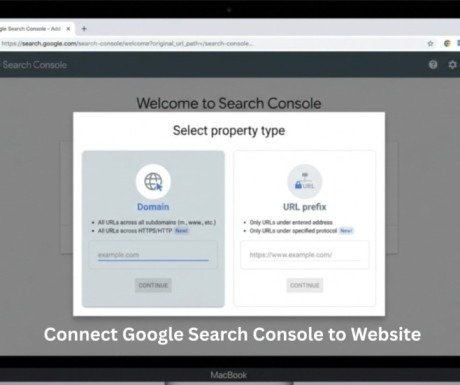
To connect Google Search Console to your website, first choose a property type. This is the first step in the process.This step is required to proceed. There are two main options:
- Domain Property: Tracks your full website, including all versions and subdomains
- URL Prefix Property: Tracks only a specific URL or section
For most users, the domain option works best because it covers everything in one place. However, if you want to track a specific section, the second option is useful.
Sign in or Create Your Google Search Console Account
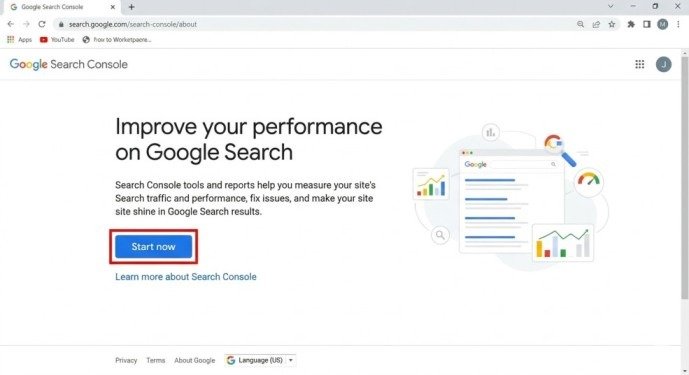
To get started, you first need a Google account. After that, open Google Search Console and click on “Start Now.” Then simply log in.
Once you enter the dashboard, you will see an option to add a new property. This is where your journey to connect Google Search Console to website begins.
Add Your Website Property
Now it’s time to add your website. Click on “Add Property” and choose your preferred option. Then enter your website URL carefully.
Make sure the URL is correct because even a small mistake can cause issues later. After this step, Google will ask you to verify ownership.
Verify Website Ownership
Verification is an important step when you connect Google Search Console to website. It confirms that you are the real owner.
You can verify your site using different methods:
- Uploading an HTML file
- Adding a meta tag to your site
- Using Google Analytics
- Adding a DNS record
Choose the method that feels easiest for you. Once done, click verify, and your website will be connected.
Access Your Website Data
After verification, you can now see your website data. This is where Google Search Console becomes powerful.
You will find reports such as:
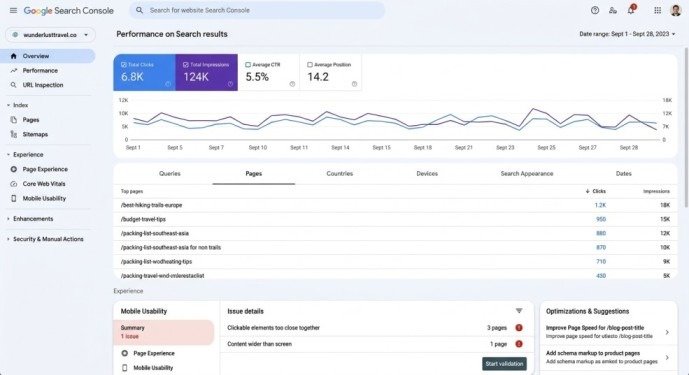
- Performance (clicks and impressions)
- Indexing status
- Page experience
These reports help you identify what’s working and what needs improvement.
How Google Views Your Website
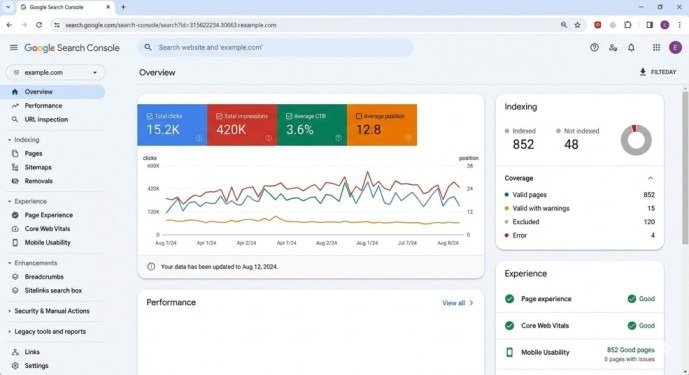
Connect Google Search Console to your website. Then check how Google views your pages. This helps you understand your site’s performance in search results.
You can find:
- Indexed pages
- Pages with errors
- Search queries bringing traffic
By checking this regularly, you can fix issues early and improve your rankings faster.
Submit Your Sitemap
A sitemap helps Google understand your website structure. That’s why it is important after you connect Google Search Console to website.
To submit your sitemap:
- Go to the sitemap section
- Enter your sitemap URL
- Click submit
This step helps Google find and index your pages quickly.
Request Indexing
Whenever you publish new content, you can ask Google to index it faster.
Simply:
- Open URL Inspection
- Paste your page link
- Click request indexing
This is very helpful for new websites or updated pages.
Add Users and Permissions
If you work with a team, you can give access to others.
Go to settings, then users, and add their email. You can choose full access or limited access. This helps manage your website more easily.
Best Tips for Better Results
After you connect Google Search Console to website, follow these simple tips:
- Check your data weekly
- Fix errors quickly
- Focus on top-performing pages
- Improve mobile experience
These small actions can bring big results over time.
Common Mistakes to Avoid
Many beginners make small mistakes that slow their progress. Try to avoid these:
- Skipping verification
- Adding the wrong sitemap
- Ignoring errors
- Not checking reports regularly
Fixing these early can save you a lot of time.
Conclusion
Learning how to connect Google Search Console to your website is very important. It helps improve your online presence. This tool gives you control over your site’s performance in search results.
Set up your account and verify your website. Then, track your data and see what works. Check which pages perform well. See which keywords bring traffic. Identify errors that affect rankings.
Use Google Search Console regularly. Make small improvements to boost SEO. Track progress and optimize your content. Follow this guide step by step. Gain confidence in managing your website. Start today and grow your site effectively.
FAQS
1. How to connect my website to the primary search engine’s webmaster tools?
Add your website to Google Search Console and verify ownership using DNS, HTML file, or meta tag.
2. How to connect Google Search Console to website?
To connect Google Search Console to a website, add your site and choose a property type. Then complete the verification process.
3. How to connect Wix website to Google Search Console?
Add your Wix website to Google Search Console. Then verify it using Wix SEO settings or a meta tag.
4. Connect Google Search Console to website You can connect
Add your website to Google Search Console. Then verify ownership using the available methods.
5. How do I link my website to a popular search analytics tool?
Add your website to Google Search Console. Then verify ownership to start tracking search performance.
Meta description
Learn how to connect Google Search Console to website step by step. Set up, verify your site, track performance, and fix SEO issues easily. Start now and improve your Google rankings with confidence.