
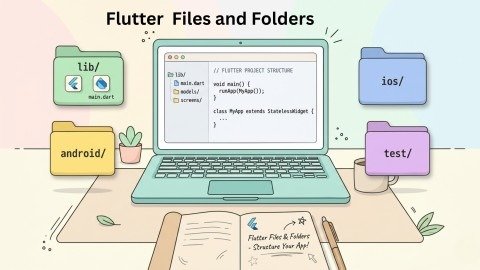
Flutter has rapidly become one of the most popular frameworks for cross-platform mobile development. Its simplicity, combined with the ability to build visually appealing apps, makes it a favorite among both beginners and experienced developers. However, understanding the Flutter files and folders structure is essential for efficient project management and smoother development. In this article, we will explore the key Flutter files and folders, their purpose, and how they contribute to your app development workflow.
Developers often overlook the importance of project structure when starting with Flutter. A well-organized project not only makes coding easier but also simplifies debugging, testing, and scaling your application.
Therefore, before diving into coding, it is crucial to familiarize yourself with Flutter files and folders to ensure your development process is structured and productive.
In this comprehensive guide, we will break down each folder and file, discuss their roles, and provide best practices to manage Flutter files and folders effectively. By the end, you’ll be able to navigate your Flutter projects like a pro and avoid common pitfalls that slow down app development.
Understanding the Core Structure of a Flutter Project
When you create a new Flutter project, a number of folders and files are automatically generated. Each serves a specific purpose, supporting different parts of your app. Let’s walk through the main folders and their significance to understand Flutter files and folders better.
1. The lib Folder
The lib folder is the heart of any Flutter application. This is where most of your code will reside, including UI components, business logic, and service integrations. The main entry point of a Flutter app is the main.dart file, which initializes the app and sets up the root widget.
Key points about the lib folder:
• Contains all Dart source files.
• Organizes widgets, models, and services.
• Commonly structured into subfolders such as ui, models, services, and widgets.
For instance, your main UI components and screens should be organized under ui/views, while reusable widgets can go under ui/widgets. Properly structuring the lib folder enhances maintainability and makes it easier for teams to collaborate on Flutter files and folders.
2. The android Folder
The android folder contains everything required to build your Flutter app for Android devices. It mirrors a typical Android project structure, allowing integration with native Android code and dependencies.
Key files include:
• AndroidManifest.xml: Defines app metadata like name, permissions, and activities.
• build.gradle: Configures build settings and dependencies.
• res/: Stores resources such as images, colors, and layouts for Android.
This folder is critical if your app requires native Android features like camera access, push notifications, or custom plugins. Understanding Flutter files and folders in the Android directory ensures smooth integration with Android’s platform-specific APIs.
3. The ios Folder
Similarly, the ios folder contains all necessary files to run your Flutter app on iOS devices. It mirrors a standard iOS project and allows you to integrate native Swift or Objective-C code if needed.
Important files:
• Info.plist: Contains configuration details like bundle identifier, app permissions, and icons.
• Runner.xcodeproj: Xcode project file to open in the IDE.
While most Flutter development occurs in Dart, you may occasionally need to modify the iOS folder for tasks like setting up push notifications, in-app purchases, or deep linking. Proper management of Flutter files and folders in iOS ensures compatibility and stability.
4. The test Folder
Testing is a crucial step in any development process, and Flutter makes it easy to write tests. The test folder contains unit tests, widget tests, and integration tests.
Benefits of the test folder:
• Ensures code reliability.
• Helps detect bugs early.
• Supports Test-Driven Development (TDD).
A simple example is creating main_test.dart to test the functionality of your main widgets and logic. Incorporating tests improves app stability and enhances user experience while working with Flutter files and folders.
5. The build Folder
The build folder is automatically generated during the app compilation. It contains compiled binaries and other temporary files required to run the app.
Key points:
• Do not manually edit files in the build folder.
• It is regenerated every time you build the project.
• Helps in understanding deployment outputs like APK or IPA files.
Managing Flutter files and folders in the build process ensures smooth deployment and reduces build errors.
6. Configuration Files
Flutter projects include several important configuration files that control various aspects of the project.
• pubspec.yaml: Central configuration file containing project metadata, dependencies, and assets.
• pubspec.lock: Locks dependency versions for consistency across environments.
• analysis_options.yaml: Configures linting rules to ensure code quality.
• .gitignore: Specifies files to be excluded from version control. By properly managing these configuration files alongside Flutter files and folders, developers can maintain a consistent workflow, easily add packages, and prevent conflicts in team environments.
Organizing Flutter Files and Folders for Large Projects
As your Flutter projects grow, the number of files and folders can become overwhelming. A well-structured project ensures scalability and maintainability.
Suggested Folder Structure:
• lib/
o ui/: Screens and views
• views/home_view.dart
• views/login_view.dart
o widgets/: Reusable widgets
• widgets/custom_button.dart
• widgets/loading_spinner.dart
o models/: Data models
• models/user.dart
• models/product.dart
o services/: API and storage services
• services/api_service.dart
• services/storage_service.dart
o scoped_models/: State management models
• scoped_models/home_model.dart
This hierarchy ensures that each component has a specific place, reducing code clutter and improving navigation across Flutter files and folders in large projects.
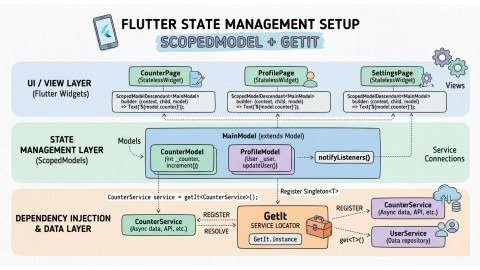
Using ScopedModel and GetIt
For state management, ScopedModel combined with GetIt can simplify model injection and service access. With each view having its own model, you can manage state more efficiently while keeping the code modular.
Example benefits:
• Models are provided through a service locator.
• Views update automatically using ScopedModelDescendant.
• Supports async operations like fetching data from APIs. This setup is particularly helpful in large applications where multiple screens need shared state management of Flutter files and folders.
Implementing BaseView for Multiple Views
Using a BaseView widget allows consistent state management across multiple screens. The BaseView wraps the ScopedModel, handles state updates, and reduces boilerplate code.
Benefits:
• Simplifies adding new views.
• Shares common state and services.
• Enhances code readability.
By integrating BaseView with Flutter files and folders, you maintain a scalable architecture that supports future growth.
Handling App States in Flutter
State management is critical in Flutter, especially when dealing with async data or API-driven apps. Common states include:
• Idle: Initial or resting state.
• Busy: Indicates data fetching or processing.
• Retrieved: Data successfully loaded.
• Error: Handles failures or API errors.
Creating a ViewState enum and integrating it with your models ensures consistent behavior and responsive UI updates in your Flutter files and folders.
Navigation and Async Operations
Flutter uses Navigator to switch between screens. Proper handling of async operations, like saving data or fetching API results, is crucial for a smooth UX.
Example:
bool result = await model.saveData();
if(result){
Navigator.push(context, MaterialPageRoute(builder: (context) => SuccessView()));
} else {
Navigator.push(context, MaterialPageRoute(builder: (context) => ErrorView()));
}
With structured Flutter files and folders, handling navigation logic alongside async operations becomes cleaner and more manageable.
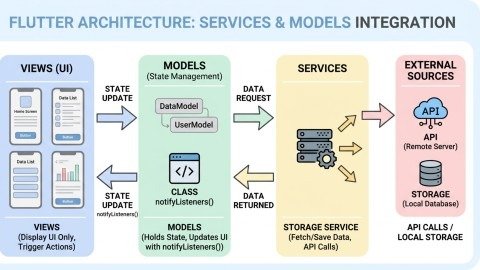
Integrating Services with Models
Services handle the actual data processing while models maintain the app state. By separating these concerns:
• Services like StorageService can handle API calls or local database operations.
• Models update state and notify views using notifyListeners().
• Views remain focused on UI presentation only.
This separation ensures cleaner, testable, and maintainable code across Flutter files and folders in large projects.
Tips for Managing Flutter Projects Efficiently
- Organize code logically: Keep models, views, widgets, and services in separate folders.
- Use consistent naming conventions: This reduces confusion and improves readability.
- Leverage state management libraries: ScopedModel, Provider, or GetIt help maintain reactive UIs.
- Include proper tests: Unit and widget tests improve code quality.
- Document your project: Maintain README.md and comments for team collaboration.
Conclusion
Understanding Flutter files and folders is foundational for every developer aiming to build scalable, maintainable, and high-quality applications. From the lib folder, where most of the development occurs, to platform-specific folders like android and ios, each component plays a crucial role in your app’s success.
By adopting organized folder structures, leveraging state management, and integrating services properly, you can streamline development and enhance productivity. Ultimately, a solid grasp of Flutter files and folders will empower you to create robust apps while minimizing technical debt.
For further exploration, developers are encouraged to experiment with different state management approaches, modular folder structures, and proper async handling to gain full control over their Flutter files and folders.
FAQs
Q1: What is the lib folder in Flutter?
A1: The lib folder contains all Dart source code, including UI components, widgets, models, and services.
Q2: Why is the android folder important in Flutter?
A2: It holds platform-specific Android files like manifests, Gradle scripts, and resources for native integration.
Q3: What is stored in the ios folder?
A3: iOS-specific files, project configurations, and Xcode project files for native app support.
Q4: What is the purpose of the test folder?
A4: The test folder is for unit, widget, and integration tests to ensure app reliability and bug-free code.
Q5: What are Flutter configuration files?
A5: Files like pubspec.yaml, analysis_options.yaml, and .gitignore manage dependencies, linting, and version control.
Q6: How should large Flutter projects be structured?
A6: Organize lib folder into subfolders like ui, widgets, models, services, and scoped_models for scalability.
Q7: Why use ScopedModel and GetIt in Flutter?
A7: They simplify state management and service injection, improving modularity and code efficiency.
Meta Description
Explore the complete Flutter files and folders guide for developers. Learn the structure, key directories, best practices, and tips to organize Flutter projects efficiently for faster app development and scalable architecture.
- Understanding the Core Structure of a Flutter Project
- Organizing Flutter Files and Folders for Large Projects
- Using ScopedModel and GetIt
- Implementing BaseView for Multiple Views
- Handling App States in Flutter
- Navigation and Async Operations
- Integrating Services with Models
- Tips for Managing Flutter Projects Efficiently
- Conclusion
- FAQs
- Meta Description