
Are you tired of your Windows 10/11 computer freezing at the worst possible moments? Perhaps it happens in the middle of a high-intensity game, while working on an important project, or even while casually browsing online. These sudden crashes and freezes can disrupt your workflow, ruin your gaming sessions, and cause unnecessary frustration.
Many users have reported that their system “locks up” in unexpected ways — existing applications may respond, but new programs fail to open, videos may pause mid-playback, or the system may force a restart without warning.
The good news is that most freezing and crashing issues in Windows 10/11 are fixable. In this comprehensive guide, we’ll walk you through proven solutions to tackle software freezes, driver conflicts, and hardware glitches. By the end of this guide, your PC should feel faster, more reliable, and much more stable.
Why Windows 10/11 Freezes and Crashes
Random freezes in Windows 10/11 can occur due to several reasons, and understanding the root cause is essential for effective troubleshooting. Some common culprits include:
- Outdated or corrupt drivers — this can affect graphics cards, storage devices, or chipset drivers.
- Overloaded RAM or virtual memory issues — running too many apps simultaneously may overwhelm your system.
- Faulty hardware — SSDs, RAM sticks, or power supplies that are failing can cause frequent freezes.
- Background processes — unnecessary apps or conflicting services can overload Windows.
- Windows updates or corrupted system files — sometimes updates introduce conflicts that destabilize your system.
Addressing the underlying problem is crucial because fixing only the symptoms without tackling the source will not prevent future crashes.
Step 1: Update Your Drivers
Outdated drivers are a leading cause of freezing and crashing in Windows 10/11. Even if Windows indicates your drivers are “up to date,” performing a clean installation can resolve hidden conflicts and compatibility issues.
How to Update Drivers Safely
1. Press Windows + X and select Device Manager.
2. Right-click your graphics, audio, and network devices → choose Update driver.
3. For a complete GPU refresh:
o Boot into Safe Mode and use Display Driver Uninstaller (DDU).
o Reinstall the latest driver directly from AMD, Nvidia, or your PC manufacturer’s website.
Tip: Restart your computer after updating drivers to ensure all changes take effect.
Proper driver updates can fix freezes caused by graphics glitches, audio dropouts, and sudden application crashes.
Step 2: Check Your SSD and Storage
Some Windows 10/11 freezes are linked to storage devices, especially SSDs. High disk usage — often reaching 100% — can temporarily lock up your system.
How to Test and Fix SSD Issues
1. Open Task Manager (Ctrl + Shift + Esc) → Performance tab → monitor disk usage.
2. If usage spikes constantly, update your SSD firmware or driver.
3. Run a disk check:
o Open Command Prompt as administrator → type chkdsk C: /f /r → press Enter.
o Restart your PC to let it scan.
4. If problems continue, consider reformatting or replacing the SSD.
Many users report smoother performance after updating SSD drivers or switching to a more reliable storage drive.
Step 3: Clear Temporary Files
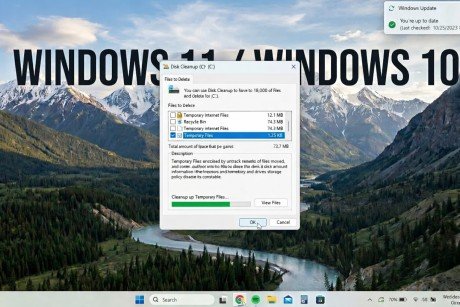
Windows stores temporary files that can accumulate over time. If overloaded, these files can slow your system and contribute to freezes.
Steps to Clear Temp Files
1. Press Windows + R, type temp, and press Enter.
2. Delete all files in the Temp folder.
3. Repeat the process with %temp% and prefetch folders.
Regularly clearing temporary files helps Windows 10/11 remain responsive and prevents minor freezes from escalating into major issues.
Step 4: Adjust Virtual Memory
Virtual memory acts as a backup for RAM. When your system runs out of RAM during heavy tasks, Windows 10/11 uses part of your SSD or HDD as virtual memory. Incorrect settings can lead to sudden freezes.
Steps to Adjust Virtual Memory
1. Press Windows + I → System → About → Advanced system settings.
2. Go to Advanced → Performance Settings → Advanced → Virtual Memory → Change.
3. Uncheck Automatically manage paging file size, then set:
o Initial size: Recommended by Windows.
o Maximum size: 1.5× your RAM (e.g., 16GB RAM → 24,576MB).
4. Click Set → OK → Restart.
Correct virtual memory settings prevent unexpected freezes when running multiple apps or games.
Step 5: Repair System Files
Corrupted system files in Windows 10/11 can result in unexpected crashes and freezes. Fortunately, Windows provides built-in tools to repair them.
Steps to Repair System Files
1. Open Command Prompt as Administrator.
2. Run the following commands:
sfc /scannow
DISM /Online /Cleanup-Image /RestoreHealth
3. Wait for the process to complete, then restart your PC.
Repairing system files fixes issues that cause Windows 10/11 applications to freeze or crash randomly.
Step 6: Test Your RAM
Faulty memory is a frequent cause of random freezes in Windows 10/11. Testing your RAM can identify potential problems.
Steps to Test RAM
1. Press Windows + R, type mdsched.exe, and press Enter.
2. Choose Restart now and check for problems.
3. Allow the test to run and review any reported errors.
If errors are detected, you may need to replace one or more RAM sticks.
Step 7: Monitor CPU/GPU Temperatures
Overheating can lead to freezes, graphical glitches, and sudden restarts. Monitoring temperatures is essential for Windows 10/11 stability.
- Use tools like HWMonitor or Core Temp.
- Clean dust from fans and heatsinks.
- Ensure proper airflow in your PC case.
Windows 10/11 may temporarily freeze to prevent hardware damage during temperature spikes.
Step 8: Check Background Processes
Excessive startup apps or background processes can overload your system and cause freezes.
How to Perform a Clean Boot
1. Press Windows + R → msconfig → Services tab → Hide all Microsoft services → Disable all.
2. Go to Startup → Task Manager → Disable unnecessary apps.
3. Restart your PC.
This process isolates software conflicts and prevents Windows 10/11 from freezing due to unnecessary programs.
Step 9: Update Windows and Optional Drivers
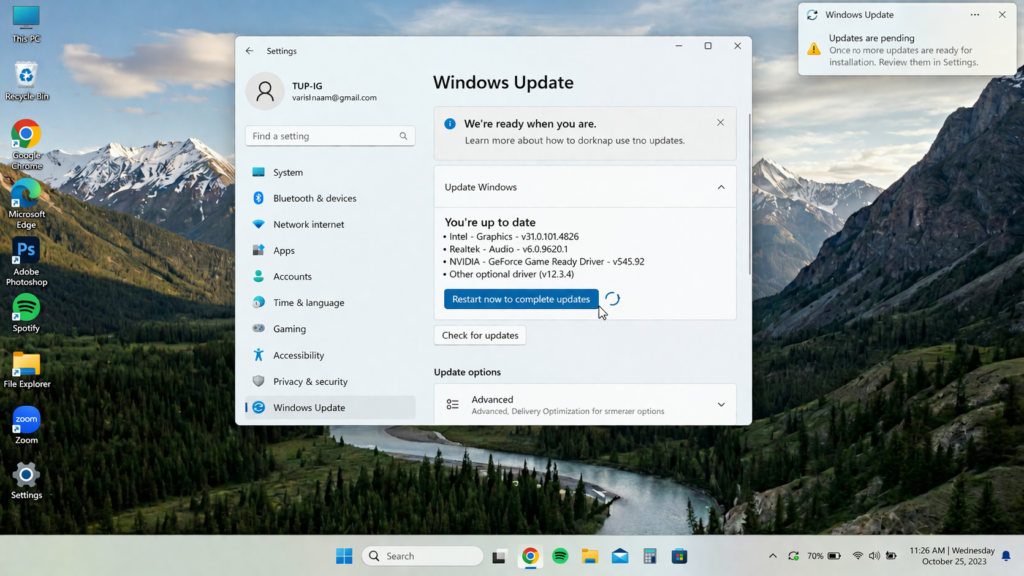
Occasionally, freezes occur because Windows 10/11 updates haven’t been fully applied or optional updates are missing.
1. Go to Settings → Update & Security → Windows Update → Check for updates.
2. Install all updates, including optional driver updates.
3. Restart after each major update.
Keeping Windows 10/11 up to date ensures compatibility and resolves known stability issues.
Step 10: Consider a Repair Upgrade or System Restore
If your system continues to freeze, a Repair Upgrade can reinstall Windows 10/11 without affecting personal files.
- Download the Windows 11 Media Creation Tool.
- Select Upgrade this PC now → Keep personal files and apps.
- Follow the instructions to complete the process.
Alternatively, System Restore can revert your PC to a previous state before freezing began.
Both methods effectively solve software conflicts that regular troubleshooting may not fix.
Step 11: Optional Hardware Tests
When software fixes fail, hardware may be the culprit:
- SSD/HDD: Manufacturer diagnostics or Seatools.
- RAM: MemTest86 for a thorough overnight test.
- GPU: Stress-test using FurMark or 3DMark.
- Power Supply: Check voltage stability under load.
Hardware failures are less common but can cause persistent Windows 10/11 freezes and crashes.
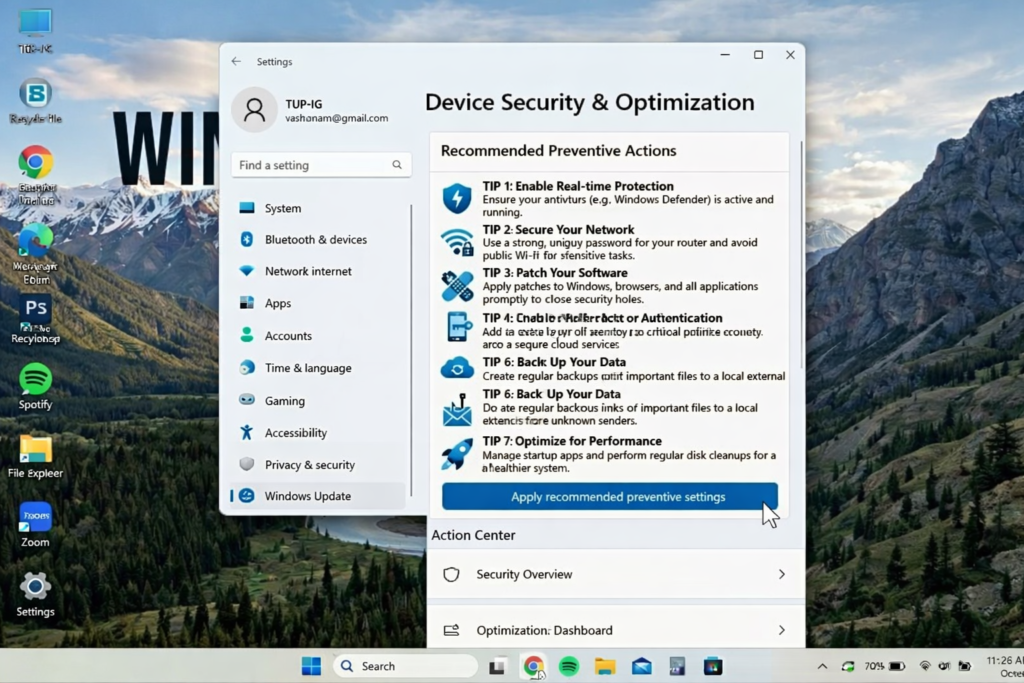
Step 12: Prevention Tips
To minimize future issues:
1. Regularly update drivers and Windows 10/11.
2. Clean temporary files monthly.
3. Avoid installing unverified third-party software.
4. Monitor temperatures during heavy use.
5. Use high-quality SSDs and ensure proper airflow.
Preventive measures save time and frustration compared to constantly troubleshooting freezes.
Final Thoughts
Random freezing and crashing in Windows 10/11 can feel frustrating, but the problem is usually solvable with careful troubleshooting. By updating drivers, checking your SSD and RAM, monitoring temperatures, and keeping Windows optimized, you can dramatically reduce system freezes and crashes.
Remember, preventive maintenance — such as cleaning temporary files, monitoring hardware, and keeping your system up to date — is often more effective than fixing issues after they occur. With the steps outlined in this guide, your Windows 10/11 PC can run smoothly, giving you a stable and productive computing experience.
FAQs
Q1: Why does Windows 10/11 freeze randomly?
A: Most freezes are caused by outdated drivers, hardware issues, background conflicts, or corrupted system files.
Q2: How can I check if my SSD is causing freezes?
A: Open Task Manager → Performance tab → Disk usage. If usage spikes to 100% with minimal activity, your SSD may be at fault.
Q3: Will increasing virtual memory help with freezes?
A: Yes. Properly set virtual memory acts as backup RAM and prevents system stalls during heavy tasks.
Q4: Can overheating trigger Windows 10/11 freezes?
A: Absolutely. High CPU or GPU temperatures can cause temporary freezes or sudden crashes to protect hardware.
Q5: How often should I update Windows and drivers?
A: Monthly for minor updates; immediately for critical security or driver updates.
Meta Description
Struggling with random freezing and crashes in Windows 10/11? Follow this step-by-step ultimate guide to stabilize your PC, optimize performance, and prevent errors for a smooth Windows experience.
- Why Windows 10/11 Freezes and Crashes
- Step 3: Clear Temporary Files
- Step 4: Adjust Virtual Memory
- Step 5: Repair System Files
- Step 6: Test Your RAM
- Step 7: Monitor CPU/GPU Temperatures
- Step 8: Check Background Processes
- Step 9: Update Windows and Optional Drivers
- Step 10: Consider a Repair Upgrade or System Restore
- Step 11: Optional Hardware Tests
- Step 12: Prevention Tips
- Final Thoughts
- FAQs
- Meta Description