
You click the Chrome icon. Nothing happens. You click again. Still nothing. It feels confusing and stressful, right? If Chrome Not Opening on Windows 11 is stopping your work, you are not alone. Many users face this issue after updates, new installs, or even randomly. The good news? This problem is usually easy to fix.
It can happen due to minor glitches, background processes, or outdated settings that interfere with Chrome’s normal launch. Identifying the cause step by step makes it much easier to resolve without frustration.
Google Chrome is one of the most used browsers in the world. It is fast, simple, and secure. However, sometimes small system errors, corrupted files, or background conflicts can stop it from launching. Fortunately, you do not need to be a tech expert to solve it. In this guide, you will learn simple and clear solutions to fix Chrome Not Opening on Windows 11. Follow along, and you can get your browser working again in minutes.
Why Is Chrome Not Opening on Windows 11?
Before fixing the issue, it is important to understand why Chrome is not opening. There are several common reasons.
Sometimes, Chrome runs in the background but does not show on the screen. In other cases, a recent Windows update may create compatibility issues. Corrupted cache files, damaged user profiles, or antivirus blocks can also prevent Chrome from launching.
Moreover, outdated browser versions can conflict with Windows 11 features. Even low system memory can cause Chrome Not Opening errors. Therefore, identifying the cause helps you apply the right fix quickly.
Step-by-Step Solutions to Fix Chrome Not Opening Issue
If Google Chrome is not opening on your Windows 11 computer, there can be several possible reasons behind it. Instead of guessing the cause, it is better to follow proper step-by-step solutions. In this guide, we will explain simple and effective methods that help fix the Chrome not opening issue quickly. From basic troubleshooting to advanced fixes, each step is designed to solve the problem safely and efficiently.
These solutions are suitable for both beginners and advanced users. By following them carefully, you can avoid unnecessary system changes and fix the issue safely.
Restart Your Computer First
It may sound simple, but restarting your PC often solves the Chrome Not Opening problem. Temporary glitches in Windows 11 can stop apps from launching properly.
When you restart your system, background tasks close automatically. As a result, Chrome may open normally after rebooting.
So first, save your work. Then restart your computer. After that, try opening Chrome again.
This basic step refreshes system memory and removes temporary errors. Many users find that a simple restart fixes the issue immediately.
Check if Chrome Is Running in the background
Sometimes Chrome Not Opening is not a launch issue. Instead, Chrome may already be running silently.
Press Ctrl + Shift + Esc to open Task Manager. Look for Google Chrome in the list. If you see it, right-click and select End Task.
After closing all Chrome processes, try launching it again. Often, this quick step fixes the problem instantly.
Background processes can prevent the browser from reopening properly. Ending them ensures a fresh and clean start for Chrome.
Update Google Chrome
Outdated versions can cause Chrome Not Opening errors. Windows 11 updates frequently, and older Chrome builds may not work properly.
If Chrome opens briefly, go to the menu and check for updates. Install the latest version. Then restart the browser.
However, if Chrome does not open at all, you may need to reinstall it to get the newest version.
Keeping software updated prevents many performance issues.
New updates also include security patches and bug fixes. Installing the latest version improves stability and compatibility.
Clear Corrupted User Data
Corrupted profile files are another reason for Chrome Not Opening. Chrome stores settings, cache, and extensions in a user data folder. If this folder becomes damaged, the browser may refuse to launch.
You can fix this by renaming the Default folder inside Chrome’s user data directory. When Chrome starts again, it creates a fresh profile automatically.
Although this removes temporary settings, your bookmarks stay safe if sync is enabled.
Corrupted cache files can block Chrome from starting normally. Creating a fresh profile helps remove hidden configuration errors.
Disable Antivirus or Firewall Temporarily
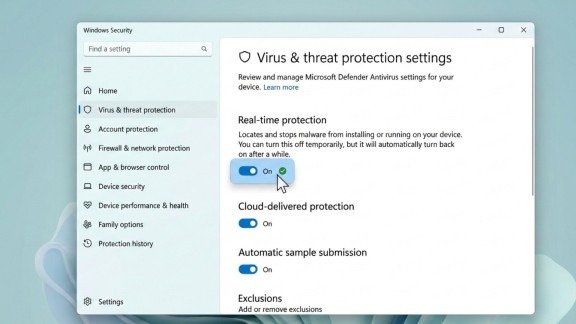
Security programs sometimes block Chrome by mistake. If Chrome Not Opening continues, your antivirus may be interfering.
Temporarily disable your antivirus software. Then try opening Chrome again.
If it works, add Chrome to the exception list inside your security program. However, remember to turn your antivirus back on after testing.
Security is important, but sometimes it causes conflicts.
Some firewall settings may also restrict browser access. Adjusting security permissions can resolve unexpected launch problems.
Run Chrome in Compatibility Mode
Windows 11 is newer than some Chrome builds. Therefore, compatibility problems can appear.
Right-click the Chrome shortcut and open Properties. Then select the Compatibility tab. Choose an older Windows version and apply changes.
After that, launch Chrome again.
This method helps when Chrome Not Opening is not opening due to system compatibility errors.
Compatibility mode allows older applications to run smoothly. It can fix issues caused by system version differences.
Reset Network Settings
In some cases, network problems stop Chrome from launching properly. DNS errors or misconfigured settings may cause Chrome Not Opening messages.
Resetting network settings can fix hidden connectivity issues. Once reset, restart your PC and test Chrome again.
Stable internet settings help Chrome function smoothly.
Incorrect proxy or DNS settings can interfere with browser startup. Resetting the network restores default configurations safely.
Scan for Malware
Malware can damage browser files. If Chrome Not Opening started suddenly, your system may be infected.
Run a full system scan using Windows Security. Remove any detected threats.
After cleaning your system, try launching Chrome again. Often, malware removal restores normal browser behavior.
Malicious programs sometimes block browsers intentionally. A complete scan ensures your system remains safe and secure.
Reinstall Google Chrome
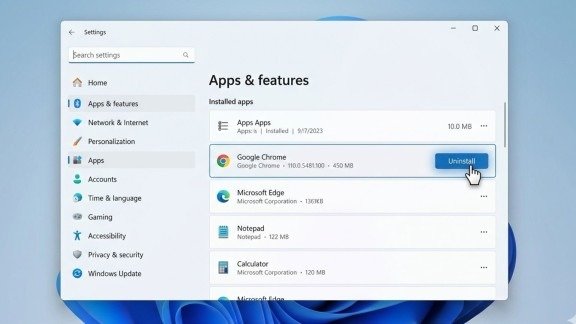
If nothing works, reinstalling is the final and most effective solution. Corrupted installation files can cause repeated Chrome Not Opening problems.
Uninstall Chrome from Windows settings. Then restart your computer.
Next, download the latest version from the official Google website. Install it fresh.
Most users find that reinstalling permanently fixes the issue.
A clean installation removes damaged files completely. This method resets Chrome to its default working condition.
Update Windows 11
Sometimes the issue is not Chrome but Windows itself. If Chrome is not opening after a system update, check for new updates.
Microsoft often releases patches to fix compatibility problems.
Updating Windows ensures smoother performance for all apps, including Chrome.
System updates improve overall stability and security. Keeping Windows updated reduces software conflicts.
Prevent Chrome from Not Opening in the Future
Now that you fixed the issue, it is important to prevent it from happening again.
Keep both Chrome and Windows updated regularly. Avoid installing unknown extensions. Also, scan your system for viruses weekly.
In addition, do not overload your system with too many startup programs. Free memory helps browsers run faster.
By following these habits, you reduce the chances of facing Chrome Not Opening again.
Regular maintenance keeps your browser running efficiently. Small preventive steps can save time and frustration later.
When to Seek Professional Help
If Chrome Not Opening continues even after reinstalling and updating, there may be deeper system issues.
In that case, creating a new Windows user account can help. Sometimes user profile corruption prevents applications from launching.
If the problem still exists, consider contacting technical support for advanced troubleshooting.
Persistent errors may indicate system-level corruption. Professional assistance ensures proper diagnosis and safe repair.
Final Thoughts
Dealing with Chrome Not Opening on Windows 11 can feel frustrating at first. However, most cases are caused by simple issues like background processes, corrupted cache, or outdated software.
By restarting your system, clearing user data, updating software, or reinstalling Chrome, you can solve the problem quickly. Each solution targets a different cause, so try them step by step.
Most importantly, keep your system clean and updated. Doing so prevents many browser errors in the future.
Now you know how to fix Chrome Not Opening on Windows 11. Try these methods today and get back to smooth browsing without stress.
Following the right troubleshooting steps makes the process easier. With patience and proper guidance, the issue can be resolved successfully.
FAQ‘s
1: Why is Google Chrome not opening on my Windows 11 PC?
Chrome may fail to open due to background processes, corrupted user data, outdated browser versions, or interference from antivirus programs.
2: How can I fix Chrome not opening without reinstalling it?
You can restart your computer, end Chrome tasks from Task Manager, clear corrupted user data, update the browser, or check compatibility settings.
3: Does updating Windows 11 help fix Chrome not opening issues?
Yes, updating Windows can resolve system compatibility problems and apply patches that allow Chrome and other apps to run smoothly.
4: Can antivirus or firewall block Chrome from opening?
Sometimes security software mistakenly prevents Chrome from launching, and temporarily disabling or adding Chrome to exceptions can fix the issue.
5: When should I consider reinstalling Chrome to solve the problem?
Reinstallation is recommended if Chrome continues to fail after trying all troubleshooting steps, ensuring corrupted files are completely replaced.
Meta Description:
Learn simple step-by-step solutions to fix Google Chrome not opening on Windows 11. Discover easy methods like restarting, clearing user data, updating Chrome, and troubleshooting network or antivirus issues for smooth browsing.
- Why Is Chrome Not Opening on Windows 11?
- Step-by-Step Solutions to Fix Chrome Not Opening Issue
- Update Windows 11
- FAQ's
- 1: Why is Google Chrome not opening on my Windows 11 PC?
- 2: How can I fix Chrome not opening without reinstalling it?
- 3: Does updating Windows 11 help fix Chrome not opening issues?
- 4: Can antivirus or firewall block Chrome from opening?
- 5: When should I consider reinstalling Chrome to solve the problem?
- Meta Description: