
Microsoft Excel is one of the most useful skills to learn in 2026. It is not only used in offices anymore. Students, freelancers, business owners, and professionals all use Excel in their daily work. Excel helps people organize data, create reports, track progress, and make better decisions. That is why strong Microsoft Excel Skills are becoming more important every year. Many people think Excel is difficult to learn.
In reality, it becomes easier when you learn step by step. You start with basic tools and then move to formulas, charts, analysis, and automation. This article will show you the most important Excel skills to learn in 2026. You will also understand why these skills matter and how they can help in study, work, and career growth. You do not need previous experience to start learning Excel. With regular practice and the right roadmap, anyone can build confidence and improve their skills over time. Whether your goal is getting a job, improving productivity, or building a portfolio, learning Excel can create valuable opportunities in 2026 and beyond.
Build a Strong Foundation Before Learning Advanced Features
Every advanced Excel user starts with strong fundamentals.
Many beginners rush toward dashboards or automation and ignore basic concepts. However, advanced features become easier only when the foundation is clear.
Understand the Excel Environment
Excel works through workbooks and worksheets.
A workbook is the complete file.
Inside that file are worksheets where information is stored and managed.
Each worksheet contains rows and columns, and the point where they meet is called a cell.
Understanding this structure allows users to work more efficiently and avoid mistakes.
Learn Navigation and File Management
Professional users know how to move quickly inside files.
Practice:
Opening and organizing workbooks.
Selecting ranges efficiently.
Managing multiple worksheets.
Saving structured versions of files.
Good habits at this stage improve long-term performance.
Learn Professional Data Entry and Formatting
Formatting may look simple, but it strongly affects usability.
Well-formatted spreadsheets make information easier to read and understand.
Formatting includes:
Number formatting.
Date formatting.
Text alignment.
Borders.
Conditional formatting.
Professional formatting creates cleaner reports and improves communication.
Focus on Consistency
Avoid random colors and inconsistent layouts.
Maintain:
Uniform headings.
Clear spacing.
Readable fonts.
Logical structure.
These small improvements create professional-looking spreadsheets.
Master Essential Formulas and Functions
Formulas are one of the most important parts of Excel.
Without formulas, Excel becomes only a storage tool.
Developing strong Microsoft Excel Skills requires understanding how calculations work.
Start With Core Functions
Begin with simple but powerful functions.
SUM Function
Calculates totals automatically.
Useful for budgets, sales reports, and expense tracking.
AVERAGE Function
Measures average values.
Useful for performance reports and analysis.
COUNT and COUNTA
Measure how much information exists.
MAX and MIN
Identify highest and lowest values.
These functions reduce manual effort and improve accuracy.
Learn Logical Functions for Automation
Logical formulas make spreadsheets smarter.
Instead of checking values manually, Excel can make decisions automatically.
IF Function
This function applies conditions.
Examples include:
Pass or fail results.
Bonus calculations.
Target achievement.
Attendance tracking.
Logical formulas improve both speed and reliability.
Combine Functions Together
As experience improves, combine formulas for more advanced outcomes.
This creates flexible reporting systems.
Organize Data Efficiently for Better Analysis
Information becomes useful only when it is organized.
Strong Microsoft Excel Skills require structured data management.
Use Sorting and Filtering
Sorting arranges information into useful order.
Filtering shows only selected records.
For example, businesses can review sales for one region instead of viewing complete datasets.
This improves speed and focus.
Create Structured Tables
Tables make data easier to manage.
Excel tables support:
Automatic formatting.
Dynamic formulas.
Easy updates.
Better scalability.
Professional spreadsheets depend heavily on structured tables.
Learn Data Cleaning Techniques
Real-world data is rarely perfect.
Before analysis begins, information must be cleaned.
Data cleaning improves accuracy.
Remove Errors Before Analysis
Common issues include:
Duplicate values.
Extra spaces.
Wrong formatting.
Missing entries.
Use Cleaning Functions
Functions such as TRIM and CLEAN improve quality.
Find and Replace also reduces repetitive corrections.
Better preparation creates better outcomes.
Create Professional Reports and Visual Dashboards
Modern workplaces depend on reporting.
Numbers alone are difficult to understand.
Visual presentation improves communication.
Learn Chart Creation
Charts transform information into insights.
Different chart types support different goals.
Column Charts
Compare categories.
Line Charts
Track changes over time.
Pie Charts
Show proportions.
Choose visuals based on purpose.
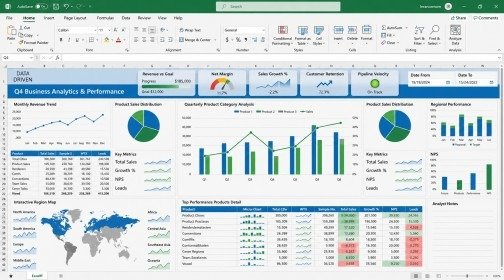
Build Interactive Dashboards
Dashboards combine multiple reports into one view.
Good dashboards focus on:
Clarity.
Simplicity.
Readability.
Actionable insights.
Design Dashboards Strategically
Avoid excessive colors.
Reduce unnecessary visuals.
Highlight important indicators.
Professional dashboards improve decisions.
Develop Advanced Data Analysis Skills
Advanced analysis transforms users into decision-makers.
This stage expands practical Microsoft Excel Skills.
Learn Pivot Tables
Pivot Tables summarize large datasets quickly.
They help users:
Analyze trends.
Measure performance.
Compare categories.
Track growth.
Practice With Real Data
Use examples such as:
Sales records.
Survey results.
Financial reports.
Attendance data.
Practice creates confidence.
Explore Lookup Functions
Lookup formulas connect information across datasets.
VLOOKUP
Searches information vertically.
XLOOKUP
Provides flexible matching.
INDEX MATCH
Supports advanced searches.
These functions reduce manual work.
Learn Advanced Excel Features That Increase Productivity
As Excel skills improve, advanced features become more important for working faster and producing better results. Many users remain limited to basic formulas and manual processes, but professional users rely on advanced tools to improve efficiency and accuracy.
Developing advanced Microsoft Excel Skills allows users to handle larger datasets, reduce repetitive work, and create smarter reporting systems.
Use Power Query for Faster Data Preparation
Power Query helps users import, clean, transform, and organize information automatically.
Instead of repeating manual formatting every time new data arrives, Power Query creates a repeatable workflow.
This feature becomes especially useful when working with reports that update regularly.
Why Power Query Matters
Power Query reduces manual effort.
It improves consistency.
It supports cleaner reporting.
It saves significant time during analysis.
Learn Dynamic Formulas for Smarter Workflows
Modern Excel includes formulas that adjust automatically as data changes.
Dynamic formulas reduce maintenance and improve flexibility.
Examples include formulas that automatically expand outputs without constant updates.
Users who understand these tools create more scalable spreadsheets.
Focus on Efficiency Instead of Complexity
Advanced Excel is not about using difficult formulas.
The goal is reducing effort while maintaining accuracy.
Professional spreadsheets remain simple, organized, and easy to update.
Improve Data Accuracy With Validation Tools
Incorrect input reduces report quality.
Excel provides validation features that control what users can enter.
This improves consistency and reduces errors.
Validation becomes especially useful in business reports and shared files.
Create More Reliable Systems
Professional Excel users design files that prevent mistakes instead of correcting mistakes later.
This approach improves workflow quality and strengthens practical Microsoft Excel Skills.
Use Automation to Save Time
Automation allows repetitive tasks to run more efficiently.
Features such as macros and automated formatting reduce manual effort.
Even small automation improvements can create major productivity gains over time.
Learning automation prepares users for more advanced Excel workflows and supports long-term growth.
Improve Productivity Through Automation
Automation creates efficiency.
Professional users automate repetitive processes.
Use Conditional Formatting
Conditional formatting highlights important changes.
Examples include:
Low inventory.
Late deadlines.
Performance changes.
Learn Basic Macros
Macros record repeated actions.
Automation reduces effort and improves consistency.
Start with simple tasks and improve gradually.
Build Real Projects to Gain Practical Experience
Projects transform theory into ability.
Without projects, knowledge remains incomplete.
Project Ideas
Create:
Expense dashboards.
Sales reports.
Inventory systems.
Attendance trackers.
Financial planning sheets.
Each project strengthens practical Microsoft Excel Skills.
Document Your Progress
Record:
Goals.
Methods.
Results.
Improvements.
This creates valuable portfolio content.
Build a Portfolio That Demonstrates Your Skills
A portfolio shows practical capability.
Employers prefer visible work examples.
Include Meaningful Examples
Show:
Dashboards.
Reports.
Analysis.
Automation.
Explain Your Process
Describe:
Problem.
Approach.
Outcome.
Business value.
This increases credibility.
Career Opportunities With Excel Skills

Excel continues to create opportunities across industries.
Strong Microsoft Excel Skills improve employability and support long-term growth.
Roles That Frequently Use Excel
Examples include:
Data Analyst.
Business Analyst.
Office Executive.
Financial Assistant.
Operations Coordinator.
Project Support Specialist.
Prepare for Interviews
Practice real tasks.
Explain your process.
Demonstrate problem-solving ability.
Employers value practical experience.
Final Thoughts
Excel remains one of the most practical and career-focused digital skills in 2026.
You do not need to master every feature immediately. Begin with fundamentals, improve formulas, organize data properly, create reports, practice analysis, and gradually move toward automation.
Consistent practice creates measurable progress.
Over time, strong Microsoft Excel Skills become more than technical knowledge—they become a long-term advantage that improves productivity, opens opportunities, and supports professional success.
Frequently Asked Questions
Which Excel skills should beginners focus on first?
Beginners should start with formulas, formatting, sorting, tables, and charts because these skills create a strong base for advanced Excel learning.
How can students improve Excel skills faster?
Students can improve faster by practicing daily, building small projects, and using Excel for real academic or personal tasks.
Which Excel feature helps save the most time?
Functions, Pivot Tables, and automation tools help reduce repetitive work and make reporting more efficient.
How do Microsoft Excel Skills help in career growth?
Strong Microsoft Excel Skills improve productivity, support data analysis, and increase opportunities across different industries.
What is the best way to master Microsoft Excel Skills?
The best approach is to practice consistently, create projects, and apply Microsoft Excel Skills to solve real problems.
Meta Description:
Discover the ultimate Microsoft Excel skills checklist for 2026. Learn essential formulas, data analysis, dashboards, automation, and practical Excel skills to improve productivity and grow your career.
- Build a Strong Foundation Before Learning Advanced Features
- Understand the Excel Environment
- Learn Professional Data Entry and Formatting
- Master Essential Formulas and Functions
- Start With Core Functions
- Learn Logical Functions for Automation
- Organize Data Efficiently for Better Analysis
- Use Sorting and Filtering
- Learn Data Cleaning Techniques
- Remove Errors Before Analysis
- Create Professional Reports and Visual Dashboards
- Build Interactive Dashboards
- Develop Advanced Data Analysis Skills
- Learn Pivot Tables
- Explore Lookup Functions
- Learn Advanced Excel Features That Increase Productivity
- Use Power Query for Faster Data Preparation
- Learn Dynamic Formulas for Smarter Workflows
- Improve Data Accuracy With Validation Tools
- Use Automation to Save Time
- Improve Productivity Through Automation
- Use Conditional Formatting
- Build Real Projects to Gain Practical Experience
- Project Ideas
- Build a Portfolio That Demonstrates Your Skills
- Include Meaningful Examples
- Career Opportunities With Excel Skills
- Final Thoughts
- Frequently Asked Questions
- Meta Description: