
Computers are part of our daily life. However, sometimes things go wrong. One common problem is Corrupted System Files. These files are very important for Windows. If they break, your PC may slow down, crash, or even stop working.
Have you ever seen a blue screen or apps not opening? If yes, then Corrupted System Files could be the reason. But don’t worry. The good news is that you can fix this issue easily with the right steps. In this guide, you will learn simple and clear methods to repair Corrupted System Files in Windows 10. Moreover, all steps are beginner-friendly and safe to follow.
What Are Corrupted System Files and Why Do They Matter?
System files are the core of Windows. They help your system run smoothly. However, when these files get damaged, problems start to appear. Because of Corrupted System Files, your system may behave in an unusual way.
These issues often include system crashes, slow performance, apps not working, and even boot errors. Therefore, fixing Corrupted System Files is very important to keep your computer stable and fast.
Common Reasons Behind Corrupted System Files
Before fixing the issue, it is helpful to understand the cause. This way, you can avoid it in the future.
Some common reasons include sudden power shutdowns, malware attacks, failed Windows updates, and hard disk problems. In some cases, software conflicts can also damage important files. Because of these issues, Corrupted System Files may appear without warning. As a result, your system may stop working properly.
Signs That Your System Files Are Corrupted
Sometimes, system file corruption goes unnoticed in the early stages. However, several clear warning signs indicate something is wrong with your system. Recognizing these symptoms early can help prevent serious issues.
Common signs include:
- Frequent System Crashes
Your computer may crash randomly without any clear reason, especially while performing normal tasks. - Blue Screen Errors (BSOD)
You might encounter sudden blue screen errors, which usually indicate serious system-level problems. - Slow Performance
The system may become unusually slow, taking longer to open programs or complete tasks. - Programs Not Responding
Applications may freeze, crash, or stop responding frequently, even if they worked fine before. - Windows Features Malfunctioning
Some built-in Windows features (like search, settings, or updates) may stop working properly or fail to open. - Unexpected Error Messages
You may see random or repeated error messages related to missing or damaged system files. - Boot Issues
In severe cases, your PC might fail to start properly or get stuck during the boot process.
First Step: Run System File Checker (SFC)
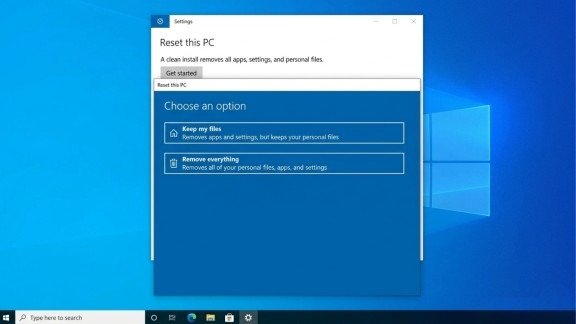
The easiest way to fix Corrupted System Files is by using the System File Checker tool. It is already built into Windows and works automatically.
How to Run SFC Scan
Follow these steps carefully:
- Open Start Menu
- Type cmd
- Right-click and choose Run as Administrator
- Type: sfc /scannow
- Press Enter
Now, wait for the scan to complete. This process may take a few minutes.
What Happens Next?
After the scan, you will see a message. Sometimes, no problems are found. However, in many cases, Corrupted System Files are detected and repaired automatically. If some files cannot be fixed, do not worry. You can move to the next step.
What if SFC cannot fix the Problem?
Sometimes, running the System File Checker (SFC) scan is not enough to fix all issues. This usually happens when the problem is deeper and affects the Windows system image itself. In such cases, you need to use another powerful tool called DISM (Deployment Image Servicing and Management).
Why SFC May Fail:
- Severely Corrupted System Files
Some files may be too damaged for SFC to repair. - Damaged Windows Image
SFC relies on a healthy system image. If the image itself is corrupted, SFC cannot function properly. - Missing Repair Sources
SFC may not find the required files to replace corrupted ones.
What is DISM and how does it help:
- Repairs Windows System Image
DISM scans and fixes the underlying Windows image that SFC depends on. - Restores Missing or Damaged Files
It downloads clean files from Windows Update (or uses a local source) to repair issues. - Improves SFC Effectiveness
Once DISM fixes the system image, running SFC again becomes more effective.
Second Step: Use DISM Tool for Deep Repair
DISM is a powerful tool that checks and repairs the Windows system image. Therefore, it can fix deeper issues related to Corrupted System Files.
Steps to Run DISM
Follow these steps:
- Open Command Prompt as Administrator
- Type: DISM /Online /Cleanup-Image /RestoreHealth
- Press Enter and wait
This process may take some time, so be patient. After it finishes, run the SFC scan again to ensure all Corrupted System Files are properly repaired.
Use Safe Mode for Better Results
If the issue still exists, try running the scan in Safe Mode. This mode runs only basic system processes.
Because of this, it becomes easier to fix Corrupted System Files without interference from other programs.
To enter Safe Mode, restart your PC while holding the Shift key. Then go to Advanced Options and select Safe Mode. After that, run the SFC scan again.
Restore Your System to a Previous Point
If built-in tools like SFC and DISM fail to fix the issue, you can use System Restore. This feature allows you to take your system back to a previous state when everything was working properly.
What is System Restore?
- Backup of System Settings
System Restore creates restore points that save your system files, settings, and installed programs. - Time Travel for Your PC
- It lets you revert your system to an earlier date without affecting your personal files like documents, photos, or videos.
When to Use System Restore:
- After installing a faulty update or software
- When your system starts behaving abnormally
- If corrupted system files are causing serious issues
- When other repair tools are not working
Steps to Use System Restore:
- Open the Start Menu
- Search for “System Restore” or “Create a Restore Point.”
- Click on it and open System Protection
- Press the System Restore button
- Select a restore point (choose a date when your system was working fine)
- Click Next and then Finish
Your PC will restart and begin the restoration process
Important Points to Remember:
- Personal Files Are Safe
Your documents, images, and videos will not be deleted. - Apps & Updates May Be Removed
Programs or updates installed after the selected restore point may be uninstalled. - Takes Some Time
The process may take several minutes and your system will restart.
Reset Windows as a Last Option
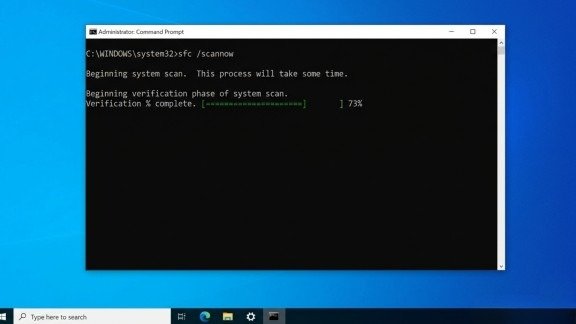
If nothing works, resetting Windows is the final solution. This will remove deep system issues and give your PC a fresh start.
You will get two options:
- Keep your files
- Remove everything
Before choosing any option, make sure to back up your important data. Resetting is very effective when Corrupted System Files are too serious.
Important Tips to Prevent Future Issues
Prevention is always better than fixing problems later. Therefore, follow these simple tips:
- Keep Windows updated
- Use antivirus software
- Avoid sudden shutdowns
- Clean junk files regularly
By following these steps, you can reduce the chances of Corrupted System Files in the future.
When Should You Take Action?
You should fix Corrupted System Files immediately if your system becomes unstable, errors appear frequently, or performance drops suddenly.
If you ignore the issue, it may become worse over time. Therefore, early action is always the best choice.
Final Thoughts
Fixing Corrupted System Files in Windows 10 is not difficult if you follow the right steps. First, use the SFC tool. Then, if needed, use DISM for deeper repair.
If the problem still continues, Safe Mode, System Restore, or Reset can help solve it. Most importantly, regular maintenance can prevent Corrupted System Files from happening again. Now you have a complete and easy guide. You can fix your system and keep your PC running smoothly without stress.
FAQs
1. How do I check system errors in Windows 10?
You can run built-in tools like SFC or use Event Viewer to quickly scan and detect system issues.
2. What is the fastest way to fix Windows errors?
Running the SFC scan is the quickest method, as it automatically finds and repairs common issues.
3. Can Windows repair itself automatically?
Yes, Windows has built-in tools that can detect and fix many problems without manual effort.
4. Is it safe to run DISM command?
Yes, DISM is a safe and official tool that repairs deeper system problems without harming your data.
5. When should I reset my Windows PC?
You should reset your PC only when other repair methods fail to solve serious system issues.
Meta Description
Learn how to repair Corrupted System Files in Windows 10 with easy step-by-step methods using SFC, DISM, Safe Mode, and System Restore. Fix errors fast.