
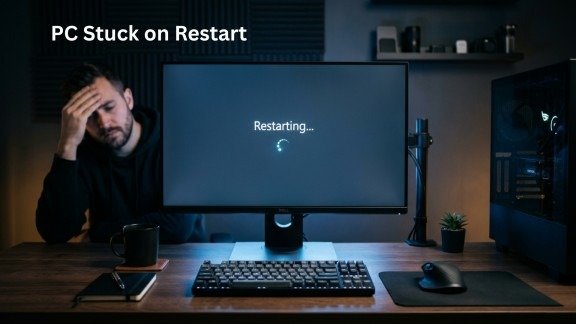
Sometimes, you restart your computer, but it never comes back. Instead, it stays on the loading screen or keeps restarting again and again. This problem is called PC Stuck on Restart, and it can be very frustrating. You cannot use your system, and your work may get delayed.
However, the good news is that this issue is very common. Many users face this problem after updates, driver changes, or system errors. Because of this, there are many simple ways to fix it without needing expert help. In this guide, you will learn easy and working methods to solve the issue. Moreover, all solutions are explained only, so anyone can follow them step by step.
Why Does This Restart Issue Happen?
Before fixing the issue, it is important to understand why it happens. This helps you choose the right solution quickly.
Common Causes:
- Windows update problems
- Corrupt system files
- Faulty or outdated drivers
- Fast startup feature issues
- External device conflicts
- Hard drive errors
- Software conflicts
Therefore, once you know the reason, fixing the PC Stuck on Restart problem becomes much easier.
Quick Fixes You Should Try First
Before trying advanced methods, you should start with simple fixes. These steps often solve the issue quickly.
1. Remove External Devices
First of all, unplug all external devices like USB drives, printers, or external hard drives. Then restart your system and check if the issue is resolved.
2. Perform a Hard Restart
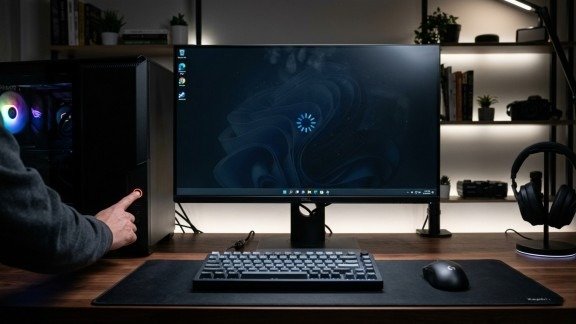
If your system is frozen, a hard restart can help fix the PC Stuck on Restart issue.
Press and hold the power button for about 10 seconds until the PC shuts down. After a short wait, turn it back on and see if it works normally.
3. Wait for Completion
Sometimes, Windows takes longer to restart, especially after updates. Therefore, wait at least 30–60 minutes before assuming there is a problem.
Advanced Solutions to Fix Restart Issues
If the quick fixes do not work, then you need to try deeper solutions.
Run Startup Repair
Startup Repair is a built-in tool that can fix boot-related problems automatically.
It scans your system and repairs errors that may be causing the PC Stuck on Restart issue. To use it, go to recovery mode, select Troubleshoot, and then click Startup Repair. After the process, restart your system.
Boot into Safe Mode
Safe Mode starts your computer with only essential files and drivers. Because of this, it helps you identify what is causing the problem.
Press F8 or Shift + F8 during startup and choose Safe Mode. Once inside, remove any recently installed apps or updates that may be causing the issue.
Disable Fast Startup
Fast Startup is useful, but sometimes it creates restart problems. Disabling it can help fix the PC Stuck on Restart issue.
Go to Control Panel, open Power Options, and turn off Fast Startup. After that, restart your PC and check if the issue is gone.
Run System File Checker (SFC)
Corrupted system files are a major reason behind restart issues. The SFC tool scans and repairs these files.
Open Command Prompt as administrator and run the command:
sfc /scannow After the scan finishes, restart your computer.
Check Disk Errors
Hard drive problems can also cause restart issues. Running a disk check can fix these errors.
Use this command:
chkdsk C: /f /r
This process repairs file system errors and bad sectors, helping resolve the PC Stuck on Restart problem.
Use System Restore
If the problem started recently, System Restore can take your PC back to a working state.
Open recovery mode, choose System Restore, and select a restore point. This method is effective when the issue is caused by recent changes.
Update or Roll Back Drivers
Driver issues are another common reason for restart problems. Updating or rolling back drivers can fix this.
Open Device Manager, select the driver, and choose either update or roll back depending on the situation.
Perform a Clean Boot
Sometimes, background apps create conflicts. A clean boot starts Windows with minimal services. Open msconfig, disable non-Microsoft services, and restart your PC. This helps identify if any third-party app is causing the issue.
Scan for Malware
Malware can also cause restart loops. Therefore, running a full system scan is important.
Open Windows Security and perform a complete scan to remove any threats affecting your system.
Reinstall Windows (Last Option)
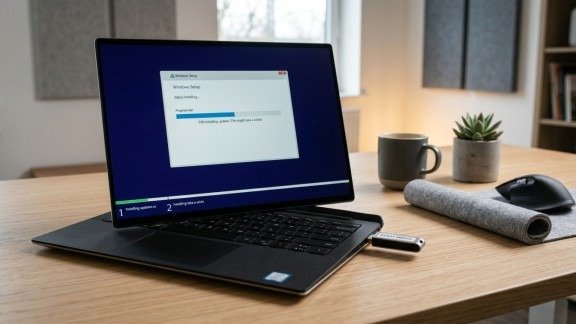
If nothing works, reinstalling Windows is the final solution.
Make sure to back up your data before proceeding. This method completely removes the PC Stuck on Restart issue but erases all files.
Tips to Prevent Restart Problems
To avoid this issue in the future, follow these simple tips:
- Keep your system updated
- Avoid forced shutdowns
- Install trusted software only
- Update drivers regularly
By following these steps, you can prevent the PC Stuck on Restart issue from happening again.
When to Get Professional Help
If your PC still does not restart properly, the issue may be hardware-related.
Signs include unusual noises, frequent crashes, or failure to boot. In such cases, it is better to contact a professional technician instead of trying more fixes.
Conclusion
The PC Stuck on Restart problem may seem serious, but it is usually easy to fix. Start with simple methods like removing devices or restarting. Then move to advanced solutions like Safe Mode, SFC, or System Restore.
Moreover, regular maintenance can help prevent such issues in the future. If nothing works, professional help is always available to recover your system and data.
FAQs
1. What causes the PC Stuck on Restart issue in Windows?
PC Stuck on Restart usually happens due to corrupted files, failed updates, or driver conflicts that stop Windows from restarting properly.
2. How can I fix PC Stuck on Restart quickly?
You can fix a PC Stuck on Restart by doing a hard reboot, removing external devices, or using Startup Repair to resolve system errors.
3. Can Windows updates cause PC Stuck on Restart?
Yes, incomplete or failed updates can lead to PC Stuck on Restart because system files may not load correctly after installation.
4. Is PC Stuck on Restart a hardware problem?
Most PC Stuck on Restart issues are software-related, but repeated crashes may indicate hard drive or RAM problems.
5. How do I prevent PC Stuck on Restart in the future?
To prevent PC Stuck on Restart, keep your system updated, avoid force shutdowns, and regularly scan for malware or driver issues.
Meta Description
Struggling with PC Stuck on Restart? Discover easy and effective solutions to fix restart issues in 2026. Learn step-by-step methods to resolve boot loops, system errors, and slow restarts on Windows quickly.
- Why Does This Restart Issue Happen?
- Quick Fixes You Should Try First
- Advanced Solutions to Fix Restart Issues
- Run System File Checker (SFC)
- Check Disk Errors
- Use System Restore
- Update or Roll Back Drivers
- Perform a Clean Boot
- Scan for Malware
- Reinstall Windows (Last Option)
- Tips to Prevent Restart Problems
- When to Get Professional Help
- Conclusion
- FAQs
- Meta Description