
Understanding High CPU Usage
Is your computer running slower than usual, fans spinning loudly, or applications freezing unexpectedly? These are classic symptoms of high CPU usage—a common problem that affects Windows users when the central processing unit becomes overwhelmed with too many processes or malfunctioning software.
The CPU (Central Processing Unit) acts as your computer’s brain, executing instructions from every program and application running on your system. While it’s normal for CPU usage to spike temporarily during intensive tasks like video editing, gaming, or running antivirus scans, sustained high usage above 80-100% indicates underlying problems requiring immediate attention.
Common symptoms of problematic CPU usage:
- Applications taking abnormally long to load or respond
- System freezing or becoming completely unresponsive
- Loud fan noise as cooling systems work overtime
- Sluggish overall performance even when few programs are open
- Unexpected application crashes or system restarts
This comprehensive 2026 guide reveals exactly how to fix high CPU usage through systematic diagnosis, targeted solutions, and preventive measures that keep your system running optimally.
Step 1: Identify the Problem Using Task Manager
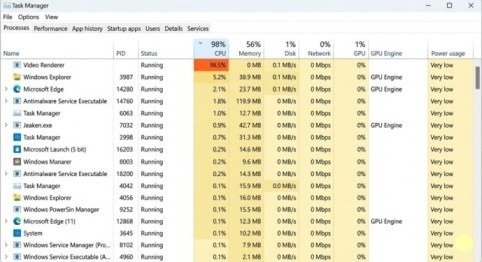
Before attempting fixes, you must identify which processes consume excessive CPU resources. Task Manager provides this critical diagnostic information.
Opening Task Manager:
Press Ctrl+Shift+Esc simultaneously to launch Task Manager instantly. Alternatively, right-click your taskbar and select “Task Manager” from the menu.
Analyzing CPU Usage:
- Click the Processes tab at the top
- Click More Details at the bottom if you see a simplified view
- Click the CPU column header to sort processes by CPU usage (highest to lowest)
- Observe which processes consistently show high percentages
Normal vs. Abnormal Usage:
When your PC sits idle, total CPU usage should remain below 10%. Individual system processes like Windows Search, Runtime Broker, or Cortana should use 0-1% each. If you see any single process consistently consuming 20% or more while you’re not actively using that application, you’ve identified the problem.
Pro tip: Enable “Always on Top” through Options menu so Task Manager remains visible even when games or full-screen applications run.
Step 2: Restart Your Computer
Before diving into complex solutions, try the simplest fix first—rebooting your system. This classic troubleshooting step resolves many temporary CPU issues instantly.
Why rebooting works:
- Terminates stuck processes consuming excessive resources
- Clears temporary files accumulated in system memory
- Stops background applications that launched improperly
- Resets system services to their default states
Save all open work, click the Start menu, select Restart, and let your system reboot completely. After restart, monitor CPU usage in Task Manager. If the problem disappears, a temporary glitch was responsible. If high usage persists, proceed to advanced solutions.
Step 3: End Problematic Processes
If Task Manager reveals a specific process consuming abnormal CPU resources, terminating it often provides immediate relief.
How to safely end processes:
- In Task Manager’s Processes tab, locate the high-CPU process
- Research the process name online to verify it’s safe to terminate
- Never end critical system processes like explorer.exe, winlogon.exe, or system
- Right-click the problematic process
- Select End Task
Important warning: Ending a process forces immediate termination without saving data. Only end processes after saving your work in related applications.
Many Windows processes automatically restart when terminated, which can reset them and eliminate the bug causing high usage. Monitor Task Manager after ending a process to verify the CPU usage decrease persists.
Step 4: Disable Unnecessary Startup Programs
Programs configured to launch automatically at startup significantly impact CPU usage from the moment you turn on your computer.
Managing startup programs:
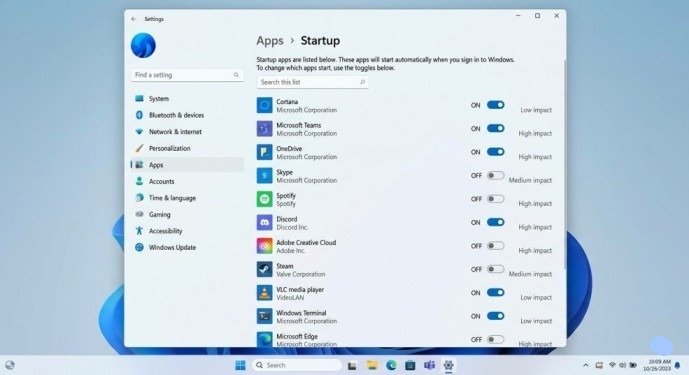
- Open Settings (Win+I)
- Navigate to Apps > Startup
- Review the list of startup applications
- Toggle Off for programs you don’t need immediately at boot
- Notice the Startup impact rating (High, Medium, Low) to prioritize which to disable
What to disable:
- Messaging applications like Slack or Discord
- Media players such as Spotify or iTunes
- Cloud storage sync tools (Dropbox, OneDrive) if not critical
- Manufacturer utilities you rarely use
- Any program showing “High impact”
This single adjustment can reduce boot time by 30-50% and significantly lower baseline CPU usage.
Step 5: Update Windows and Drivers
Outdated system software and drivers frequently cause CPU usage problems through compatibility issues, bugs, or inefficient resource management.
Updating Windows:
- Open Settings > Windows Update
- Click Check for updates
- Install all available updates
- Restart when prompted
Updating drivers:
- Right-click Start and select Device Manager
- Expand categories like Display adapters, Network adapters, and Sound
- Right-click each device and select Update driver
- Choose Search automatically for drivers
Graphics card manufacturers like NVIDIA and AMD provide dedicated utilities (GeForce Experience, AMD Software) that simplify driver updates while optimizing game performance.
Step 6: Scan for Malware
Malicious software often disguises itself as legitimate Windows processes while secretly consuming CPU resources for cryptocurrency mining, password cracking, or distributed denial-of-service attacks.
Running Windows Defender scan:
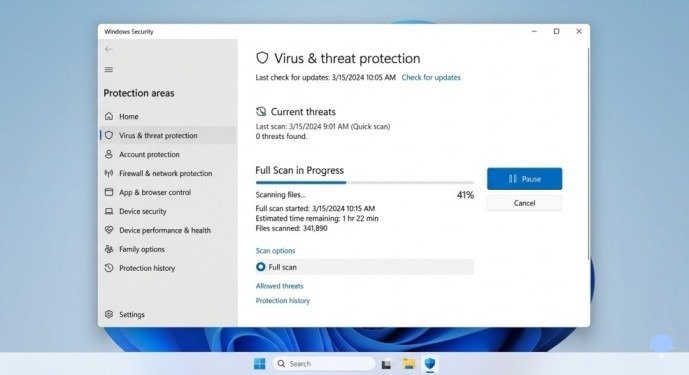
- Search for Windows Security in the Start menu
- Click Virus & threat protection
- Select Scan options
- Choose Full scan for comprehensive malware detection
- Click Scan now
Full scans take 30-60 minutes but thoroughly examine every file. If Windows Defender finds nothing but you still suspect malware, run a secondary scan using reputable antivirus software like Malwarebytes or Bitdefender for additional verification.
Warning signs of malware:
- Unknown processes with suspicious names in Task Manager
- CPU usage spiking during idle periods
- Network activity when no applications should be online
- New browser toolbars or homepage changes you didn’t authorize
Step 7: Adjust Power Settings
Power management configurations can inadvertently limit CPU performance or cause erratic behavior leading to high usage.
Optimizing power plans:
- Search for Edit Power Plan in Start menu
- Click Power Options in the window’s address bar
- Select Show additional plans
- Choose High Performance (desktops) or Balanced (laptops)
Power saver modes intentionally throttle CPU speed to extend battery life but can paradoxically cause higher usage as the processor struggles to complete tasks efficiently.
Step 8: Disable Visual Effects
Windows animations, transparency effects, and visual enhancements consume CPU resources constantly. Disabling them delivers noticeable performance improvements on older systems or computers with integrated graphics.
Reducing visual effects:
- Press Win+R, type sysdm.cpl, press Enter
- Click the Advanced tab
- Under Performance, click Settings
- Select Adjust for best performance
- Click Apply, then OK
This eliminates all animations and effects. If you prefer some visual elements, select Custom and manually check desired features while leaving resource-intensive options disabled.
Step 9: Check for Disk Errors
Corrupted files or hard drive errors force the CPU to work harder attempting failed operations repeatedly, creating sustained high usage.
Running disk check:
- Open Command Prompt as administrator
- Type chkdsk C: /f /r (replace C: with your system drive)
- Press Enter
- Type Y to confirm scheduling check on next restart
- Restart your computer
The scan runs during boot before Windows loads, checking for file system errors and attempting repairs. This process takes 30 minutes to several hours depending on drive size.
Step 10: Clean Physical Components
Dust accumulation inside your computer causes overheating, forcing the CPU to throttle performance or run inefficiently at high usage attempting to compensate.
Safe cleaning procedure:
- Shut down and unplug your computer
- Open the case (desktops) or access vents (laptops)
- Use compressed air to blow dust from fans, heatsinks, and vents
- Hold fans stationary while cleaning to prevent bearing damage
- Ensure all vents have clear airflow paths
Thermal throttling occurs when CPUs overheat—automatic performance reduction prevents hardware damage but appears as sustained high usage in Task Manager. Proper cooling often eliminates this problem entirely.
Advanced Solutions
If basic fixes don’t resolve high CPU usage, consider these advanced approaches:
System File Checker:
Corrupted Windows system files can cause numerous problems including CPU issues.
- Open Command Prompt as administrator
- Type sfc /scannow and press Enter
- Wait for completion (10-30 minutes)
- Restart if repairs were made
Reinstall Windows:
As a last resort, reinstalling Windows provides a clean slate eliminating software-related CPU problems. Use Windows 11’s Reset this PC feature (Settings > System > Recovery) to reinstall while optionally keeping personal files.
Hardware Upgrade Considerations
If all software solutions fail and your CPU constantly runs near maximum capacity during normal use, your processor may simply be underpowered for your workload.
Indicators you need hardware upgrades:
- Computer is 5+ years old
- CPU usage remains high even after all fixes
- You regularly run demanding applications (video editing, 3D rendering, modern gaming)
- Task Manager shows CPU constantly at 90-100% during normal tasks
Modern CPUs handle multitasking exponentially better than older processors. Technologies like Intel® Thread Director and Intel® Turbo Boost optimize performance across multiple cores while managing power efficiently.
Preventive Maintenance
After resolving high CPU usage, maintain optimal performance through regular maintenance:
Weekly:
- Restart computer at least once
- Review Task Manager for suspicious processes
Monthly:
- Run full malware scans
- Check for Windows and driver updates
- Review and disable unnecessary startup programs
Quarterly:
- Clean physical components
- Run disk cleanup and defragmentation (HDDs only)
- Verify all applications are current versions
Conclusion
High CPU usage significantly degrades computer performance, but systematic troubleshooting can fix the problem without expensive hardware replacements. Start by identifying the problematic process through Task Manager, then work through solutions progressively—restart, end processes, update software, scan for malware, adjust power settings, and reduce visual effects.
Most CPU issues resolve through software optimization rather than hardware limitations. The fixes outlined here address 90% of high usage problems without requiring technical expertise or professional assistance.
Implement these solutions methodically, monitoring CPU usage after each step to identify what works for your specific situation. Combined with regular maintenance routines, these practices ensure your system maintains optimal CPU performance for years.
Faqs
1. Why is my CPU usage always at 100%?
This usually happens due to background processes, outdated drivers, malware, or too many startup programs running at once.
2. Is high CPU usage dangerous for my PC?
Yes, continuous high CPU usage can overheat your system, slow performance, and may lead to crashes or hardware damage over time.
3. What is the fastest way to fix high CPU usage?
Restart your PC, close unnecessary programs in Task Manager, and disable unwanted startup apps for a quick improvement.
4. Can malware increase CPU usage?
Yes, many viruses run hidden processes that consume CPU resources, so running a full system scan is important.
5. When should I consider upgrading my CPU?
If your CPU usage stays above 80–90% during normal tasks even after trying all fixes, your hardware may be outdated and need an upgrade.
Meta Description
Fix high CPU usage on Windows with this complete step-by-step guide! Learn to diagnose, troubleshoot, and permanently resolve 100% CPU problems in 2026.
- Understanding High CPU Usage
- Step 1: Identify the Problem Using Task Manager
- Step 2: Restart Your Computer
- Step 3: End Problematic Processes
- Step 4: Disable Unnecessary Startup Programs
- Step 5: Update Windows and Drivers
- Step 6: Scan for Malware
- Step 7: Adjust Power Settings
- Step 8: Disable Visual Effects
- Step 9: Check for Disk Errors
- Step 10: Clean Physical Components
- Advanced Solutions
- Hardware Upgrade Considerations
- Preventive Maintenance
- Conclusion
- Faqs
- Meta Description