
Understanding Why Your Computer Slows Down
Ever wondered why your computer feels slower over time? Like any device, computers accumulate settings, temporary files, and unnecessary programs that impact performance. Optimizing your computer can improve your user experience and make everything run smoother.
Before we begin troubleshooting, it’s essential to understand why your computer is slowing down. Here are some typical reasons:
- Accumulated temporary files and unnecessary programs
- Outdated software and drivers
- Too many startup programs hogging memory
- Visual effects consuming resources
- Possible malware infections
- Insufficient storage space
Common Symptoms of Slow Performance
Applications taking longer to load: Programs that once launched instantly now take several seconds or minutes.
Freezing or unresponsive system: Frequent system freezes may indicate underlying software conflict or hardware issues.
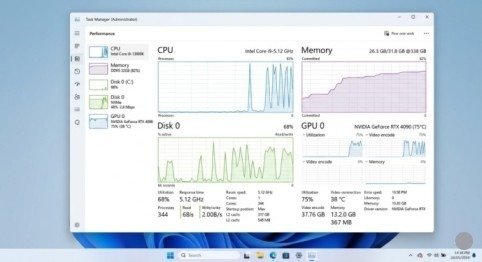
High disk or CPU usage: Persistent high resource usage can overburden your system, slowing everything down.
Slow boot or shutdown times: Prolonged startup or shutdown processes may point to software issues or too many startup programs.
How to Make Your Computer Faster: Quick Fixes
A slow computer can often be fixed with simple, quick adjustments. By implementing these quick fixes, you can significantly enhance your computer’s performance. These initial steps are not just easy; they are a great starting point to improve your computing experience effortlessly!
1. Regularly Restart Your Computer
It may sound simple, but restarting your computer can often resolve temporary slowdowns. Rebooting refreshes system resources, clears temporary files in system memory, and closes background applications that consume valuable CPU and RAM.
How often to restart: At least once per week for optimal performance. If you notice slowdowns, restart immediately.
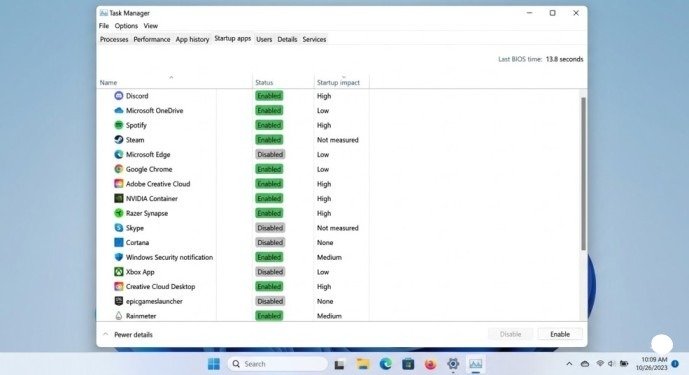
2. Disable Startup Programs
Too many programs running at startup can significantly slow down boot times and overall performance. Here’s how to manage them:
- Press Ctrl+Shift+Esc to open Task Manager
- Click the Startup tab
- Review each program and right-click unnecessary apps
- Select Disable to prevent them from launching at startup
What to disable: Messaging apps, media players, cloud storage sync tools, and any software you don’t need immediately at boot.
3. Free Up Disk Space
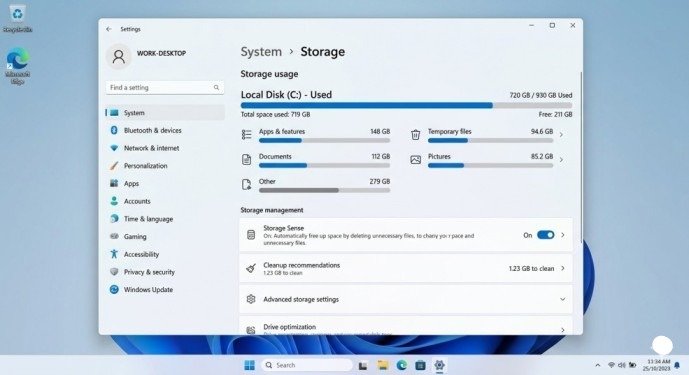
If your computer is running low on storage, it might cause slow performance. Here are proven ways to reclaim drive space:
Using Disk Cleanup Tool:
- Search for Disk Cleanup from the Start menu
- Select your main drive (usually C:)
- Let Windows calculate reclaimable space
- Review and select Files to delete
- Click OK then Delete Files to confirm
Enable Storage Sense:
- Go to Settings > System > Storage
- Turn on Storage Sense to automatically delete unnecessary files
- Configure it to run weekly for continuous optimization
Expected results: Reclaim 5-20GB or more depending on system usage history.
System Performance Optimization
4. Update Windows and Drivers
Updating your operating system is one of the easiest ways to keep your computer running fast and smoothly.
Update Windows:
- Go to Settings > Windows Update
- Click Check for updates
- Install all available updates
- Restart if prompted
Update Drivers:
Visit your computer manufacturer’s support website to download the latest graphics, chipset, network, and audio drivers. Updated drivers often include performance improvements and bug fixes that dramatically improve system responsiveness.
5. Uninstall Unnecessary Programs
Having too many programs on your computer can impact performance. Here’s how to remove unwanted applications:
- Go to Settings > Apps > Installed apps
- Scroll through and review the complete list
- Select any unnecessary program
- Click Uninstall and confirm
What to remove: Trial software, games you no longer play, duplicate utilities, bloatware installed by manufacturers, and programs you don’t recognize.
6. Disable Visual Effects for Better Performance
Visual animations and transparency effects look attractive but consume system resources. Disabling them delivers noticeable speed improvements on older hardware.
How to disable:
- Press Win+R and type sysdm.cpl
- Navigate to the Advanced tab
- Click Settings under Performance
- Select Adjust for best performance
- Click Apply then OK
Performance gain: Expect 10-20% faster response times on systems with integrated graphics or older CPUs.
Security and Maintenance
7. Scan for Malware and Viruses
Malware can consume system resources, slow down your computer, and even cause system crashes. Use Windows Defender or other antivirus software to scan and remove malicious files.
To scan using Windows Defender:
- Search for Windows Security in the Start menu
- Select Virus & threat protection
- Click Quick scan for a fast check
- For deep scanning, select Scan options > Full scan > Scan now
Frequency: Quick scan weekly, full scan monthly for comprehensive protection.
8. Clean Air Vents and Fans
Physical cleaning often gets overlooked but dramatically impacts performance. Dust accumulation causes overheating, which forces your CPU to throttle performance automatically.
Cleaning process:
- Shut down and unplug your computer
- Use compressed air to spray air vents and fans
- Hold the can upright and spray in short bursts
- Focus on exhaust vents and intake areas
- Let system rest for 5 minutes before powering on
Expected results: 10-15°C temperature reduction, eliminating thermal throttling.
Advanced Performance Tweaks
9. Manage Power Settings
For desktops:
- Go to Settings > System > Power & battery
- Select Best performance under Power mode
- This ensures Windows doesn’t throttle performance unnecessarily
For laptops:
Choose Balanced for everyday use, Best performance when plugged in for resource-intensive tasks.
10. Check for Disk Errors
Disk errors can cause system slowdowns and freezing. Windows includes built-in tools to detect and repair these issues.
Run disk check:
- Open Command Prompt as administrator
- Type chkdsk C: /f /r (replace C: with your system drive)
- Press Enter and confirm with Y
- Restart your computer to let the disk check complete
What this does: Scans for file system errors, repairs corrupted sectors, and recovers readable information from bad sectors.
11. Optimize Browser Performance
Slow browsing can make your entire computer feel sluggish. Here’s how to speed it up:
Clear browser cache:
- Press Ctrl+Shift+Delete in your browser
- Select All time as the time range
- Check Cached images and files
- Click Clear data
Disable unnecessary extensions:
- Navigate to browser Extensions or Add-ons
- Review installed extensions
- Disable or remove ones you don’t actively use
Impact: Pages load 30-50% faster with optimized browser performance.
When Hardware Upgrades Make Sense
If you’ve implemented all software optimizations and still experience slowness, consider these hardware upgrades:
SSD Upgrade: Replacing a traditional hard drive (HDD) with a solid-state drive (SSD) delivers the single biggest performance improvement. Expect 5-10x faster boot times and application loading.
RAM Upgrade: Adding more RAM helps if you frequently run multiple programs simultaneously. 8GB minimum for basic use, 16GB for multitasking and creative work.
Check compatibility: Before purchasing, verify your computer supports the upgrade through manufacturer specifications or system documentation.
Maintaining Optimal Performance
After implementing these fixes, maintain performance with regular routines:
Weekly:
- Restart computer at least once
- Clear browser cache
- Delete unnecessary downloads
Monthly:
- Run full malware scan
- Uninstall unused programs
- Clean physical dust from vents
Quarterly:
- Check for Windows and driver updates
- Review startup programs
- Perform disk cleanup and disk check
Conclusion
Making your computer faster involves a combination of software maintenance, security practices, and occasional hardware considerations. By following these step-by-step instructions, you’ll notice significant improvements in boot times, application responsiveness, and overall system speed.
Start with the quick fixes—restart regularly, disable startup programs, and free up disk space. These alone can improve performance by 30-50%. Then progress to updates, malware scanning, and visual effect adjustments for even greater gains.
Remember that consistent maintenance prevents performance degradation over time. Spending just 15 minutes monthly on these optimization tasks keeps your computer running smoothly for years, delaying expensive upgrades or replacements.
Still running slow? If performance issues persist after implementing all software optimizations, hardware limitations may be the bottleneck. Consider professional diagnosis or targeted hardware upgrades like SSD or RAM to fully restore your computer’s speed and efficiency.
Frequently Asked Questions (FAQs)
1. Why is my computer running slow?
Your computer slows down due to accumulated temporary files, too many startup programs, outdated software and drivers, insufficient storage space, malware infections, or hardware limitations. Regular maintenance and optimization can resolve most slowness issues without hardware upgrades.
2. How often should I restart my computer?
Restart your computer at least once per week for optimal performance. If you notice significant slowdowns, freezing, or high resource usage, restart immediately to clear temporary memory and reset problematic processes.
3. Will disabling visual effects make my computer much faster?
Yes, especially on older computers or systems with integrated graphics. Disabling visual effects can improve responsiveness by 10-20% as Windows no longer uses CPU and GPU resources for animations, shadows, and transparency effects.
4. How much disk space should I keep free?
Maintain at least 15-20% free space on your system drive (usually C:) for optimal performance. When storage fills beyond 80-90% capacity, Windows struggles with temporary file management, virtual memory, and system updates, causing noticeable slowdowns.
5. Should I upgrade to an SSD or add more RAM first?
Upgrade to an SSD first if you’re still using a traditional hard drive (HDD). SSDs deliver 5-10x faster boot times and dramatically improve overall responsiveness. Add RAM if you frequently run multiple programs simultaneously and notice slowdowns when multitasking.
Meta Description
Make your computer faster with these proven step-by-step fixes! Complete 2026 guide to boost PC performance, speed up slow computers, and improve system responsiveness.
- Understanding Why Your Computer Slows Down
- Common Symptoms of Slow Performance
- How to Make Your Computer Faster: Quick Fixes
- System Performance Optimization
- Security and Maintenance
- Advanced Performance Tweaks
- When Hardware Upgrades Make Sense
- Maintaining Optimal Performance
- Conclusion
- Frequently Asked Questions (FAQs)
- Meta Description