
Your PC freezes at the worst possible moment. The screen goes black. The dreaded blue screen appears out of nowhere. Sound familiar? If your Windows computer keeps randomly freezing or crashing, you are not alone — and more importantly, you do not need to buy a new computer to fix it.
Random freezing and crashing in Windows is one of the most frustrating problems users face in 2026. The good news is that in most cases, the root cause is completely fixable — whether it is a driver conflict, overheating, corrupted system files, or a failing hardware component. This complete guide will show you exactly how to fix Windows freezing and crashing issues step by step, from the simplest solutions to the more advanced ones.
Follow these methods in order and you will have a stable, fast, and crash-free Windows PC before you know it.
Why Does Windows Keep Freezing and Crashing?
Before jumping into fixes, it helps to understand what causes the problem. The most common reasons Windows freezes or crashes include:
- Outdated or corrupt drivers — especially GPU and chipset drivers
- Overheating CPU or GPU — thermal throttling leads to sudden shutdowns
- Corrupted system files — damaged Windows files cause instability
- Faulty RAM — bad memory causes random crashes and blue screens
- Too many startup programs — overloading system resources at boot
- Malware or viruses — background processes consuming CPU and RAM
- Full or failing hard drive — storage issues cause severe slowdowns and freezes
- Windows Update conflicts — a bad update can destabilize the entire system
Now that you know the causes, let us fix them one by one.
Method 1: Update Your Drivers (Most Common Fix)
Outdated or corrupted drivers — especially graphics drivers — are the number one cause of random freezing and crashing in Windows. This should always be your first step when you want to fix Windows freezing and crashing.
Steps to update drivers:
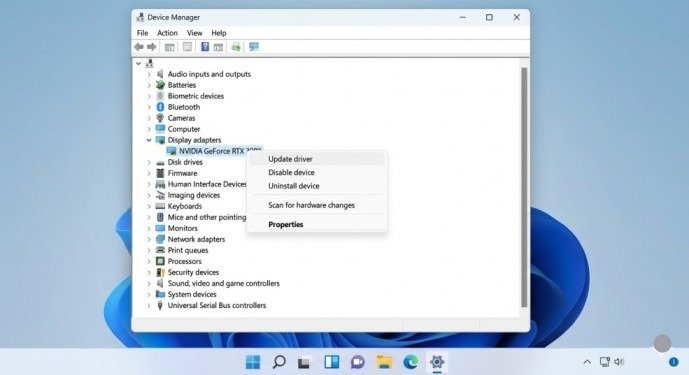
- Right-click the Start button and select Device Manager
- Expand Display Adapters and right-click your GPU
- Select Update Driver and choose Search automatically
- Do the same for Network Adapters and Sound, video and game controllers
- Restart your PC after updates complete
For NVIDIA and AMD users, download the latest drivers directly from the official NVIDIA or AMD website instead of relying on Windows Update — manufacturer drivers are always more up to date.
Method 2: Run System File Checker (SFC Scan)
Corrupted Windows system files are a silent killer. They cause random freezes, app crashes, and blue screens without any obvious warning. The built-in SFC tool scans and repairs these files automatically.
Steps:
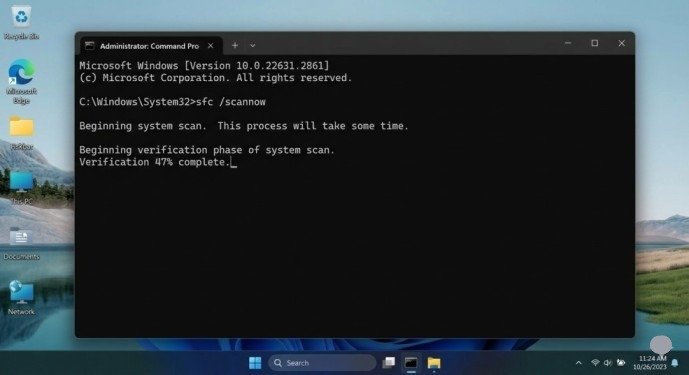
- Press Windows + S and search for Command Prompt
- Right-click and select Run as Administrator
- Type the following command and press Enter:
- sfc /scannow
- Wait for the scan to complete — this may take 10–15 minutes
- If issues are found and repaired, restart your PC
After SFC, also run the DISM tool for deeper repair:
DISM /Online /Cleanup-Image /RestoreHealth
This command repairs the Windows image itself and is one of the most effective ways to fix Windows freezing and crashing caused by system corruption.
Method 3: Check Your PC Temperature (Overheating Fix)
Overheating is a major but often overlooked cause of sudden shutdowns and freezing. When your CPU or GPU exceeds safe temperature limits, Windows crashes to protect the hardware.
How to check temperatures:
- Download HWMonitor or Core Temp (both free tools)
- Run a demanding task and monitor your CPU and GPU temperatures
- Safe CPU range: below 85°C under load
- Safe GPU range: below 90°C under load
If your PC is overheating:
- Clean dust from fans and vents using compressed air
- Replace dried thermal paste on the CPU (especially on laptops over 2 years old)
- Make sure your PC has proper airflow — do not block vents
- Consider adding extra case fans or upgrading your CPU cooler
Keeping temperatures under control is essential when trying to fix Windows freezing and crashing on older or heavily used machines.
Method 4: Test Your RAM for Errors
Faulty RAM is one of the most common hardware causes of random blue screens and freezes. Windows has a built-in memory diagnostic tool that tests your RAM for errors.
Steps:
- Press Windows + R, type mdsched.exe and press Enter
- Select Restart now and check for problems
- Your PC will restart and run the memory test automatically
- After completion, check Event Viewer for results
For a more thorough test, use MemTest86 — a free bootable tool that runs extended RAM diagnostics outside of Windows. If errors are found, replace the faulty RAM stick.
Method 5: Disable Fast Startup
Fast Startup in Windows can sometimes cause instability, especially after updates. Disabling it forces a full clean boot every time which often resolves freezing issues.
Steps:
- Go to Control Panel → Power Options
- Click Choose what the power buttons do
- Click Change settings that are currently unavailable
- Uncheck Turn on fast startup
- Save changes and restart
This is a quick and easy fix that many users overlook when trying to fix Windows freezing and crashing after a Windows update.
Method 6: Scan for Malware and Viruses
Malware running silently in the background can consume massive amounts of CPU and RAM, causing your system to freeze and crash without warning.
Steps:
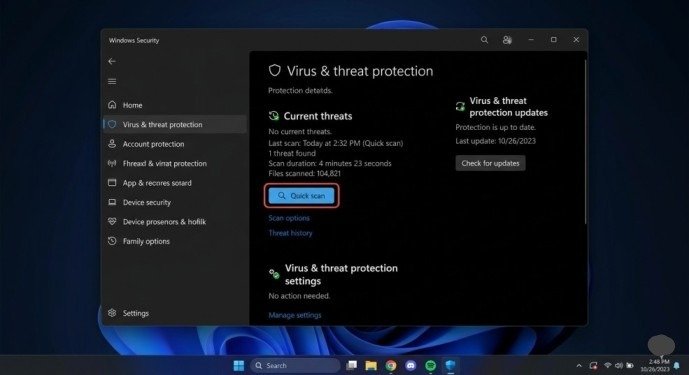
- Open Windows Security from the Start menu
- Go to Virus and threat protection
- Click Quick Scan or run a Full Scan for thorough results
- Remove any threats detected
Additionally, run Malwarebytes Free for a second opinion scan — it catches threats that Windows Defender sometimes misses. Keeping your system clean is a critical part of maintaining stability.
Method 7: Free Up Disk Space and Check Drive Health
A hard drive or SSD that is nearly full or beginning to fail will cause severe performance issues, freezing, and eventually complete crashes.
Free up space:
- Press Windows + S, search Disk Cleanup and run it
- Delete temporary files, system cache, and old Windows Update files
- Aim to keep at least 15% of your drive free at all times
Check drive health:
- Download CrystalDiskInfo (free tool)
- Open it and check the health status of your drives
- A Good status means your drive is healthy
- A Caution or Bad status means your drive is failing — back up your data immediately and replace it
A failing drive is one of the most serious causes when you need to fix Windows freezing and crashing and should never be ignored.
Method 8: Clean Boot Windows to Find Conflicting Software
A clean boot starts Windows with only essential Microsoft services running. This helps identify if a third-party program or service is causing the freezing and crashing.
Steps:
- Press Windows + R, type msconfig and press Enter
- Go to the Services tab
- Check Hide all Microsoft services then click Disable all
- Go to the Startup tab and click Open Task Manager
- Disable all startup programs
- Restart your PC and check if the problem is resolved
If the freezing stops in clean boot, re-enable services one by one to identify the culprit program.
Method 9: Update Windows to the Latest Version
Microsoft regularly releases patches and stability updates. Running an outdated version of Windows can leave known bugs unresolved.
Steps:
- Go to Settings → Windows Update
- Click Check for Updates
- Install all available updates including optional and driver updates
- Restart your PC
In 2026, keeping Windows fully updated is more important than ever as Microsoft has rolled out major stability improvements for both Windows 11 and legacy Windows 10 users.
Method 10: Reset or Reinstall Windows (Last Resort)
If none of the above methods resolve the issue, a clean Windows reset or reinstall will eliminate all software-related causes of freezing and crashing.
Steps:
- Go to Settings → System → Recovery
- Click Reset this PC
- Choose Keep my files to preserve personal data
- Follow the on-screen instructions
A clean reinstall gives you a completely fresh Windows environment — no corrupt files, no software conflicts, no leftover malware. It is the nuclear option for how to fix Windows freezing and crashing when everything else has failed.
Final Thoughts
Random freezing and crashing in Windows does not have to be a permanent nightmare. In most cases, the problem comes down to drivers, overheating, corrupted files, or bad RAM — all of which are completely fixable without spending money on new hardware.
Work through these methods one by one and you will almost certainly find and eliminate the cause. Once you successfully fix Windows freezing and crashing, make it a habit to keep your drivers updated, your PC clean, and your storage healthy. Prevention is always better than repair.
Frequently Asked Questions
Q1: Why does my Windows PC freeze randomly with no error message? Random freezing without a blue screen is usually caused by overheating, RAM issues, or a failing hard drive. Run HWMonitor to check temperatures and use CrystalDiskInfo to check drive health as your first steps.
Q2: How do I find out what is causing my Windows crash? Open Event Viewer by pressing Windows + S and searching for it. Go to Windows Logs → System and look for Critical or Error entries around the time of the crash. These logs often reveal the exact cause.
Q3: Can a Windows Update cause freezing and crashing? Yes. A bad Windows update can sometimes destabilize a system. If freezing started after a recent update, go to Settings → Windows Update → Update History and uninstall the most recent update to test if that resolves the issue.
Q4: Does more RAM fix freezing issues? If your system is consistently using over 90% of available RAM, upgrading memory can definitely help. However, if RAM usage is normal, adding more RAM will not fix crash issues caused by drivers or overheating.
Meta Description:
Learn how to fix Windows freezing and crashing issues in 2026 with these proven step-by-step solutions. Stop random crashes and blue screens for good.
- Why Does Windows Keep Freezing and Crashing?
- Method 1: Update Your Drivers (Most Common Fix)
- Method 2: Run System File Checker (SFC Scan)
- Method 3: Check Your PC Temperature (Overheating Fix)
- Method 4: Test Your RAM for Errors
- Method 5: Disable Fast Startup
- Method 6: Scan for Malware and Viruses
- Method 7: Free Up Disk Space and Check Drive Health
- Method 8: Clean Boot Windows to Find Conflicting Software
- Method 9: Update Windows to the Latest Version
- Method 10: Reset or Reinstall Windows (Last Resort)
- Final Thoughts
- Frequently Asked Questions
- Meta Description: