
Are you still using Google Gemini like a basic search engine? Stop. Most people are barely scratching the surface of what this AI powerhouse can actually do — and that means they are wasting hours on tasks Gemini could handle in seconds. If you want to get real results fast, these Google Gemini tips and tricks will completely change the way you work, create, and think.
Whether you are a student drowning in assignments, a professional juggling deadlines, or a content creator trying to produce more in less time — mastering these Google Gemini tips and tricks is one of the smartest investments you can make in your daily workflow right now.
What Makes Google Gemini Different from Other AI Tools?
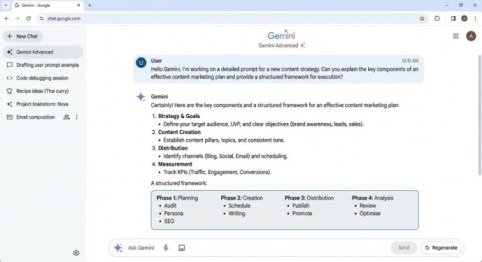
Google Gemini is not just another chatbot. It is a multimodal AI model built to understand text, images, audio, code, and documents — all at once. Unlike basic AI tools that only respond to text, Gemini processes multiple types of input simultaneously, giving it a significant edge for real-world tasks.
It is also deeply embedded into Google’s ecosystem — Gmail, Docs, Sheets, Slides, and Search — which means it does not just answer questions, it actively works inside the tools you already use every day.
1. Write Smarter Prompts — The #1 Google Gemini Tip
The single most impactful skill you can develop is prompt writing. Gemini responds to clarity, context, and structure. Vague questions get vague answers. Specific prompts get powerful results.
Weak prompt:
“Write something about marketing” Strong prompt: “Write a 500-word blog introduction for small business owners about Instagram marketing in 2025. Use a conversational tone and end with a call to action.”
Applying these Google Gemini tips and tricks from the very first prompt will save you massive amounts of editing time later. Always include: role, goal, format, tone, and length in your instructions.
2. Go Multimodal — Use Images, Files, and Voice
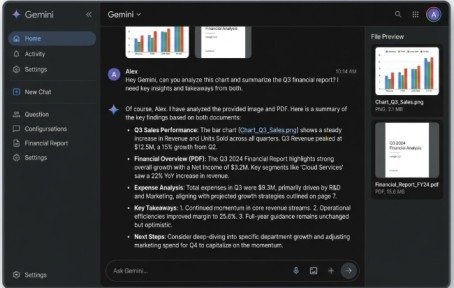
Most users only type text into Gemini. Big mistake. Gemini is built to handle images, PDFs, audio input, and more. Upload a photo, a chart, or a document and ask Gemini to analyze, summarize, or extract data from it.
Powerful use cases:
- Upload a screenshot of a business report and ask for a summary
- Share a photo of a whiteboard and convert it into structured notes
- Attach a PDF contract and ask Gemini to highlight the key clauses
- Use voice input on the mobile app for hands-free assistance
This multimodal capability is one of the most underused Google Gemini tips and tricks in the entire toolset.
3. Integrate Gemini Deeply with Google Workspace
One of Gemini’s biggest competitive advantages is its native integration with Gmail, Google Docs, Sheets, and Slides. This is where it genuinely saves hours of work every single week.
In Gmail:
Ask Gemini to draft replies, summarize long email threads, or generate follow-up messages in seconds.
In Google Docs:
Generate full drafts, rewrite paragraphs, change tone, or create outlines from bullet points.
In Google Sheets:
Ask Gemini to write complex formulas, clean messy data, or create charts automatically.
In Google Slides:
Turn a rough outline into a complete presentation with structured slides and speaker notes.
To activate these features, open any Google Workspace app and look for the Gemini icon in the sidebar or toolbar.
4. Master Chain Prompting for Complex Projects
For complicated or multi-step tasks, never try to get everything done in a single prompt. Use chain prompting — break your task into stages and build on each response.
Example workflow:
- Ask Gemini to create a detailed outline for a business proposal
- Ask it to expand each section one by one
- Ask it to adjust the tone for a specific audience (investors, clients, etc.)
- Ask it to write an executive summary based on everything above
This layered approach is one of the most effective Google Gemini tips and tricks for professionals who need polished, high-quality outputs rather than rough drafts.
5. Use Gemini Advanced for Deep Research and Analysis
Gemini Advanced, powered by Google’s most capable Ultra model, is built for complex reasoning, deep research, and multi-step problem solving. It handles nuanced topics, long documents, and technical analysis far better than the standard version.
If you are a researcher, developer, marketer, or analyst, upgrading to Google One AI Premium to access Gemini Advanced is genuinely worth the investment. The difference in output quality is significant.
6. Control the Format and Tone Every Time
Gemini adapts its writing style entirely based on your instructions. The more control you give it, the better the result. Never leave format and tone to chance.
Examples of tone and format instructions:
- “Explain this concept as if I am a complete beginner”
- “Write this in a formal, professional tone suitable for a corporate audience”
- “Give me the output as a numbered list with bold headings”
- “Keep this under 150 words and make it punchy”
- “Rewrite this paragraph to sound more confident and authoritative”
Knowing how to control Gemini’s output format is one of those Google Gemini tips and tricks that separates casual users from power users.
7. Use Gemini as Your Personal Coding Assistant
Developers and non-developers alike can benefit massively from Gemini’s coding capabilities. It writes, reviews, debugs, and explains code across Python, JavaScript, HTML, CSS, SQL, and many more languages.
Practical coding prompts:
- “Find the bug in this Python function and explain what went wrong”
- “Refactor this JavaScript code to be more readable and efficient”
- “Write a SQL query that pulls all orders from the last 30 days grouped by customer”
- “Explain this code to me line by line in simple English”
Even if you are not a developer, Gemini can help you automate spreadsheets, build simple scripts, and understand technical documentation without a coding background.
8. Use Gemini on Mobile for On-the-Go Productivity
The Gemini mobile app for Android and iOS puts the full power of AI in your pocket. You can speak to it using voice input, share images directly from your camera, and use it as a replacement for Google Assistant.
To set Gemini as your default assistant, go to your phone’s assistant settings and switch from Google Assistant to Gemini. Once enabled, you can access it with a long press of the home button or a voice trigger — making it available anywhere, anytime.
9. Create Custom Gems for Repeated Tasks
Gemini allows you to create custom “Gems” — personalized AI versions tailored to specific roles or tasks. You can create a Gem that always responds as a marketing expert, a legal advisor, a fitness coach, or a coding tutor.
This feature eliminates the need to re-explain your context every single time you start a new conversation. Set it up once and Gemini remembers the role, tone, and instructions for every future session. This is one of the most time-saving Google Gemini tips and tricks available today.

10. Combine Gemini with Google Search for Real-Time Results
Unlike many AI tools that are limited by a training data cutoff, Gemini integrates with live Google Search. This means you can ask it about current events, recent news, latest prices, or updated statistics and actually get accurate, real-time information.
Simply ask Gemini a question that requires current data and it will pull from live search results, cite sources, and summarize findings in a clear, readable format. This makes it far more reliable than AI tools that operate in isolation from the web.
Final Thoughts
Google Gemini is one of the most capable AI assistants available today — but only if you know how to use it properly. By applying these Google Gemini tips and tricks consistently, you can cut your workload in half, produce better quality work, and automate the repetitive tasks that drain your energy every day.
Start with one tip, apply it today, and build from there. The more you practice these Google Gemini tips and tricks, the faster and smarter your workflow becomes.
Frequently Asked Questions (FAQs)
Q1: What is the best way to start using Google Gemini for beginners?
Start with simple, specific prompts and gradually explore features like image uploads, Google Workspace integration, and voice input. The key is to be clear and detailed in your instructions.
Q2: Is Google Gemini free to use?
Yes, the standard version of Google Gemini is free. Gemini Advanced, which offers more powerful capabilities, is available through a Google One AI Premium subscription.
Q3: Can Google Gemini replace Google Assistant?
Yes. You can set Gemini as your default assistant on Android devices, replacing Google Assistant with a far more capable and conversational AI.
Q4: How is Google Gemini different from ChatGPT?
Gemini is deeply integrated into Google’s ecosystem (Gmail, Docs, Search) and supports real-time web results. ChatGPT is developed by OpenAI and has its own strengths in creative writing and coding. Both are powerful, but Gemini has a clear advantage for Google Workspace users.
Q5: What are Gems in Google Gemini?
Gems are customized versions of Gemini that you configure for specific roles — such as a marketing expert, writing coach, or customer support agent. They save time by remembering your preferred context and instructions automatically.
Meta Description
Discover the most powerful Google Gemini tips and tricks to boost your productivity, write better prompts, and unlock AI features most users never find.
- What Makes Google Gemini Different from Other AI Tools?
- 1. Write Smarter Prompts — The #1 Google Gemini Tip
- 2. Go Multimodal — Use Images, Files, and Voice
- 3. Integrate Gemini Deeply with Google Workspace
- 4. Master Chain Prompting for Complex Projects
- 5. Use Gemini Advanced for Deep Research and Analysis
- 6. Control the Format and Tone Every Time
- 7. Use Gemini as Your Personal Coding Assistant
- 8. Use Gemini on Mobile for On-the-Go Productivity
- 9. Create Custom Gems for Repeated Tasks
- 10. Combine Gemini with Google Search for Real-Time Results
- Final Thoughts
- Frequently Asked Questions (FAQs)
- Meta Description