
Google Drive is simple, but it is also very powerful. Many people use it only to store files. However, it can do much more than that. If you learn the right tools, you can save time and work faster. That is why understanding Google Drive Features is so important today.
In fact, many users miss helpful options that are already built in. As a result, they take more time to complete simple tasks. On the other hand, when you know these features, your work becomes easier and smoother. So, learning the best Google Drive Features can truly improve your daily productivity.
Moreover, Google Drive is not just for storage. It helps you organize files, share documents, and even work without internet. Therefore, in this article, you will discover smart and useful Google Drive Features that you should start using today.
Why Google Drive Is More Than Just Storage
Google Drive is often seen as a place to save files. However, it is much more than that. It is a complete workspace where you can manage, share, and edit files easily. In addition, it connects with other tools to make your work faster.
Because of this, learning advanced Google Drive Features helps you stay organized. It also allows teams to work together without confusion. So, instead of using it only for storage, you should use it as a productivity tool.
Top Google Drive Features You Should Use Daily
Google Drive may look simple, but it has many powerful tools. Using them can make your work faster and easier. You can manage files, save time, and stay organized without stress. These features are easy to learn and can improve your daily workflow significantly. Below are the best features explained in a simple way.
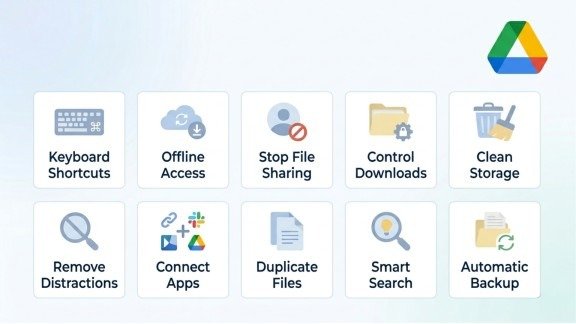
1. Speed Up Work With Keyboard Shortcuts
Keyboard shortcuts save time and effort. You do not need to click repeatedly, which makes your workflow smooth. They also reduce mistakes caused by too many clicks.
For example, press Shift + U to upload files, Shift + I to upload folders, or “?” to see all shortcuts. Using these shortcuts regularly makes managing files much faster and more convenient.
2. Access Files Without Internet
Even if the internet is slow or unavailable, you can still open and edit files offline. This ensures your work never stops and you stay productive anywhere.
Just turn on offline mode in settings, and your files will always be accessible. You can edit documents and spreadsheets just like when online, which makes offline work seamless.
3. Stop Unwanted File Sharing
Unwanted files can clutter your Drive and make it hard to manage. Blocking such users saves you time and keeps your workspace organized.
Go to “Shared with me”, right-click the file, and select block user. This feature helps prevent spam and keeps your Drive focused only on important files.
4. Control Who Can Download Your Files
You may want to share files but restrict others from downloading or copying them. This protects sensitive information and prevents misuse.
Turn off download, copy, and print options, or set sharing limits. It allows you to share files safely without worrying about unauthorized access.
5. Clean Up Storage Space Easily
Drive storage can fill up quickly. Regularly cleaning large or unused files ensures smooth performance. It also makes finding important files easier.
Sort files by size and remove unnecessary shared items. Maintaining your storage regularly prevents Drive from slowing down and keeps it organized.
6. Remove Distractions From Homepage
Suggested files sometimes distract you from your work. Turning them off creates a clean, focused workspace and improves productivity.
Go to settings and disable suggested files. This lets you focus on important projects without getting sidetracked by unnecessary suggestions.
7. Connect Useful Apps
Google Drive integrates with many other apps, allowing you to perform more tasks in one place. It saves time and makes your workflow smoother.
Use tools for editing PDFs, signing documents, or managing tasks. These integrations turn Google Drive into a powerful hub for all your work needs.
8. Duplicate Files Instantly
Making a copy of any file is simple and saves repeated effort. You can create backups or make changes without affecting the original file.
Right-click the file and select “Make a copy.” This feature is especially helpful when working on similar projects or sharing templates with others.
9. Use Smart Search Filters
Finding files manually takes time. Smart search filters help locate files instantly and make working more efficient.
Search by name, type, date, or owner to find what you need quickly. This reduces frustration and ensures important files are never lost in your Drive.
10. Backup Your Devices Automatically
Google Drive can back up your phone and computer, keeping all important files in one safe place. It ensures your data is always protected.
Store photos, videos, and documents, and restore them if needed. Automatic backup gives peace of mind and prevents data loss in case of accidents.
Extra Tips to Use Google Drive Better
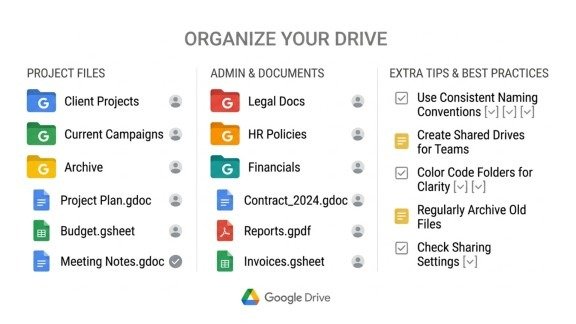
To get the best results, you should follow some simple practices:
- Organize files into folders
- Use clear file names
- Share files with correct permissions
- Clean storage regularly
In addition, using these tips with Google Drive Features will improve your workflow even more.
How These Features Improve Productivity
Using these features together makes a big difference. First, you save time. Second, your work becomes more organized. Finally, you avoid mistakes and confusion.
For example:
- Shortcuts speed up tasks
- Search filters find files fast
- Backup keeps data safe
As a result, these Google Drive Features help both individuals and teams work better.
Conclusion
Google Drive is more than just a storage tool. It is a complete solution for managing your digital work. However, many people still do not use its full potential, which means they miss out on useful tools.
By using these powerful Google Drive Features, you can improve your workflow, save time, and stay organized. In addition, these tools help you work smarter, not harder. They also make it easier to manage files and work with others.
So, start using these Google Drive Features today. Once you do, you will notice a big change in your productivity and efficiency. Over time, your work will become faster, easier, and more organized without extra effort.
FAQs
1. What are the most useful Google Drive Features for beginners?
The most useful Google Drive Features for beginners include file sharing, offline access, and smart search, as they help users manage and find files easily.
2. How do Google Drive Features improve productivity?
These Google Drive Features save time by reducing manual work, helping users organize files better and complete tasks faster.
3. Which Google Drive Features help in file security?
Security-based Google Drive Features include permission control, blocking users, and disabling download or copy options to protect data.
4. How can Google Drive Features help in teamwork?
With sharing options and collaboration tools, Google Drive Features allow teams to work together in real time without confusion.
5. Why should you learn advanced Google Drive Features?
Learning advanced Google Drive Features helps you use the platform fully, making your work more efficient and well-organized.
Meta Description
Discover 10 powerful Google Drive Features to boost productivity, manage files easily, improve security, and work smarter with simple tips.