
Your most valuable content gets zero traffic because Google never indexed it—and you had no idea this was happening until you checked your indexing reports.
Understanding what indexing reports are in Google Search Console and how to use them prevents this exact problem. Indexing reports show precisely which pages Google successfully added to its search index, which pages it excluded, and the specific technical reasons behind each exclusion decision. Without regularly reviewing these reports, you operate blind to whether Google can actually find and rank your content.
Most website owners only discover indexing problems after traffic mysteriously drops or important pages never generate visits despite excellent content. By that point, weeks or months of potential traffic vanished while pages sat excluded from Google’s index. Proactive indexing report monitoring prevents these losses by catching problems early when fixes take minutes instead of discovering them late when recovery takes months.
This comprehensive 2026 guide reveals what indexing reports are in Google Search Console, why they matter more than ever for SEO success, how to interpret every page status category correctly, and practical step-by-step processes for fixing common indexing problems that block your content from search results.
What Are Indexing Reports in Google Search Console?
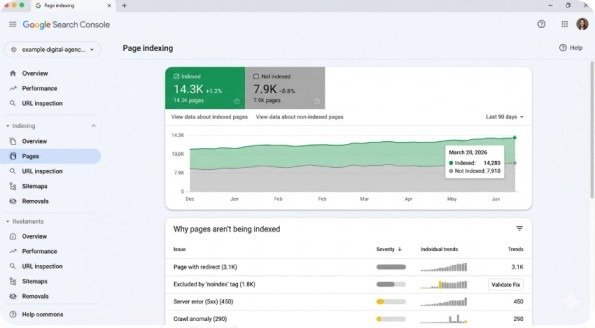
Indexing reports in Google Search Console show the complete status of every URL Google discovered on your website. These reports categorize pages into two main groups: pages Google successfully indexed and pages Google excluded from its search index.
The primary indexing report, called “Pages” in the current Google Search Console interface, appears under the “Indexing” section in the left sidebar. This report displays:
Total indexed pages: URLs Google added to its search index and can show in search results Total excluded pages: URLs Google discovered but chose not to index Specific reasons for each status: Technical explanations for why pages received their current categorization Trend data over time: Historical view showing how your indexing status changed
The report groups pages by status reason rather than listing every individual URL, making it easier to identify patterns. If 50 pages share the same exclusion reason, you likely have a systematic problem requiring a single fix rather than 50 separate issues.
Why Indexing Reports Matter in 2026
In 2026, indexing reports carry heightened importance for three critical reasons that didn’t exist in previous years.
AI Search Requires Indexed Content
Google’s AI Overviews and AI-powered search features can only cite and reference content that exists in Google’s search index. When pages show “Discovered – currently not indexed” or “Crawled – currently not indexed” in your indexing reports, AI search systems cannot access your expertise either. You lose visibility in both traditional organic results and AI-generated answer summaries.
Mobile-First Indexing Demands
Google uses the mobile version of your pages as the primary version for indexing and ranking decisions. Indexing reports reveal mobile-specific problems—pages that work perfectly on desktop but fail mobile usability checks get excluded. Without checking these reports regularly, you miss critical mobile indexation failures.
Crawl Budget Optimization
Large websites with thousands or millions of pages must optimize how Google spends its limited crawl budget. Indexing reports show whether Google wastes crawl budget on low-value pages while missing high-value content. This visibility enables strategic robots.txt and meta robots adjustments that direct Google toward indexing your best content first.
Understanding Page Status Categories
When you review indexing reports in Google Search Console, pages fall into several distinct status categories. Understanding what each status means determines appropriate action.
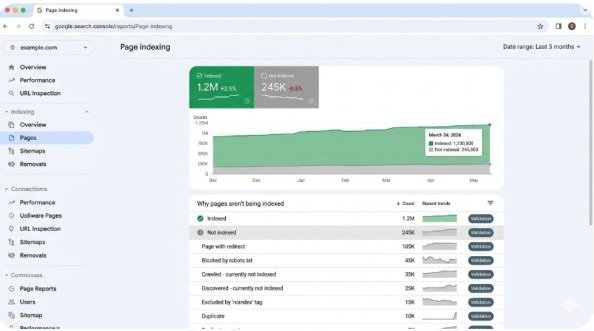
Indexed Pages (Green Status)
These pages successfully passed Google’s quality evaluation and appear in the search index. Google can display them in search results when relevant queries occur. This represents the goal state for all important content.
Not Indexed – Discovered Currently Not Indexed
Google found these URLs (through sitemaps, internal links, or external links) but decided not to index them. This status typically signals quality concerns—Google determined the page doesn’t add sufficient value compared to existing indexed content on the topic. Common causes include thin content, duplicate information, or pages providing minimal unique value.
Not Indexed – Crawled Currently Not Indexed
Google actively crawled these pages but after evaluation chose not to index them. This status differs from “Discovered” because Google actually retrieved and analyzed the content rather than just knowing the URL exists. It represents a stronger quality signal—Google examined the content and determined it doesn’t merit inclusion.
Not Indexed – Blocked by Robots.txt
Your robots.txt file explicitly prohibits Google from crawling these URLs. This status is intentional if you deliberately blocked pages, but becomes problematic if important content got accidentally blocked through overly aggressive robots.txt rules.
Not Indexed – Page with Redirect
The URL redirects to another location using 301, 302, or meta refresh redirects. Google follows the redirect and indexes the destination URL instead. This status is expected for intentional redirects but indicates problems if pages redirect unintentionally.
Not Indexed – Soft 404
The page returns a 200 OK status code but displays content indicating the page doesn’t exist (like “No results found” or “Page not found” messages). Google interprets this as a missing page despite the incorrect status code. Fix by returning proper 404 status codes for genuinely missing content or adding actual content to pages Google misidentified.
Not Indexed – Duplicate Content
Google identified another version of this page it considers canonical. The excluded page represents a duplicate that Google chose not to index in favor of the preferred version. Expected for paginated content, URL parameter variations, or legitimate duplicates. Problematic if Google selects the wrong version as canonical.
How to Use Indexing Reports Effectively
Knowing what indexing reports show matters less than knowing how to act on the data they provide.
Weekly Indexing Health Checks
Review your Pages report weekly to catch new problems early. Check whether indexed page counts dropped unexpectedly—sudden decreases indicate technical problems, algorithm changes affecting your content quality, or accidental robots.txt/noindex additions. Monitor whether excluded page counts increased dramatically—spikes suggest content quality issues or technical configuration problems affecting multiple pages simultaneously.
Investigate Specific Status Reasons
Click individual status reasons in the report to see affected URLs. For “Discovered – currently not indexed” pages, evaluate whether the content truly provides unique value. Thin pages deserve exclusion, but valuable content showing this status requires content expansion, additional unique insights, stronger internal linking, or external backlink building to signal value to Google.
For “Blocked by robots.txt” pages, review your robots.txt file to confirm blocks are intentional. Accidentally blocked important content requires robots.txt corrections followed by resubmitting pages for indexing.
Use URL Inspection Tool for Details
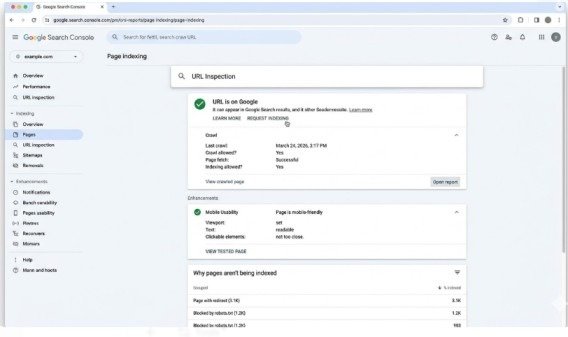
Select individual URLs from status reason lists and click “Inspect URL” to access detailed diagnostic information. The URL Inspection tool shows exactly what Google saw when crawling, what rendered content looks like, whether mobile usability passes, and specific technical issues preventing indexation.
This granular view helps diagnose why Google excluded specific pages and what changes would enable indexation.
Submit Fixes for Indexing
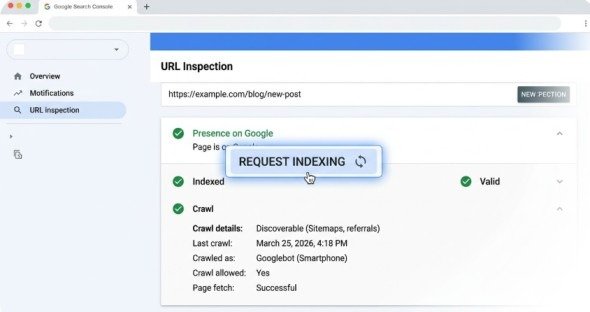
After correcting issues preventing indexation—adding content, removing noindex tags, updating robots.txt, fixing redirects—request re-indexing through the URL Inspection tool. This prioritizes pages for recrawling rather than waiting for Google to naturally rediscover changes during standard crawl cycles.
Common Indexing Problems and Solutions
Problem: Important Pages Show “Discovered – Currently Not Indexed”
Solution:
Add substantial unique content to pages, create strong internal links from high-authority pages, earn external backlinks from relevant sites, or combine multiple thin pages into comprehensive resources.
Problem: Indexed Page Count Doesn’t Match Total Pages
Solution:
Investigate excluded page reasons to determine if exclusions are intentional (duplicate pages, admin pages, login pages) or problematic (valuable content accidentally excluded). Fix problematic exclusions while accepting intentional ones.
Problem: Mobile Pages Not Indexed While Desktop Versions Are
Solution:
Use URL Inspection tool’s mobile view to identify mobile-specific rendering problems, ensure mobile viewport tags are correct, verify mobile content matches desktop content, and fix mobile usability errors shown in Page Experience reports.
Conclusion
Understanding what indexing reports are in Google Search Console and how to use them transforms passive SEO monitoring into active optimization. These reports provide direct visibility into Google’s indexation decisions, revealing which content successfully entered the search index and which pages face exclusion alongside specific reasons explaining each status.
The Pages report, accessed through the Indexing section in Google Search Console’s left sidebar, delivers this critical intelligence. Weekly reviews catch problems early before they accumulate into major traffic losses. Systematic investigation of excluded pages—especially “Discovered – currently not indexed” and “Crawled – currently not indexed” statuses—identifies content requiring quality improvements or technical fixes to earn indexation.
Start this week. Open your Google Search Console property, navigate to the Pages report, and audit your indexed versus excluded page counts. Investigate your top exclusion reasons, fix problems preventing valuable content from getting indexed, and establish a weekly indexing health check routine that prevents future losses before they impact traffic.
Frequently Asked Questions
How often should I check indexing reports?
Check weekly for websites publishing new content regularly. Check monthly for stable sites with infrequent updates. Never go longer than quarterly without reviewing indexing status.
Is it normal to have pages not indexed?
Yes. Every website has legitimately excluded pages—duplicate pages, admin sections, thank-you pages, URL parameter variations. The key is ensuring your important content gets indexed while accepting exclusion of low-value pages.
How long does indexation take after fixing problems?
Typically 2-7 days for pages you manually request indexing through the URL Inspection tool. Natural recrawling without manual requests can take weeks or months depending on page importance and crawl budget.
Meta Description
Learn what indexing reports are in Google Search Console and how to use them! Complete 2026 guide with page status explanations, fixing methods, and optimization strategies.