

Jessica unplugged her fully charged phone at 7 AM. By 10 AM—just three hours later—her battery showed 42%. She had not watched videos. No gaming sessions. Just routine messages and emails. Her phone felt warm in her pocket. Something was definitely wrong.
This frustration plagues millions of smartphone users daily. You charge overnight. Morning arrives with 100% battery. Lunch time? Already hunting for a charger. Evening plans? Canceled because your phone died.
Modern smartphones pack incredible power—but that power means nothing when your battery cannot make it through a single workday. The problem keeps getting worse as phones add more features, brighter screens, and constant background activity.
Here is the truth most people miss: battery drain rarely happens because your phone is old or defective. Hidden settings, sneaky apps, and overlooked system features silently consume power throughout the day. Most users never discover these culprits because they are buried deep in system menus.
This guide exposes every major battery drain source and provides clear fixes that actually work. Whether you use Android or iPhone, these solutions extend your battery life immediately—no complicated tech knowledge required.
If you are searching for a proven way to fix fast battery drain, this complete 2026 guide will show you step-by-step solutions that actually work.
Ready to reclaim your all-day battery? Let’s identify what is draining your power and stop it permanently.
How to Fix Fast Battery Drain on Your Phone (2026 Guide)
Before applying fixes, understanding the root causes helps you target solutions effectively.
Your Screen Consumes the Most Power
The display typically accounts for 40-50% of total battery usage. Bright screens, high refresh rates, and extended screen-on time create massive power demands that few batteries can sustain all day.
Background Apps Never Sleep
Dozens of apps run silently behind the scenes—refreshing content, checking for updates, syncing data, and pinging servers constantly. Each activity drains small amounts of power that accumulate into significant battery loss.
Network Connections Search Relentlessly
When your phone struggles to find strong cellular signals, WiFi networks, or Bluetooth devices, it increases transmission power trying to maintain connections. This aggressive searching burns through the battery rapidly.
System Updates Optimize Gradually
Major software updates temporarily increase battery consumption while your phone reindexes files, adjusts settings, and optimizes new features. This learning period can last 2-3 days after updating.
Battery Health Degrades Over Time
Lithium batteries lose capacity with every charge cycle. After 2-3 years of daily use, batteries typically retain only 80% of their original capacity—meaning your phone dies faster even with identical usage patterns.
Understanding these causes makes the following solutions more effective because you know exactly what you are fixing.
Fix 1: Reduce Screen Brightness and Display Settings
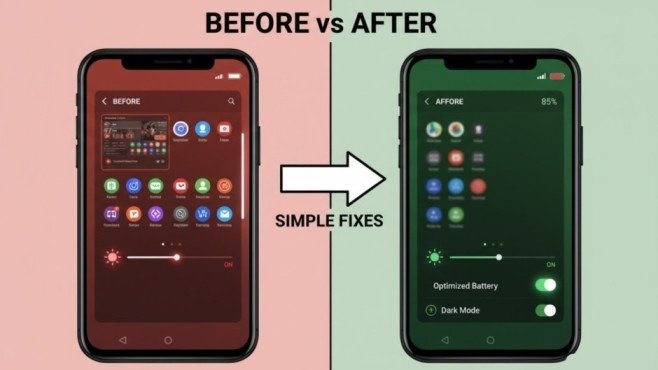
Your display single-handedly consumes more power than any other component. Small adjustments create massive battery improvements.
Lower Brightness Manually
Reducing screen brightness to 40-50% instead of maximum can extend battery life by hours. Most people keep brightness far higher than necessary for comfortable viewing.
Enable Adaptive Brightness
This feature automatically adjusts screen brightness based on ambient lighting. Bright outdoors, dim indoors—your phone optimizes itself without manual intervention.
Android: Settings > Display > Adaptive Brightness
iPhone: Settings > Accessibility > Display & Text Size > Auto-Brightness
Reduce Screen Refresh Rate
Many modern phones offer 90Hz or 120Hz displays for smoother scrolling. However, this smoothness costs battery life significantly.
Switch to 60Hz when battery conservation matters more than fluid animations.
Android: Settings > Display > Screen Refresh Rate
iPhone: (Automatic on most models—manual control limited)
Shorten Screen Timeout
Set your screen to turn off after 30 seconds of inactivity instead of 1-2 minutes. Those extra seconds multiply throughout the day into substantial battery savings.
Android: Settings > Display > Screen Timeout
iPhone: Settings > Display & Brightness > Auto-Lock
Fix 2: Control Background App Activity
Apps running invisibly in the background represent the hidden battery killers most users never notice.
Identify Battery-Draining Apps
Both Android and iPhone provide detailed battery usage statistics showing exactly which apps consume the most power.
Android: Settings > Battery > Battery Usage
iPhone: Settings > Battery
Review this list weekly. Apps appearing at the top deserve immediate attention.
Restrict Background Activity
Prevent non-essential apps from running when you are not actively using them.
Android: Settings > Apps > [Select App] > Battery > Background Usage > Restricted
iPhone: Settings > General > Background App Refresh > Off (or selective per app)
Keep background refresh enabled only for critical apps like messaging and email. Everything else can wait until you open it.
Uninstall or Disable Unused Apps
Apps you never use still consume resources periodically checking for updates and syncing data. Remove them completely.
Fix 3: Manage Location Services Smartly
GPS and location tracking drain batteries faster than almost any other feature—especially when multiple apps access location simultaneously.
Review Location Permissions
Many apps request location access when they do not genuinely need it. Games, shopping apps, and social media often function perfectly without knowing your exact coordinates.
Android: Settings > Location > App Permissions
iPhone: Settings > Privacy & Security > Location Services
Set unnecessary apps to “Deny” or “Ask Next Time” instead of “Allow Always.”
Use Location Only While Using the App
For apps that occasionally need location (like ride-sharing or maps), set permissions to “While Using” rather than “Always.”
This prevents continuous location tracking when apps sit closed in the background.
Disable WiFi and Bluetooth Scanning
Even with WiFi and Bluetooth turned off, your phone may continue scanning for nearby networks and devices to improve location accuracy. This scanning drains battery silently.
Android: Settings > Location > Location Services > WiFi Scanning (disable)
iPhone: (Automatic system behavior—limited manual control)
Fix 4: Optimize Network Connections
Wireless radios searching for signals consume significant power, especially in poor coverage areas.
Switch to Airplane Mode in Dead Zones
When stuck in areas with no cellular signal (basements, remote locations), your phone burns battery trying to connect. Enable Airplane Mode temporarily to stop this fruitless searching.
Prefer WiFi Over Mobile Data
WiFi connections typically consume less power than cellular data. When good WiFi is available, your phone should automatically prefer it—but verify this setting is enabled.
Limit 5G When Unnecessary
5G networks deliver incredible speeds but drain batteries noticeably faster than 4G LTE. If you do not need maximum speed, switch to LTE only.
Android: Settings > Network & Internet > SIM > Preferred Network Type
iPhone: Settings > Cellular > Cellular Data Options > Voice & Data
Disable Always-On WiFi and Bluetooth
Turn off WiFi and Bluetooth when you are not actively using them. Leaving them on permanently keeps your phone scanning constantly for available connections.
Fix 5: Update All Apps and Software
Outdated software often contains bugs and inefficiencies that waste battery power unnecessarily.
Install Latest Operating System Updates
Manufacturers regularly release updates optimizing battery performance and fixing known drain issues.
Android: Settings > System > System Update
iPhone: Settings > General > Software Update
Update All Apps Regularly
App developers continuously improve efficiency and fix battery-draining bugs. Keep everything current.
Android: Google Play Store > Menu > My Apps & Games > Update All
iPhone: App Store > Profile > Update All
After major system updates, allow 48-72 hours for optimization processes to complete. Initial increased battery drain normalizes after this adjustment period.
Fix 6: Enable Battery Saver Modes
Every smartphone includes built-in battery conservation modes that extend usage significantly when activated.
Android Battery Saver
Settings > Battery > Battery Saver
This mode reduces performance, limits background activity, lowers screen brightness, and disables visual effects.
iPhone Low Power Mode
Settings > Battery > Low Power Mode
Reduces mail fetch, automatic downloads, visual effects, and background app refresh.
Both modes sacrifice some performance and convenience, but keep your phone functional for hours longer when battery runs critically low.
Consider enabling these modes proactively at 50% battery rather than waiting until 20% when power is already critically limited.
Fix 7: Disable Unnecessary Notifications and Vibrations
Every notification that lights your screen or triggers vibration motors consumes power—and most notifications are not genuinely urgent.
Limit Push Notifications
Review which apps truly need to alert you immediately versus those that can wait until you open them.
Android: Settings > Notifications > App Notifications
iPhone: Settings > Notifications
Disable notifications for social media, games, promotional apps, and anything non-critical.
Reduce Vibration Usage
Vibration motors use more power than notification sounds. Consider switching to sound-only alerts or silent notifications that display without vibrating.
Android: Settings > Sound > Vibration & Haptics
iPhone: Settings > Sounds & Haptics
Fix 8: Manage Automatic Syncing
Continuous syncing of email, photos, contacts, and cloud files keeps your phone perpetually busy consuming battery.
Change Email Fetch Settings
Instead of push email that checks constantly, switch to manual or scheduled fetching (every 30 minutes or hourly).
Android: Email App > Settings > Account Settings > Sync Frequency
iPhone: Settings > Mail > Accounts > Fetch New Data
Disable Automatic Cloud Backups
Cloud photo and file backups can run continuously when enabled. Schedule these for overnight when charging instead.Android: Settings > Google > Backup
iPhone: Settings > [Your Name] > iCloud > Photos
Fix 9: Check for Rogue Apps and Malware
Malicious apps or poorly optimized software sometimes cause extreme battery drain that normal fixes cannot resolve.
Boot Into Safe Mode
Safe mode disables all third-party apps, isolating whether a downloaded app causes the problem.
Android: Hold Power Button > Long-press “Power Off” > Tap “Safe Mode”
iPhone: (Limited safe mode—restart usually sufficient)
If battery life improves dramatically in safe mode, a third-party app is definitely the culprit. Uninstall recently added apps one by one until drain stops.
Run Security Scans
Use reputable security apps to scan for malware that may run hidden processes draining battery.
Fix 10: Consider Battery Replacement
If all fixes fail and your phone is 2+ years old, the battery itself likely needs replacement.
Check Battery Health
Both platforms show the current battery maximum capacity compared to the original specifications.
Android: Settings > Battery > Battery Health (varies by manufacturer)
iPhone: Settings > Battery > Battery Health
If the maximum capacity shows below 80%, replacement significantly improves battery life. Most manufacturers and repair shops replace batteries affordably.
Advanced Tips for Maximum Battery Life
Avoid Extreme Temperatures
Heat and cold both damage batteries and reduce efficiency. Never leave phones in hot cars or freezing conditions.
Use Original or Certified Chargers
Cheap third-party chargers may damage battery cells over time through inconsistent power delivery.
Avoid Complete Discharge Cycles
Keep battery between 20-80% rather than fully draining to 0% or constantly charging to 100%. This practice extends overall battery lifespan significantly.
Restart Weekly
Restarting clears memory, terminates stuck processes, and often resolves temporary battery drain issues.
Conclusion
Jessica, from the beginning, applied these fixes systematically. She lowered brightness, restricted background apps, disabled unnecessary location services, and enabled battery saver at 60%. Her phone now easily lasts the entire day—often with 30% remaining by bedtime. You can achieve identical results. Fast battery drain almost always stems from fixable causes—not hardware failures requiring expensive repairs or new phones.
Start with the biggest battery consumers: screen brightness and background apps. These two changes alone extend most users’ battery life by several hours. Then systematically work through the remaining fixes based on your specific usage patterns.
Your phone’s battery can last all day. The power is already there—you just need to stop wasting it on unnecessary features and hidden processes. Take action today. Apply these fixes now. Enjoy reliable all-day battery life starting immediately.
Now you know exactly how to fix fast battery drain and keep your phone running all day without worrying about battery percentage.
Frequently Asked Questions
Why does my phone battery drain so fast suddenly?
Sudden battery drain usually results from recent app updates, system updates requiring optimization time, or new apps running aggressively in the background. Check battery usage statistics to identify the culprit.
Is 5% overnight battery drain normal?
Yes, 3-5% overnight drain is normal due to background system maintenance and processes. More than 10% indicates a problem needing investigation.
Should I close apps running in the background?
Modern phones manage background apps efficiently. Manually force-closing actually increases battery drain because apps must fully reload next time. Instead, restrict background activity through settings.
Does dark mode really save battery?
On OLED and AMOLED screens, yes—dark mode saves battery because black pixels turn completely off. On LCD screens, the effect is minimal.
How often should I charge my phone?
Charge whenever convenient, but try keeping the battery between 20-80% for optimal long-term health. Avoid letting it die completely or staying at 100% constantly.
Meta Description:
Phone battery dying fast? Discover proven fixes for rapid battery drain on Android and iPhone. Stop wasting power with our complete 2026 guide. Get an all-day battery now!