
Is Your Internet Slower Than It Should Be?
You’re in the middle of an important Zoom meeting — and suddenly your screen freezes.
You try to stream your favorite show — it buffers every 10 seconds.
Your file download says “2 hours remaining.”
Sound familiar?
In 2026, fast internet is not a luxury. It’s essential for work, study, streaming, gaming, and even smart home devices. But here’s the truth: in most homes, slow internet isn’t your ISP’s fault — it’s your setup.
The good news? You don’t always need to upgrade your plan.
In this step-by-step guide, you’ll learn exactly how to improve internet speed at home using practical, proven methods that actually work — even if you’re not tech-savvy.
Let’s fix your WiFi today.
Why Is Your Internet Slow at Home?
Before jumping into solutions, you need to understand the real causes.
Common reasons for slow internet:
- Weak WiFi signal
- Outdated router
- Too many connected devices
- Poor router placement
- Background downloads
- ISP throttling
- Network interference
- Old cables or firmware
Most people assume, “My internet package is slow.” But in reality, small optimizations can dramatically improve internet speed at home.
Step 1: Test Your Internet Speed First
Before making changes, measure your current speed.
You can test your internet speed using trusted online tools. Make sure you review your download, upload, and ping results carefully.
Use tools like:
- Speedtest.net
- Fast.com
- Google Speed Test
Check:
- Download speed
- Upload speed
- Ping (latency)
Compare results with your ISP plan.
If you pay for 50 Mbps but only get 10 Mbps, something is wrong.
Pro Tip:
Test using Ethernet (wired) and WiFi separately.
If wired speed is fast but WiFi is slow — the problem is your wireless setup.
Step 2: Restart Your Router (Yes, It Works)
This sounds simple, but it fixes many issues.
Restarting your router can solve many temporary issues. It refreshes the connection and clears internal memory overload.
How to do it properly:
- Turn off router and modem
- Wait 60 seconds
- Turn modem on first
- Then turn router on
- Wait 3–5 minutes
Restarting clears memory overload and refreshes your connection.
If you haven’t restarted in months — this alone can improve internet speed instantly.
Step 3: Place Your Router in the Right Location
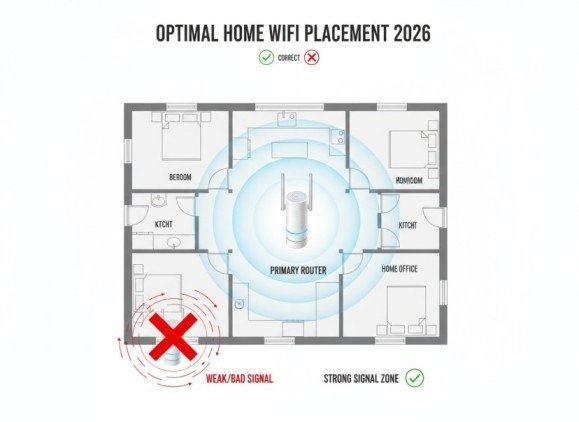
Router placement affects speed more than most people realize. Do not place your router in corners or closed spaces.
Avoid:
- Corners of the house
- Inside cabinets
- Behind metal objects
- Near microwaves
- Near thick concrete walls
Best placement:
- Central location
- Elevated position
- Open space
- Away from electronics
WiFi signals spread outward like waves. If your router is in one corner, half the signal is wasted outside the house. Move it to the center — you’ll see noticeable improvement.
Step 4: Upgrade to a Modern Router (2026 Ready)
If your router is 5+ years old, it’s likely limiting your speed.
If your router is old, it may be limiting performance. Upgrading to a modern WiFi 6 router can significantly improve speed.
In 2026, look for:
- WiFi 6 or WiFi 6E support
- Dual-band or tri-band
- MU-MIMO technology
- Beamforming
Old routers can’t handle multiple devices efficiently. Modern homes have 10–25 connected devices. If your internet speed at home is slow despite good ISP service, upgrading your router may double your performance.
Step 5: Switch to 5GHz Band
Most routers offer:
- 2.4 GHz (longer range, slower speed)
- 5 GHz (shorter range, faster speed)
If you’re near the router — use 5GHz.
It provides:
- Faster speeds
- Less interference
- Better streaming performance
For distant rooms, use 2.4GHz.
Smart tip: Rename bands separately so you can manually choose.
Step 6: Reduce Connected Devices
Every connected device consumes bandwidth. Too many connected devices can slow down your network. Disconnect unused devices to reduce congestion.
Check for:
- Smart TVs
- Security cameras
- Tablets
- Smart bulbs
- Background downloads
- Auto-updates
Even devices in standby mode may use internet.
To improve internet speed at home:
- Disconnect unused devices
- Turn off auto-updates during peak hours
- Pause cloud backups
You’ll instantly reduce network congestion.
Step 7: Use Ethernet for Heavy Usage
WiFi is convenient — but wired connection is faster and more stable. For heavy activities, use a wired Ethernet connection.
For:
- Gaming
- 4K streaming
- Online meetings
- Large downloads
Use Ethernet cable.
It reduces:
- Latency
- Packet loss
- Speed drops
Serious speed improvement often comes from going wired.
Step 8: Update Router Firmware
Outdated firmware can slow performance and cause bugs.
Log into your router:
- Type 192.168.1.1 in browser
- Check firmware section
- Update if available
Updates improve:
- Security
- Stability
- Speed performance
Many people ignore this — but it’s powerful.
Step 9: Change WiFi Channel
If you live in apartments, many routers overlap signals. Crowded WiFi channels cause interference. Network interference can reduce WiFi speed. Changing the WiFi channel may solve this issue.
Use:
- WiFi Analyzer app
Switch to less crowded channel. This alone can significantly improve internet speed at home in busy areas.

Step 10: Consider a Mesh WiFi System
Large house? Thick walls? Single router may not cover everything. Large homes often need better coverage. A mesh WiFi system can eliminate dead zones.
Mesh systems:
- Use multiple nodes
- Provide seamless coverage
- Eliminate dead zones
In 2026, mesh WiFi is one of the best upgrades for home internet speed improvement.
Step 11: Contact Your ISP (If Needed)
If your usage is high, consider upgrading your plan. Higher bandwidth supports multiple devices smoothly.
- Speed is consistently below promised rate
- Wired speed is slow
- Frequent disconnections happen
Contact ISP.
Ask about:
- Line issues
- Throttling
- Upgrading plan
- Fiber availability
Step 12: Upgrade Your Internet Plan (Last Option)
If you:
- Work from home
- Have multiple gamers
- Stream 4K content
- Use smart home devices
You may need higher bandwidth.
Recommended speeds in 2026:
- 50 Mbps → Small family
- 100–200 Mbps → Medium usage
- 300+ Mbps → Heavy streaming & gaming
But upgrade only after optimizing your setup.
Quick Checklist to Improve Internet Speed Fast
to 5GHz
- Disconnect unused devices
- Update firmware
- Use Ethernet
- Change WiFi channel
These steps alone fix 70% of home internet problems.
Conclusion:
Slow internet is frustrating — but in most cases, it’s fixable. You don’t always need to spend more money. You just need the right setup.
- Restart router
- Move router centrally
- Switch
By following this 2026 step-by-step guide, you now know exactly how to improve internet speed at home efficiently and intelligently.
- Start with small fixes.
- Test your speed.
- Upgrade only if necessary.
Your internet should work for you — not against you.
FAQ
How can I improve internet speed at home quickly?
Restart your router, move it to a central location, switch to the 5GHz band, disconnect unused devices, and update your router firmware. These simple steps can significantly boost home internet speed.
Why is my WiFi slow even though I have a fast plan?
Slow WiFi is often caused by poor router placement, outdated hardware, network interference, or too many connected devices—not your internet plan.
Does restarting the router improve internet speed?
Yes. Restarting clears temporary memory issues and refreshes the connection, which can fix speed drops and improve performance.
Should I upgrade my router to improve internet speed?
If your router is more than 4–5 years old, upgrading to a WiFi 6 or WiFi 6E router can greatly improve speed, coverage, and device handling.
Is Ethernet faster than WiFi?
Yes. Ethernet provides a more stable and faster connection with lower latency, making it ideal for gaming, streaming, and work calls.
How many Mbps do I need in 2026?
- 50 Mbps → Light usage
- 100–200 Mbps → Average family
- 300+ Mbps → Heavy streaming, gaming, smart homes
Meta Description
Improve internet speed at home in 2026 with this step-by-step guide. Learn proven tips to boost WiFi speed, fix slow connections, and optimize your setup fast.