
In 2026, keeping your smartphone updated is no longer just a recommendation—it’s a necessity. Android updates now prioritize security enhancements, performance optimization, and smarter system features that make your device more reliable and efficient. Many users still hesitate to install updates because they fear data loss or phone crashes, but knowing How to Update Android Phone Safely in 2026 removes these risks entirely.
This comprehensive guide on How to Update Android Phone Safely in 2026 breaks down every step in detail. It ensures that even beginners can follow the process without errors or confusion. By understanding the proper methods, you can avoid common issues like interrupted downloads, low storage errors, or system glitches that sometimes occur during updates.
Whether you’re using a Samsung, Google Pixel, or any other Android device, learning How to Update Android Phone Safely in 2026 guarantees smoother performance and better security. Keeping your phone updated not only protects your personal data but also unlocks new features and improves overall usability, making your smartphone faster and more reliable than ever.
Why Updating Your Android Phone Is Important in 2026
Android updates are designed to keep your phone safe, fast, and compatible with modern apps and services.
Security Protection
Every Android update includes security patches that fix newly discovered vulnerabilities. Without these patches, hackers can exploit your device and steal personal data such as passwords and banking information.
Performance Optimization
New updates improve how your phone manages memory, background apps, and battery usage. This results in faster app loading, smoother multitasking, and reduced lag over time.
Bug Fixes & System Stability
Software bugs can cause overheating, app crashes, or random reboots. Android updates fix these issues, making your phone more stable and reliable for daily use.
New Features & Improvements
Android updates introduce new features like better privacy controls, improved camera tools, and smarter AI-based functions that enhance user experience.
Things to Do Before Updating Your Android Phone
Proper preparation ensures your update process completes without errors or interruptions.
Charge Your Battery
Your phone should have at least 50% battery, but 75% or more is ideal. Updates consume power, and if the phone shuts down mid-update, it can damage the operating system.
Connect to a Stable Wi-Fi Network
Android updates are often large in size and require uninterrupted internet access. Using Wi-Fi prevents download failures and avoids excessive mobile data usage.
Free Up Storage Space
System updates need temporary storage to unpack files. Clearing unused apps, old photos, or cache files ensures the update installs smoothly without errors.
Back Up Important Data
Although updates usually don’t delete data, backups act as a safety net. If something unexpected happens, your photos, contacts, and files remain protected.
How to Check Your Android Version
Checking your Android version helps you know whether your phone is eligible for the latest update.
- Open Settings on your phone
- Tap About Phone
- Select Android Version
Here you can see your current Android OS, security patch level, and build number.
How to Update Android Phone Safely in 2026 (Step-by-Step Guide)
Follow these steps carefully to ensure a safe and successful Android update. Doing each step properly minimizes risks of errors, data loss, or system glitches during installation.
Step 1: Open Settings
- Open the Settings app on your phone
- Settings is the central hub for all system-level controls and updates
- Accessing the official Settings prevents accidental changes to system files
Opening the official Settings ensures you are using the correct system interface. This keeps your phone safe and prevents accidental changes that could cause errors during updates.
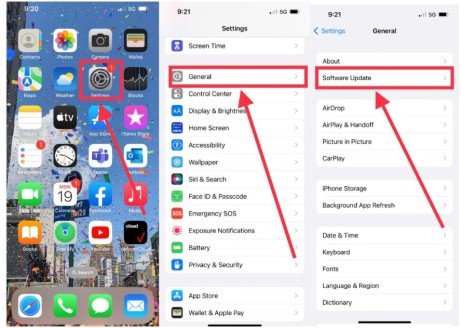
Step 2: Go to System or Software Update
- Open Settings on your phone
- Navigate to System → Software Update
- On Samsung and some other devices, tap Software Update directly
- This section checks for official, manufacturer-approved updates
The Software Update section connects your phone to the manufacturer’s secure servers. This ensures that only verified and safe updates are downloaded, reducing the risk of errors, malware, or system issues.
Step 3: Check for Updates
Tap Check for Updates to see if a new Android version or security patch is available. Your phone connects to the manufacturer’s server to find the latest official updates. This ensures you’re downloading safe, verified software.
Step 4: Review Update Details
Before downloading, read the update summary carefully. It lists new features, bug fixes, performance improvements, and security patches. Knowing what the update contains helps you prepare and ensures compatibility with apps.
Step 5: Download the Update
Tap Download and wait patiently while the system fetches the update. Avoid heavy app usage, streaming, or disconnecting Wi-Fi during this time. A stable connection ensures the download completes without corruption or interruption.
Step 6: Install the Update
- Once the download finishes, tap Install Now
- The phone will restart automatically several times during installation
- Multiple restarts are normal and part of the update process
- Do not press any buttons during installation
- Avoid using apps until the update is fully completed
During installation, the system updates core files in the background. Interrupting the process by pressing buttons or opening apps can cause update failure or system errors. Letting the phone complete the update on its own ensures a safe, smooth, and successful installation.
Step 7: Verify the Update
- After installation, open Settings
- Go to About Phone
- Check the updated Android version
- Confirm the latest security patch level
- Test key functions like Wi-Fi, Bluetooth, camera, and apps
Verifying the Android version and security patch confirms that the update was installed correctly. Testing basic functions ensures the system is stable and working smoothly, helping you identify and fix any issues early.
How to Update Android Security & Google Play System
Security updates protect your device from new threats even between major OS upgrades.
- Open Settings
- Security & Privacy
- Updates, then select Security Update or Google Play System Update.
Restart your phone if prompted.
Common Mistakes to Avoid During Android Updates
Updating without preparation can cause problems.
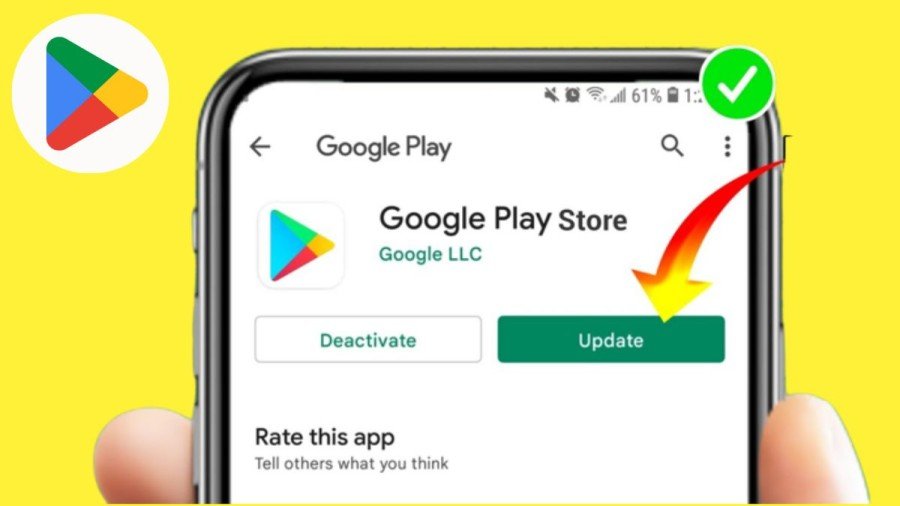
- Updating with low battery may corrupt system files
- Interrupting installation can cause boot issues
- Installing unofficial updates increases malware risk
- Skipping backups can lead to permanent data loss
Avoiding these mistakes ensures a smooth update experience.
What to Do If an Android Update Fails
Sometimes updates fail due to temporary issues such as weak internet connection, low storage, or background system errors. These problems are usually easy to fix and do not mean your phone is damaged. Follow the steps below carefully to resolve update failures safely.
Restart Your Phone
A simple restart can fix minor system glitches that interrupt updates. Restarting refreshes background processes and clears temporary memory issues that may stop the update from continuing. After restarting, check for the update again from the Settings menu.
Clear Cache Partition
Clearing cache removes corrupted temporary files that may block installation. Over time, cached system data can interfere with new updates. Clearing the cache partition does not delete personal data and often resolves update errors quickly.
Free Storage & Retry
Low storage often causes update failure, especially for major Android upgrades. Delete unused apps, old downloads, or large media files to create enough free space. Once storage is cleared, retry the update for a smoother installation.
Factory Reset (Last Option)
If nothing works, reset the phone after backing up data. A factory reset removes deep system errors that cannot be fixed by other methods. This step should only be used as a last option because it erases all data from the device.
When Do Android Updates Become Active?
On Google Pixel devices, updates install in the background and activate after restart. This means you can continue using your phone during installation without interruption. Once you restart the device, all new features, security patches, and system improvements become active.
Other Android phones activate updates once installation finishes and the phone reboots. In these devices, the update process usually pauses usage until installation is fully complete.
Expert Tips for Better Android Update Results
Updating apps after a system update ensures compatibility. This helps apps run smoothly with the latest Android version and prevents crashes or bugs.
Restarting the phone once helps stabilize the system. It refreshes background processes and improves overall performance after the update.
Keeping auto-updates enabled ensures you never miss critical security patches. This keeps your device protected and up to date without manual effort.
Conclusion
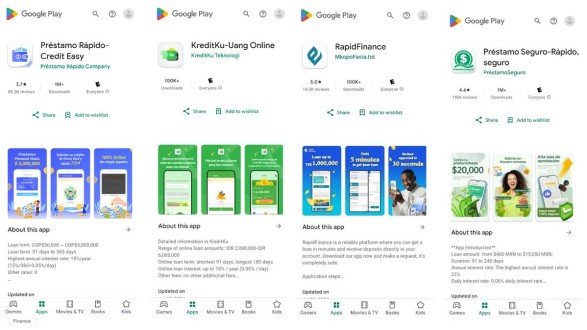
In today’s digital world, keeping your phone updated is essential for safety and performance. By following this complete guide on How to Update Android Phone Safely in 2026, you can avoid data loss, prevent system errors, and enjoy the latest Android features.
If you truly want a secure and smooth smartphone experience, make How to Update Android Phone Safely in 2026 a regular habit—not a risk.
FAQs
Is it safe to update Android in 2026?
Yes, Android updates in 2026 are designed to improve security, fix bugs, and boost performance. Installing updates protects your phone from malware, hacking risks, and system vulnerabilities.
Will updating Android delete my data?
Normally, Android updates do not remove apps, photos, or files from your device. However, creating a backup is recommended to stay safe in case of unexpected issues.
Why is my phone not receiving updates?
Older Android devices may no longer support the latest software versions. Update availability also depends on the manufacturer, model, and region.
Can I update Android using mobile data?
Yes, you can update using mobile data, but updates are usually large in size. Using Wi-Fi is safer, faster, and helps avoid high data charges.
Can I downgrade Android after updating?
Downgrading Android is complicated and often not officially supported by manufacturers. It may cause system errors, data loss, or void your phone’s warranty.
Meta Description
How to Update Android Phone Safely in 2026 with this step-by-step guide. Learn secure update methods, avoid data loss, and improve performance safely.
- Why Updating Your Android Phone Is Important in 2026
- Things to Do Before Updating Your Android Phone
- How to Check Your Android Version
- How to Update Android Phone Safely in 2026 (Step-by-Step Guide)
- How to Update Android Security & Google Play System
- Common Mistakes to Avoid During Android Updates
- What to Do If an Android Update Fails
- When Do Android Updates Become Active?
- Expert Tips for Better Android Update Results
- Conclusion
- FAQs
- Meta Description