
Accidentally deleting files from your PC can feel like losing a piece of your digital world. Whether it’s an important work document, cherished photos, or critical project files, losing data can be stressful and even panic-inducing. Fortunately, recovering deleted files from a PC is usually possible using various safe and effective methods. This comprehensive guide will take you step by step through all the ways to restore lost data, from the simplest solutions to advanced recovery techniques.
By the end of this article, you will not only know how to recover deleted files from your PC, but also how to prevent future data loss. We’ll cover simple recovery through the Recycle Bin, using Windows backup tools, leveraging professional file recovery software, accessing hidden files via Command Prompt, and restoring data from cloud backups.
1. Check the Recycle Bin
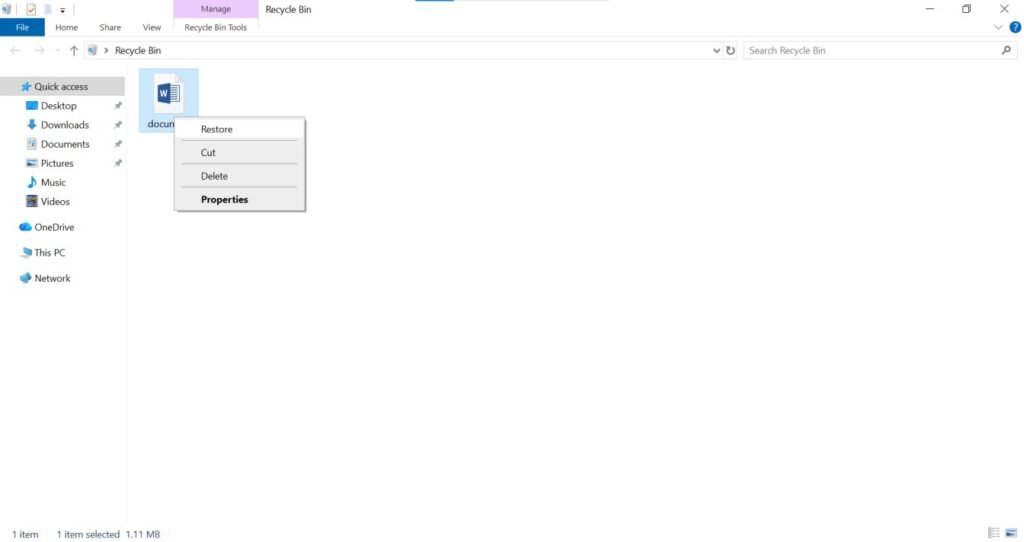
The first and easiest step in recovering deleted files is checking the Recycle Bin. When you delete a file normally (without using Shift + Delete), Windows does not remove it permanently. Instead, it moves the file to the Recycle Bin temporarily. This means that in many cases, you can restore your files within minutes.
Steps to restore files from the Recycle Bin:
- Locate and open the Recycle Bin icon on your desktop.
- Search for your deleted file. You can sort items by name, date deleted, file type, or size to find your file quickly.
- Right-click the file and select Restore. The file will return to its original location on your PC.
If you have emptied the Recycle Bin recently or used Shift + Delete, the file may not be available here. Always check immediately after deletion to increase your chances of recovery.
2. Use Windows File History or Backup
If your file isn’t in the Recycle Bin, Windows provides built-in tools like File History and Previous Versions. These features allow you to recover older files or versions that were accidentally deleted or overwritten.
Recovering Files Using Previous Versions
- Right-click the folder where the file was originally stored.
- Select Properties → go to the Previous Versions tab.
- Browse through the listed folder versions to locate the one containing your missing file.
- Select it and click Restore to recover the data.
Using File History
- Open Control Panel → System and Security → File History.
- Click Restore personal files to see a list of backed-up files.
- Browse the available backups, select the files you want, and click Restore.
File History must have been enabled before the file was deleted. If it wasn’t, this method will not have backups available. Using these Windows tools is safe, reliable, and requires no third-party software.
3. Use Professional File Recovery Software
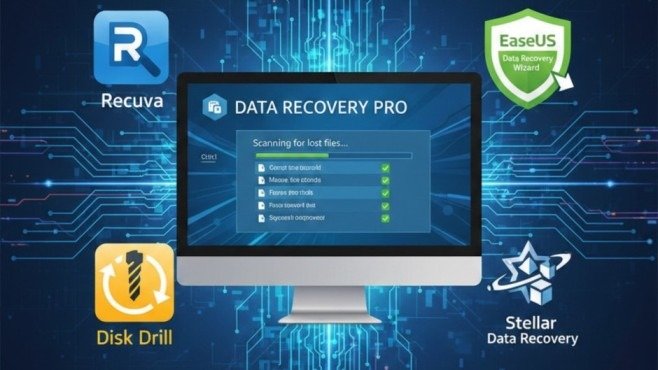
When files aren’t found in the Recycle Bin or backups, third-party file recovery software is usually the next best option. These programs scan your hard drive for deleted files that have not yet been overwritten.
Popular File Recovery Software
- Recuva – Free & Paid, Windows
- EaseUS Data Recovery Wizard – Windows & Mac
- Disk Drill – Windows & Mac
- Stellar Data Recovery – Windows & Mac
Steps to Recover Files Using Software
- Install the software on a different drive (never the one where the file was deleted).
- Launch the program and select the type of file you wish to recover (documents, images, videos, etc.).
- Choose the location from which the file was deleted.
- Run a scan and preview the recoverable files.
- Select the files, click Recover, and save them to a safe location.
Continued use of the same drive may overwrite deleted files, decreasing the likelihood of recovery. Always act quickly.
4. Recover Hidden Files Using Command Prompt (Advanced)
Some deleted files may not appear in the Recycle Bin or in folder views, but they might still exist on your hard drive. Advanced users can use Command Prompt to reveal hidden or system-protected files that may include lost data. This method is particularly helpful when files are accidentally marked as hidden, read-only, or system files.
Steps to Recover Hidden Files
- Press Windows + R, type
cmd, and press Enter. - Navigate to the folder where your files were located using the
cdcommand (e.g.,cd C:\Users\YourName\Documents). - Enter the command:
4.attrib -h -r -s /s /d *.*
This command displays hidden, read-only, and system files in the folder.
- Check the folder to see if your previously hidden files are now visible.
Incorrect commands can affect system files. Only use this method if you are comfortable with advanced Windows operations.
5. Recover Deleted Files from Cloud Storage Services
Cloud storage services such as OneDrive, Google Drive, and Dropbox automatically store your files online. When you delete a file from your PC, it may also be removed from your cloud account. However, most cloud services do not delete files permanently right away. Instead, they move deleted files to a special folder called Trash, Recycle Bin, or Deleted Files.
This feature works as an extra safety layer. It allows you to restore deleted files easily without using file recovery software.
Restore Deleted Files from OneDrive
OneDrive is Microsoft’s cloud storage service. If you use a Windows PC, your files may already be synced with OneDrive.
Steps to restore files from OneDrive:
- Open your web browser and go to the OneDrive website.
- Sign in with your Microsoft account.
- Click on Recycle Bin in the left-side menu.
- You will see a list of deleted files.
- Select the file you want to recover.
- Click the Restore button at the top.
The file will return to its original folder automatically.
Restore Deleted Files from Google Drive
Google Drive is one of the most popular cloud storage platforms, especially for Gmail users.
Steps to restore files from Google Drive:
- Open Google Drive in your browser.
- Sign in with your Google account.
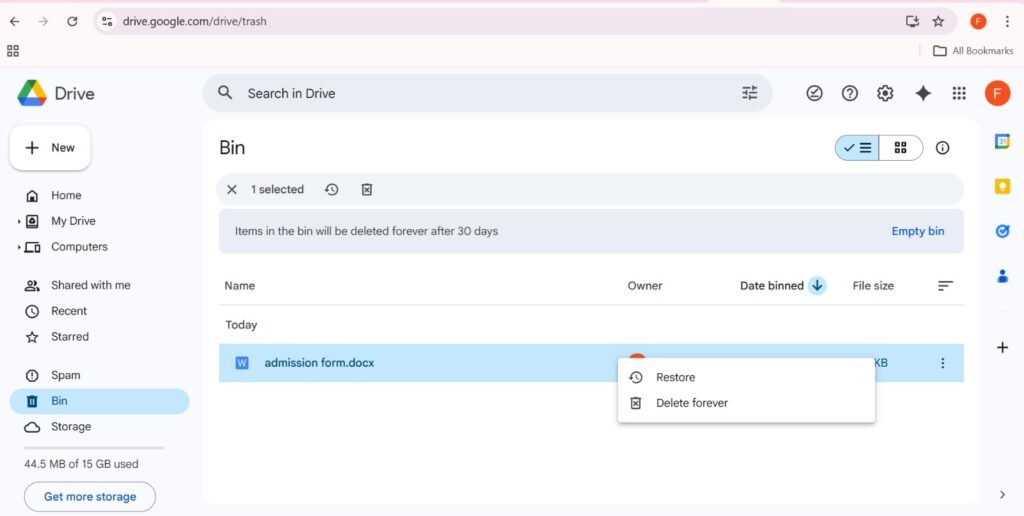
- Click on Trash (or Bin) in the left menu.
- Find the deleted file in the list.
- Right-click the file and select Restore.
After restoring, the file will go back to its original location in your Drive.
Restore Deleted Files from Dropbox
Dropbox is another widely used cloud storage service that offers automatic file backup and syncing.
Steps to restore files from Dropbox:
- Visit the Dropbox website and sign in to your account.
- Click on Deleted files from the left menu.
- Select the file you want to recover.
- Click Restore.
The file will be restored to its original folder in your Dropbox account.
How Long Do Cloud Services Keep Deleted Files?
Most cloud storage services keep deleted files for 30 to 90 days, depending on your account type. Free accounts usually have shorter recovery periods, while paid plans may offer longer retention times.
After this period, deleted files may be permanently removed and cannot be restored.
Important Tips for Cloud File Recovery
- Always sign in to the correct account before trying to restore files.
- Check the Trash or Deleted Files folder before using recovery software.
- Avoid manually emptying the Trash if you may need the files later.
- Make sure file syncing is enabled on your PC.
Why Cloud Storage Is Important for File Recovery
Cloud storage provides an extra backup for your important data. Even if files are deleted from your PC, you may still be able to recover deleted files from PC backups stored in the cloud.
Using cloud storage helps you:
- Protect important documents and photos
- Recover files quickly
- Reduce the risk of permanent data loss
Regularly saving files to cloud storage makes file recovery simple and stress-free.
6. Prevent Future Data Loss
The best way to make file recovery easier is to proactively protect your data. Using proper backup strategies and safe practices ensures you don’t face permanent data loss.
Tips to Protect Your PC Data
- Enable File History or Backup Tools: Automatically save copies of your files for easy recovery.
- Use Cloud Storage: Store important documents, photos, and project files in OneDrive, Google Drive, or Dropbox.
- Avoid Writing New Data Immediately: Deleted files remain on your drive until overwritten. Don’t save new files immediately after deletion.
- Install Reliable Antivirus Software: Protects against malware that can delete or corrupt files.
- Maintain External Backups: Keep critical files on external hard drives or USBs for extra protection.
Following these steps reduces the risk of permanent file loss and ensures recovery is faster and easier.
Conclusion
Recovering deleted files from a PC is possible when you follow the right steps. Many people think deleted files are gone forever, but in most cases, you can safely recover deleted files from PC using simple methods or advanced tools.
Always start by checking the Recycle Bin, because it is the fastest way to get your deleted files back. If the files are not there, you can use Windows backup tools like File History or Previous Versions to restore older or overwritten files. For files that are not backed up, trusted file recovery software can help you get them back. You can also restore files from cloud storage such as OneDrive, Google Drive, or Dropbox if they are available.
Act quickly after deleting a file. The sooner you try to recover lost data, the higher your chances of success. If new files overwrite the deleted ones, recovery can become very difficult or even impossible.
Combine these recovery methods with a strong backup plan. Regularly back up your documents, photos, and projects using cloud storage, external drives, or Windows backup tools. This reduces the risk of permanent data loss and gives you peace of mind.
With careful planning and the right techniques, you can safely and efficiently recover deleted files from PC every time.
FAQs
- Can permanently deleted files be recovered?
Permanently deleted files can often be recovered if they haven’t been overwritten using recovery software. - How long do deleted files stay on a PC?
Deleted files stay on your drive until new data overwrites them. - Can deleted files be recovered without software?
Deleted files can be restored using Recycle Bin, File History, or Previous Versions if backups exist. - Is it possible to recover Shift + Deleted files?
Shift + Deleted files can be recovered using recovery software or backup tools. - What is the best free file recovery software for PC?
Recuva is a popular free tool for recovering deleted files on Windows PCs.
Meta Description
Learn how to recover deleted files from PC with this complete step-by-step guide. Explore Recycle Bin recovery, Windows backup tools, professional file recovery software, and cloud storage restoration.