
A slow laptop can turn even simple daily tasks into a frustrating experience. You open your system, wait for it to boot, click on an app, and then wait again. Over time, this slow performance affects your productivity, focus, and even motivation. Many people assume that a slow laptop means it is old or damaged, but in most cases, that is not true.
The reality is that Windows 10 and Windows 11 laptops often become slow because of unnecessary background processes, wrong settings, or poor storage management. These issues build up gradually, which is why the laptop feels slower over time. The good news is that you can fix most of these problems without spending money or being a technical expert.
This complete guide will show you how to speed up a slow laptop in Windows 10 & 11 using simple, safe, and practical methods. Each step is explained in easy language so anyone can follow it. Start from the basics, move step by step, and bring your laptop back to smooth and reliable performance.
Why Your Laptop Becomes Slow Over Time
Before fixing the problem, it is important to understand why laptops slow down.
Over time, your system collects startup apps, temporary files, background services, and outdated drivers. Many programs automatically run when Windows starts, even if you do not use them daily. At the same time, storage space fills up, and Windows struggles to manage files efficiently.
On laptops with 8GB RAM or less, these issues become more noticeable. Windows 11, in particular, uses more system resources for visual effects and background features. As a result, performance drops even though the hardware is still capable.
Understanding this helps you focus on the right solutions instead of wasting time on unsafe tools or fake optimization software.
Disable Unnecessary Startup Programs
Startup programs are one of the biggest reasons for slow boot time.
When you install software, many apps add themselves to startup without asking. This means they start running as soon as you turn on your laptop, even if you do not need them immediately.
How to Disable Startup Apps
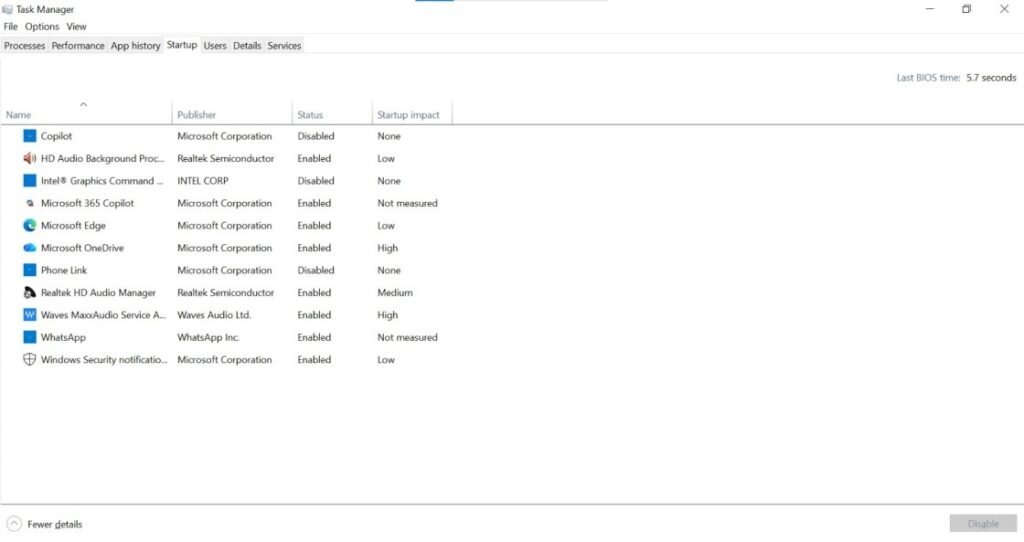
- Press Ctrl + Shift + Esc to open Task Manager.
- Click on More details if needed.
- Open the Startup tab.
- Disable apps you do not need at startup.
Keep essential programs like antivirus enabled. Disabling extra startup apps can significantly reduce boot time and improve overall speed.
Adjust Visual Effects for Better Performance
Windows 10 and 11 include animations, shadows, and transparency effects. These look nice but use system resources.
If your laptop is not very powerful, these visual effects can slow it down.
Steps to Reduce Visual Effects
- Search for Advanced system settings.
- Open it and click Settings under Performance.
- Select Adjust for best performance.
- Apply changes.
You can manually enable font smoothing if needed. Reducing visual effects makes your system feel faster instantly.
Free Up Disk Space Properly
Low disk space can seriously affect Windows performance.
Windows needs free space to store temporary files and manage updates. When your drive is almost full, everything slows down.
Clean Temporary Files
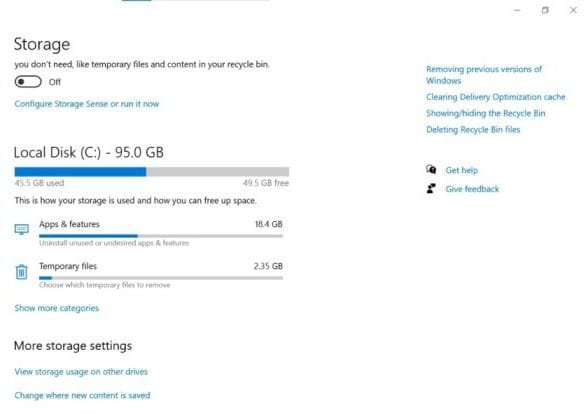
- Open Settings > System > Storage.
- Click Temporary files.
- Select unnecessary files and delete them.
Also check your Downloads folder. Many users have old files they no longer need. Freeing disk space improves speed and stability.
Change Power Mode to Best Performance
By default, Windows uses Balanced mode to save battery.
If you mostly use your laptop plugged in, this setting limits performance unnecessarily. Balanced mode is great for saving energy, but it can slow down demanding apps and games.
Switching to a higher performance mode ensures smoother multitasking and faster response.
Change Power Settings
- Go to Settings > System > Power & battery.
- Set Power mode to Best performance.
This helps your laptop use its full potential, especially during heavy tasks, and prevents lag during intensive workloads. Additionally, it can improve frame rates in games and speed up large file processing.
Stop Unnecessary Background Apps
Many apps keep running in the background even when you are not using them.
These apps consume RAM and CPU, slowing down your system and draining battery. Disabling background activity can make your device faster and more efficient.
Disable Background Permissions
- Open Settings > Apps > Installed apps.
- Select an app you rarely use.
- Go to Advanced options.
- Set Background permissions to Never.
This step frees memory, improves responsiveness, and helps your device run smoother.
Keep Windows and Drivers Updated
If your Windows or drivers are outdated, your laptop may become slow or unstable.
Old drivers can cause lag, system crashes, screen freezing, or hardware problems. Drivers are small software programs that help Windows communicate with your hardware, such as the graphics card, sound system, Wi-Fi, and keyboard.
If drivers are not updated, your hardware may not work at its best performance. Keeping your system updated improves speed, stability, and security.
How to Update Windows Safely
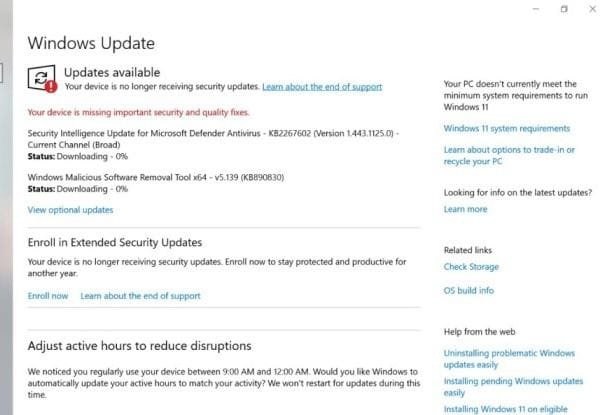
- Open Settings.
- Click on Windows Update.
- Select Check for updates.
- If updates are available, download and install them.
Windows updates often include security fixes, bug fixes, and performance improvements. Restart your laptop after installing updates to complete the process properly.
How to Update Graphics Drivers
If you play games or use heavy software like video editing tools, updating your graphics driver is very important.
- Visit the official website of NVIDIA, AMD, or Intel (depending on your graphics card).
- Download the latest driver for your model.
- Install it by following the instructions on the screen.
Avoid third-party driver updater tools. Many of them are unsafe and may install unwanted software or malware.
Reduce Windows Search Indexing
Windows keeps a service called search indexing running in the background. Its job is to make searching for files and folders faster.
However, this service uses CPU and memory even when you are not searching, which can slow down your laptop a little.
If you rarely use Windows search, you can turn off indexing to save system resources. This can make your laptop a bit faster, especially on older computers.
How to Disable Search Indexing
- Press Win + R on your keyboard and type services.msc, then press Enter.
- In the list of services, find Windows Search.
- Right-click it and set Startup type to Disabled.
- You can also click Stop to turn it off immediately.
Important: Only do this if you don’t use Windows search often, because turning it off will make searches slower. If you need to search for files quickly later, you can always turn it back on.
Disabling search indexing is a small trick that can save memory and CPU, helping your laptop run a bit smoother, especially when doing heavy tasks or running multiple programs.
Check for Malware and Security Threats
Sometimes your laptop becomes slow because of malware or unwanted programs.
These programs can use your CPU, memory, and internet, making your laptop lag.
- Run a full scan using Windows Security.
- You can also use Malwarebytes to check for extra threats.
Removing malware can make your laptop faster and stop it from crashing or freezing.
Fresh Start: Last Software Option
If nothing else works, a Fresh Start can fix deep system issues and remove software problems that slow down your laptop.
This method reinstalls Windows while keeping your personal files, giving your system a clean slate without losing important data. It’s especially useful if your laptop has accumulated a lot of clutter or persistent errors over time.
How to Reset Windows Safely
- Go to Settings > System > Recovery.
- Choose the option to reinstall Windows while keeping your files.
- Follow the on-screen instructions carefully.
Important Tips:
- Back up important data before starting, just in case.
- Make sure your laptop is plugged in during the process to avoid interruptions.
- After the reset, you may need to reinstall essential apps and updates.
A fresh system often runs like new, with faster boot times, smoother performance, and fewer errors. This step is usually the last but most effective solution when software tweaks and upgrades aren’t enough.
When Hardware Upgrade Is Necessary
Software fixes have limits.
If your laptop is very old, hardware upgrades may be the most effective way to boost performance. Even small upgrades can make a noticeable difference in speed and responsiveness.
Hardware Upgrades to Consider
- Upgrade RAM: Increases multitasking ability, allowing you to run more apps smoothly without slowing down.
- Switch to SSD: Drastically improves boot times, app load speeds, and overall system responsiveness.
- Consider a better CPU or GPU (if possible): For older laptops, this can help with demanding software and games.
These upgrades are often affordable, easy to install, and can extend the life of your laptop significantly. Investing in hardware improvements usually gives a far bigger performance boost than software tweaks alone.
Conclusion
A slow laptop does not always mean you need a new one. In most cases, performance issues happen because of startup programs, background apps, low disk space, outdated drivers, or unnecessary visual effects.
By following the steps in this guide, you can speed up a slow laptop in Windows 10 and Windows 11 without spending money. Start with basic fixes like disabling startup apps and cleaning temporary files. Then move to advanced steps like updating drivers or resetting Windows if needed.
If software optimization is not enough, upgrading to an SSD or adding more RAM can completely transform your laptop’s performance.
Regular maintenance keeps your system fast, stable, and reliable. With proper care, your laptop can run smoothly for years.
Frequently Asked Questions (FAQs)
- Why is my laptop slow even after startup?
Your laptop may still be running background apps, Windows services, or updates. Open Task Manager and check CPU and RAM usage to find heavy programs. - Will disabling startup programs harm my system?
No. Disabling non-essential startup apps is safe. Just keep important programs like antivirus enabled. - How much RAM do I need for smooth performance?
For Windows 10 and 11:- 8GB RAM is the minimum for smooth basic use.
- 16GB RAM is ideal for multitasking, gaming, or editing.
- Is it better to upgrade RAM or switch to SSD?
If your laptop still uses an HDD, upgrading to an SSD will give the biggest performance boost. After that, upgrading RAM helps with multitasking. - How often should I clean temporary files?
Cleaning temporary files once every 1–2 months is enough for most users.
Meta Description:
Learn how to speed up a slow laptop in Windows 10 & 11 with simple, safe, and practical methods. Improve performance, boost boot time, free disk space, and make your laptop run faster without spending money.
- Why Your Laptop Becomes Slow Over Time
- Disable Unnecessary Startup Programs
- Adjust Visual Effects for Better Performance
- Free Up Disk Space Properly
- Change Power Mode to Best Performance
- Stop Unnecessary Background Apps
- Keep Windows and Drivers Updated
- How to Update Graphics Drivers
- Reduce Windows Search Indexing
- Check for Malware and Security Threats
- Fresh Start: Last Software Option
- When Hardware Upgrade Is Necessary
- Hardware Upgrades to Consider
- Conclusion
- Frequently Asked Questions (FAQs)
- Meta Description: