
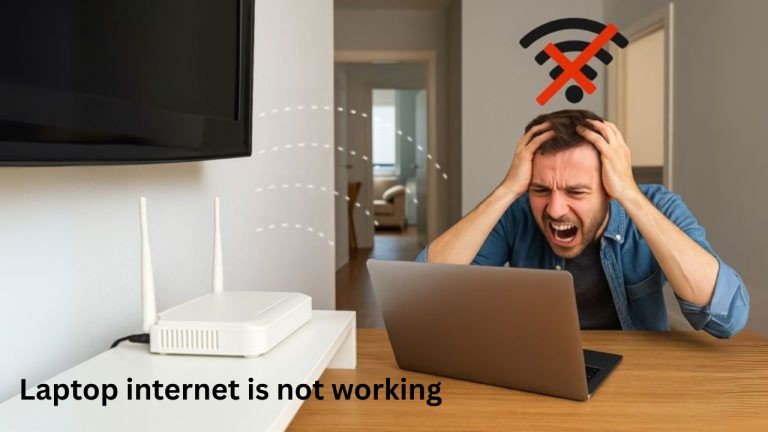
In today’s fast-paced digital world, the internet has become an essential part of daily life, but what if your laptop internet is not working? Students attend online classes. Professionals work from home. Freelancers depend on laptops to earn money This laptop network problem affects online classes, work, and daily tasks. Emails do not send. Meetings disconnect. Even simple browsing becomes difficult.
A stable internet connection is no longer a choice. It is a basic need. That is why, laptop internet problems feel very frustrating. The good news is that most internet issues on laptops are common. They are easy to understand and easy to fix.
You do not need expert skills or technical knowledge. Most of the time, you do not need a technician. Calm thinking and simple troubleshooting steps can solve the problem.
This article explains why laptop internet stops working and how to fix it easily. In most cases, the problem comes from laptop settings. Sometimes it is caused by the router, modem, or Internet Service Provider (ISP). Often, a restart or a small setting change fixes everything.
Understanding Laptop Internet Problems and Common Causes
When a laptop cannot connect to the internet, the reason is usually simple. The problem normally comes from one of these areas:
- Laptop settings or software
- Router or modem
- Internet Service Provider (ISP)
Small system changes can break the connection. Background apps also reduce performance. Outdated drivers can cause issues as well. Researchshows that system settings and running programs affect laptop internet speed. Finding the real cause is the first step to fixing the problem.
Top Reasons Why Your Laptop Is Not Connecting to Wi-Fi Properly
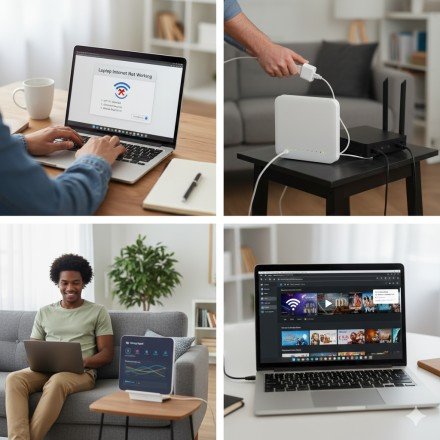
1.Wi-Fi Is Off or Airplane Mode Is On
This is the most common reason. Many users forget to check it.
If Wi-Fi is turned off, your laptop will not connect. If Airplane Mode is on, all network connections stop.
Simple Fix:
- Open network settings
- Turn Wi-Fi on
- Turn Airplane Mode off
- Use Fn + F2 if your laptop supports it
2.Temporary Network Errors
Routers and modems work for long hours. Power cuts can also affect them. This creates small errors that stop the internet.
Simple Fix – Restart devices in order:
- Turn off modem and router
- Wait 30 seconds
- Turn on modem and wait for lights to stabilize
- Turn on router
- Restart your laptop
This method fixes the problem in many cases.
3.Weak Wi-Fi Signal
Wi-Fi signals become weak with distance. Walls, doors, furniture, and metal objects block signals.
Weak signals cause slow internet and frequent disconnections. Pages load slowly or do not open at all.
Simple Fix:
- Move your laptop closer to the router
- Remove objects blocking the signal
- Keep router away from metal items
- Place the router in the center of the room
- Keep the router on a higher surface
4.Too Many Background Apps
Laptops run many apps at the same time. Some apps start automatically in the background without notice.
These apps use memory and internet data. They slow down your system and reduce internet speed. Video calls may freeze. Pages may load very slowly.
This problem is common on older laptops or when many browser tabs are open.
Simple Fix:
- Close unused apps
- Close extra browser tabs
- Pause background downloads
- Restart your laptop
- Keep only important programs open
5.Outdated Network Drivers
Drivers help your laptop connect to Wi-Fi hardware. Old or broken drivers cause internet problems.
which often cause laptop network problems and Wi-Fi connection failures.
Simple Fix:
- Open Device Manager
- Find Network Adapters
- Update Wi-Fi drivers
- Download drivers from official websites
6.Power Saving Mode Turns Off Wi-Fi
Battery saver mode reduces power usage. Sometimes it turns off Wi-Fi to save energy.
This causes sudden internet disconnection, especially on low battery. Wi-Fi may not reconnect automatically.
Simple Fix:
- Open Network Adapter settings
- Go to Power Management
- Disable Wi-Fi power saving option
- Save changes
- Restart the laptop
7.Anti virus or VPN Blocking Internet
Security software protects your laptop, but sometimes it blocks safe internet traffic by mistake.
Anti-virus or VPN apps may stop internet access, especially after updates. Websites may not load at all.
Simple Fix:
- Turn off antivirus or VPN temporarily
- Check internet connection
- Open a website
- Turn security tools back on
- Adjust settings if problem returns
Step-by-Step Laptop Internet Troubleshooting
I. Start with Basic Checks
Always begin with these steps:
- Check Wi-Fi is on
- Restart your laptop
- Restart modem and router
- Test internet on another device
If other devices work, the issue is with your laptop.
II. Laptop-Level Fixes
Run Network Troubleshooter
- Windows: Settings → Network → Troubleshoot
- Mac OS: Wi-Fi icon → Wireless Diagnostics
These tools automatically fix common issues.
Forget and Reconnect Wi-Fi
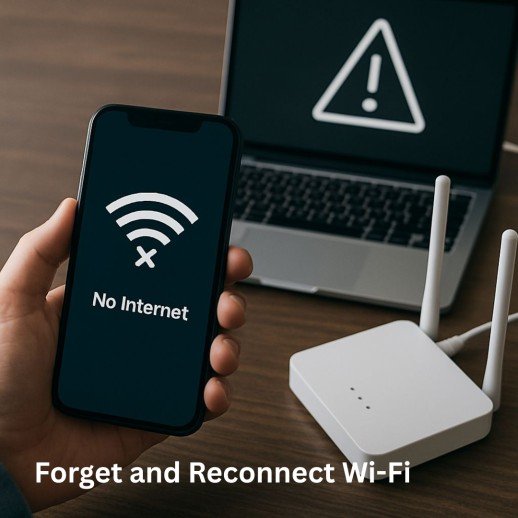
- Forget the saved Wi-Fi network
- Enter password again
- Reconnect
This refreshes the connection.
III. Advanced Fixes
Reset Network Settings (Windows)
Open Command Prompt as Admin and type:
- netsh winsock reset
- ipconfig /flushdns
Use a Wired Connection
Connect laptop to router using an Ethernet cable. If it works, Wi-Fi is the problem—not the internet.
IV. Router or ISP Problems
Sometimes the laptop is not the issue.
Signs:
- Router light turns red
- No device connects
- Internet drops frequently
Fix: Contact your Internet Service Provider (ISP).
Tips to Avoid Laptop Internet is not working
- Keep system updated
- Restart laptop weekly
- Avoid too many open apps
- Use official drivers only
- Keep laptop cool
These habits reduce internet issues.
Why Laptop Internet Problems Are Common

Modern laptops handle many tasks at once. Streaming, browsing, and online work overload the system. Over time, small errors build up and cause connection problems
Conclusion
When the laptop cannot connect to the internet, both work and daily life slow down. Meetings fail, browsing becomes difficult, and frustration increases. Most laptop internet problems are not serious.
They usually happen because of simple settings, temporary errors, or outdated drivers.
By checking Wi-Fi settings, restarting devices, and updating drivers, most problems can be fixed quickly. Following a step-by-step method saves time and reduces stress. With the right steps, you can restore a fast, stable, and reliable internet connection on your laptop.
FAQs
1.How to fix a laptop that won’t access the internet?
Restart your laptop and router first. Check Wi-Fi settings and update network drivers if needed.
2.What are the best software tools to diagnose laptop internet issues?
Windows Network Troubleshooter and mac OS Wireless Diagnostics are very useful. They fast find and fix common laptop internet problems.
3. Why is the internet not working on my laptop but works on other devices?
This usually means the problem is with laptop settings or drivers. Updating the network adapter often fixes this issue.
4.Can anti virus or VPN cause laptop internet problems?
Yes, security software can sometimes block internet access. Try disabling it in a few words to test your laptop internet connection.
5.How do I know if my router or ISP is causing the problem?
If no device connects to the internet, the issue is not your laptop. Check router lights or contact your Internet Service Provider.
Meta Description
Laptop internet is not working? Learn the main causes of laptop internet problems and discover easy, step-by-step solutions to restore a fast and stable internet connection.
- Understanding Laptop Internet Problems and Common Causes
- Top Reasons Why Your Laptop Is Not Connecting to Wi-Fi Properly
- Step-by-Step Laptop Internet Troubleshooting
- Tips to Avoid Laptop Internet is not working
- Why Laptop Internet Problems Are Common
- Conclusion
- FAQs
- 1.How to fix a laptop that won’t access the internet?
- 2.What are the best software tools to diagnose laptop internet issues?
- 3. Why is the internet not working on my laptop but works on other devices?
- 4.Can anti virus or VPN cause laptop internet problems?
- 5.How do I know if my router or ISP is causing the problem?
- Meta Description
- FAQs